Next week marks an exciting moment for gaming enthusiasts as "Ghost of Yōtei" makes its official debut on the PlayStation 5. This highly anticipated release has been generating buzz thanks to its engaging storyline centered around a quest for revenge, as well as the intriguing glimpses of gameplay shared through various promotional events such as the State of Play. Players can look forward to exploring the lush and rugged landscapes of Ezo, mastering a dynamic multi-weapon combat system, and navigating interactions with both allies and adversaries. Adding to the immersive experience is the game’s captivating soundscape, which has already been sampled and praised by many.
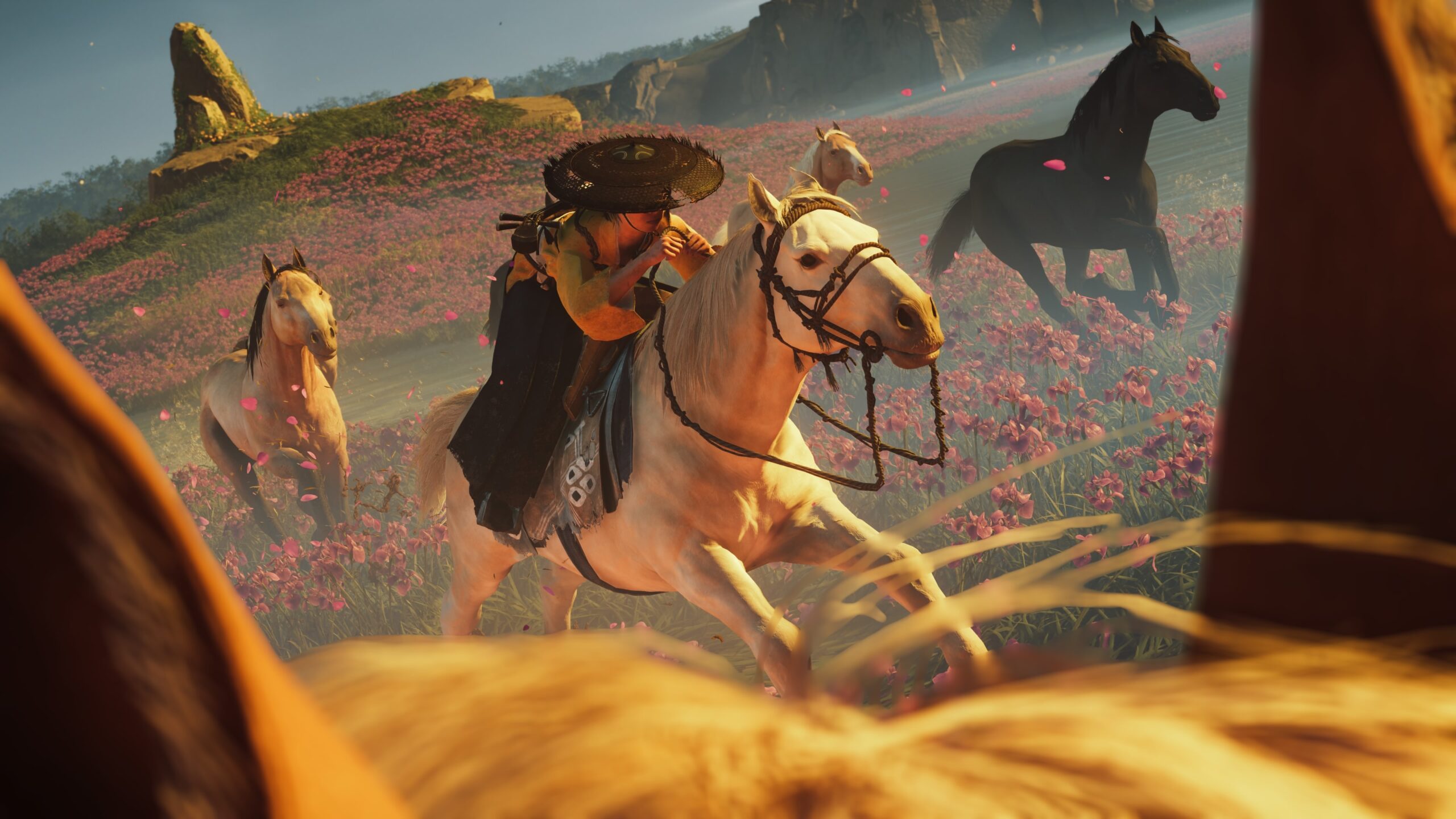
Today, we delve into one of the standout features of "Ghost of Yōtei"—its highly versatile Photo Mode. As with its predecessor, this feature offers players the ability to pause the action at almost any moment and manipulate various settings to craft stunning still photographs, evocative cinemagraphs, or even impressive tracking shots. Below, we explore the various tools and settings available in the game’s Photo Mode and offer some tips on how to capture the beauty of Ezo’s landscapes.
Exploring the Features of Ghost of Yōtei’s Photo Mode
"Ghost of Yōtei" provides a comprehensive set of tools to help players capture the essence of their journey through Ezo. Here’s a breakdown of some key features:
- Tracking Shot: Players can record up to 16 different camera positions for an animated tracking shot, activated with the Triangle button.
- Focal Length: Adjustable from 12mm to 300mm, allowing for a wide range of photographic styles.
- Depth of Field: Options range from off to f/1.2 – f/63, offering control over how much of the scene appears in focus.
- Focus Distance: Adjustable between 0.1m and 200m.
- Color Grading: A variety of presets, including Vivid, Black and White, and themed options like Samurai Red and Maple, allow for artistic expression.
- Color Grading Intensity: Adjustable from 0 to 100% for fine-tuning the effect.
- Exposure Bias: Ranges from -5.0 to 5.0, providing control over the brightness of the image.
- Contrast (Black/White): Adjustable between 1.0 and 3.0 to enhance image depth.
- Particles: Choose from various types, such as Cherry Blossoms or Ash & Embers, to add dynamic elements to your photos.
- Particle Intensity: Ranges from 0 to 100%, allowing control over the density of particles.
- Wind Speed and Direction: Wind can be adjusted from 0 to 44% speed and can be directed between 0 to 358 degrees.
- Clouds, Time of Day, and Weather: Customize the environment to suit your artistic vision.
- Animated Environment: Toggle on or off to decide if environmental elements should remain in motion.
- Character Emotes and Attire: Adjust Atsu’s emotional state and appearance to suit the scene.
- Aspect Ratio and Music: Options for different framing styles and background music, including Atsu’s Theme, add to the cinematic feel.
- Stamps: Overlay various stamp types onto your photos for added flair.
Getting Started with Photo Mode: A Beginner’s Guide
If you’re new to Photo Mode, here are some foundational tips to help you get started. While this guide isn’t an exhaustive tutorial on photography, it reflects key considerations for capturing the perfect shot. Experienced virtual photographers are encouraged to share additional tips in the comments.
Basics
- Activating Photo Mode: Easily accessed by tapping right on the D-Pad, this mode can be engaged at almost any point in the game, whether during exploration, combat, or when setting up a long-range shot.
- Reset Settings: You can revert individual settings within submenus or reset everything to default with the Square button. A confirmation prompt helps prevent accidental resets. Your last set of customizations will be saved even if you exit and re-enter Photo Mode.
- Auto-Focus: Toggle this feature on and off as needed for convenience.
Focal Length Recommendations for Different Shot Types
The camera in Ghost of Yōtei’s Photo Mode offers a range of focal lengths from 12mm to 300mm, accommodating nearly any photographic scenario. Here are some general guidelines for choosing the right focal length, though creativity often leads to the best results.
- Landscapes (24mm or below): Wide-angle shots capture the grandeur of Ezo’s landscapes.
- Portraits (35mm to 80mm): Use 35mm for environmental or "slice of life" shots, 50mm for headshots, and 80mm for full-body portraits with a narrow focus field to isolate the subject.
- Macro Shots (100mm and above): Perfect for zooming in on details or capturing distant moments closely.
Tips for Enhancing Your Shots
Explore Your Surroundings
After capturing your desired shot, take a moment to pan the camera around the environment. You might discover intriguing details like NPC interactions, wildlife, or alternate compositions for your photo.
Experiment with Natural Lighting
Take advantage of the game’s adjustable 24-hour cycle to see how different lighting conditions—such as the harsh midday sun or the warm tones of golden hour—impact your shot. Adjusting light can emphasize specific elements or create entirely new moods.
Animated vs. Still Camera
By default, the camera in Photo Mode is set to animated, allowing environmental elements like wind and birds to remain in motion for cinemagraph-style shots. Leverage the Particle option to introduce dynamic elements such as moving leaves or insects, and use the Wind Direction setting to control their flow.
Creative Color Grading
The extensive color grading options in Ghost of Yōtei allow for artistic expression. For example, using the Maple Color Grading desaturates all but red hues, highlighting details like scratches on a character’s hands. Experiment with different settings to find the perfect look for your photos.
Conclusion: Unleash Your Creativity
Ultimately, the magic of Photo Mode lies in how you combine these features to create a memorable image. Experimenting with color grades, exposure, and contrast can enhance key moments or inspire new creative directions. Remember, even a duel that doesn’t go as planned can become an artistic opportunity with the right adjustments.
Your chance to try out Photo Mode in "Ghost of Yōtei" begins on October 2. Keep an eye out for community challenges like Share of the Week to showcase your photographic prowess.
For more Information, Refer to this article.