













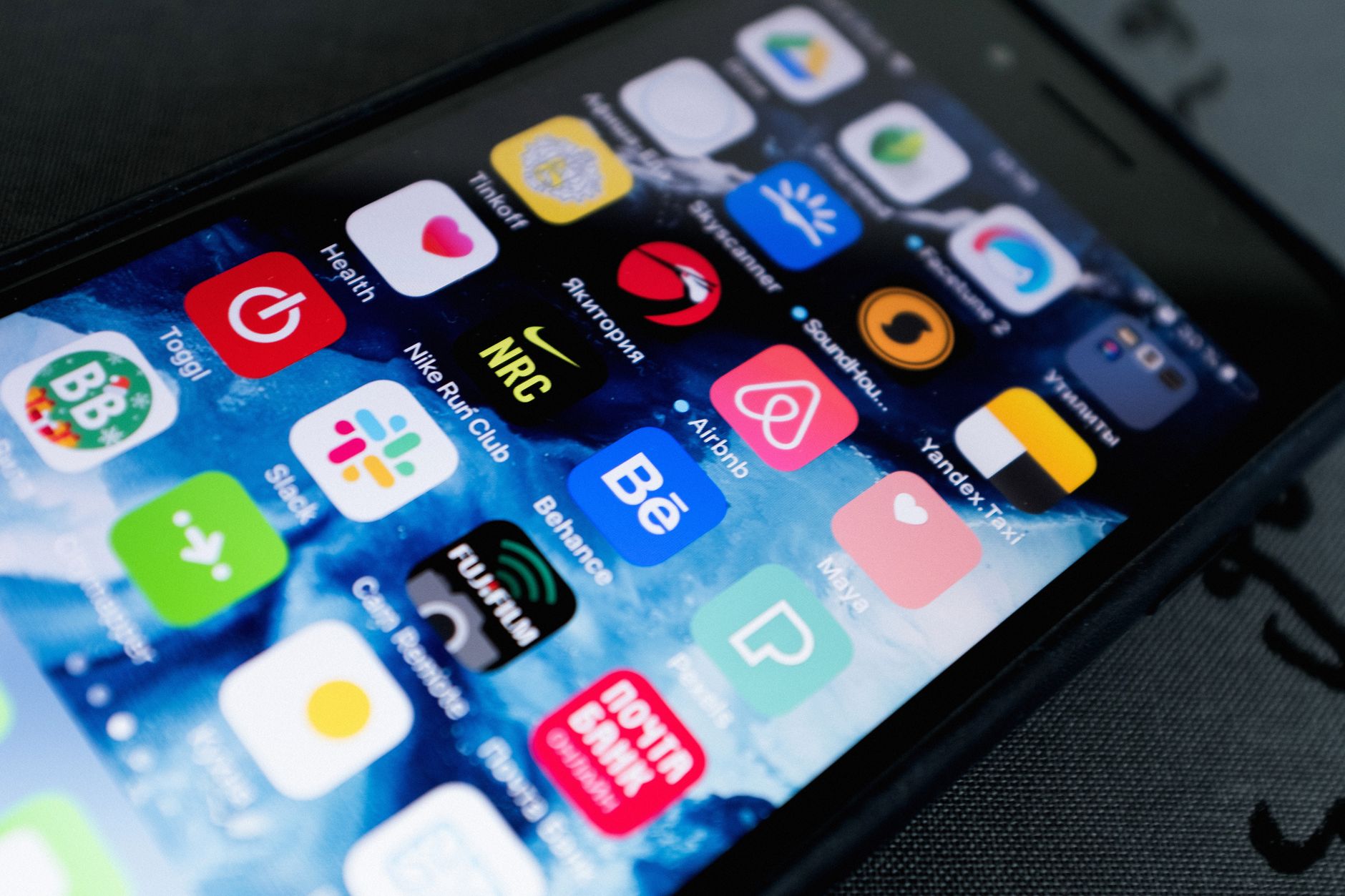
A fresh wave of concern is spreading across the Apple Support Community after iPhone users discovered just how much data native and third-party iOS apps can quietly access in the background. The discussion centres on a free auditing tool called Loupe, which surfaces the surprising amount of device information apps can read without an obvious permission prompt — things like your locale, installed keyboards, accessibility status, battery level, network type, and even what other apps are technically reachable. Users in the Apple Support Community report being shocked at how aggressive some seemingly harmless apps are, and they’re asking the obvious question: how do you actually control this on iOS 18 and the new iOS 26 beta?
This guide walks through what’s really happening, why iOS allows it, and the exact settings you should change today to shrink your privacy footprint on iPhone and iPad.
What Causes This Issue
iOS separates data access into two categories: permissioned APIs (camera, microphone, contacts, photos, location) that always require an explicit prompt, and non-permissioned device signals that any installed app can read by default. The second category is where most of the surprise lives.
When you launch an app, it can legally query dozens of attributes without notifying you. These include:
- Device model, iOS version, and language/region settings
- List of installed keyboards (a known fingerprinting vector)
- Accessibility features you have enabled, such as VoiceOver or Reduce Motion
- Current battery level and charging state
- Network type (Wi-Fi vs cellular) and carrier information
- Available disk space and total RAM
- Whether specific third-party apps are installed, via URL scheme probing
- Pasteboard contents in some legacy implementations
Apple introduced Required Reason APIs in 2024, forcing developers to declare why they read certain signals. However, declaration is not the same as blocking, and many of these calls still happen silently. Users in the Apple Support Community correctly point out that the App Privacy labels in the App Store only describe what developers self-report — not what the app is technically capable of reading.
The root cause, then, isn’t a bug. It’s the default permissiveness of iOS combined with weak enforcement of self-reported privacy disclosures.
Step-by-Step Fixes
Work through these in order. Each step closes a specific data leak.
- Audit permissions per category. Open Settings, tap Privacy & Security, then go through Location Services, Contacts, Photos, Microphone, Camera, Bluetooth, Local Network, and Motion & Fitness one at a time. Set anything you don’t actively use to Never or Ask Next Time.
- Lock down Photos access. For every app that requests photo access, choose Limited Access and pick only the specific images that app needs. Full library access lets apps read EXIF metadata including GPS coordinates from every photo you’ve ever taken.
- Restrict Local Network scanning. Settings > Privacy & Security > Local Network. Disable this for any app that isn’t a smart-home controller, casting tool, or printer utility. Local Network access lets apps map every device on your Wi-Fi.
- Disable Tracking entirely. Settings > Privacy & Security > Tracking. Turn off Allow Apps to Request to Track. This blocks the IDFA (Identifier for Advertisers) handoff used for cross-app profiling.
- Turn off Significant Locations. Settings > Privacy & Security > Location Services > System Services > Significant Locations. Clear history and disable. While this is local, accidental backup exposure is the bigger risk.
- Switch Location to Approximate. For apps that genuinely need location, toggle off Precise Location. Weather, news, and shopping apps function fine with approximate data.
- Block Pasteboard sniffing. iOS already alerts you when an app reads the clipboard, but you can stop it cold by avoiding copy/paste of sensitive content before opening third-party apps. Use the system password autofill instead.
- Enable App Privacy Report. Settings > Privacy & Security > App Privacy Report. Turn it on and let it run for a week. It will show you exactly which apps contacted which domains and how often they accessed sensors.
Additional Solutions
The settings above handle the headline issues. The following techniques harden your device further and address the more subtle fingerprinting concerns raised in the community thread.
Use Mail Privacy Protection. Settings > Mail > Privacy Protection. This hides your IP address and prevents senders from knowing when you opened a message — a major data leak in marketing emails.
Enable iCloud Private Relay. If you have iCloud+, turn on Private Relay under Settings > your Apple Account > iCloud. It masks your IP from Safari sites and trackers, which limits passive fingerprinting even when apps load embedded web content.
Hide My Email for every signup. Instead of giving real email addresses to apps, use the Hide My Email feature when registering. Burning a relay address is trivial if an app misbehaves.
Reset your Advertising Identifier. Even with tracking off, periodically reset the identifier under Settings > Privacy & Security > Tracking. This breaks long-term behavioural profiles.
Use Lockdown Mode selectively. If you handle sensitive work, Lockdown Mode (Settings > Privacy & Security > Lockdown Mode) blocks many attack surfaces and limits what data third parties can read, at the cost of some convenience features.
Delete dormant apps. Any app you haven’t opened in 90 days should go. Use Settings > General > iPhone Storage to identify candidates. Apple’s Offload Unused Apps option keeps documents but removes the binary, which also stops background data access.
Review Background App Refresh. Settings > General > Background App Refresh. Disable for any app you don’t need running silently. This prevents apps from polling device state when you aren’t actively using them.
Check the App Privacy Report for outliers. If a calculator app is contacting analytics domains thirty times a day, that’s a clear signal to delete it. The report is the single most useful diagnostic on iOS for this category of problem.
When to Contact Apple Support
Most privacy hardening doesn’t require a support call, but reach out to Apple if any of the following apply:
- You suspect an app is accessing data despite a permission being denied — this is a policy violation and Apple investigates reports through the Report a Problem link on the App Store listing.
- App Privacy Report won’t enable or shows no data after several days of normal use.
- You see persistent location indicator dots in the status bar when no app should be using location.
- You receive Apple’s Threat Notification warning about state-sponsored attackers, in which case Apple’s security team will guide you directly.
For App Store policy violations specifically, use Apple’s official reporting form rather than the general support line. Privacy complaints filed through the correct channel get reviewed by App Review, not generalist agents.
FAQ
Can apps really see my installed keyboards and accessibility settings? Yes. These are non-permissioned signals on iOS. The information is technically used for legitimate localisation and UI adaptation, but it also makes effective fingerprinting data.
Does turning off tracking actually stop apps from profiling me? It blocks the cross-app IDFA, but determined apps can still fingerprint using device signals. Combine tracking-off with iCloud Private Relay and Hide My Email for meaningful protection.
Is the App Privacy Report retroactive? No. It only logs activity from the moment you enable it. Turn it on now and check back in seven days.
Will Lockdown Mode break my banking or messaging apps? Most major apps work, but link previews, some attachments, and certain web features are restricted. Test it for a day before committing.
Does deleting an app remove all its data? It removes local data and revokes permissions, but anything already transmitted to the developer’s servers stays there. Always request data deletion through the app’s privacy policy contact before uninstalling sensitive apps.