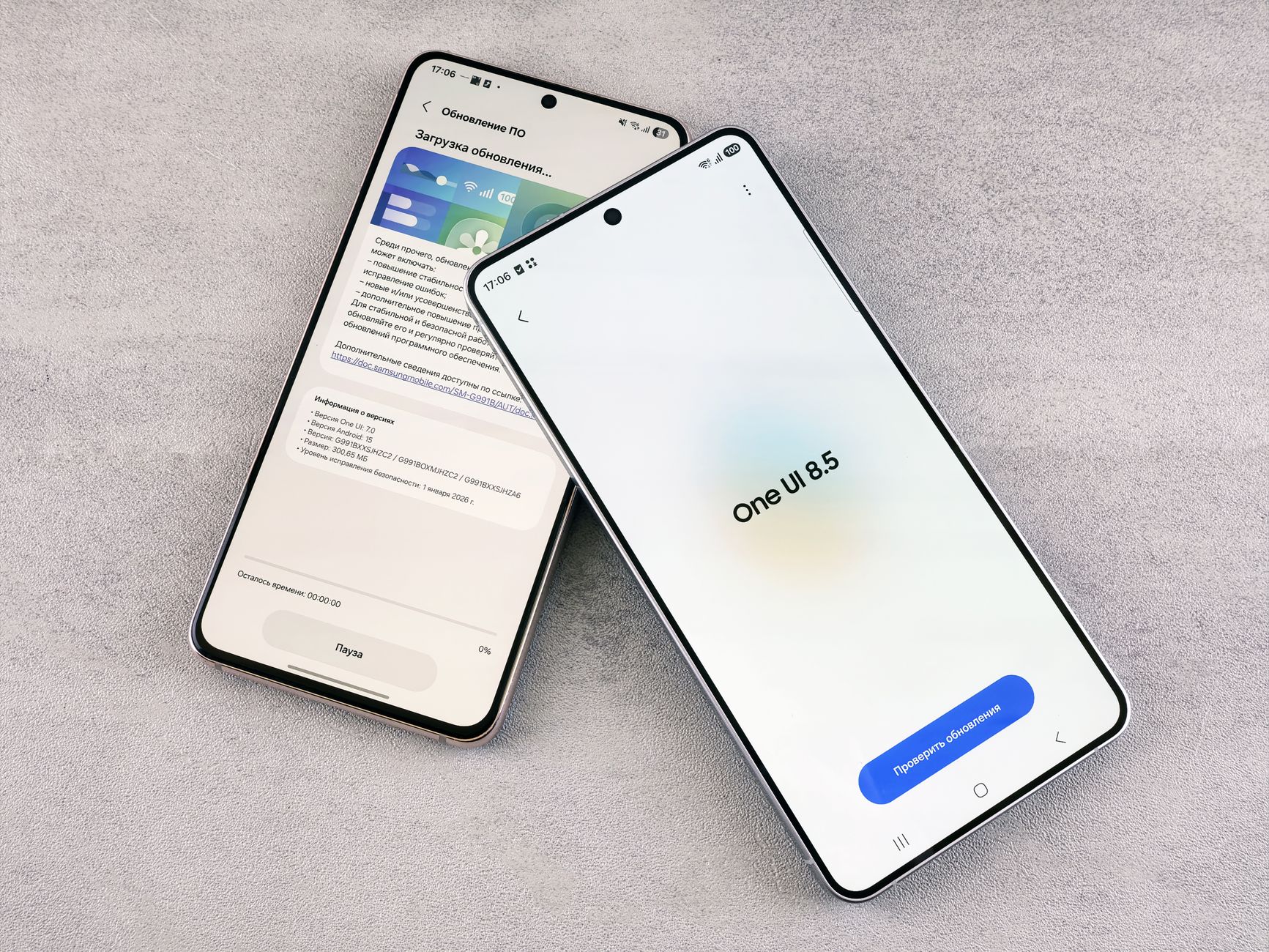
If you’ve been searching for the best Samsung One UI 8 tips to get more out of your Galaxy device, you’re in the right place. Samsung’s latest skin, built on top of Android 16, packs an impressive lineup of AI enhancements, refined multitasking tools, and deep customization options that most users never discover. Whether you just unboxed a Galaxy S25 Ultra or updated your older Galaxy device, this guide walks you through 15 practical, tested tricks that unlock real productivity gains. From gesture shortcuts to hidden AI toggles, these tips will change how you use your phone every day.
Why One UI 8 Is a Bigger Upgrade Than It Looks
On the surface, One UI 8 looks similar to One UI 7, but under the hood Samsung has rebuilt several core systems. The update introduces refreshed animations, smarter memory management, and tighter integration with Galaxy AI. It’s also the first version to fully embrace Samsung Android 16 features, including improved privacy dashboards and predictive back gestures.
Most users stick to defaults and miss what makes this release special. The real value lives in menus buried three or four taps deep. Once you know where to look, your device transforms from a stock experience into a genuinely personalized workstation.
Pro tip: Before diving into customization, back up your device settings via Settings > Accounts and backup > Samsung Cloud. If a tweak breaks something, you can restore in seconds.
Customization Tips to Personalize Your Galaxy
One UI 8 dramatically expands the personalization options Samsung introduced in earlier versions. The one UI 8 customization engine now covers lock screens, always-on displays, home screen grids, and even the color of system menus. Here’s how to make the most of it.
1. Design a Truly Custom Lock Screen
Long-press your lock screen to enter edit mode. You can now stack multiple widgets, resize the clock font dynamically, and assign different wallpapers to different lock screen profiles. Create separate lock screens for work and personal use, then swipe between them.
- Long-press the lock screen and tap the plus icon.
- Choose a wallpaper, then tap the clock to change style, color, and size.
- Tap the widget area to add up to six widgets in a stacked layout.
- Save and swipe left or right on the lock screen to switch profiles.
2. Enable the Hidden Icon Theming Engine
Go to Settings > Wallpaper and style > Color palette. Toggle on “Apply palette to app icons” to make every third-party icon match your wallpaper. It’s Samsung’s answer to Material You, and it works far better than most users realize.
3. Shrink the One-Handed Keyboard
On larger Galaxy phones, open Samsung Keyboard settings, tap Size and transparency, and drag the corners to create a floating, resizable keyboard. Perfect for commuting or one-handed replies.
Productivity Tips That Change How You Work
The best galaxy productivity tips in One UI 8 focus on multitasking and quick actions. Samsung has quietly added several shortcuts that Google’s stock Android still lacks.
4. Master the New Edge Panel Gestures
Edge Panels got a major upgrade. You can now assign different panels to different edges of the screen and trigger them with a two-finger swipe. Go to Settings > Display > Edge panels to configure app pairs, tools, and clipboard history in one place.
5. Use Split-Screen With a Single Swipe
Instead of navigating the recent apps menu, swipe up from the bottom with two fingers and hold. The current app will snap to the top half of the screen, and you can pick a second app for the bottom. This gesture works system-wide and is one of the most useful galaxy s25 tips and tricks for power users.
6. Pin Notifications to the Top
Long-press any notification and select “Pin to top.” Critical alerts—like a boarding pass or two-factor code—stay above everything else until you dismiss them. This works alongside Samsung’s smart notification grouping.
7. Enable Quick Share for Windows
One UI 8 finally makes Quick Share reliable between Galaxy and Windows PCs. Enable it in Settings > Connected devices > Quick Share. If you also use Windows for file transfers, our guide on fixing Windows 11 25H2 file sharing issues pairs perfectly with this workflow.
Hidden AI Features You’re Probably Not Using
Galaxy AI is the headline feature of this release, and it’s packed with tools most users never touch. These one ui 8 hidden features can save you hours each week.
8. Try the New Writing Assist Everywhere
Highlight any text in any app—including Chrome, WhatsApp, or Gmail—and tap the sparkle icon in the popup menu. You’ll get tone adjustments, summarization, and translation instantly. It works offline for supported languages on Galaxy S25 and newer devices.
9. Use Circle to Search for Math and Homework
Long-press the home button (or navigation bar) to activate Circle to Search. In One UI 8, it now solves math problems, translates handwritten notes, and identifies objects in videos. Try circling a physics formula in a PDF—you’ll get step-by-step solutions.
10. Activate the Voice Recorder Transcription
Open the Samsung Voice Recorder app, tap the three-dot menu, and enable “Speech-to-text.” Recordings now transcribe in real time and identify speakers. Exports include both audio and formatted text, which is invaluable for meetings and interviews.
11. Set Up Smart Suggestions on the Home Screen
Long-press an empty area of the home screen, tap Settings, and enable “App suggestions.” One UI 8 uses on-device AI to predict which app you’ll open next based on time, location, and Bluetooth connections. It’s eerily accurate after a few days of learning.
Privacy, Security, and Performance Tweaks
Samsung has strengthened privacy controls significantly in this release. If you care about who’s tracking you and what your apps can access, these settings deserve immediate attention.
12. Review the New Privacy Dashboard
Go to Settings > Security and privacy > Privacy dashboard. You’ll see a 24-hour timeline of every sensor and permission access. Tap any entry to revoke access instantly. Delete unused permissions to speed up your phone and reduce battery drain.
13. Enable Auto Blocker for Sideloaded Apps
Auto Blocker is now enabled by default, but it’s worth checking. Under Settings > Security and privacy > Auto Blocker, ensure “Block app installs from unauthorized sources” is on. It also scans USB connections and can prevent malicious commands from a compromised charger.
14. Set Up Passkeys for Passwordless Login
One UI 8 supports passkeys natively through Samsung Pass. Go to Settings > Security and privacy > More security settings > Samsung Pass to enroll. For a broader look at going passwordless across devices, see our tutorial on setting up passkeys on Windows 11 25H2.
15. Optimize Battery With Adaptive Charging Profiles
Under Settings > Battery > Charging, you can now set different charging speeds for different times. Choose “Protect battery” overnight (caps at 80%) and “Fast charging” during the day. This dual-profile approach can extend battery health by up to 30% over two years, according to Samsung’s own testing.
Warning: Some third-party password managers behave differently once passkeys are enabled. If you rely on one, check compatibility—our Bitwarden review for Android 16 covers what to expect.
Bonus: Troubleshooting Common One UI 8 Issues
Even with a polished release, some users encounter hiccups after updating. If Galaxy AI features feel sluggish or unresponsive, restart your device and clear the cache for the Samsung Intelligence service under Settings > Apps.
AI-related slowdowns aren’t unique to Samsung. If you also use Apple devices, our breakdown of fixing Apple Intelligence lag issues covers similar concepts that apply across ecosystems. For deeper diagnostic techniques, browse the full library of Android and cross-platform guides on the Hawkdive homepage.
If a specific app misbehaves after the update, boot into Safe Mode by holding the power button, then long-pressing “Power off” until the Safe Mode prompt appears. Third-party apps are disabled, letting you pinpoint the culprit.
Frequently Asked Questions
Which Galaxy phones get One UI 8?
One UI 8 is rolling out to the Galaxy S25 series first, followed by the S24, S23, S22, Z Fold 6, Z Flip 6, and select A-series and Tab S devices. Samsung has committed to seven years of updates for flagships released after 2024, so most modern Galaxy phones will receive it. Check Settings > Software update to see if it’s available for your device.
How do I customize the One UI 8 lock screen?
Long-press directly on your lock screen (while unlocked) to enter edit mode. From there, you can change wallpapers, resize the clock, stack multiple widgets, and create up to five different lock screen profiles. Swipe left or right on the lock screen itself to switch between them without opening settings.
What new AI features are in One UI 8?
The biggest additions include system-wide Writing Assist, enhanced Circle to Search with math-solving, real-time voice transcription with speaker identification, and on-device predictive app suggestions. Galaxy AI also powers new photo editing tools, generative wallpapers, and smarter Bixby routines that respond to context like location and time of day.
How do I enable split-screen gestures in One UI 8?
Go to Settings > Advanced features > Labs and enable “Multi window for all apps” and “Swipe for split screen.” Then, from any app, swipe up from the bottom with two fingers and hold. The current app snaps to the top half, and you can select any second app from the launcher to fill the bottom half.
Can I downgrade from One UI 8 if I don’t like it?
Officially, no. Samsung does not support downgrading firmware, and attempting to flash an older version manually will typically trip the Knox counter, voiding your warranty and disabling Samsung Pay, Secure Folder, and other Knox-dependent features. Your best option is to factory reset and start fresh on One UI 8 if you’re facing issues.
Final Thoughts
These Samsung One UI 8 tips only scratch the surface of what’s possible on your Galaxy device, but they’re the ones that deliver the biggest quality-of-life improvements right away. Start with the customization and productivity tweaks, then work your way into the AI and privacy tools as you get comfortable. Within a week, your phone will feel noticeably faster and more tailored to how you actually use it.
Ready to keep leveling up your device knowledge? Dig into our guide on the best password manager for Android 16 to secure your accounts, or explore how the recent Google Ad Tech ruling affects mobile users and what you can do about it. The more you know, the more control you have over your digital life.