






























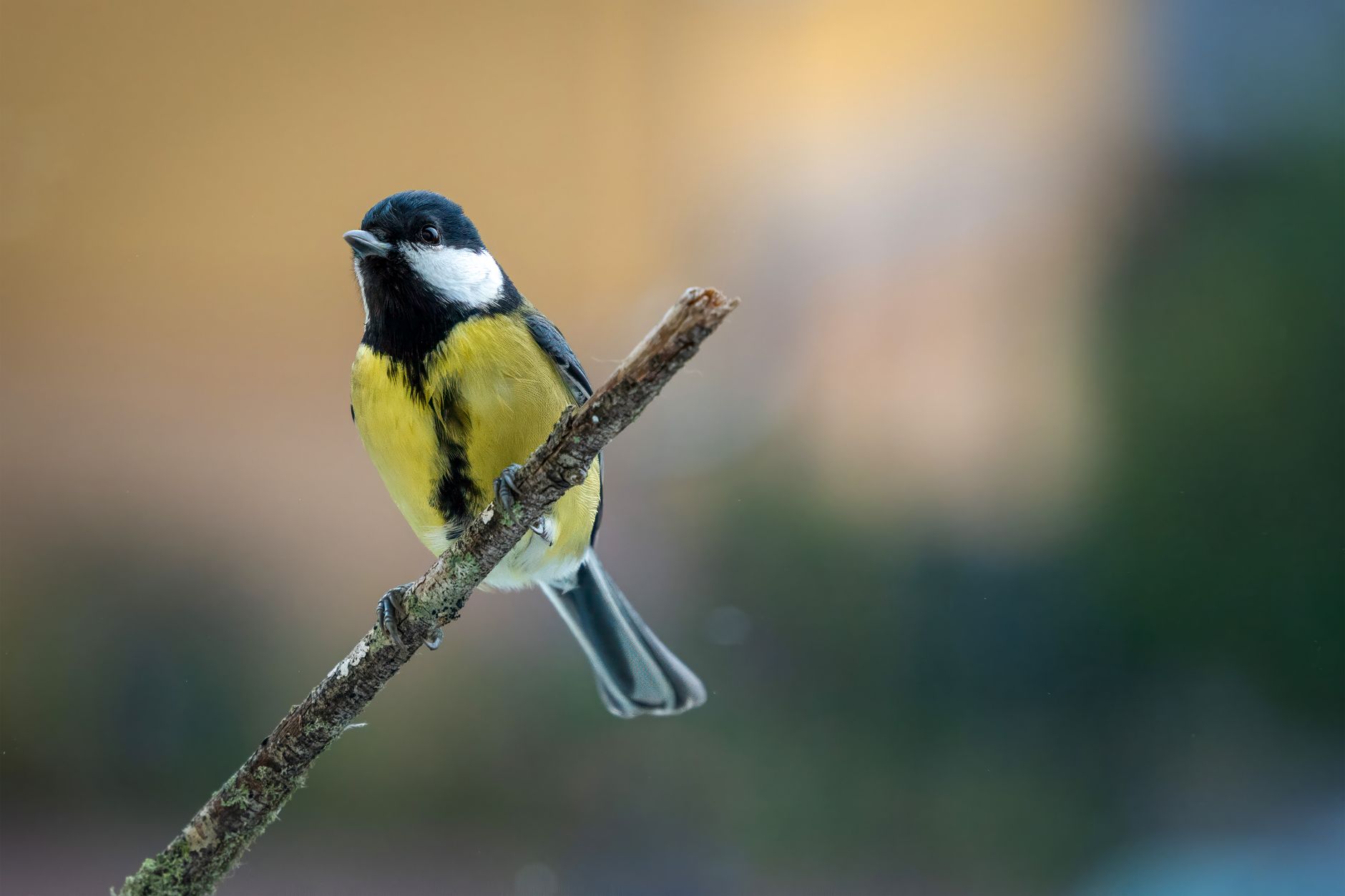
Turning a home security camera into an automatic wildlife or bird identification system is one of the more creative uses of Apple’s smart home stack, and it’s a project that has picked up momentum across the Apple Support Community in recent weeks. Users are chaining HomeKit Secure Video (HKSV) clips, Shortcuts automations, and on-device image recognition to log which species visit their gardens. The problem: the pipeline breaks in frustrating ways. Cameras miss motion events, notifications fire without a bird ever appearing, the Home app fails to trigger the automation, or the identification model returns nothing usable.
This is a widely reported issue affecting users on iOS 19, iPadOS 19, macOS 26 Tahoe, and the latest HomePod and Apple TV firmware acting as home hubs. Below is a full troubleshooting walkthrough based on what users in the Apple Support Community have found working, plus additional fixes from real-world Apple platform experience.
What Causes This Issue
The bird identification workflow depends on several Apple services cooperating in real time. When any single link fails, the whole automation collapses. The most common root causes include:
- Home hub instability — an Apple TV or HomePod acting as the resident hub can silently disconnect, halting all HKSV analysis.
- Camera motion zones set too broadly, causing constant triggers from tree movement, shadows, or insects.
- iCloud+ storage tier that no longer supports the number of connected cameras (each camera consumes a slot).
- Face and object recognition disabled in the Home app settings after a major iOS update.
- Shortcuts automations relying on the deprecated “When a camera detects motion” trigger without an updated “Animal Detected” condition.
- On-device Visual Look Up failing because the clip resolution is downscaled below the model’s threshold.
- Third-party camera firmware that recently changed its ONVIF or RTSP handshake, breaking Home app integration.
Step-by-Step Fixes
Users in the Apple Support Community report the most consistent success by rebuilding the automation chain in a specific order rather than tweaking individual pieces. Work through these steps sequentially.
- Verify the home hub is active and primary. Open the Home app, tap the Home Settings icon, then Home Hubs & Bridges. Confirm one device shows “Connected” and is not endlessly cycling. If you have multiple hubs, temporarily unplug the secondary ones and test with only the primary Apple TV 4K or HomePod.
- Restart the hub properly. A soft reboot from Control Center is not always enough. Power-cycle the Apple TV by unplugging it for 30 seconds, or hold both volume buttons on a HomePod until it chimes.
- Check iCloud+ camera allotment. Go to Settings, tap your name, then iCloud, then HomeKit Secure Video. Confirm the plan tier matches your camera count: the 200 GB plan supports one camera, 2 TB supports five, and the 12 TB plan supports unlimited.
- Enable Animal Detection. In the Home app, tap the camera tile, then the settings gear, then Recording Options. Under “Notifications,” ensure “Animals” is toggled on. This was reset to default for many users after the iOS 19.2 update.
- Redraw the activity zone. Tap the camera, then Select Activity Zones, and draw a tight polygon around the feeder or perch only. Exclude tree canopies where wind creates false motion.
- Rebuild the Shortcuts automation. Delete the existing automation entirely. Create a new Personal Automation, choose “An Accessory Detects Animals,” pick the camera, and add a Get Recent Photos action followed by “Get Details of Images” using Visual Look Up.
- Test the pipeline manually. Trigger the automation by tapping “Run” from the Shortcuts editor. If it identifies a test image, the chain is intact and the issue is upstream at the camera.
Additional Solutions
If the ordered steps above do not resolve the problem, these additional adjustments have been effective in more stubborn cases.
Force reindex of HKSV clips. Sign out of iCloud on the iPhone paired to the Home, wait five minutes, and sign back in. This forces the Home app to re-download the analysis metadata, which occasionally becomes corrupted after long uptime periods on the hub.
Switch the camera to 2.4 GHz Wi-Fi. Many HomeKit-compatible cameras handle motion analysis more reliably on 2.4 GHz because the connection is more stable at distance. Dropped frames on 5 GHz cause HKSV to skip the analysis pass entirely, meaning no animal tag is applied.
Update camera firmware manually. Some manufacturers push firmware through their own app rather than through the Home app. Open the vendor’s companion app, check for updates, and reboot the camera afterward.
Use a Mac as an identification endpoint. If Visual Look Up on iOS returns inconsistent species names, route the images through a Shortcut running on a Mac with the Photos app open. The desktop implementation of the Photos recognition model tends to return more granular species labels than iOS.
Limit concurrent HKSV cameras. Even on the 12 TB plan, running more than four cameras through simultaneous analysis on an Apple TV HD (rather than 4K) will cause dropped events. Upgrade the hub to an Apple TV 4K if analysis is patchy.
Check for time zone drift. A hub whose clock has drifted more than 90 seconds from the camera’s clock will reject analysis handoffs. Confirm both devices are set to Automatic time.
When to Contact Apple Support
If motion events appear in the Home app timeline but animal detection never tags them despite a correctly configured plan, active hub, and enabled notifications, the fault is likely server-side with iCloud analysis. Contact Apple Support directly through the Support app and reference HomeKit Secure Video animal recognition. Provide the timestamps of missed detections, the camera model, and your iOS version. Apple engineering has been actively investigating HKSV analysis regressions since the summer 2026 iOS point releases, and support agents can escalate reproducible cases quickly.
Also contact support if the Home app crashes when opening the camera tile, if iCloud+ shows the correct plan but the camera count is capped incorrectly, or if the Shortcuts app cannot see the camera as an accessory trigger after a full reset.
FAQ
Can HomeKit Secure Video identify specific bird species on its own? No. HKSV only tags events as Animal, Person, Vehicle, or Package. Species identification requires piping the still frame through Visual Look Up via a Shortcuts automation.
Do I need a paid iCloud+ plan for this to work? Yes. Motion analysis, including the Animal tag that fires the Shortcut, requires iCloud+ with HKSV enabled.
Which cameras work best for bird identification? Any HKSV-certified camera with at least 1080p output and a stable Wi-Fi connection. Resolution matters because Visual Look Up needs enough pixel detail on the subject to return a species match.
Why does Visual Look Up sometimes return a generic “bird” label? The subject is too small in the frame, the lighting is too dim, or the angle obscures diagnostic features like head markings. Reposition the camera closer to the feeder.
Will this workflow keep functioning if I switch to a Matter-only camera? HomeKit Secure Video analysis still applies as long as the Matter camera supports the HKSV profile. Confirm the certification before purchasing.












