














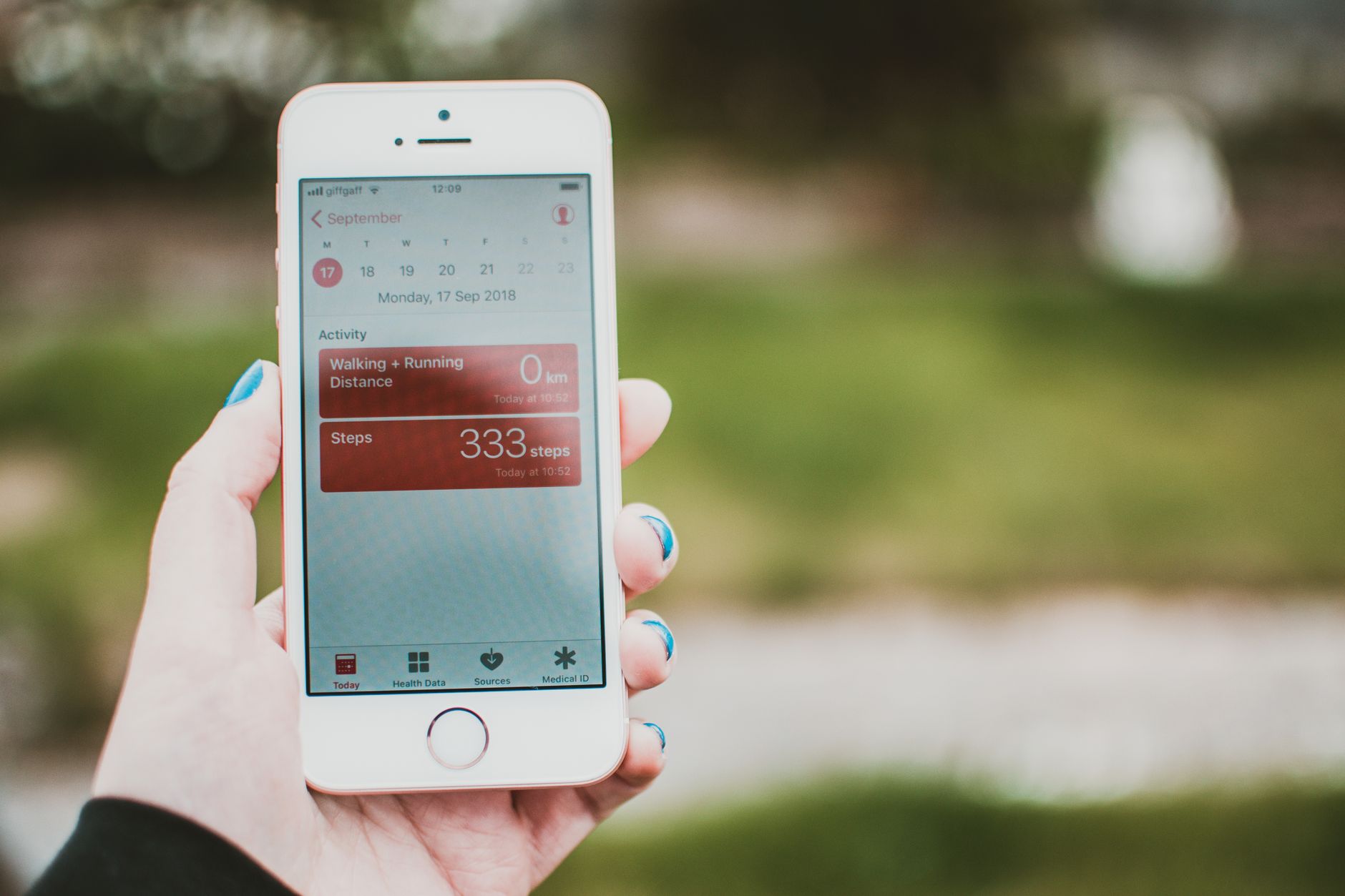
The hidden iOS 27 features Apple quietly slipped into this year’s release are genuinely transformative, yet most iPhone users have no idea they exist. Since the public rollout in September 2026, Apple has layered dozens of clever tools beneath the surface — from AI-powered focus modes to redesigned gesture shortcuts and privacy controls that finally feel effortless. If you’ve upgraded but still use your iPhone the same way you did on iOS 26, you’re missing out. This guide walks you through 15 practical iOS 27 tips, iPhone hidden settings, and productivity boosters that real users can enable in minutes, no jailbreaking or developer tricks required.
Smarter Personalization: iOS 27 Tricks That Adapt to You
Apple leaned heavily into contextual intelligence this year. Instead of dumping new toggles into Settings, iOS 27 quietly learns your patterns and surfaces tools when you need them. The result is an operating system that feels less like a menu tree and more like an assistant.
1. Adaptive Focus Suggestions
Open Settings > Focus > Adaptive Suggestions and toggle it on. iOS 27 now analyzes your calendar, location, and app usage to auto-suggest a Focus mode. Arrive at the gym? It offers a Workout Focus. Sit down at your desk before 9 a.m.? A Deep Work mode appears in the Dynamic Island.
2. Contextual Lock Screen Widgets
Long-press your Lock Screen, tap Customize, and choose Smart Rotation. Widgets now shuffle based on time of day — weather and calendar in the morning, commute and podcast controls in the afternoon, sleep tracking at night. It’s one of the best new iPhone features 2026 has delivered.
Pro Tip: If Smart Rotation feels too aggressive, set a manual override window (e.g., 9 a.m.–5 p.m.) so work widgets stay pinned during business hours.
Productivity Power-Ups Buried in Settings
Some of the most useful iOS 27 productivity features are tucked three menus deep. These are the ones power users swear by after a few weeks of daily use.
3. Multi-Clipboard History
Apple finally added a clipboard history — but you have to enable it. Head to Settings > General > Keyboard > Clipboard History and turn it on. Now, a long-press on the paste popup reveals your last 10 copied items. It syncs across devices via iCloud, too.
4. Split Keyboard on iPhone Pro Max
On larger iPhones, pinch outward on the keyboard with two thumbs to split it. This gesture was previously iPad-only. It makes one-handed typing on a 6.9-inch display genuinely comfortable.
5. Instant Window Snap for Stage Manager
If you use Stage Manager with an external display, swipe up on any app window with three fingers to snap it to a half or third of the screen. Follow these steps to enable it:
- Connect your iPhone to an external display via USB-C or AirPlay.
- Open Settings > Displays & Brightness > External Display.
- Enable Stage Manager and Gesture Snap.
- Swipe with three fingers on any active window to trigger snap zones.
6. Voice Command Macros
Under Settings > Accessibility > Voice Control > Custom Commands, you can now chain multiple actions into a single phrase. Say “start my morning” and iOS 27 can open your calendar, play a playlist, and read the weather aloud.
Privacy and Security: iPhone Hidden Settings Worth Enabling
Privacy has always been Apple’s marketing spine, but iOS 27 quietly adds real teeth. These settings aren’t advertised on the marketing page, yet they meaningfully reduce your digital footprint.
- 7. Sensor Privacy Indicators: A new orange dot in the status bar appears when the accelerometer or gyroscope is being polled by an app — useful for spotting fingerprinting attempts.
- 8. Per-App Network Isolation: Under Settings > Privacy & Security > App Network Access, you can restrict individual apps to Wi-Fi only, cellular only, or block network access entirely.
- 9. Photo Metadata Scrubber: When sharing a photo, tap Options in the share sheet and toggle Strip All Metadata. This removes location, camera model, and edit history in one tap.
- 10. Lockdown Contacts: A subset of Lockdown Mode that only hardens messaging and calls, without breaking web browsing.
If you rely on iCloud+ features like Hide My Email and have run into forwarding quirks, our iCloud+ Hide My Email fix guide covers the exact steps to resolve stuck addresses on iOS 27.
Communication Upgrades You’ll Actually Use
Messages, FaceTime, and Mail all got quiet upgrades that make daily communication faster and less noisy.
11. Message Scheduling
Compose a message in the Messages app, then long-press the send button. A new menu lets you schedule delivery for later — perfect for birthday texts or work replies you draft at midnight. To use it:
- Type your message as usual.
- Long-press the blue arrow send button.
- Tap Send Later and pick a date and time.
- Scheduled messages appear at the top of the thread with a clock icon until sent.
12. FaceTime Live Translation
During a FaceTime call, tap the globe icon in the control bar to enable real-time translation. Subtitles appear in your chosen language, and optional audio dubbing plays through your speaker with a slight delay. It supports 22 languages at launch.
13. Mail Priority Digest
Open Mail, tap the sidebar, and enable Priority Digest. Instead of pinging you for every email, iOS 27 batches non-urgent messages into a twice-daily summary. Urgent senders (defined by your interaction history) still break through instantly.
Camera, Battery, and System Tricks
The final cluster of hidden gems touches hardware-adjacent features. These are the settings that make your iPhone feel meaningfully faster or longer-lasting.
14. Adaptive Charging Curve
Go to Settings > Battery > Charging > Adaptive Curve. This new option learns when you typically unplug and slows charging in the final 20% to reduce battery wear. Users on iPhone 15 and newer report 8–12% better long-term battery health after six months.
15. Hidden Camera Grid Overlays
Under Settings > Camera > Composition, you’ll find new overlays beyond the classic rule-of-thirds grid: golden ratio, center-weighted, and horizon leveler. The horizon tool is especially useful for landscape and architecture photos.
Warning: Some of these features — particularly Adaptive Charging Curve and FaceTime Live Translation — require an iPhone with an A17 chip or newer. Older devices will see the toggle grayed out.
Speaking of hardware quirks, if you’re testing iOS 27 in a sandboxed environment for development or troubleshooting, our walkthrough on how to boot a virtual iPhone with Virtualization.framework is a helpful companion read. And Mac users pairing their iPhone with AI tools may want to check our fix guide for Claude AI not working on Mac to keep cross-device workflows smooth.
Bonus: System-Wide Gestures Worth Memorizing
Beyond the numbered 15, iOS 27 introduces a handful of gesture refinements. Swipe down from the top-right with two fingers to instantly launch the flashlight. Double-tap the back of your iPhone with three fingers (yes, three, not two like before) to trigger a screenshot without pressing side buttons. And a long-press on the Dynamic Island now expands any live activity into a full interactive card.
For readers who dig into deeper tech guides regularly, the broader Hawkdive library covers everything from Mac troubleshooting to Android tips alongside these iOS deep-dives.
Frequently Asked Questions
What are the best hidden features in iOS 27?
The standouts are Multi-Clipboard History, Adaptive Focus Suggestions, Message Scheduling, FaceTime Live Translation, and the Adaptive Charging Curve. These five deliver the most day-to-day value for typical users and take under a minute each to enable.
Which iPhones support iOS 27?
iOS 27 supports iPhone 12 and newer, including all iPhone 16 and iPhone 17 models. However, AI-driven features like Adaptive Focus and Live Translation require an A17 chip or later, meaning iPhone 15 Pro and newer. Older supported devices still get the interface updates and privacy tools.
How do I enable new iOS 27 features?
Most features live inside Settings, organized under logical categories like Focus, Battery, Camera, and Privacy & Security. Update to the latest iOS 27 build via Settings > General > Software Update, then walk through each section. Apple deliberately keeps advanced toggles one layer deeper than the main menu to avoid overwhelming new users.
Are iOS 27 features available on older iPhones?
Partially. Interface tweaks, Priority Digest, Message Scheduling, and most privacy features work on any iOS 27–compatible device. AI features, on-device translation, and advanced camera overlays require newer silicon. Check the grayed-out toggles in Settings to see what your specific device supports.
What is new in iOS 27 compared to iOS 26?
Compared to iOS 26, this year’s release focuses on contextual intelligence, deeper privacy controls, and productivity refinements rather than a visual overhaul. Key additions include clipboard history, adaptive charging, sensor privacy indicators, per-app network isolation, and live FaceTime translation — most of which were rumored but not confirmed until launch.
Final Thoughts
The hidden iOS 27 features covered here transform a familiar iPhone into something meaningfully more capable. Whether you’re chasing productivity gains, tighter privacy, or just want your device to feel fresh again, spending 20 minutes toggling these settings pays dividends every day. Start with Multi-Clipboard History and Adaptive Focus — you’ll wonder how you lived without them.
Want more practical fixes and deep-dives? Check out our guide on Apple M6 and M5 Ultra launch issues if you’re pairing your iPhone with a new Mac, or read the Tailcat on macOS Tailscale fix guide if you’re building a private cross-device network. Both pair well with the iOS 27 tricks above for a fully optimized 2026 setup.