





























What Causes This Issue
Many iPhone users report excessive battery drain immediately following a major iOS update. This is a widespread reported issue across the Apple Support Community, with hundreds of threads documenting similar symptoms: battery percentage dropping rapidly, device warming during light use, and significantly reduced screen-on time compared to pre-update performance.
The root cause typically involves background system processes working overtime after an upgrade. Spotlight re-indexing, Photos analysis, machine learning model updates, and app compatibility adjustments all consume substantial power in the first 24–72 hours. In most cases, this resolves automatically. However, when drain persists beyond three days, deeper issues exist — corrupted settings, rogue apps, or failed update migration.
Users in the Apple Support Community consistently identify three patterns: devices older than two years struggle more with new OS demands; clean installs via computer fare better than over-the-air updates; and specific apps (particularly social media and email clients) frequently misbehave until updated by developers.
Step-by-Step Fixes
- Wait 72 hours for background tasks to complete. After any major iOS update, leave the iPhone plugged in overnight on Wi-Fi for at least two nights. Indexing, Photos scanning, and on-device learning run primarily while charging. Check Settings > Battery after 72 hours — if usage graphs show normal patterns, the issue self-resolved.
- Update all apps immediately. Open the App Store, pull down to refresh, and tap Update All. Outdated apps are the single largest cause of persistent drain. Developers release iOS compatibility updates rapidly; running old binaries forces the CPU to work harder translating deprecated API calls.
- Disable Background App Refresh selectively. Go to Settings > General > Background App Refresh. Set to Wi-Fi only, or toggle off for apps that don’t need real-time updates (games, retail apps, rarely used utilities). Keep it enabled for Mail, Messages, and navigation apps.
- Reset network settings. Corrupted Wi-Fi/Bluetooth/cellular profiles cause radios to hunt for signals aggressively. Settings > General > Transfer or Reset iPhone > Reset > Reset Network Settings. This erases saved Wi-Fi passwords — have them ready.
- Check Battery Health and enable Optimized Charging. Settings > Battery > Battery Health & Charging. If Maximum Capacity is below 80%, the battery chemically degrades — no software fix helps. Enable Optimized Battery Charging and Clean Energy Charging (where available) to reduce wear.
- Identify high-drain apps via Battery screen. Settings > Battery shows last 24 hours and 10 days. Tap Show Activity to see background vs. on-screen time. Any app showing high background minutes without user interaction is suspect. Delete and reinstall, or replace with a web alternative.
- Disable unnecessary Location Services. Settings > Privacy & Security > Location Services. Set apps to “While Using” instead of “Always.” Turn off System Services > Significant Locations, iPhone Analytics, and Routing & Traffic unless actively needed.
- Reduce motion and transparency. Settings > Accessibility > Motion > Reduce Motion (on). Settings > Accessibility > Display & Text Size > Reduce Transparency (on). This lowers GPU load, especially on older devices with A13/A14 chips.
- Perform a forced restart. Differs by model: iPhone 8 and later — press Volume Up, Volume Down, hold Side button until Apple logo. iPhone 7/7 Plus — hold Volume Down + Side button. Clears stuck kernel processes without data loss.
- Restore via Finder/iTunes (clean install). The most reliable fix per Apple Support Community users. Back up to computer (not iCloud), put iPhone in Recovery Mode, restore latest iOS. Set up as new, test battery for 24 hours, then restore backup. Eliminates corrupted preference files and failed migration artifacts.
Additional Solutions
Disable Hey Siri temporarily. Settings > Siri & Search > Listen for “Hey Siri” — toggle off. The always-listening microphone keeps the low-power audio processor active. Some users report 10–15% daily improvement.
Turn off Raise to Wake. Settings > Display & Brightness > Raise to Wake. Prevents screen activation from incidental movement, saving hundreds of wake cycles daily.
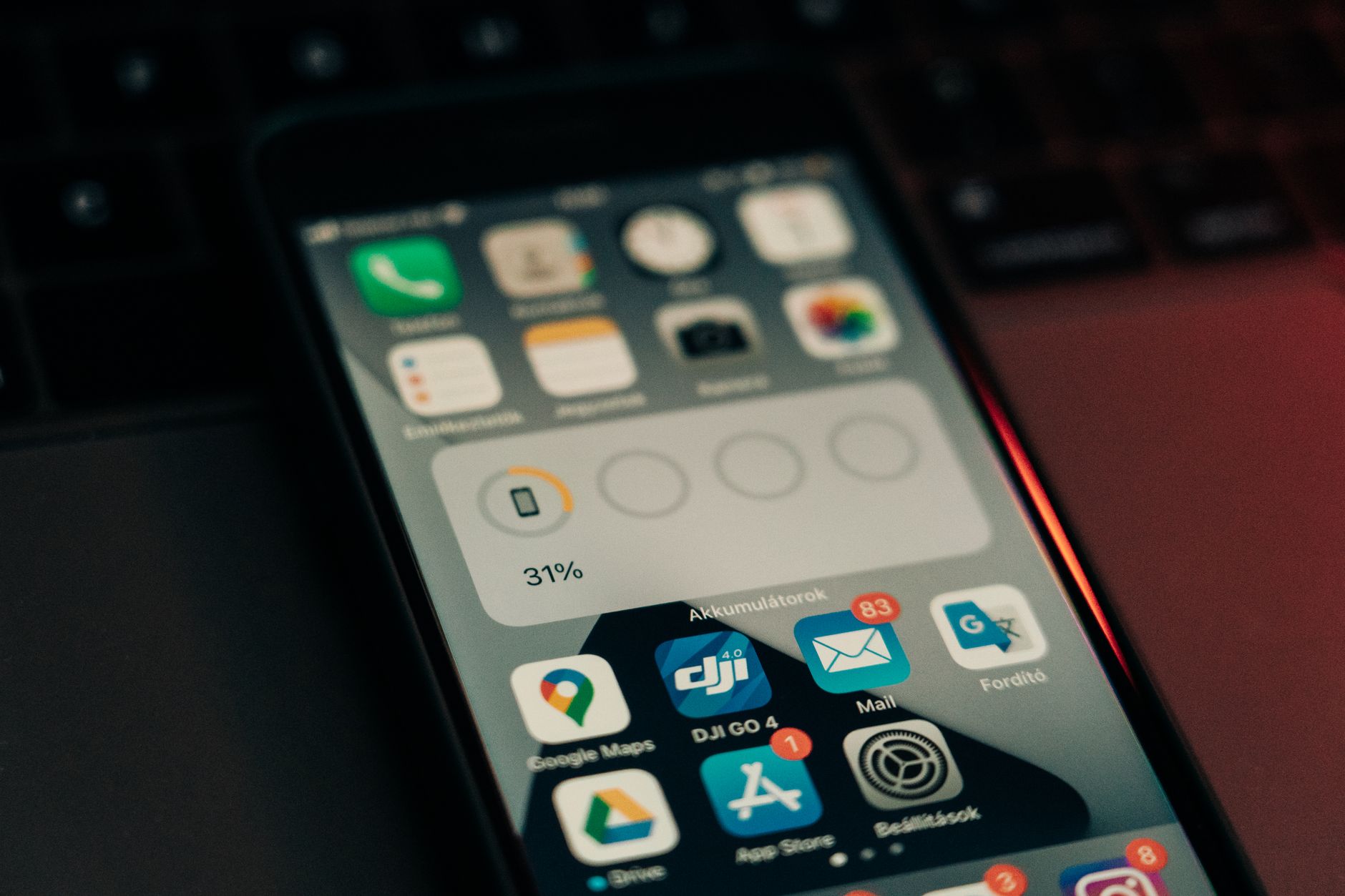
Limit widget stacks. Each widget refreshes on a timer. Remove rarely used widgets from Lock Screen and Home Screen. Keep only essentials: Weather, Calendar, Battery.
Check for rogue MDM profiles. Settings > General > VPN & Device Management. Unknown profiles can enforce policies that prevent sleep. Remove any unrecognized entries.
Disable iCloud sync for heavy apps. Settings > [Your Name] > iCloud > Show All. Toggle off apps with large datasets (Photos, Voice Memos, large third-party apps) temporarily. Re-enable one by one while monitoring Battery screen.
Use Low Power Mode proactively. Not just at 20%. Enable via Control Center or Settings > Battery during known heavy-use days. Reduces mail fetch, background refresh, visual effects, and 5G standby (on supported models).
Recalibrate the battery gauge. Drain to 0% until shutdown, charge uninterrupted to 100%, keep plugged in one more hour. This recalibrates the fuel gauge algorithm — not the chemistry — fixing inaccurate percentage readings that mimic drain.
When to Contact Apple Support
Contact Apple Support if:
- Battery Health shows Maximum Capacity below 80% with “Service” warning
- Drain exceeds 20% per hour on standby with all radios off (Airplane Mode test)
- Device becomes hot to touch during idle
- Battery percentage jumps erratically (e.g., 40% to 10% instantly)
- Clean restore via computer fails to improve after 48 hours
- iPhone shuts down unexpectedly above 15% charge
Apple Support can run remote diagnostics (Settings > Privacy & Security > Analytics & Improvements > Share iPhone Analytics must be on). For hardware issues, they’ll authorize mail-in repair or Genius Bar appointment. AppleCare+ covers battery replacement at no cost if capacity is under 80%.
FAQ
Why does my iPhone get hot after an iOS update? Background indexing (Spotlight, Photos, Messages) maxes CPU/GPU for hours. Warmth is normal for 24–48 hours. Sustained heat beyond that indicates a stuck process — force restart, then check Battery screen for culprits.
Does closing apps in the App Switcher save battery? No. iOS freezes background apps efficiently. Relaunching from cold consumes more power than resuming frozen state. Only force-close misbehaving apps (shown with high background time in Settings > Battery).
Will downgrading iOS fix battery drain? Apple stops signing older iOS versions within 1–2 weeks of release. Downgrading is rarely possible and erases all data. Clean restore on current iOS achieves the same benefit without security risks.
Is 5G draining my battery? In weak signal areas, 5G modem power draw increases significantly. Settings > Cellular > Cellular Data Options > Voice & Data > LTE disables 5G. Enable only when you need speed.
How long should iPhone battery last per charge? Varies by model and usage. Modern iPhones (13/14/15 series) target 10–12 hours screen-on for mixed use. Check Apple’s official specs for your model. If you’re getting half the rated life after 72 hours post-update, proceed with the fixes above.
Can a bad charger cause battery drain symptoms? Non-MFi chargers may deliver inconsistent voltage, confusing the charging controller and battery gauge. Use Apple or MFi-certified cables/adapters. Wireless charging generates more heat — remove case if charging feels excessive.