






























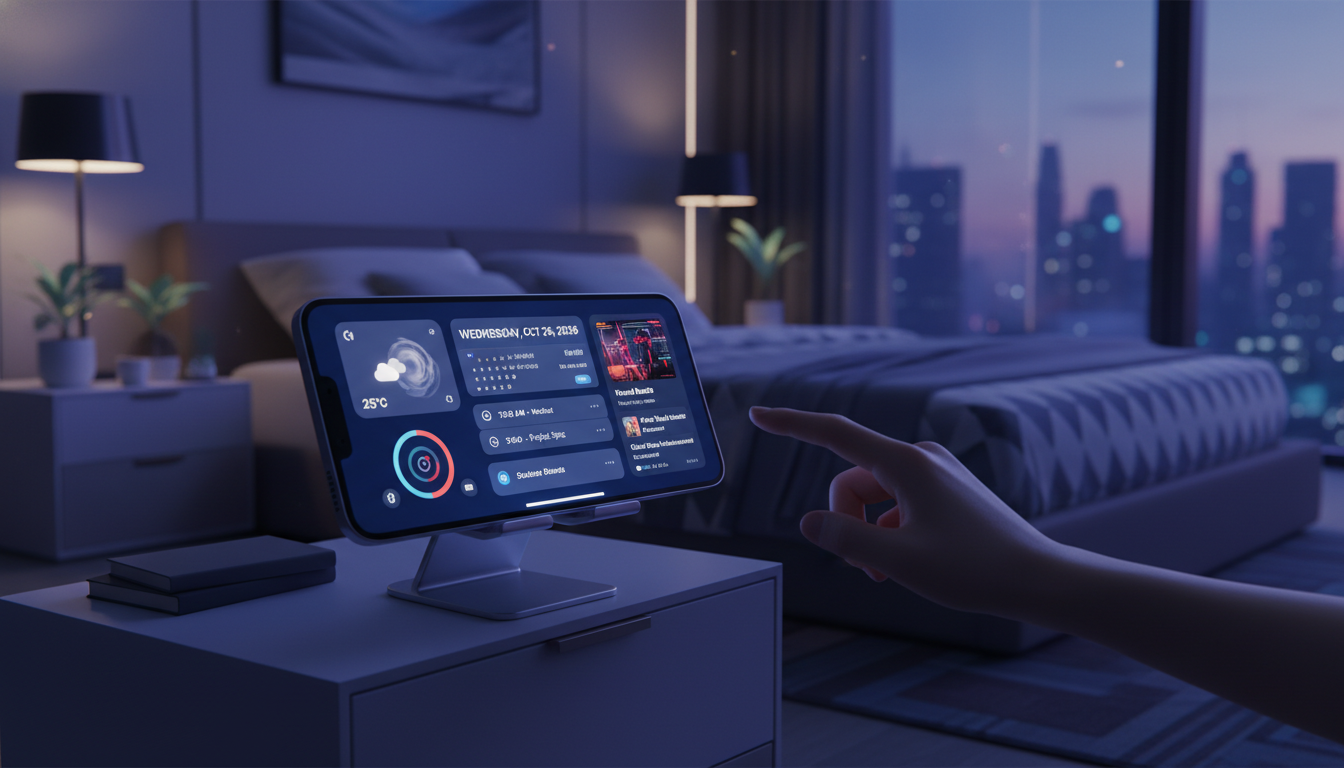
If you’ve upgraded to Apple’s latest mobile OS, mastering iOS 19 StandBy mode widgets is one of the smartest ways to turn your iPhone into a smart display, bedside clock, or productivity hub. StandBy first arrived a few years ago, but the 2026 refresh introduces deeper customization, more interactive widgets, and tighter Apple Intelligence integration that makes the feature far more useful than before. Whether you’re docking your phone at your desk, on a nightstand, or beside your kitchen counter, this guide walks you through everything you need to set up, customize, and troubleshoot StandBy like a power user.
What’s New With iOS 19 StandBy Mode Widgets in 2026
Apple has quietly turned StandBy from a glanceable display into a fully interactive ambient surface. In iOS 19, StandBy supports multi-layered widget stacks, smarter contextual suggestions, and live data refreshes that update in near real-time. The view automatically activates when your iPhone is charging and placed in landscape orientation, but the new version gives you more control over when and how it appears.
The 2026 update also expands third-party widget support significantly. Developers can now build full-screen StandBy experiences, meaning apps like calendar managers, weather services, and smart home controllers can take over the entire display. This is a major leap from the basic widget tiles of earlier versions.
Another important addition is the always on display iPhone integration. On iPhone 14 Pro and later models, StandBy stays visible 24/7 with a dimmed, low-power state. Older non-Pro models still require a tap to wake the display, but the dimming behavior is now much smoother and more battery-efficient.
Key Features Worth Knowing
- Interactive widgets — tap to check off reminders, control HomeKit devices, or play media without leaving StandBy.
- Night Mode with a red tint that’s gentler on your eyes in dark rooms.
- Apple Intelligence suggestions that surface widgets based on time, location, and routine.
- Photo Memories with smarter face and pet recognition for personalized slideshows.
- Live Activities that expand to full-screen during sports games, food deliveries, or workouts.
How to Enable and Set Up StandBy Mode on iOS 19
Getting StandBy up and running is straightforward, but a few settings need to be configured properly for the best experience. Follow these standby mode setup steps to activate it on your device.
- Open the Settings app on your iPhone.
- Scroll down and tap StandBy.
- Toggle StandBy to the on position.
- Enable Always On if you have an iPhone 14 Pro, 15 Pro, 16 Pro, or 17 Pro model.
- Turn on Night Mode for the warm red tint after dark.
- Optionally enable Show Notifications to display incoming alerts as full-screen banners.
- Connect your iPhone to a MagSafe charger, Qi pad, or Lightning/USB-C cable.
- Place the device in landscape orientation on a flat surface or stand.
Within a second or two, StandBy should activate automatically. If it doesn’t, check that your iPhone is locked — StandBy only appears when the device is locked and charging. You can also swipe up to wake the display manually if Always On is disabled.
Choosing the Right Stand or Dock
A MagSafe-compatible stand is the ideal companion for StandBy. The magnetic snap holds your iPhone in landscape mode securely, and iOS 19 remembers the orientation and widget layout for each location. That means your bedside dock can show a clock and weather, while your desk dock displays a calendar and reminders — automatically.
Customizing Your Widget Views Like a Pro
StandBy has three main views you can swipe between: Widgets, Photos, and Clock. Each one is fully customizable, and learning how to tailor them is the key to unlocking real value from the feature.
To customize the widget view, long-press any widget on the left or right side of the screen, authenticate with Face ID, and then tap the plus icon at the top-left to add new widgets. You can build a vertical iphone widget stack on each side, allowing dozens of widgets to live in the same column. Smart Rotate automatically cycles widgets based on relevance, but you can also swipe manually.
Best Widgets to Add for Different Use Cases
- Bedside: Clock, Sleep tracker, Weather, Alarms, Apple Music remote.
- Desk: Calendar, Reminders, Stocks, Email summary, Focus status.
- Kitchen: Timers, Notes, Music, Recipe quick-glance, Smart Home (lights, oven).
- Living room: Now Playing, TV remote, Home cameras, Sports scores.
Pro tip: Pin your most-used widgets by toggling Smart Rotate off for individual stacks. This forces specific widgets to stay visible without cycling, which is perfect for clocks or always-needed information.
Mastering Photos, Clock Styles, and Night Mode
The Photos view is more than just a slideshow. iOS 19 uses on-device Apple Intelligence to surface your best memories, automatically pulling images of specific people, pets, places, or events. You can curate the categories shown by long-pressing the Photos view, tapping the plus icon, and selecting featured albums or excluding people you’d rather not see.
The Clock view offers six styles in 2026: Digital, Analog, World, Solar, Float, and the new Minimal Mono style. To switch styles, long-press the clock face and swipe through the carousel. Each style supports custom accent colors, so you can match your decor or mood.
Night Mode is one of the most underrated features. When ambient light drops, StandBy automatically shifts to a dimmed red display that preserves your night vision and reduces sleep disruption. If you find the brightness still too high, head into Settings > Accessibility > Display & Text Size and enable Reduce White Point, which dims the entire display further.
For more iPhone-focused customization ideas beyond StandBy, browsing through the tutorials on the main Hawkdive hub is a great way to discover features you might have missed in recent iOS updates.
Advanced StandBy Tips and Lock Screen Integration
StandBy works hand-in-hand with your iphone standby customization and Lock Screen profile. Focus modes can trigger different StandBy layouts — for example, Sleep Focus can switch to the Clock view with Night Mode, while Work Focus can show your calendar and Slack notifications.
Here are a few ios 19 lock screen tips that pair perfectly with StandBy:
- Create dedicated Focus filters so each Focus mode triggers a unique StandBy layout automatically.
- Use Live Activities for sports, ride-sharing, or food delivery — they expand to fill the StandBy display.
- Enable Tap to Show Preview under StandBy notification settings to hide message content until you tap.
- Set the screen timeout for StandBy notifications to your preferred duration.
- Use Siri while in StandBy to trigger shortcuts hands-free, such as starting a timer or playing a playlist.
Power users should also explore the Shortcuts app to build automations. For example, you can create a Personal Automation that triggers when your iPhone connects to a specific charger, switching Focus, brightness, and even Wi-Fi network preferences automatically.
Using StandBy With Smart Home Devices
StandBy becomes incredibly powerful when combined with HomeKit and Matter-compatible devices. The Home widget shows your favorite scenes and accessories, letting you control lights, locks, thermostats, and cameras with a single tap. If you’ve experienced issues with Apple’s AI features after updating, our guide on what to do when Apple Intelligence isn’t working after an iOS update can help restore proper functionality, which directly affects StandBy’s smart suggestions.
Troubleshooting Common StandBy Mode Problems
Even with a clean iOS 19 install, StandBy can occasionally misbehave. Here are the most common issues and the fixes that actually work.
StandBy doesn’t appear at all: Confirm that your iPhone is charging, locked, and in landscape orientation. Then check Settings > StandBy to ensure the toggle is on. If it’s still missing, restart your iPhone and try again.
Widgets won’t update: Background App Refresh must be enabled for the relevant apps. Go to Settings > General > Background App Refresh and verify each app you rely on is allowed.
Always On Display not working: This is reserved for Pro models. Also, Low Power Mode automatically disables Always On to conserve battery. Toggle Low Power Mode off and check if your Focus profile has any display restrictions.
StandBy gets stuck or freezes: Force-restart the device. Press Volume Up, then Volume Down, then hold the Side button until the Apple logo appears. This resolves most temporary glitches without affecting your data.
If your iPhone gets unusually warm while in StandBy — especially when paired with a wireless charger — overheating can throttle the display and cause widgets to stop refreshing. Our breakdown of Apple devices overheating during heavy use and how to fix it covers the exact steps to bring temperatures back down.
Pro Tips to Make StandBy Even More Useful
Once the basics are dialed in, these expert moves will push StandBy beyond a simple bedside clock.
- Use multiple stands in different rooms — iOS 19 remembers which layout you prefer at each location based on the charger MAC address and orientation.
- Mute notifications selectively with Focus filters so only urgent alerts appear on the big display.
- Try Siri Suggestions widgets to surface upcoming actions you might want to take without opening any app.
- Combine StandBy with AirPlay to mirror media to nearby speakers while keeping the iPhone display dedicated to album art or lyrics.
- Experiment with third-party widget packs from popular productivity, weather, and fitness apps that have rolled out iOS 19-optimized designs.
If you’re a Mac user who also relies on iPhone widgets for productivity, you may be interested in how to troubleshoot AI coding tools that slow down Mac development, since many of those same performance principles apply to widget refresh efficiency on iOS.
Frequently Asked Questions
How do I enable StandBy mode on iOS 19?
Open Settings > StandBy and toggle the feature on. Then plug your iPhone into a charger, lock the device, and place it horizontally on a stand. StandBy should activate within a couple of seconds. For Pro models, enabling Always On keeps the display visible at all times.
Why are my StandBy widgets not showing?
The most common reasons are that StandBy is disabled in Settings, the iPhone isn’t fully charging (some low-wattage cables only trickle-charge), or Background App Refresh is turned off. Also ensure your iPhone is in landscape mode and not propped up at an extreme angle, as the accelerometer needs a clear orientation reading.
Can I customize StandBy mode on iPhone 15?
Yes. iPhone 15 and 15 Pro fully support StandBy customization. You can build widget stacks, change clock styles, curate photo albums, and enable Night Mode. iPhone 15 Pro adds Always On support, while the standard iPhone 15 requires a tap to wake the display.
Does StandBy mode drain battery?
Battery drain is minimal because your iPhone is plugged in whenever StandBy is active. On Pro models with Always On, the dimmed display uses a low-power refresh rate (as low as 1Hz) to conserve energy. If you notice unusual battery behavior, check whether Live Activities or interactive widgets are refreshing too frequently.
Final Thoughts
Used well, iOS 19 StandBy mode widgets can replace a separate smart display, alarm clock, and even some smart home controllers. The combination of widget stacks, contextual intelligence, and tight integration with Focus modes makes it one of the most underrated features in Apple’s ecosystem in 2026. Spend 15 minutes configuring StandBy properly, and your iPhone will feel like a brand-new device every time you dock it.
Want to keep optimizing your devices? Check out our deep dive on what to do when Apple Intelligence stops working after an iOS update, or if you also use a second device, explore our roundup of 15 hidden Android 16 tips and tricks for 2026 to round out your mobile mastery.












