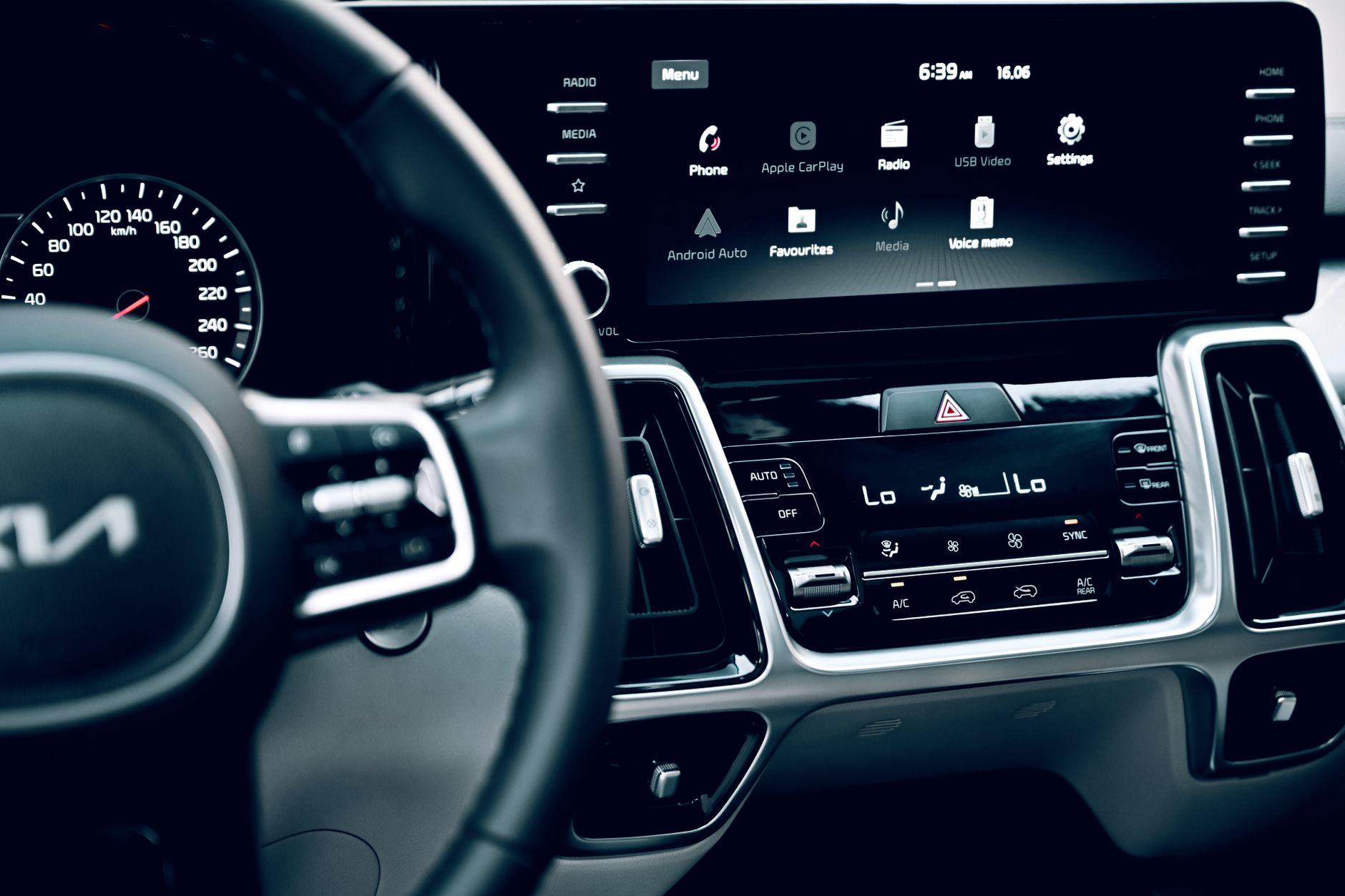
If your iPhone refuses to connect to your Hyundai’s infotainment system, drops the CarPlay session mid-drive, or pairs over Bluetooth but never launches the CarPlay interface, you are not alone. This is one of the most widely reported in-car connectivity issues being discussed in the Apple Support Community right now, with owners of multiple Hyundai models — including Ioniq, Tucson, Santa Fe, and Sonata trims — reporting similar symptoms after recent iOS updates and head-unit firmware revisions.
The good news: most cases can be resolved without a dealer visit. Below is a complete troubleshooting playbook tested against the patterns shared by users in the Apple Support Community, plus deeper fixes drawn from Apple’s CarPlay engineering guidance.
What Causes This Issue
Hyundai CarPlay failures usually trace back to one of a handful of root causes. Understanding which category your problem falls into will save you considerable time.
- Bluetooth handshake conflicts — Wireless CarPlay first negotiates over Bluetooth before handing off to a private Wi-Fi connection. If the Bluetooth profile is corrupted on either side, the handoff fails silently.
- Wi-Fi band interference — Hyundai head units use the 5 GHz band for the CarPlay data tunnel. Other devices in the cabin (mobile hotspots, dash cams, OBD dongles) can saturate that band.
- USB cable degradation — For wired CarPlay, non-MFi or worn Lightning/USB-C cables cause intermittent disconnects that look like software bugs.
- iOS background app refresh restrictions — Recent iOS releases have tightened background networking permissions, which can prevent CarPlay from re-establishing automatically.
- Head-unit firmware regressions — Hyundai has pushed several over-the-air and USB-delivered infotainment updates in 2026 that have introduced new pairing edge cases.
- Profile cap reached — Many Hyundai head units only store six paired devices. Once full, new phones fail to pair without any clear error message.
Users in the Apple Support Community have noted that the issue often appears after either an iOS point update or a dealer-installed infotainment patch — a strong sign the fault sits at the integration layer rather than in the phone alone.
Step-by-Step Fixes
Work through these in order. Most owners reach a stable connection by step four.
- Forget the vehicle on both sides. On your iPhone, open Settings, tap General, then CarPlay, select the Hyundai entry, and tap Forget This Car. Then on the head unit, open the Bluetooth device list and delete the iPhone entry. Reboot the iPhone before re-pairing.
- Reset Network Settings. Go to Settings, General, Transfer or Reset iPhone, Reset, Reset Network Settings. This clears the corrupted Wi-Fi profile that Hyundai’s wireless CarPlay relies on. You will need to re-enter Wi-Fi passwords afterward.
- Re-pair from the car, not the phone. Initiate pairing from the Hyundai infotainment screen by selecting Add Device or Setup, then accept the prompt on the iPhone. Starting the pair from the phone is a common cause of the handshake failing on Hyundai units.
- Disable then re-enable CarPlay in Screen Time. Open Settings, Screen Time, Content & Privacy Restrictions, Allowed Apps, and confirm CarPlay is enabled. Toggling it off and back on resets the entitlement cache.
- Update both sides. Install the latest iOS release from Settings, General, Software Update. Then check for an infotainment update through the vehicle’s Setup menu, or via the MyHyundai app for OTA-eligible vehicles.
- Test with a known-good MFi USB cable. If you use wired CarPlay, swap to a certified Apple cable. Cable failure is the single most common cause of mid-drive disconnects.
- Clear the paired-device list on the head unit. If your Hyundai stores multiple old phones, delete every entry, then re-pair only your current device. This eliminates the silent profile-cap failure.
Additional Solutions
If the core sequence doesn’t restore reliable connectivity, the following advanced steps address less obvious causes.
Disable Wi-Fi Assist and Private Wi-Fi Address. Open Settings, Wi-Fi, tap the information icon beside the Hyundai network entry once it appears, and turn off Private Address. Hyundai’s older infotainment firmware does not always tolerate the rotating MAC address iOS assigns by default.
Turn off Low Power Mode. When Low Power Mode is active, iOS throttles background networking, which can prevent wireless CarPlay from launching automatically when you start the car. Charge above 80% and disable Low Power Mode for a clean test.
Check for AirPlay or Continuity conflicts. If your iPhone is actively streaming to a HomePod, Apple TV, or AirPods owned by another household member at the moment you enter the car, the wireless stack can refuse the CarPlay handoff. Pause other AirPlay sessions before starting the vehicle.
Reset the head unit. Most Hyundai infotainment systems include a factory reset under Setup, General, Reset. This wipes all Bluetooth profiles, Wi-Fi caches, and personalisation. Use this when nothing else works — you will lose radio presets and saved navigation favourites.
Try a different USB port. Many Hyundai models include a dedicated CarPlay-capable port (often marked with a smartphone icon) alongside charge-only ports. Plugging into the wrong port produces a charging-but-not-connecting state that is easy to misdiagnose.
Disable VPN profiles. Active VPN clients on iOS can break the local network tunnel CarPlay uses. Disconnect any VPN before entering the vehicle, then re-enable if needed.
When to Contact Apple Support
Escalate to Apple Support if you’ve completed every step above and still see one of these patterns:
- CarPlay fails on multiple vehicles, not just your Hyundai — this points to an iPhone-side fault rather than a vehicle integration issue.
- The CarPlay menu is missing entirely from Settings, General — a possible sign of a corrupted system profile.
- Your iPhone shows a recurring “Unable to connect to CarPlay” alert even after a full Network Settings reset and iOS reinstall via Finder or the Apple Devices app.
- You see kernel-level Bluetooth crashes (the device reboots when starting the car).
For vehicle-side faults — head unit not detecting any phone, CarPlay icon missing from the infotainment screen, or audio routing failures — contact your Hyundai dealer. Apple cannot push firmware to third-party head units.
FAQ
Why does my Hyundai connect over Bluetooth but never launch CarPlay? The Bluetooth handshake succeeds but the Wi-Fi handoff fails. Reset Network Settings on the iPhone and re-pair from the head unit.
Does wired CarPlay work if wireless fails? Usually yes, and it’s a useful diagnostic. If wired works but wireless doesn’t, the fault is in the Wi-Fi negotiation layer, not CarPlay itself.
Will a factory reset of the head unit delete my driver profile? On most 2023-and-newer Hyundai models, yes. Back up navigation favourites and seat memory settings through the MyHyundai app first where supported.
Is this fixed in the latest iOS? Apple has addressed several CarPlay regressions in recent point releases, but the Hyundai-specific cases reported in the Apple Support Community persist for some users. Always run the latest iOS plus the latest infotainment firmware together.
Can I use CarPlay with two iPhones? Only one phone can hold an active CarPlay session at a time. Make sure other household iPhones aren’t auto-connecting when they enter Bluetooth range.