




























Welcome to the definitive guide on the android 16 privacy dashboard, the new command center that lets you control app permissions android with unprecedented granularity. In this article you’ll learn how to navigate the dashboard, interpret permission usage, revoke unwanted access, and harden your device using the latest android 16 security features.
Exploring the Android 16 Privacy Dashboard
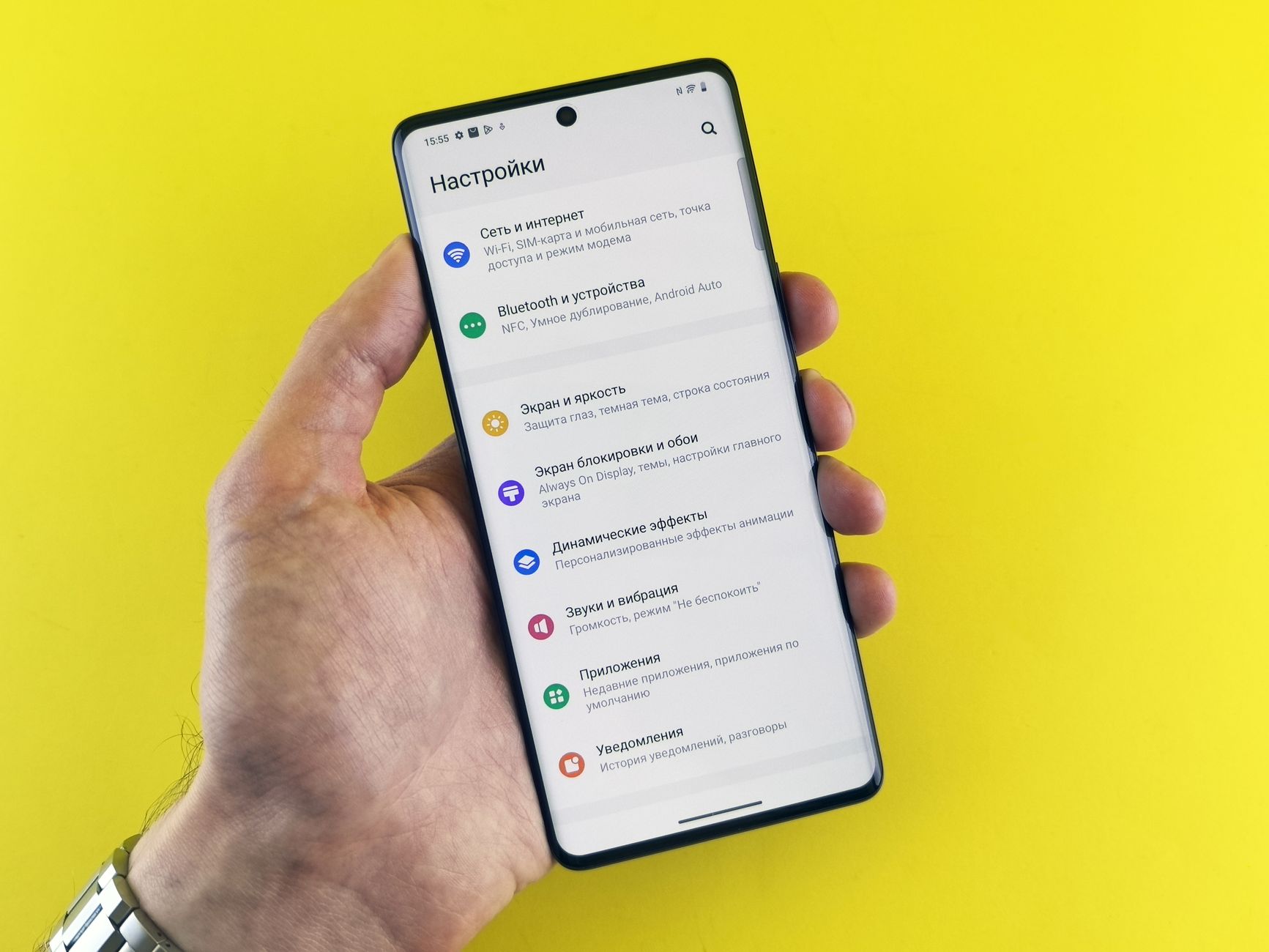
The android 16 privacy dashboard replaces the older permission manager with a real‑time, visual timeline of every sensor, location, microphone, and camera request. It aggregates data per app and per permission type, giving you a single pane of glass to manage app data access android. The dashboard is accessible from Settings → Privacy → Privacy Dashboard and updates continuously as apps request resources.
Key Components of the Dashboard
- Permission Timeline – A chronological log showing when each app accessed a given permission.
- App‑Level Summary – Tap any app to see a breakdown of all permissions it has used in the last 24 hours, 7 days, or 30 days.
- Global Toggle – One‑tap switches for location, microphone, and camera that instantly block new requests system‑wide.
- Permission Categories – Grouped views for Sensors, Files & Media, Contacts, Calendar, and more.
How to Use the Privacy Dashboard on Android 16
- Open Settings and scroll to Privacy.
- Tap Privacy Dashboard to launch the main view.
- Select a permission category (e.g., Location) to see which apps have accessed it recently.
- Tap an app name to open its detailed permission page.
- Choose Allow only while using the app, Ask every time, or Deny for each permission.
- Use the Global Toggle at the top to instantly block a permission for all apps.
Pro Tip: Set Up Automatic Audits
Enable Weekly Privacy Report in the dashboard settings. Android 16 will email you a summary of high‑risk permission usage, helping you spot rogue apps before they become a problem.
Warning: Beware of “All the Time” Permissions
Apps that request Allow all the time for location or microphone can track you in the background. Review these entries weekly and downgrade to Allow only while using the app unless you have a compelling reason.
Advanced Permission Management with the Android 16 Permission Manager
Beyond the dashboard, the android 16 permission manager offers granular controls for special permissions like Read external storage, Manage external storage, and Install unknown apps. To access it:
- Go to Settings → Privacy → Permission Manager.
- Pick a permission type (e.g., Files and media).
- Review the list of apps and adjust each entry using the same three‑state selector.
- For system‑level permissions (e.g., Display over other apps), toggle the master switch off if you don’t need overlay functionality.
This deeper layer lets you control app permissions android that aren’t surfaced in the main dashboard, such as background sensor reading or clipboard access.
Hardening Your Device: Android Privacy Settings 2026
Combine the dashboard with these system‑wide hardening steps to maximize privacy:
- Disable Ad Personalization – Settings → Google → Ads → Opt out of Ads Personalization.
- Turn Off Usage & Diagnostics – Settings → Privacy → Usage & diagnostics → Toggle off.
- Enable Scoped Storage Enforcement – Already default in Android 16, but verify under Settings → Storage → Advanced.
- Use Private DNS – Settings → Network & internet → Private DNS → Hostname (e.g., dns.google).
- Lock Down Notification Content – Settings → Notifications → Lock screen → Show sensitive content only when unlocked.
These tweaks complement the dashboard by reducing the data surface that apps can request in the first place.
Managing App Data Access on Android 16
When you manage app data access android, focus on three high‑value data stores:
- Contacts & Calendar – Revoke for apps that don’t need social features.
- Files & Media – Use the new “Media only” option to let an app see photos without exposing documents.
- Sensors (Body, Motion, Environmental) – Disable for apps that have no fitness or AR functionality.
Regularly audit these categories via the dashboard’s “App‑Level Summary” to keep your data footprint minimal.
FAQ
What is the Android 16 Privacy Dashboard?
The android 16 privacy dashboard is a built‑in system UI that visualizes real‑time permission usage across all installed apps, offering timelines, per‑app breakdowns, and global toggles for location, microphone, and camera.
How to use Privacy Dashboard on Android 16?
Open Settings → Privacy → Privacy Dashboard. Choose a permission category, tap an app, and adjust its access level (Allow only while using, Ask every time, Deny). Use the global toggle for system‑wide blocks.
Can I see which apps access my location in Android 16?
Yes. In the dashboard select Location to view a chronological list of every app that requested location data, along with timestamps and the permission state granted at the time.
How to revoke app permissions in Android 16?
From the dashboard or Permission Manager, tap the target app, choose the permission you want to revoke, and select Deny. The change takes effect immediately; the app will receive a permission‑denied callback on its next request.
Conclusion
Mastering the android 16 privacy dashboard puts you in full command of what data leaves your device. By routinely reviewing the timeline, tightening global toggles, and leveraging the deeper permission manager, you can keep unwanted trackers at bay while still enjoying the apps you love. For more deep‑dives into modern tooling, check out the Cursor AI Editor Review 2026 and the Obsidian 2.0 Review 2026.