













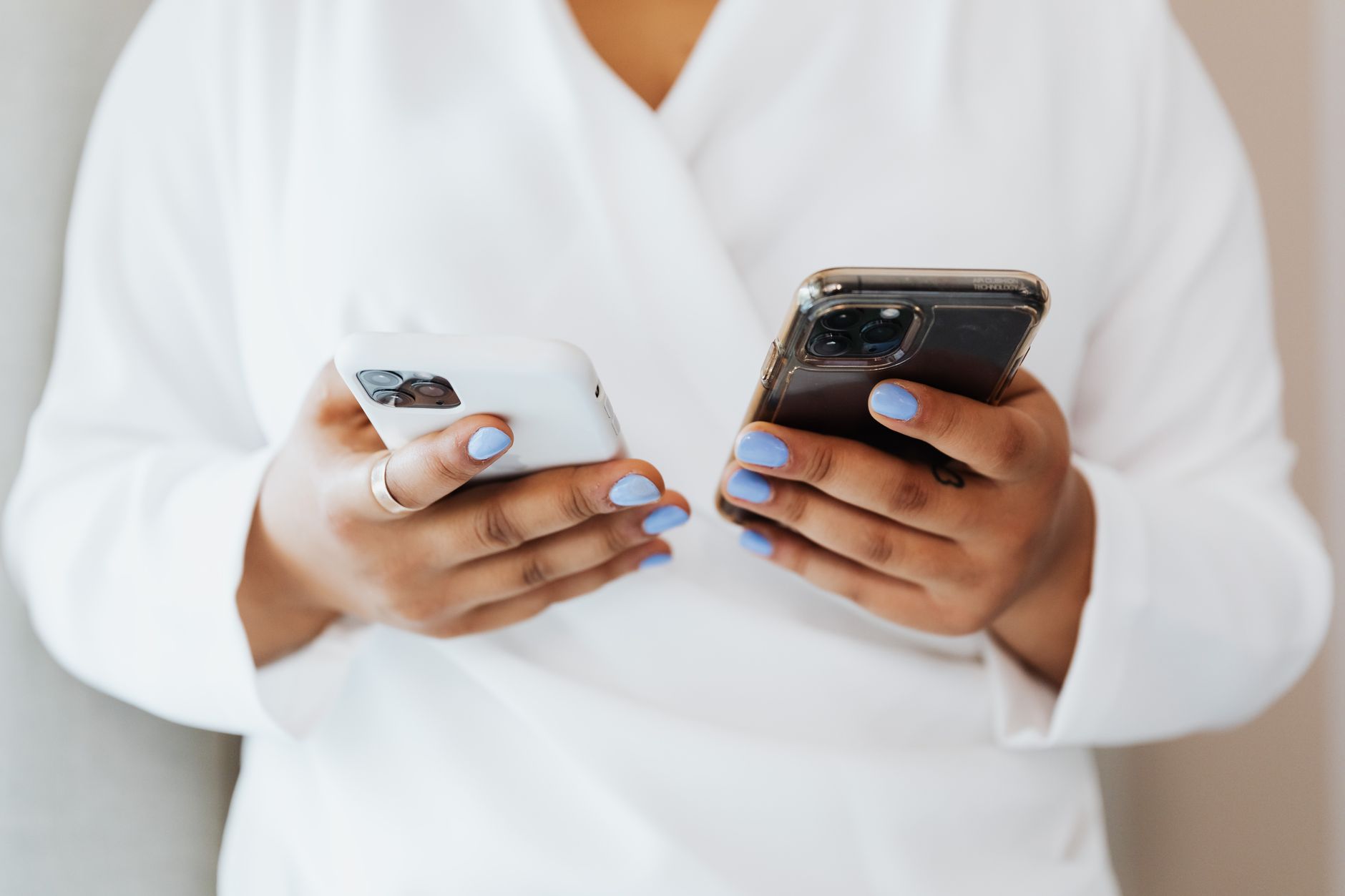
A growing thread in the Apple Support Community, viewed more than 1,100 times, highlights a frustrating problem affecting users experimenting with the iPhone Duo setup — running two iPhones in a paired configuration for calls, messaging, and continuity features. Users report failed pairing attempts, dropped Bluetooth handoffs, iCloud sync mismatches between the two devices, and iMessage arriving on only one iPhone instead of both. If you rely on a two-iPhone workflow — whether for separating work and personal lines, using dual eSIMs across devices, or maintaining a backup handset — these issues can break your daily routine.
This guide walks through the most reliable fixes, based on what users in the Apple Support Community have reported working, combined with deeper troubleshooting steps for iOS 18 and iOS 26 environments.
What Causes This Issue
The iPhone Duo problem is rarely a single bug. It stems from several overlapping causes that surface when two iPhones share the same Apple Account:
- Apple Account conflicts — when both iPhones are signed into the same account but have mismatched device trust settings, features like Messages in iCloud and FaceTime routing behave inconsistently.
- Bluetooth LE handoff failures — Continuity features rely on Bluetooth Low Energy discovery. If one iPhone has a stale cache, handoff between the two devices silently fails.
- iMessage device registration — Apple’s iMessage servers can drop one device from the delivery list after a network change, SIM swap, or number re-verification.
- eSIM and dual-SIM routing — when both iPhones carry the same phone number via a carrier’s multi-device eSIM plan, call and text forwarding depends on carrier-side provisioning that occasionally breaks after an iOS update.
- iCloud sync throttling — heavy sync loads (Photos, Messages, Notes) between two iPhones on the same account can stall, especially on iOS 26 which introduced stricter background sync scheduling.
- Focus and Notification filtering — a Focus mode set to “Share Across Devices” can suppress alerts on the secondary iPhone without any obvious indicator.
Step-by-Step Fixes
Work through these in order. The first few steps resolve the majority of reported cases according to users in the Apple Support Community.
- Verify both iPhones are signed into the same Apple Account. Go to Settings, tap your name at the top, and confirm the email address matches on both devices. If one is signed into a family member’s account or an older Apple ID, sign out and sign back in with the correct credentials.
- Re-register iMessage and FaceTime on both devices. Open Settings, tap Messages, toggle iMessage off, wait 30 seconds, then toggle it back on. Repeat for FaceTime under Settings. When iMessage reactivates, tap Send & Receive and confirm your phone number and email address are checked on both iPhones.
- Enable Messages in iCloud on both devices. Go to Settings, tap your name, tap iCloud, then tap Show All. Find Messages and toggle Sync this iPhone. Do this on both handsets — this ensures conversation history stays mirrored.
- Reset network settings on the secondary iPhone. Open Settings, go to General, tap Transfer or Reset iPhone, tap Reset, then Reset Network Settings. This clears stale Wi-Fi credentials and Bluetooth pairing data that often block Continuity.
- Restart both iPhones in sequence. Power both devices completely off. Turn on the primary iPhone first, wait until it fully connects to Wi-Fi and cellular, then power on the secondary. This ordered restart helps Apple’s push notification service correctly register both devices.
- Check Focus sharing. Open Settings, tap Focus, and disable Share Across Devices temporarily. Test whether notifications now arrive on both iPhones. If they do, reconfigure your Focus modes with clearer allowlists.
- Update both iPhones to the same iOS version. Continuity features and iMessage routing behave poorly when the two devices run different major iOS releases. Open Settings, tap General, then Software Update on each iPhone.
Additional Solutions
If the ordered steps above don’t fully resolve your issue, these deeper fixes address less common but well-documented causes.
Sign out of Apple Account and sign back in. On the iPhone experiencing the most trouble, go to Settings, tap your name, scroll down and tap Sign Out. Choose to keep a local copy of your data. After signing out, restart the device and sign back in. This forces a fresh device token to be issued to Apple’s servers, which resolves many silent registration failures.
Deregister and re-add the device from appleid.apple.com. Visit account.apple.com from any browser, sign in, scroll to Devices, and remove the problematic iPhone. Then sign back into iCloud on that iPhone. This is particularly effective when Find My or Activation Lock is showing stale information.
Check carrier eSIM provisioning. If both iPhones share a phone number through a carrier’s multi-device plan, contact your carrier and ask them to refresh the eSIM provisioning on both lines. Users in the Apple Support Community have reported that a carrier-side reset often fixes call routing issues that no amount of iPhone troubleshooting resolves.
Disable and re-enable iCloud Drive and Photos. If files or images aren’t syncing between the two iPhones, toggle iCloud Drive and Photos off on the secondary device, wait a few minutes, then re-enable them. Allow at least an hour on Wi-Fi for the initial sync to catch up.
Check Screen Time restrictions. Screen Time content restrictions can silently block certain apps and features from communicating across devices. Go to Settings, tap Screen Time, then Content & Privacy Restrictions, and verify nothing is limiting network access or app-specific features.
Force-restart the affected iPhone. Press and release Volume Up, press and release Volume Down, then press and hold the Side button until the Apple logo appears. A forced restart clears more system state than a standard power cycle.
When to Contact Apple Support
Reach out to Apple Support if you’ve completed every step above and still experience one of the following: iMessage refuses to activate on one iPhone after 24 hours, Continuity features remain broken after a full network reset and sign-out, or one device repeatedly disconnects from your Apple Account without prompting. These symptoms often indicate a server-side flag on your account that only Apple’s engineering escalation team can clear.
Have your Apple Account email, both iPhone serial numbers, and your carrier account details ready. Apple Support can be reached through the Apple Support app, at getsupport.apple.com, or by scheduling a Genius Bar appointment. If your iPhone is still under warranty or covered by AppleCare+, hardware-related connectivity issues may qualify for a replacement.
FAQ
Can I use two iPhones with the same phone number? Yes, if your carrier supports multi-device eSIM or number sharing. Not all carriers offer this, and provisioning quality varies significantly.
Will iMessage work on both iPhones simultaneously? Yes, provided both devices are signed into the same Apple Account and Messages in iCloud is enabled on both. Messages should arrive on both handsets in near real time.
Why do my notifications only appear on one iPhone? This is usually caused by Focus mode sharing, notification grouping, or a stale push token. Follow steps 6 and 7 above to resolve it.
Does running two iPhones drain battery faster? The secondary iPhone will consume slightly more battery due to constant iCloud sync and Bluetooth LE scanning, but the impact is typically under 10% additional daily drain.
Can I use Handoff between two iPhones? Handoff is designed primarily for iPhone-to-Mac and iPhone-to-iPad workflows. Between two iPhones, features like Universal Clipboard work reliably, but app-level Handoff is limited.