






























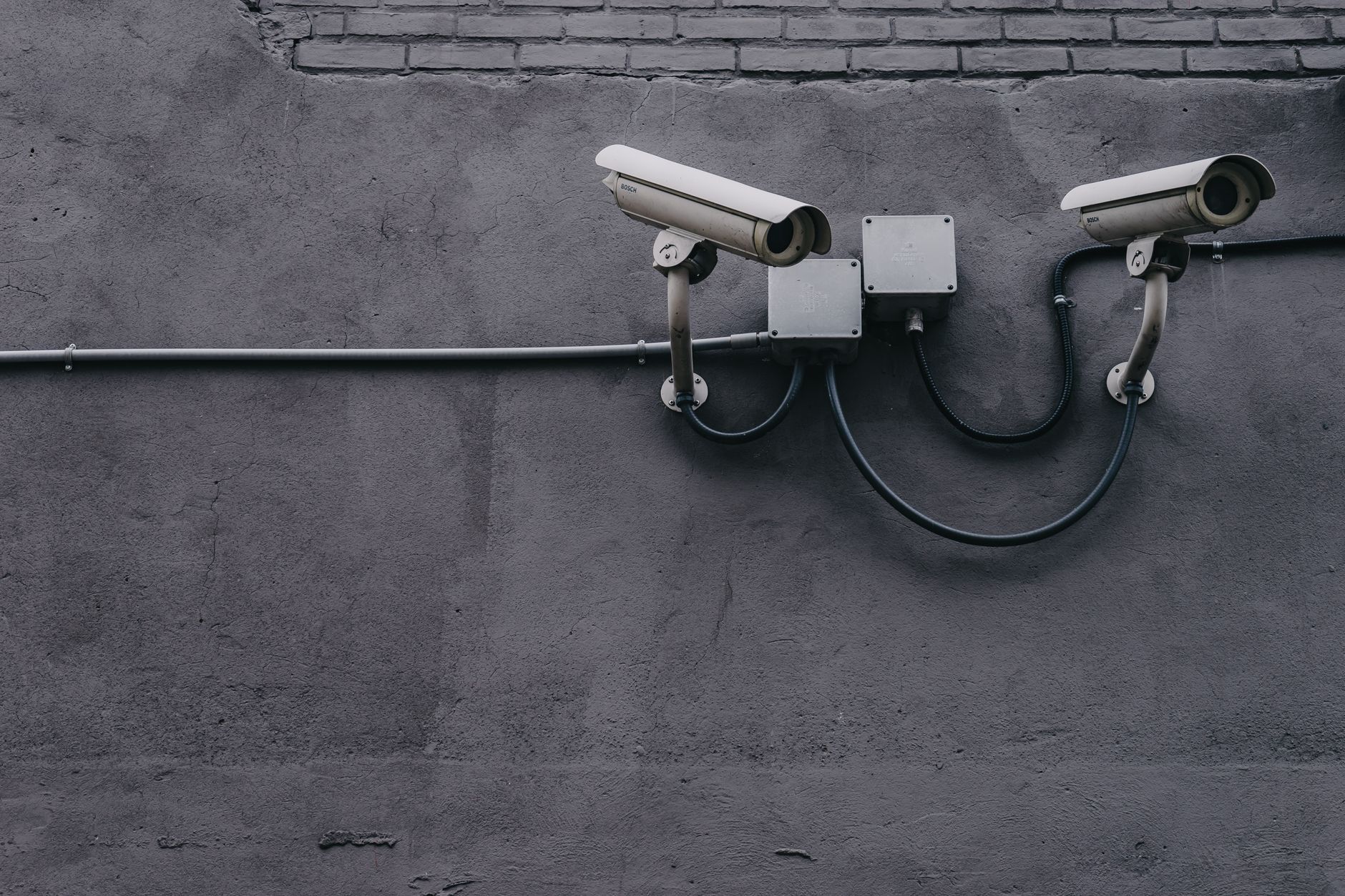
A troubling security incident is being widely discussed across the Apple Support Community and broader developer forums: a consumer security camera was found shipping with a hard-coded GitHub admin token embedded directly in its web login page. That token — visible to anyone who inspected the page source — reportedly granted administrative access to the manufacturer’s private code repositories. For Apple users who rely on HomeKit-adjacent cameras, third-party smart home gear, or any IP camera on the same Wi-Fi as their iPhone, iPad, or Mac, this raises real questions about network trust, credential hygiene, and how to spot leaky devices before they compromise a household.
This guide walks through why these leaks happen, what Apple users should do right now, and how to harden your setup against the next inevitable incident.
What Causes This Issue
Credential leaks like this rarely stem from a single mistake. Users in the Apple Support Community and security researchers tracking the thread point to several overlapping causes:
- Hard-coded secrets in firmware: Developers embed API keys, OAuth tokens, or admin credentials directly into shipped code — often during rushed builds — and forget to strip them before release.
- Bundled front-end JavaScript: Modern camera login pages ship as single-page applications. When build tools compile source files, they can accidentally include .env variables or configuration objects meant only for internal use.
- Reused development tokens: A token created for CI/CD (continuous integration) testing gets promoted to production without rotation.
- Weak vendor security review: Small IoT manufacturers frequently lack a formal secret-scanning step in their release pipeline.
- Local network exposure: Once a device sits on your home Wi-Fi alongside your Apple devices, any vulnerability it carries becomes a foothold into your broader ecosystem — including AirPlay targets, shared folders, and iCloud-signed-in Macs.
The specific incident discussed on the community thread is not an isolated case. Similar leaks have surfaced in doorbells, baby monitors, and networked printers over the past several years.
Step-by-Step Fixes
There is no single accepted fix in the community thread yet — the disclosure is still active — but the following ordered sequence is what Apple platform experts recommend to contain risk immediately.
- Identify the affected device on your network. Open the Home app on your iPhone or Mac, then cross-reference with your router’s admin panel. Look for the camera’s MAC address and note its assigned IP.
- Disconnect the camera from the internet. In your router settings, block outbound traffic for that device, or physically unplug it. This prevents any embedded token from being abused while you investigate.
- Check for a firmware update. Open the manufacturer’s companion app on iOS or iPadOS. If a patch has been released addressing the token leak, install it before reconnecting the device.
- Rotate any linked credentials. If you used the same email and password on the camera’s cloud account as on other services, change those passwords immediately using iCloud Keychain or your preferred password manager.
- Audit your Apple ID sign-in activity. Go to Settings > [your name] > Sign-In & Security > Devices, and remove anything unfamiliar.
- Enable two-factor authentication on every account associated with the camera vendor and any linked services.
- Isolate IoT devices on a guest network. Most modern routers, including AirPort successors and mesh systems compatible with HomeKit, support a separate SSID for smart home hardware. Move the camera there so it cannot reach your Macs or iPhones directly.
- Report the leak. Notify the manufacturer through their support channel and, if applicable, file a report with your national cybersecurity agency.
Additional Solutions
Beyond the immediate triage, there are several longer-term measures Apple users should adopt to reduce exposure from leaky third-party devices.
Prefer HomeKit-certified hardware. Cameras that carry the Works with Apple Home badge undergo Apple’s certification process, which includes stricter requirements around encryption and secure enclave usage. While certification does not guarantee zero flaws, it filters out the most careless vendors.
Enable HomeKit Secure Video. If your camera supports it, HomeKit Secure Video encrypts footage end-to-end and processes analysis on your Apple TV, HomePod, or iPad hub — meaning less video ever leaves your home network in a form the vendor can access.
Use iCloud Private Relay on connected Apple devices. While it does not protect the camera itself, Private Relay masks your Safari traffic from network snoopers who might exploit a compromised device on the same LAN.
Scan your local network. Free tools like Fing (available on the App Store) or the built-in network diagnostics in macOS can enumerate every device on your Wi-Fi. Anything you do not recognise should be investigated or removed.
Inspect login pages before trusting a device. If you are technically inclined, right-click a camera’s web interface in Safari and choose Show Page Source. Look for anything resembling ghp_, github_pat_, or long base64 strings in JavaScript files. These are common patterns for leaked GitHub tokens.
Turn off UPnP on your router. Universal Plug and Play lets devices punch holes through your firewall automatically. Disabling it forces manual port forwarding, which is inconvenient but far safer.
Set up a monthly credential review. Use the Passwords app in iOS 17 and later — now a standalone Passwords app in the latest releases — to flag reused or compromised credentials.
When to Contact Apple Support
Apple Support cannot fix a third-party camera’s firmware, but there are specific scenarios where reaching out is appropriate:
- You suspect your Apple ID has been accessed as a result of the compromised device.
- Your HomeKit setup behaves unexpectedly — devices disappearing, unfamiliar automations, or new users listed in the Home app.
- You see unrecognised sign-ins in your Apple ID activity log.
- Two-factor authentication codes arrive when you did not request them.
- Your Mac shows unexplained network activity in Activity Monitor tied to the camera’s IP range.
In those cases, contact Apple Support through the Apple Support app or by calling directly. For issues tied specifically to the camera vendor, escalate to that manufacturer — Apple cannot rotate their tokens or issue firmware patches on their behalf.
FAQ
Does this leak affect my iPhone or Mac directly? Not directly. The token exposes the vendor’s GitHub account, not your Apple devices. However, a compromised camera on your network can be used as a pivot point for further attacks.
Should I stop using the camera entirely? Until the manufacturer confirms the token has been revoked and firmware patched, keeping the device offline is the safest choice.
Can HomeKit protect me from this kind of leak? HomeKit-certified devices are less likely to ship with such flaws, but no certification is bulletproof. Network isolation remains essential.
How do I know if my other smart devices have similar problems? Check whether the vendor publishes a security disclosure policy and whether they have issued CVEs in the past. Silence is often a warning sign.
Is my iCloud data at risk? Only if you reused credentials between the camera vendor’s account and your Apple ID. Rotate passwords and enable two-factor authentication immediately to close that gap.
Incidents like this are a reminder that smart home security is only as strong as its weakest connected device. Treat every IoT product on your network as untrusted by default, and your Apple ecosystem stays meaningfully safer.












