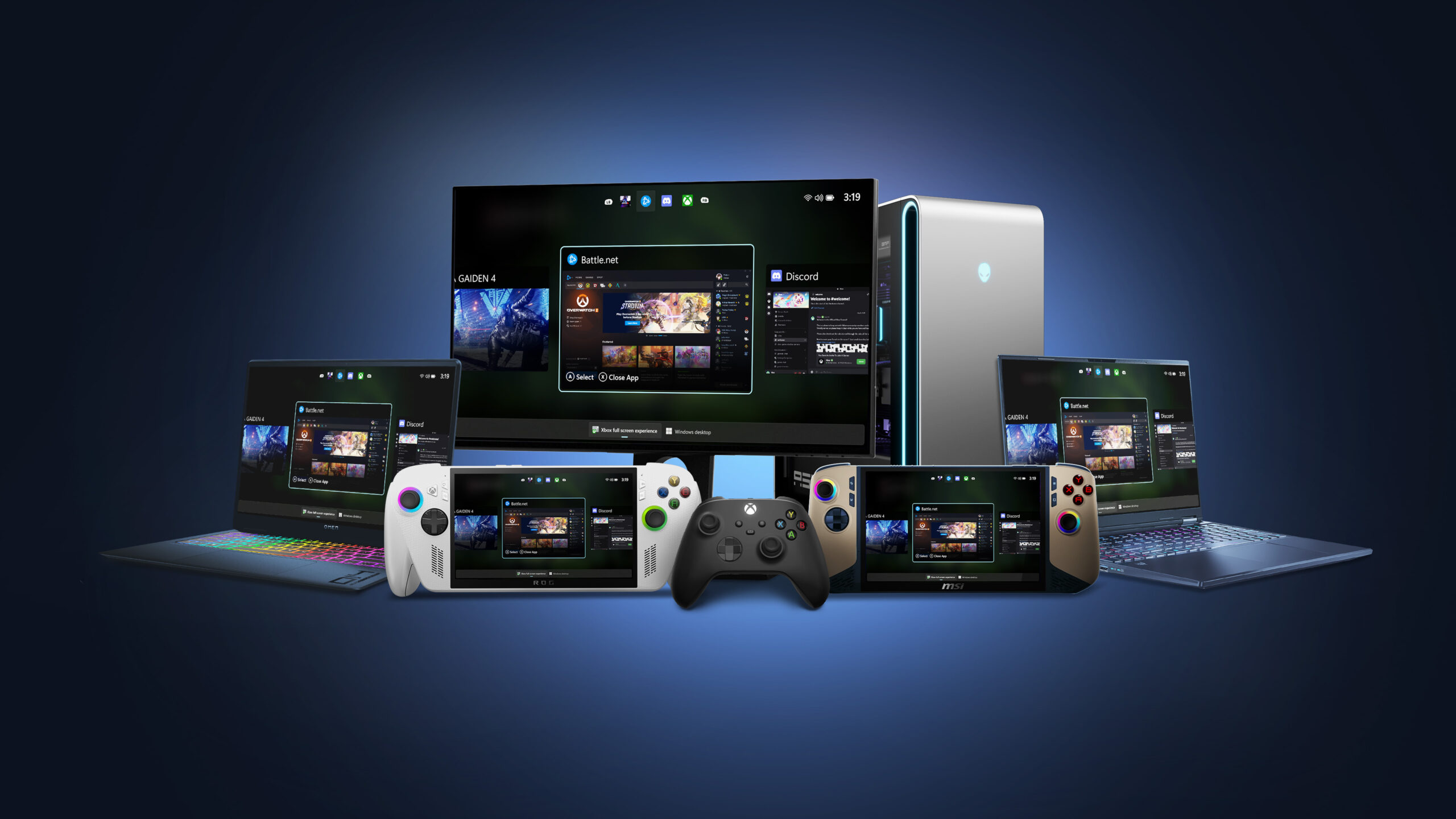
In the ever-evolving world of gaming, Microsoft has taken a significant step forward by expanding the Xbox full screen experience to more Windows 11 PC setups. Initially available only for handheld devices, this immersive experience is now accessible in preview form for a wider range of devices, including laptops, desktops, and tablets. This move aims to enhance the gaming journey for PC users by providing a console-like interface that is optimized for controller navigation.
The Xbox full screen experience is designed to bring a seamless, immersive environment akin to what gamers enjoy on a traditional console. With a user interface that prioritizes controller-first navigation, players can effortlessly browse through their game libraries and launch titles from a variety of popular PC storefronts. A standout feature of this experience is the powerful Task Switcher, which allows for quick transitions between games and applications, ensuring an uninterrupted gaming experience.
Getting Started with the PC Preview
To access this new feature, users need to be part of both the Xbox Insider Program and the Windows Insider Program. Here’s a step-by-step guide on how to join these programs and start using the Xbox full screen experience on your PC:
Step 1: Join the Xbox Insider Program
- Become an Xbox Insider: If you’re not already a member, you can join by following the detailed guide available on the Xbox Support Website.
- Install and Launch the Xbox Insider Hub App: This app is your gateway to the latest previews and updates.
- Navigate to Previews > PC Gaming Preview: This section allows you to opt into the new Xbox full screen experience preview.
Step 2: Join the Windows Insider Program
- Enroll in the Windows Insider Program: Detailed instructions can be found on the Microsoft Support Page.
- Select Beta or Dev Channels: These channels provide access to the latest features and updates in development.
Accessing the Full Screen Experience
Once you’ve joined both programs, you can dive into the full screen experience. The process is straightforward, and once set up, you can navigate your gaming library with ease, using your controller as the primary tool.
Providing Feedback
Feedback is crucial in refining and improving the Xbox full screen experience. Microsoft encourages users to share their thoughts through the Feedback Hub. This can be accessed via the keyboard shortcut (WIN + F) or through the Xbox PC App by selecting "Report a Problem." When submitting feedback, ensure you categorize it under Gaming and Xbox > Gaming Full Screen Experience. Your input helps shape the future of Xbox gaming experiences on PC.
Xbox Insider Support and Community Engagement
The Xbox Insider community plays a vital role in the development and enhancement of Xbox features. Microsoft expresses gratitude towards Insiders for their valuable feedback, which continually shapes the Xbox ecosystem’s future. If you’re an Xbox Insider seeking support, consider joining the vibrant community on the Xbox Insider Subreddit. Here, official Xbox staff, moderators, and fellow Insiders are available to assist. When posting in the subreddit, try to add to existing threads on the same topic before creating a new one. This approach helps the community offer the most effective support.
Additional Resources
For those interested in exploring more about the Xbox full screen experience and staying updated with the latest developments, it’s beneficial to keep an eye on official Xbox and Microsoft communication channels. Engaging with community forums and staying active in the Insider programs will also provide insights and updates on upcoming features and improvements.
In summary, the expansion of the Xbox full screen experience to Windows 11 PCs marks a significant development in the gaming world. By bringing a console-like environment to more PC form factors, Microsoft is enhancing the gaming experience, making it more immersive and user-friendly. Whether you’re a casual gamer or a dedicated enthusiast, this new feature aims to provide a seamless and enjoyable gaming journey. For more information and to become part of this exciting development, refer to the official Microsoft and Xbox resources and consider joining the Insider programs.
For more Information, Refer to this article.