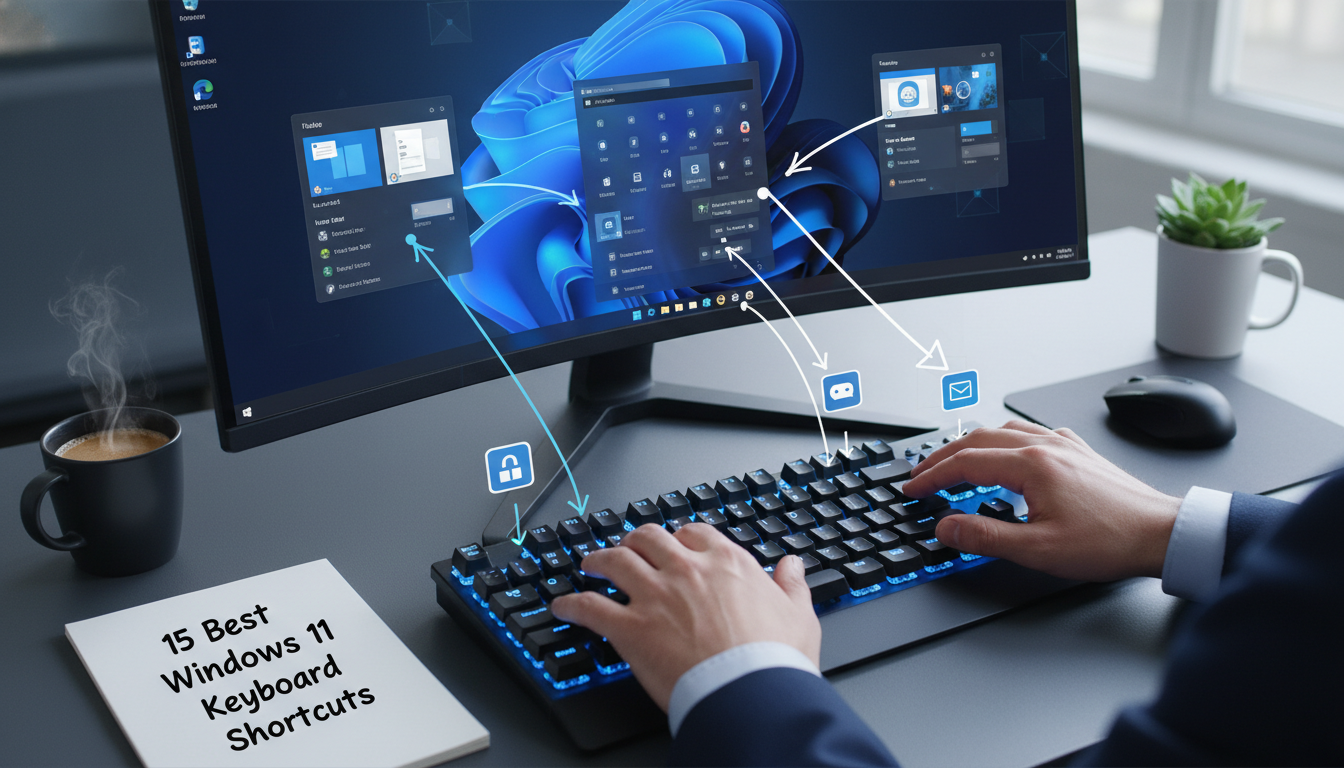
If you want to work faster and smarter on your PC in 2026, mastering Windows 11 keyboard shortcuts is the single most effective habit you can build. While the mouse is intuitive, every click adds friction, and over the course of a workday those seconds turn into hours. Microsoft has packed Windows 11 with a refined set of hotkeys that control everything from snap layouts to virtual desktops, voice typing, and screenshots. Whether you’re a developer, writer, designer, or office professional, this guide walks you through 15 indispensable shortcuts plus practical windows 11 productivity tips that will fundamentally change how you interact with your machine.
Why Keyboard Shortcuts Matter More Than Ever in Windows 11
Windows 11 was designed with a heavier emphasis on window management, multitasking, and touch-friendly interactions than its predecessors. That redesign also introduced new keystrokes that previous Windows users may not know exist. Learning them isn’t about showing off — it’s about reducing repetitive strain and keeping your hands on the keyboard where your focus lives.
Studies on workplace ergonomics consistently show that frequent keyboard users complete tasks 20–30% faster than mouse-dependent users. When you combine that with the snappy animations and Fluent Design transitions in Windows 11, hotkeys feel almost instantaneous. The shortcuts below are organized by purpose so you can adopt them gradually rather than memorizing everything overnight.
Pro tip: Print a cheat sheet for your first week. Muscle memory takes roughly 10–14 days of repeated use before a shortcut becomes automatic.
Essential Window and Desktop Management Shortcuts
Window juggling is where most of your productivity bleeds out. These five shortcuts handle the heavy lifting and form the backbone of any useful windows shortcuts list. Once you internalize them, you’ll never drag a window across the screen again.
1. Win + Arrow Keys — Instant Snap
Press Windows key + Left/Right arrow to dock the active window to one side of the screen. Add the Up or Down arrow afterward to send it into a quadrant. This single combination eliminates 90% of manual window resizing.
2. Win + Z — Open Snap Layouts
This is one of the most underused snap layout shortcuts introduced with Windows 11. Pressing Win + Z reveals the snap layout overlay, allowing you to drop your current window into a predefined grid such as a three-column or 2×2 arrangement. Use the number keys that appear to choose a position instantly.
The remaining three desktop shortcuts you should adopt immediately:
- Win + D — Show or hide the desktop in a single tap.
- Win + Tab — Open Task View with a timeline of virtual desktops and recent activity.
- Win + Ctrl + D / F4 — Create a new virtual desktop or close the current one. Perfect for separating work and personal tabs.
File Explorer and Navigation Hotkeys
File Explorer in Windows 11 received a tabbed interface, and the keyboard shortcuts that go with it are genuinely time-saving. If you frequently dig through folders, project directories, or downloads, these belong in your daily rotation.
Start with Win + E, which launches File Explorer from anywhere — even a full-screen game or video. Once inside, press Ctrl + T to open a new tab and Ctrl + W to close the current one, mirroring the behavior of your browser. To jump between tabs, use Ctrl + Tab.
For lightning-fast navigation inside any folder, press Alt + Up arrow to move to the parent directory, or Alt + Left/Right arrow to navigate your browsing history. If you need to rename multiple files, select them and press F2 — Windows 11 will rename each one sequentially as you press Enter.
Mac users switching to Windows often struggle with file management differences. If you also use a Mac, our guide on restoring the missing Finder grid view on macOS is worth bookmarking for cross-platform days.
Productivity Shortcuts That Power Through Tasks
Beyond windows and files, Windows 11 includes dedicated shortcuts for clipboard history, voice input, emojis, and the redesigned Quick Settings panel. These represent some of the smartest windows 11 tricks baked into the OS.
3. Win + V — Clipboard History
The default Ctrl + V only pastes your last copied item, but Win + V opens a scrollable history of up to 25 recent clips, including text, screenshots, and HTML. You can also pin items you reuse often, such as email signatures or code snippets. The first time you press it, Windows will ask you to enable the feature.
4. Win + H — Voice Typing
Press Win + H in any text field to launch the on-device voice typing engine. Accuracy in 2026 is excellent, supports automatic punctuation, and works offline in most languages. It’s a lifesaver when your wrists need a break or you’re dictating long-form notes.
Round out your productivity arsenal with these:
- Win + . (period) — Open the emoji, GIF, and symbol picker in any app.
- Win + A — Open Quick Settings (Wi-Fi, Bluetooth, volume, brightness).
- Win + N — Open the Notification Center and calendar.
Screenshot and Screen Recording Shortcuts
Capturing your screen used to require third-party tools, but the Snipping Tool in Windows 11 is now genuinely powerful. The right hotkeys make it effortless. Knowing these will save you from awkward phone-photos-of-the-screen moments forever.
The most important shortcut here is Win + Shift + S, which freezes the screen and lets you draw a rectangular, freeform, window, or full-screen capture. The image goes to your clipboard and pops up as a notification you can annotate. For a full screenshot saved directly as a PNG file, press Win + Print Screen — Windows drops it in your Pictures > Screenshots folder automatically.
Need to record video instead? Press Win + Alt + R to launch the built-in screen recorder, which captures the active window or a selected region with optional microphone audio. For gamers, the Xbox Game Bar (Win + G) offers additional capture options including system audio and webcam overlay.
Pro tip: If your screenshots aren’t saving to the Screenshots folder, check OneDrive’s backup settings — it may be redirecting them to the cloud automatically.
Advanced Power-User Shortcuts to Speed Up Windows Workflow
Once the basics are second nature, these advanced shortcuts will help you truly speed up windows workflow and impress anyone watching over your shoulder. They control system-level features that most users never discover.
Press Win + X to open the Power User Menu — a compact list of administrative tools including Device Manager, Disk Management, Terminal, and Task Manager. It’s the fastest path to system maintenance utilities. Speaking of which, Ctrl + Shift + Esc opens Task Manager directly, bypassing the Ctrl+Alt+Del security screen.
For terminal users, Win + X then A launches Windows Terminal as administrator. And if you want to lock your PC the instant you step away — a critical security habit in shared spaces — press Win + L. The lock screen appears instantly, protecting your session without closing your work.
5. Win + Ctrl + O — Open On-Screen Keyboard
This accessibility shortcut is also a hidden productivity gem when your physical keyboard malfunctions or when you need to type characters your keyboard layout doesn’t support.
Creating Your Own Custom Shortcuts
Windows 11 doesn’t expose a built-in custom shortcut editor, but you can create your own by right-clicking any application shortcut on the desktop, choosing Properties, and entering a key combination in the “Shortcut key” field. The combination must include Ctrl + Alt plus a letter. PowerToys, Microsoft’s official utility suite, offers a more flexible Keyboard Manager module for remapping individual keys and creating multi-step shortcuts.
Building a Daily Habit Around Hotkeys
The hardest part of adopting a windows hotkeys list isn’t memorization — it’s consistency. Force yourself to use a new shortcut every day for a week, then add another. Within a month you’ll have a dozen automatic reflexes that make computing feel almost frictionless.
Pair these PC habits with shortcuts on your phone for total efficiency. If you’re an Android user, the productivity gains from hidden Gmail features on Android 16 stack neatly with desktop hotkeys. iPhone users can equally benefit from learning the pro voice messaging tricks in iOS 26, which pair beautifully with Win + H voice typing on your PC.
For the most up-to-date Windows tutorials and troubleshooting guides, you can always browse the latest articles on Hawkdive.
Frequently Asked Questions
What is the most useful Windows 11 shortcut?
For most users, Win + V (clipboard history) is the single most transformative shortcut because it changes how you handle copied content forever. However, Win + Shift + S for screenshots and Win + Arrow keys for snapping are equally indispensable. The best shortcut is ultimately the one that solves your biggest daily friction point.
How do I create custom keyboard shortcuts in Windows 11?
Right-click any application shortcut (on the desktop or in the Start menu folder), select Properties, click in the “Shortcut key” field, and press your desired Ctrl + Alt + letter combination. Click Apply. For deeper customization including key remapping and multi-action shortcuts, install Microsoft PowerToys and use the Keyboard Manager module.
What is the shortcut for snap layouts in Windows 11?
Press Win + Z to open the Snap Layouts overlay on any active window. Each layout option will show a number — press that number followed by additional numbers to place your window into a specific zone. You can also hover over the maximize button with your mouse to see the same layouts.
How do I take a screenshot using keyboard shortcuts?
Use Win + Shift + S to open the Snipping Tool overlay for a custom capture (rectangular, freeform, window, or full screen). The image is copied to your clipboard and shown as a notification for annotation. To save a full-screen screenshot automatically as a file, press Win + Print Screen — the file appears in Pictures > Screenshots.
Can I disable Windows 11 keyboard shortcuts?
Yes, but options are limited natively. You can disable specific Windows hotkeys through the Group Policy Editor (gpedit.msc) by navigating to User Configuration > Administrative Templates > Windows Components > File Explorer and enabling “Turn off Windows Key hotkeys.” For granular control over individual shortcuts, Microsoft PowerToys’ Keyboard Manager lets you remap or disable specific key combinations without affecting the rest of the system.
Final Thoughts
Mastering Windows 11 keyboard shortcuts isn’t about memorizing a hundred key combinations — it’s about identifying the five or ten that solve your most frequent friction points and committing them to muscle memory. Start with snap layouts, clipboard history, and the Snipping Tool, then expand from there. Within weeks you’ll wonder how you ever worked without them.
If you manage devices across multiple ecosystems, keep your troubleshooting skills sharp with our guides on fixing the Apple ID sign-in loop on macOS and iOS and transferring data from Android to iPhone 16 without losing files. Cross-platform fluency is the real productivity superpower in 2026.