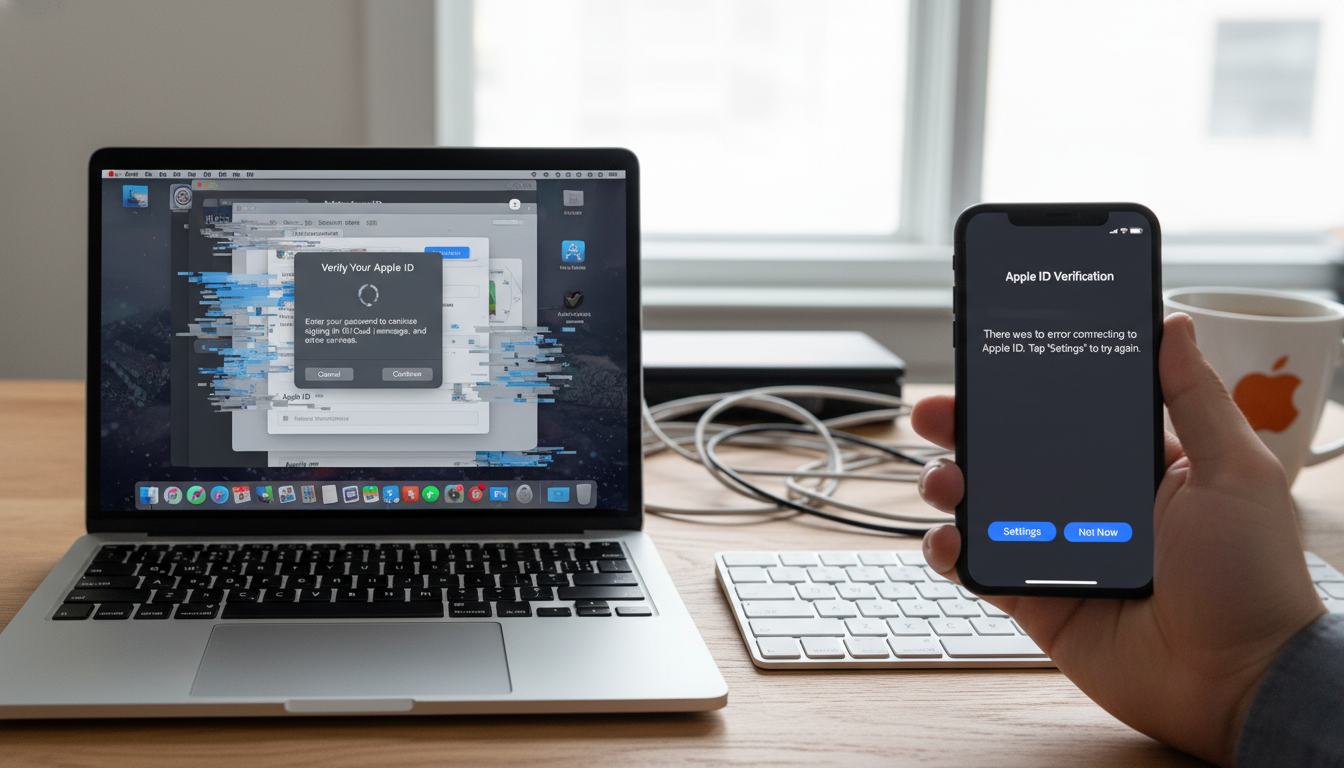
A growing number of Apple users are reporting a frustrating issue: their devices repeatedly prompt them to sign in to their Apple ID, accept the password, and then immediately ask for it again. The loop can affect iCloud, the App Store, iMessage, and FaceTime all at once, leaving the device technically signed in but functionally broken. Discussions in the Apple Support Community show the problem hitting users across macOS Sonoma, macOS Sequoia, iOS 17, and iOS 18, often after a system update, a password change, or a switch between Wi-Fi networks.
This guide walks through what triggers the Apple ID sign-in loop, the fixes that work most reliably, and when it is time to escalate to Apple directly.
What Causes This Issue
The sign-in loop is rarely caused by a wrong password. In most reported cases, the credentials are correct but the device cannot complete the authentication handshake with Apple’s identity servers. Several underlying triggers have been identified:
- Expired authentication tokens stored in the keychain that the system cannot refresh silently.
- A recent Apple ID password change that did not propagate to every service on the device.
- Corrupted entries in the iCloud preference files on macOS, particularly after an interrupted update.
- Two-factor authentication codes being requested faster than they can be entered, especially when multiple Apple devices are signed in to the same account.
- Network restrictions blocking Apple’s authentication endpoints, common on managed Wi-Fi, VPNs, or networks using strict DNS filtering.
- Date and time settings that have drifted out of sync, which causes certificate validation to fail.
- An Apple ID server outage, which produces identical symptoms even when nothing on the device is wrong.
Users in the Apple Support Community have noted that the problem often appears suddenly on devices that worked fine the day before, which points strongly at token expiry rather than user error.
Step-by-Step Fixes
Work through these in order. The earlier steps are non-destructive and resolve the majority of cases.
- Check Apple’s System Status page. Before touching any settings, visit Apple’s official System Status page in a browser. If Apple ID, iCloud Account & Sign In, or any related service shows a yellow or red indicator, wait it out. No local fix will work during a server-side incident.
- Verify date, time, and time zone. On iPhone or iPad, go to Settings > General > Date & Time and enable Set Automatically. On Mac, open System Settings > General > Date & Time and confirm the same. A clock that is off by even a few minutes will break certificate-based authentication.
- Force quit and restart. On iPhone, fully power down and restart. On Mac, choose Restart from the Apple menu rather than just closing the lid. A clean restart clears in-memory authentication state that may be stuck.
- Sign out of iCloud, then sign back in. On iOS, go to Settings > [your name] > Sign Out. Choose to keep a local copy of contacts and Keychain data if prompted. On macOS, go to System Settings > [your name] > Sign Out. Restart the device, then sign in again from the same menu. This forces a fresh token exchange and resolves a large share of cases.
- Generate a verification code manually. If the loop is being driven by a two-factor prompt that never arrives, go to Settings > [your name] > Sign-In & Security > Get Verification Code on a trusted device. Type that six-digit code into the prompt manually instead of waiting for an automatic push.
- Reset network settings. On iPhone, navigate to Settings > General > Transfer or Reset iPhone > Reset > Reset Network Settings. This clears stuck Wi-Fi configurations and DNS caches that can silently block Apple’s authentication servers. You will need to re-enter Wi-Fi passwords afterward.
- Switch networks. Disable Wi-Fi and try the sign-in over cellular, or move to a different network entirely. If the loop disappears, the original network is filtering or throttling traffic to idmsa.apple.com or gsa.apple.com, which are required endpoints.
- Update the operating system. Apple has shipped multiple point releases that specifically address authentication issues. Make sure the device is on the latest available version of iOS, iPadOS, or macOS before assuming the bug is permanent.
Additional Solutions
If the standard steps did not break the loop, try these more targeted fixes.
- Remove the device from your Apple ID via the web. Sign in to appleid.apple.com from a computer or another phone, scroll to the Devices section, select the affected device, and click Remove from Account. Restart the device and sign in fresh. This severs any stale association on Apple’s side.
- Reset the keychain entries on macOS. Open Keychain Access, search for any items containing iCloud, Apple ID, or com.apple.account, and delete them. The system will recreate clean copies on the next sign-in attempt. Back up first if you store sensitive credentials there.
- Delete the Accounts preference files. In Finder, hold Option and choose Go > Library > Preferences. Move files starting with com.apple.accounts, com.apple.identityservices, and MobileMeAccounts.plist to the desktop. Restart and sign in again. If the loop returns, put the originals back.
- Disable VPN and content filters. Profiles installed for work, school, or privacy tools can block Apple authentication traffic. Temporarily disable them under Settings > General > VPN & Device Management.
- Change DNS to a known-good resolver. Set DNS to 8.8.8.8 or 1.1.1.1 on the affected network and retry. Some ISP DNS servers fail to resolve Apple’s regional authentication hosts correctly.
- Check for a locked or disabled Apple ID. If too many failed attempts have occurred, the account itself may be locked. Visit iforgot.apple.com to unlock it before retrying on the device.
When to Contact Apple Support
Escalate to Apple if you see any of the following: the sign-in prompt accepts your password but immediately rejects it with no error message, two-factor codes never arrive on any trusted device, the account shows as locked even after the unlock flow completes, or the loop persists across a full erase and restore. These patterns usually indicate a server-side flag on the account that only Apple’s account security team can clear.
Contact options include the official Apple Support app, getsupport.apple.com, or a scheduled call-back. Have your Apple ID email, serial number of the affected device, and approximate time the issue began ready before you start the conversation. If you have a Recovery Key or Recovery Contact configured, mention it early — it can shorten the verification process significantly.
FAQ
Will signing out delete my photos and files? No. Signing out of iCloud removes the synced copies from the device, but the originals remain in iCloud and reappear when you sign back in. You can also choose to keep local copies during sign-out.
Is this caused by a hack or compromised account? Almost never. The loop is a synchronization problem, not a security event. That said, if you also see unfamiliar devices listed under your Apple ID, change your password immediately.
Why does the loop only affect one of my devices? Authentication tokens are per-device. A single corrupted token explains why your iPhone may loop while your Mac signs in cleanly.
Can I keep using my device while the loop continues? Yes, but iCloud sync, iMessage, FaceTime, and App Store updates will not work reliably until it is resolved. Fix it before it cascades into missed messages or failed backups.