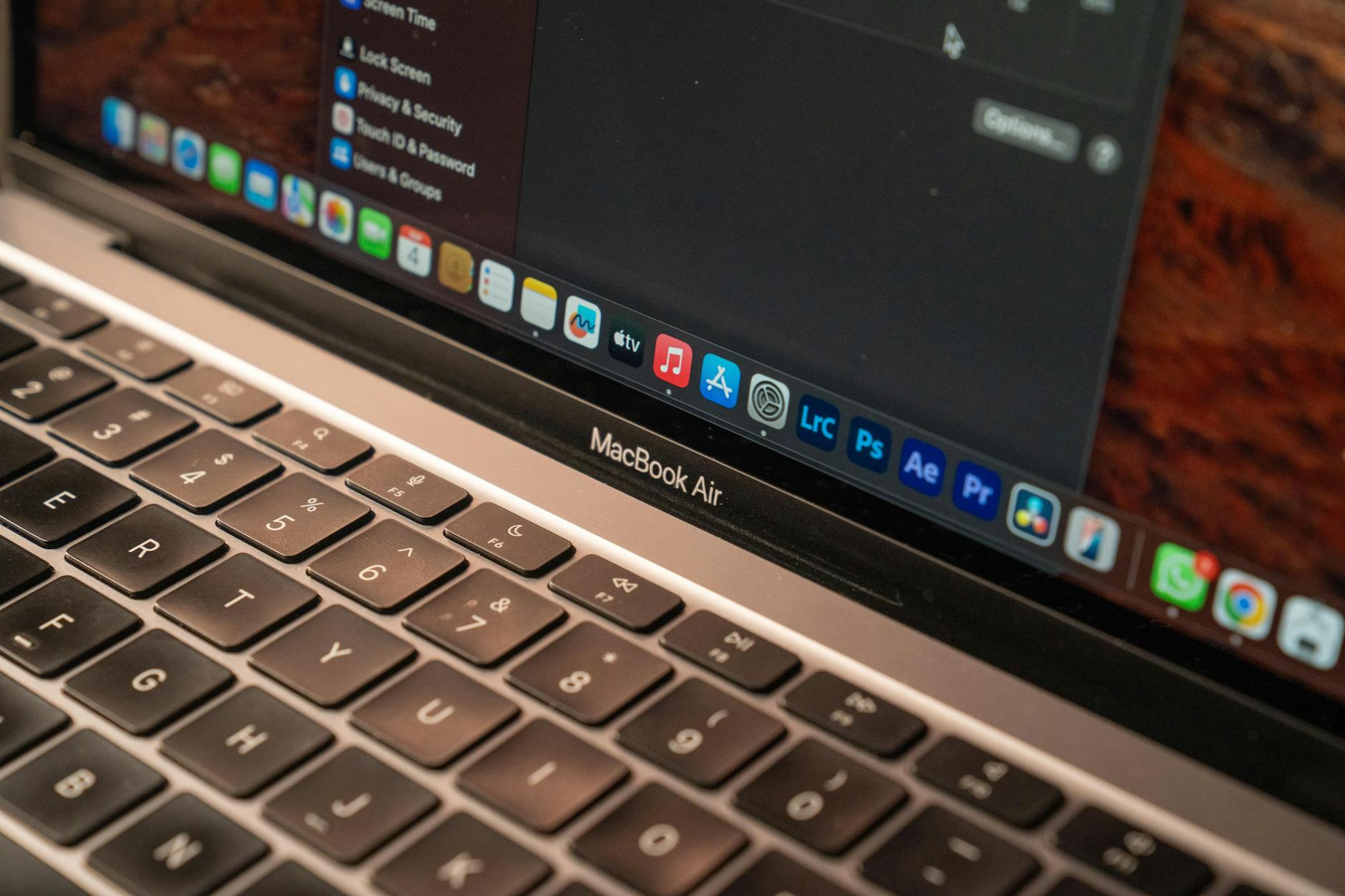
Developers and security researchers on macOS have been reporting persistent setup and runtime problems with Anthropic’s newly released open-source framework for AI-powered vulnerability discovery. The tool, which uses large language models to scan codebases for security flaws, has generated significant buzz — but also a steady stream of complaints in the Apple Support Community about failed installations, Python environment conflicts, permission denials, and crashes when the framework attempts to access local project directories on macOS Sonoma and Sequoia.
If you’ve tried installing or running this framework on your Mac and hit walls involving Gatekeeper blocks, Xcode Command Line Tools mismatches, or sandboxing errors, you’re not alone. This guide walks through what’s actually causing these problems and the fixes that are working reliably as of June 2026.
What Causes This Issue
The framework relies on a mix of Python dependencies, native compilation steps, and network access to Anthropic’s API endpoints. On macOS, several layers of system protection and developer-tooling quirks can interfere:
- System Integrity Protection (SIP) and Gatekeeper block unsigned binaries and scripts downloaded from GitHub, especially when the framework tries to launch helper processes.
- Conflicting Python installations — Homebrew Python, the system Python stub, pyenv-managed versions, and Anaconda environments — cause dependency resolution to fail mid-install.
- Outdated or missing Xcode Command Line Tools prevent native extensions (like cryptography or tree-sitter bindings) from compiling.
- Apple Silicon (M1 through M4) Macs running x86 Python under Rosetta 2 produce architecture mismatch errors when the framework loads compiled modules.
- macOS’s Transparency, Consent, and Control (TCC) system blocks the framework from reading folders like Documents, Downloads, or Desktop without explicit Full Disk Access.
- Corporate or institutional MDM profiles can silently block the API endpoints the framework needs to function.
Users in the Apple Support Community have noted that the problem most often surfaces immediately after running the install script, or the first time the scanner is pointed at a real project directory.
Step-by-Step Fixes
- Update Xcode Command Line Tools first. Open Terminal and run xcode-select –install. If it says the tools are already installed, force a refresh by running sudo rm -rf /Library/Developer/CommandLineTools followed by the install command again. This resolves the majority of compilation errors during pip installs.
- Use a clean Python environment. Install Python 3.11 or 3.12 via Homebrew (brew install python@3.12), then create a dedicated virtual environment with python3.12 -m venv ~/anthropic-vuln-env and activate it before installing the framework. Do not install into the system Python or a globally shared environment.
- Verify architecture alignment. On Apple Silicon, run arch in your active terminal to confirm you’re on arm64, not x86_64. If you accidentally launched Terminal under Rosetta, quit it, right-click Terminal in Finder, choose Get Info, and uncheck “Open using Rosetta.”
- Grant Full Disk Access. Open System Settings, go to Privacy & Security, then Full Disk Access. Add Terminal (or iTerm2, whichever you use) to the list. Without this, the framework cannot read most user folders on macOS Sonoma and later.
- Approve the binary in Gatekeeper. If macOS blocks a helper executable, go to System Settings, Privacy & Security, and scroll to the bottom where blocked items appear. Click “Allow Anyway.” For repeated blocks, you can run xattr -d com.apple.quarantine /path/to/binary to clear the quarantine flag.
- Test API connectivity. Run curl -I https://api.anthropic.com. If you get no response or a 403, your network — VPN, firewall, or MDM proxy — is blocking the endpoint. Disable the VPN temporarily and retest.
- Re-run the install with verbose logging. Use pip install -v or set PIP_VERBOSE=1 to see exactly which dependency is failing. This is the single most useful diagnostic step before asking for help.
Additional Solutions
If the basic sequence above doesn’t resolve the issue, several deeper fixes have been confirmed to work:
- Reset the Python keychain entry. The framework stores your API key in the macOS Keychain. If you’ve rotated keys or switched accounts, delete the existing entry via Keychain Access (search for “anthropic” or the framework’s name) and let the tool re-prompt you.
- Disable Spotlight indexing on the scan target. Large repositories being scanned can hammer mds_stores, slowing the framework and triggering timeouts. Add the project folder to Spotlight’s Privacy list in System Settings.
- Increase the open file limit. The scanner opens many files concurrently. Run ulimit -n 4096 in your shell before launching it. For a permanent fix, add the line to your ~/.zshrc.
- Check Rosetta status on M-series Macs. Even if your terminal is native arm64, some dependencies may pull x86 wheels. Force native installs with arch -arm64 pip install commands.
- Clear pip’s cache. A corrupted cache can cause repeat install failures. Run pip cache purge and try again.
- Try the Docker route. If native installation continues to fail, run the framework inside a Docker container using Docker Desktop for Mac. This sidesteps virtually all macOS-specific permission and dependency issues at the cost of slightly higher resource use.
- Check Console.app for sandbox denials. Open Console, filter for “sandbox” or the framework’s process name, and watch live as you run a scan. Denial messages will tell you exactly which resource macOS is blocking.
When to Contact Apple Support
Most issues with this framework are software-environment problems rather than macOS bugs, so Apple Support can only help in specific situations. Reach out to them if:
- You cannot grant Full Disk Access because the toggle is greyed out (this often indicates an MDM profile restricting Privacy controls — your IT administrator, not Apple, will need to intervene).
- Xcode Command Line Tools refuse to install with a generic “network error” even when your connection is fine, which can point to a corrupted Software Update catalog.
- System Settings crashes when you open Privacy & Security — a known macOS issue that has surfaced occasionally on Sequoia point releases.
- Keychain Access cannot save new entries, which usually requires resetting the login keychain via Keychain Access’s Preferences menu, sometimes with Apple’s guidance.
For framework-specific bugs — incorrect scan results, model errors, or crashes during analysis — file an issue on the project’s GitHub repository instead. Apple Support cannot debug third-party Python code.
FAQ
Does this framework work on Intel Macs? Yes, but performance is significantly slower, and several dependencies have dropped Intel wheels, meaning longer compile times. Macs from 2020 or later on Apple Silicon are strongly recommended.
Will running it slow down my Mac? Scans are CPU- and memory-intensive. On a 16 GB M-series Mac, expect noticeable fan activity and reduced battery life during long scans. Close other heavy applications first.
Is my source code being sent to Anthropic? Yes — by design. The framework sends code snippets to Anthropic’s API for analysis. Do not run it on proprietary code unless your organisation has approved this data flow.
Can I run it without internet access? No. The framework requires API access to function. Air-gapped environments are not supported in the current release.
Why does it fail only on certain repositories? Very large files, binary blobs, or unusual file encodings can trip the tokeniser. Exclude build artefacts, node_modules, and binary assets from the scan path.
Does it interfere with FileVault or Time Machine? No direct conflicts, but scanning a folder while Time Machine is backing it up can cause file-lock errors. Pause backups during long scans.