






























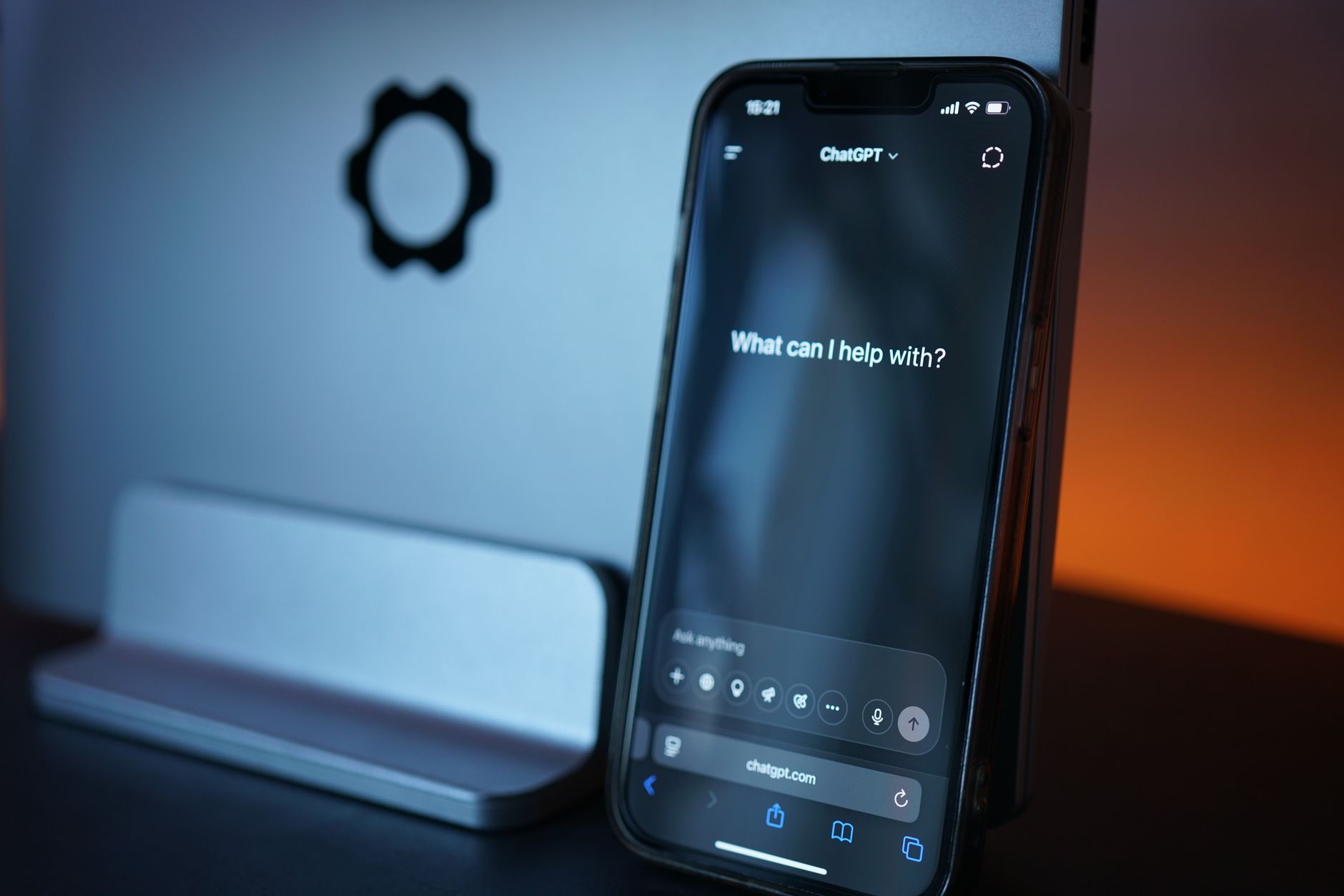
A growing number of Apple users are reporting frustration with how their devices handle and display AI-generated content across Safari, News, and third-party reader apps. The core complaint is simple: there’s no reliable way to flag, filter, or identify machine-written articles when browsing on iPhone, iPad, or Mac. Discussions in the Apple Support Community and wider developer forums show this is a widespread, unresolved issue affecting readers who want more transparency about what they’re consuming.
If you’ve noticed your Safari Reader view rendering suspiciously templated articles, your News feed surfacing low-quality synthetic write-ups, or Siri Suggestions pushing content that reads like it was auto-generated, you’re not alone. This guide walks through what’s causing the problem and the practical steps you can take on macOS Sequoia, iOS 18, and iPadOS 18 to regain control.
What Causes This Issue
The root cause isn’t a bug in Apple’s software — it’s the absence of a standardised signal. Neither Safari nor Apple News currently offers a native toggle to identify or hide AI-generated articles. The web itself lacks a widely adopted metadata standard for disclosing machine authorship, and publishers rarely tag their content voluntarily.
Several factors compound the problem:
- No HTML meta tag standard — proposals for an
ai-generatedmeta attribute exist, but browsers including Safari don’t parse or surface them. - Apple News curation limits — the algorithm prioritises publisher reputation, not authorship method, so AI-written pieces from established outlets slip through.
- Safari Reader mode strips context — bylines, disclosure notices, and footer disclaimers often disappear when Reader is activated, hiding the very information you need.
- Third-party RSS and reader apps inherit the same blind spot, since they rely on publisher-supplied metadata.
- Siri Suggestions and Spotlight use engagement signals, which AI content farms exploit through high posting volume.
Users in the Apple Support Community have noted that even Screen Time content restrictions and Focus filters don’t address this, because those tools were designed for adult content and app categories — not authorship provenance.
Step-by-Step Fixes
- Disable Safari Reader auto-activation. Open Safari, visit any site, tap the Page Settings icon (the “aA” button on iOS, or the sidebar toggle on macOS), and turn off “Use Reader Automatically.” This keeps bylines, disclosure boxes, and footer notices visible, which often reveal AI authorship.
- Turn on “Show Full Website Address” in Safari. Go to Settings → Apps → Safari on iOS, or Safari → Settings → Advanced on macOS. Seeing the full URL helps you spot content-farm domains that mass-produce synthetic articles.
- Install a content-blocker with AI-domain filtering. Extensions like Wipr, 1Blocker, or AdGuard let you import custom blocklists. Community-maintained lists targeting known AI content farms are available on GitHub and can be added under Safari → Settings → Extensions.
- Adjust Apple News channel preferences. Open News, long-press any story from a suspected AI-heavy publisher, and choose “Suggest Less” or “Block Channel.” Repeat this over a week to retrain the feed.
- Reset Siri Suggestions. Go to Settings → Siri & Search, then toggle off “Show in Look Up,” “Show in Spotlight,” and “Show When Sharing” for News and Safari. This prevents low-signal AI content from appearing in system-wide suggestions.
- Enable Advanced Tracking and Fingerprinting Protection. Under Safari → Advanced, turn this on for all browsing. It doesn’t identify AI directly, but it reduces the personalisation loop that content farms rely on to target you.
Additional Solutions
Beyond system settings, several workarounds help you spot machine-written articles more reliably.
Use a Shortcuts automation. The Shortcuts app on iOS 18 and macOS Sequoia can run a quick action against any selected webpage. Build a shortcut that runs the article text through an on-device language model (Apple Intelligence supports this on M-series Macs and iPhone 15 Pro or later) and asks whether the text shows signs of AI generation. It’s not perfect, but repetitive phrasing, uniform sentence length, and generic transitions are strong tells.
Switch to a curated reader app. Apps like Reeder, NetNewsWire, and Feedbin let you build feeds around trusted, human-edited sources. Combined with RSS, this bypasses algorithmic surfaces entirely.
Check publisher disclosure pages. Reputable outlets now maintain public AI-use policies. Bookmark these pages and refer to them before trusting a byline. Many users in the Apple Support Community have started keeping a personal allowlist of publishers with clear disclosure standards.
Enable Safari Profiles. On iOS 17 and later, and macOS Sonoma onward, Profiles isolate browsing history, cookies, and extensions. Create a “Research” profile with stricter blockers and a separate “Casual” profile, so your reading habits don’t cross-contaminate recommendations.
Report content in Apple News. Long-press an article and choose “Report a Concern.” While Apple hasn’t confirmed AI-specific reporting categories, sustained feedback influences future curation policies.
Use Focus filters strategically. Create a “Reading” Focus that restricts News notifications to specific channels you trust, and pair it with a Home Screen page containing only vetted reader apps.
When to Contact Apple Support
Direct support won’t fix the underlying platform gap — Apple hasn’t shipped a native AI-detection feature — but there are situations where contacting them helps:
- If Safari Reader is crashing or freezing on specific pages, that’s a legitimate bug worth reporting.
- If Apple News keeps surfacing blocked channels despite repeated “Block” actions, submit feedback through Settings → News → Report a Concern, and follow up via Apple Support chat.
- If you’re a developer or publisher, file a formal feature request at Apple’s Feedback Assistant (feedbackassistant.apple.com) requesting a standardised AI-content metadata tag and Safari UI treatment. Volume of requests genuinely influences roadmap priorities.
- For enterprise or education deployments, contact your Apple account team about MDM policies that can pre-configure content blockers across managed devices.
FAQ
Does Apple Intelligence flag AI-generated articles? No. Apple Intelligence generates and summarises content, but it doesn’t currently classify third-party articles by authorship method.
Will Safari add a native AI-content indicator? Apple hasn’t announced one. Filing feedback through Feedback Assistant is the best way to signal demand.
Are content blockers safe to use on iOS? Yes, provided you install them from the App Store. Safari’s content-blocker API runs sandboxed and cannot read your browsing data.
Does Private Relay help? Not for this specific issue. Private Relay hides your IP and DNS queries but doesn’t influence content quality or authorship visibility.
Can Screen Time restrict AI content? Not directly. Screen Time works by app and website category, and “AI-generated” isn’t a recognised category. You can, however, manually block specific domains under Content Restrictions.
Is there a Shortcuts gallery for this? Not officially, but the Shortcuts subreddit and Apple developer forums have community-shared shortcuts that leverage on-device models to flag suspicious text.
Until Apple or a web standards body introduces a formal signal for AI authorship, this remains a manual, layered problem. The combination of tighter Safari settings, curated feeds, and periodic feed retraining is the most reliable approach available today.












