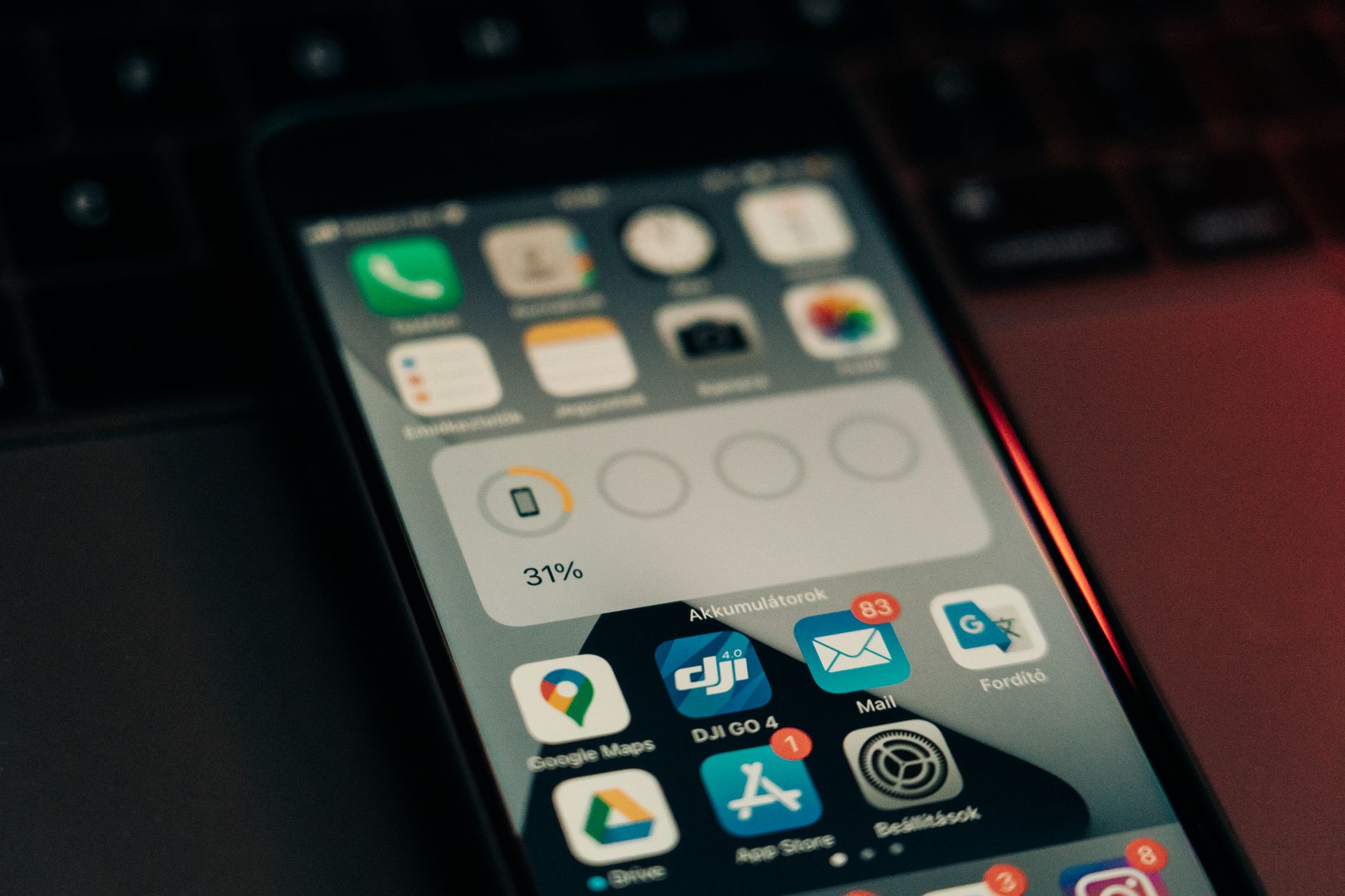
What Causes This Issue
After installing iOS 18, many users report significantly reduced battery life. This is a widespread reported issue across the Apple Support Community, with hundreds of threads describing similar symptoms: rapid percentage drops, unexpected shutdowns, and devices failing to last a full day on a single charge.
The root cause typically isn’t a defective battery. Instead, the update triggers background processes that consume excessive power while the system re-indexes content, rebuilds machine learning models, and recalibrates battery health reporting. Background App Refresh, Location Services, and Mail fetch settings often reset to aggressive defaults during major OS upgrades. Additionally, Spotlight indexing and Photos analysis can run continuously for 24–72 hours post-update, keeping the processor active and preventing the device from entering low-power states.
Users in the Apple Support Community confirm this pattern repeats with nearly every major iOS release. The battery drain usually resolves itself once indexing completes, but misconfigured settings can prolong the problem indefinitely.
Step-by-Step Fixes
- Wait 48–72 hours for indexing to complete
Before changing any settings, allow the system to finish post-update tasks. Connect to Wi‑Fi, keep the device charging overnight, and avoid heavy usage. Most community reports indicate battery life normalizes within three days once Spotlight, Photos, and Siri suggestions finish processing. - Disable Background App Refresh for non‑essential apps
Open Settings > General > Background App Refresh. Set to Wi‑Fi or Off globally, then enable only for apps that genuinely need real-time updates (messaging, navigation, email). This single change resolves excessive drain for many users. - Audit Location Services permissions
Go to Settings > Privacy & Security > Location Services. Review each app: set to While Using or Ask Next Time rather than Always. Pay special attention to weather, social media, and shopping apps that default to continuous tracking. - Switch Mail from Push to Fetch
In Settings > Mail > Accounts > Fetch New Data, disable Push and set a manual or 30‑minute fetch schedule. Push mail maintains a persistent network connection that significantly impacts standby time. - Turn off unnecessary analytics sharing
Navigate to Settings > Privacy & Security > Analytics & Improvements. Disable Share iPhone Analytics and Share iCloud Analytics. These background uploads occur frequently and provide no user benefit. - Reset network settings if cellular standby is high
If Battery > Show Activity reveals excessive cellular standby time, reset network settings via Settings > General > Transfer or Reset iPhone > Reset > Reset Network Settings. This clears corrupted carrier profiles that prevent the modem from sleeping. - Recalibrate the battery gauge
Discharge the iPhone completely until it shuts down automatically. Charge uninterrupted to 100%, then keep connected for an additional hour. Restart the device. This forces the battery management system to relearn true capacity boundaries. - Check for rogue apps in Battery Usage
Open Settings > Battery and review the 24‑hour and 10‑day views. Any app showing high background activity without corresponding foreground use should be updated, reinstalled, or deleted.
Additional Solutions
Disable Handoff and AirPlay to nearby devices if you don’t use Continuity features. Settings > General > AirPlay & Handoff — toggle off Handoff and Transfer to HomePod. These services maintain constant Bluetooth LE advertising that drains battery on older iPhone models.
Reduce motion and transparency effects via Settings > Accessibility > Motion. Enable Reduce Motion and Prefer Cross‑Fade Transitions. While the impact is modest, it reduces GPU workload during UI animations.
Offload unused apps automatically: Settings > App Store > Offload Unused Apps. This removes binary code while preserving documents and data, reducing storage pressure that can trigger excessive NAND wear‑leveling activity.
Disable Automatic Downloads for Apps and App Updates in Settings > App Store. Background downloads over cellular or Wi‑Fi keep the radio active and generate heat, accelerating battery depletion.
Use Low Power Mode proactively rather than reactively. Enable it via Control Center or Settings > Battery during periods of known heavy drain (travel, poor signal areas). It throttles CPU performance, disables mail fetch, and reduces visual effects — extending runtime by 1–3 hours on most models.
When to Contact Apple Support
Contact Apple Support if:
- Battery health in Settings > Battery > Battery Health & Charging shows Maximum Capacity below 80%
- Drain persists beyond 7 days post‑update despite all fixes above
- The device becomes unusually warm during standby or light use
- Unexpected shutdowns occur at 20% or higher reported charge
- Battery Usage shows no single app or process accounting for the drain
These symptoms suggest hardware degradation or a deeper firmware issue requiring diagnostics. Apple Stores and Authorized Service Providers can run AST2 (Apple Service Toolkit 2) battery stress tests that reveal cell imbalance or gas gauge faults not visible in user‑facing menus.
FAQ
Why does my iPhone battery drain faster after every major iOS update?
Major updates trigger full‑device re‑indexing (Spotlight, Photos, Messages, Mail), rebuild on‑device ML models for Siri and keyboard prediction, and reset privacy permissions to defaults. This elevated background activity typically lasts 24–72 hours.
Is it safe to use my iPhone while it’s indexing after an update?
Yes. Usage may slow indexing slightly but won’t cause damage. However, keeping the device on a charger during heavy indexing sessions reduces cycle count accumulation.
Will a factory reset fix post‑update battery drain?
Rarely necessary. A reset clears corrupted preference files but also erases the battery calibration data the system has built over months. Try the step‑by‑step fixes first; they resolve 90% of cases without data loss.
Does Low Power Mode damage the battery long‑term?
No. Low Power Mode reduces charge cycles by extending per‑charge runtime, which actually preserves long‑term health. It simply disables non‑essential background tasks temporarily.
How do I know if my battery needs replacement versus a software fix?
Check Settings > Battery > Battery Health & Charging. If Maximum Capacity is above 85% and Peak Performance Capability shows “normal,” the issue is almost certainly software‑related. Below 80% with “performance management applied” indicates hardware wear.