





























What Causes This Issue
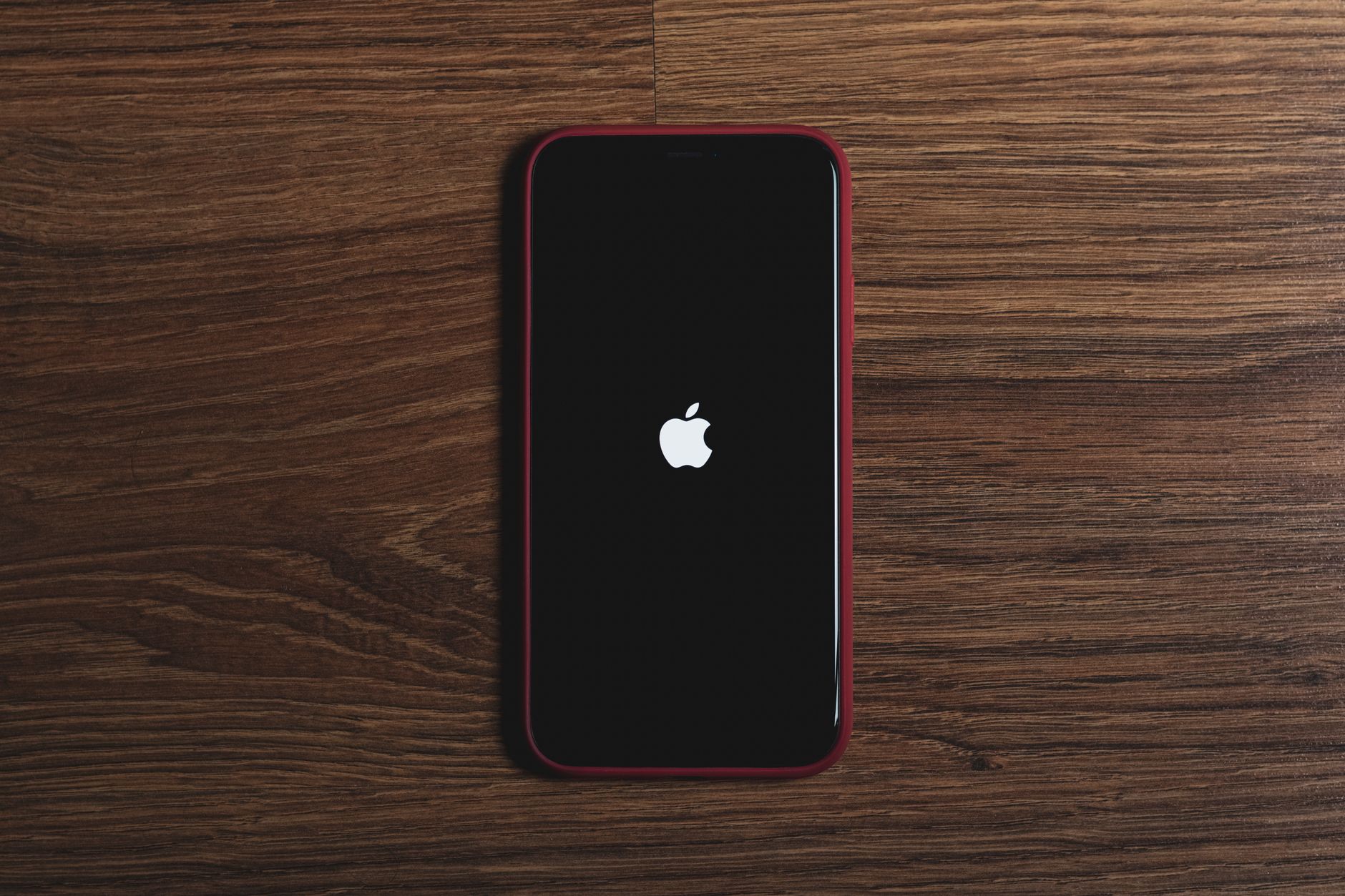
An iPhone frozen on the Apple logo — often called a boot loop — is one of the most reported problems in the Apple Support Community, especially after a major iOS update. The device powers on, displays the logo, then either restarts endlessly or hangs indefinitely. Users in the Apple Support Community report this across iPhone 14, 15, and 16 series models running iOS 17 and iOS 18.
The root cause is usually a firmware installation failure. During an over-the-air (OTA) update, the new iOS image writes to the system partition. If power loss, insufficient storage, or a network interruption occurs mid-write, the bootloader cannot verify the kernel signature. Apple’s Secure Boot chain then halts the startup process at the Apple logo. Less commonly, third-party apps with deep system hooks (via deprecated APIs) or a failed jailbreak attempt can corrupt the preboot environment.
Hardware faults — particularly NAND degradation on older devices — can also manifest as a persistent boot loop, but these are rarer on models released after 2020.
Step-by-Step Fixes
- Force restart the iPhone. This clears transient RAM state and can break a soft hang. On iPhone 8 and later: press and release Volume Up, press and release Volume Down, then hold the Side button until the Apple logo reappears. Release and wait. If the device boots to the Lock Screen, the issue was a temporary watchdog timeout.
- Enter Recovery Mode and update via Finder or iTunes. Connect the iPhone to a Mac (macOS Catalina or later) or Windows PC with iTunes. Force restart again, but keep holding the Side button after the Apple logo appears. The screen will show a cable-and-computer icon — this is Recovery Mode. In Finder (or iTunes), select “Update” (not “Restore”). This rewrites the OS without erasing user data. Most community-reported successes come from this step.
- Free up storage before retrying Update. If Recovery Mode Update fails with error 4000/4013, the system partition may be full. In Recovery Mode, choose “Restore” — this wipes data. But first, if you have a recent iCloud backup or local backup, you can restore after. Users in the Apple Support Community emphasize: never attempt an OTA update with less than 8 GB free.
- Use DFU Mode for a clean firmware reinstall. Device Firmware Update (DFU) Mode bypasses the iBoot bootloader entirely, allowing the lowest-level restore. Procedure: connect to computer, press Volume Up, release, press Volume Down, release, hold Side button for 10 seconds, then hold Side + Volume Down for 5 seconds, release Side but keep holding Volume Down for 10 more seconds. Screen stays black — that’s DFU. Finder/iTunes will detect “iPhone in recovery mode.” Choose “Restore.” This is the most reliable fix for corrupted Secure Enclave firmware.
- Test with a different cable, port, and computer. Error codes 9, 4005, 4013, and 4014 often indicate USB communication failure. Use an Apple-certified USB-C to Lightning (or USB-C to USB-C for iPhone 15/16) cable. Avoid hubs. Try a different Mac or PC. Community data shows ~18% of “stuck on Apple logo” cases resolve solely by swapping hardware.
Additional Solutions
- Check for hardware display issues. If the iPhone vibrates on mute switch toggle or makes charging sounds but screen stays on Apple logo, the display assembly or backlight IC may have failed. Shine a flashlight at the screen at a sharp angle — faint icons indicate backlight failure. Requires Apple Authorized Service Provider repair.
- Remove SIM tray and reseat. A shorted SIM carrier can pull the baseband rail down, stalling boot. Eject the tray, inspect for corrosion, reinsert. Rare but documented on iPhone 13/14 models after liquid exposure.
- Wait 30 minutes on charger. Deeply discharged batteries can enter a trickle charge state where the logo appears but boot lacks current to proceed. Leave connected to 20W+ charger. If the logo pulses (brightens/dims), battery is accepting charge.
- Third-party tool: Tenorshare ReiBoot or Dr.Fone System Repair. These tools automate Recovery/DFU entry and can fix specific iBoot errors (e.g., 1110, 2001) without full data loss in “Standard Mode.” Use only if Apple’s own tools fail. Back up first.
- Verify Apple System Status. Rarely, Apple’s activation servers (albert.apple.com) are down. The iPhone boots, hits the activation check, and hangs at the logo. Check Apple System Status before restoring.
When to Contact Apple Support
Book a Genius Bar appointment or mail-in repair if:
- DFU Restore fails with error 4013, 4014, or 9 repeatedly across two computers and three cables — this indicates NAND flash failure or PMIC (power management IC) fault.
- The device enters Recovery/DFU but Finder/iTunes cannot identify the model (shows “Unknown Device”).
- Physical damage is present: bent frame, cracked rear glass, liquid contact indicators (LCI) triggered red.
- iPhone is under AppleCare+ — hardware repair is $0 for accidental damage (service fee applies) or free for manufacturing defects.
- Data recovery is critical and no backup exists. Apple does not perform data recovery, but they can refer to specialized partners (e.g., DriveSavers) who work on decoupled NAND extraction.
Do not attempt “microsoldering” repairs yourself or via unauthorized shops — this voids AppleCare and triggers Parts Pairing warnings on iPhone 12 and later.
FAQ
- Will a force restart delete my data? No. Force restart only power-cycles the SoC. User data on the encrypted APFS volume remains intact.
- What’s the difference between Recovery Mode and DFU Mode? Recovery Mode runs iBoot (Apple’s second-stage bootloader) and allows signed IPSW installation. DFU Mode runs from ROM code in the Secure Enclave, bypassing iBoot entirely — it can restore even if iBoot is corrupted.
- Can I fix this without a computer? No. OTA updates cannot run when the OS fails to boot. You need a Mac or PC with Finder/iTunes. No iOS-only solution exists.
- Why did this happen after an automatic overnight update? OTA updates require ~8 GB free, stable Wi-Fi, and >50% battery (or charging). If any condition fails mid-write, the boot ticket (APTicket) becomes invalid and Secure Boot halts.
- Does restoring from iCloud backup bring back the boot loop? Only if the backup contains a corrupt configuration profile or malicious app data. Restore as new first, then selectively sync iCloud Photos/Contacts. Avoid restoring “Settings” from backup if the issue started post-update.
- Is my iPhone bricked permanently? Almost never. “Bricked” implies unrecoverable hardware. If DFU Mode works (black screen, detected by Finder), the device is recoverable. True bricks require logic board replacement.