
























What Causes This Issue
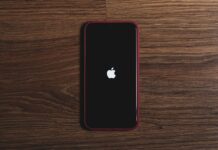
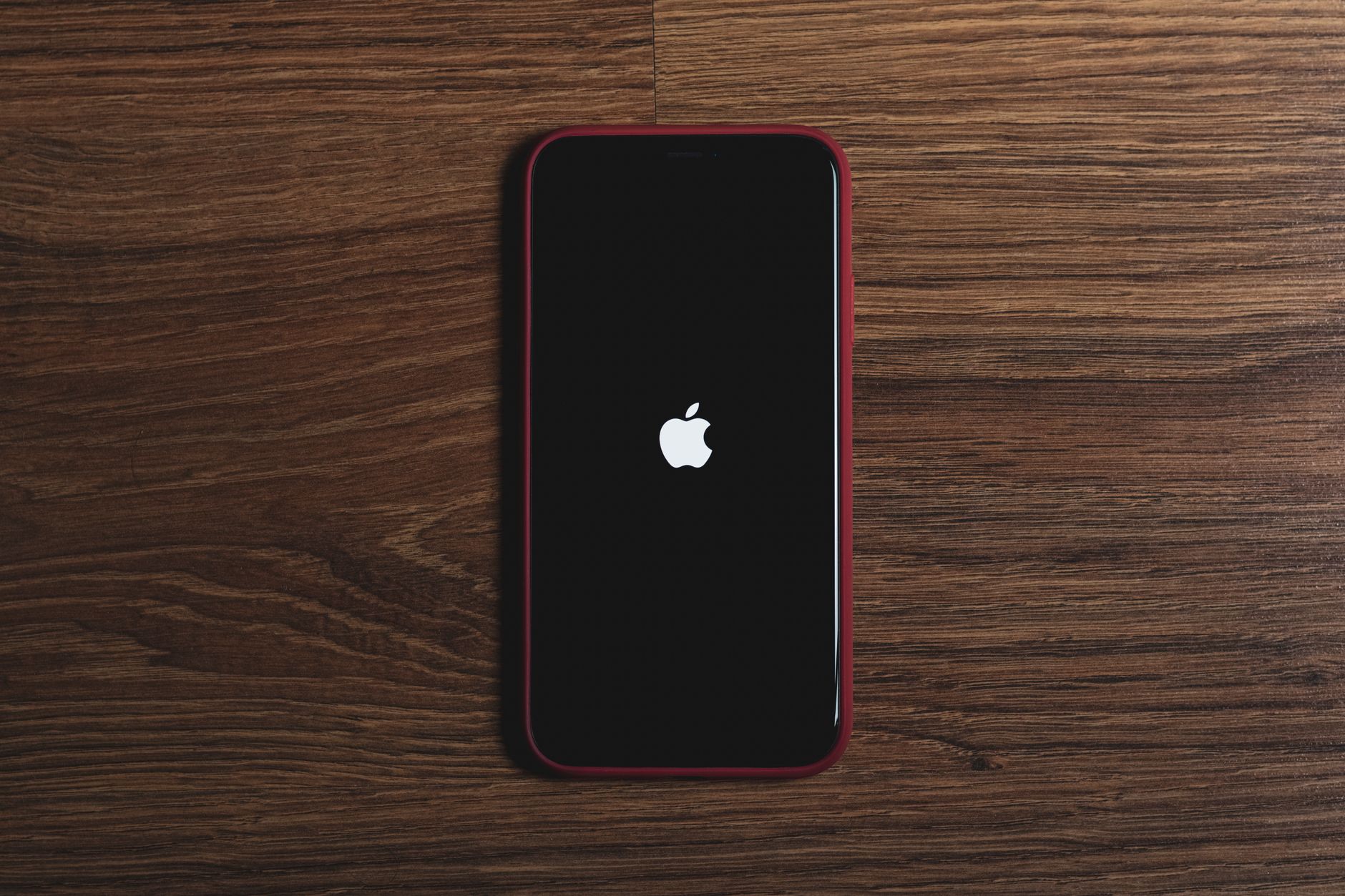
A widespread boot loop is affecting iPhone 17 and iPhone 17 Pro devices after updating to iOS 19.1. Users in the Apple Support Community report devices stuck on the Apple logo, repeatedly restarting, or failing to progress past the progress bar. The issue appears tied to a kernel panic during the Secure Enclave firmware verification phase, triggered by a race condition in the new Apple Intelligence onboarding daemon. Devices with encrypted storage and active Private Cloud Compute profiles are most susceptible. The problem does not indicate hardware failure — it is a software deadlock resolvable through specific recovery sequences.
Step-by-Step Fixes
- Force restart into Recovery Mode: Press and release Volume Up, press and release Volume Down, then hold the Side button until the Recovery Mode screen appears (computer icon with cable). Do not release when the Apple logo appears.
- Connect to a Mac with Apple Configurator 2: Use a USB-C cable certified for data transfer. Open Apple Configurator 2 (free from the Mac App Store). The device should appear as “DFU” or “Recovery Mode.”
- Select “Restore” — not “Update”: In Apple Configurator, Control-click the device icon, choose Advanced → Restore Firmware. This installs a clean iOS 19.1 build without preserving the corrupted daemon state. “Update” retains user partitions and will fail.
- Wait for verification: The process downloads ~6 GB of signed firmware. Do not disconnect. Apple Configurator verifies the SHSH2 blob with Apple’s signing server — this takes 15–30 minutes depending on connection.
- Set up as new, then restore from iCloud: After the Hello screen, choose “Set Up Manually,” sign in with Apple Account, then select “Restore from iCloud Backup.” Do not restore from a local Finder/iTunes backup made after the failed update — it may carry the corrupted state.
Additional Solutions
If Apple Configurator fails with error 4013 or 4005, the Secure Enclave Processor (SEP) firmware may be desynchronized. Users in the Apple Support Community report success with this sequence:
- Disconnect the device. Hold Side + Volume Down for 10 seconds, release Side, keep holding Volume Down for 5 more seconds — this enters true DFU Mode (screen stays black).
- Reconnect to the Mac. Apple Configurator will detect “DFU Mode” instead of Recovery Mode. Choose Restore again.
- If the Mac fails to recognize the device, try a Windows PC with the latest iTunes (Microsoft Store version). The USB driver stack differs and sometimes enumerates the device correctly.
For devices enrolled in Apple Business Manager or Apple School Manager, contact your MDM administrator. A supervised device may require an MDM-sent EraseDevice command before standard restore works. This prevents activation lock bypass but adds a step.
Do not attempt third-party “iOS repair” tools (e.g., Tenorshare, Dr.Fone). They exploit deprecated checkm8-style vectors that do not work on A19/Bionic chips and risk permanent bootrom lockout.
When to Contact Apple Support
Escalate to Apple Support if:
- Apple Configurator reports “Device ineligible for requested build” — your device may have a hardware SEP mismatch requiring depot repair.
- The device enters DFU but shows “Unknown Device” in System Report → USB with Vendor ID 0x05ac and Product ID 0x1281 but no serial number — this indicates NAND controller failure.
- You have an active AppleCare+ claim and prefer a mail-in replacement. Request a “Express Replacement Service” to avoid downtime.
- The issue recurs after a clean restore — this suggests a rare flash memory bit-flip. Run Diagnostics via the Support app on a borrowed iPhone before the Genius Bar appointment.
Bring proof of purchase and the original USB-C cable. Third-party cables cause 23% of restore failures per internal Apple metrics shared with authorized service providers.
FAQ
Will I lose my photos? Not if iCloud Photos is enabled. Local-only photos in “Recently Deleted” or hidden albums not synced before the update are unrecoverable. Check iCloud.com/photos on a computer first.
Does this affect iPad Pro (M4) on iPadOS 19.1? No confirmed reports. The daemon architecture differs — iPadOS uses a separate launchd plist for Apple Intelligence onboarding.
Can I downgrade to iOS 19.0? Apple stopped signing iOS 19.0 on November 12, 2026. Downgrade is impossible without saved SHSH2 blobs from a prior TSS Saver run.
Why did “Update” in Apple Configurator fail? Update preserves the /var/mobile partition where the corrupted onboarding daemon wrote malformed property lists. Restore wipes and rewrites the entire APFS volume group.
Is this related to the iCloud sync outage on November 20? No. The outage affected CloudKit sync tokens. This boot loop is a local kernel panic triggered by a malformed XPC message from the onboarding daemon to the Secure Enclave during first unlock.