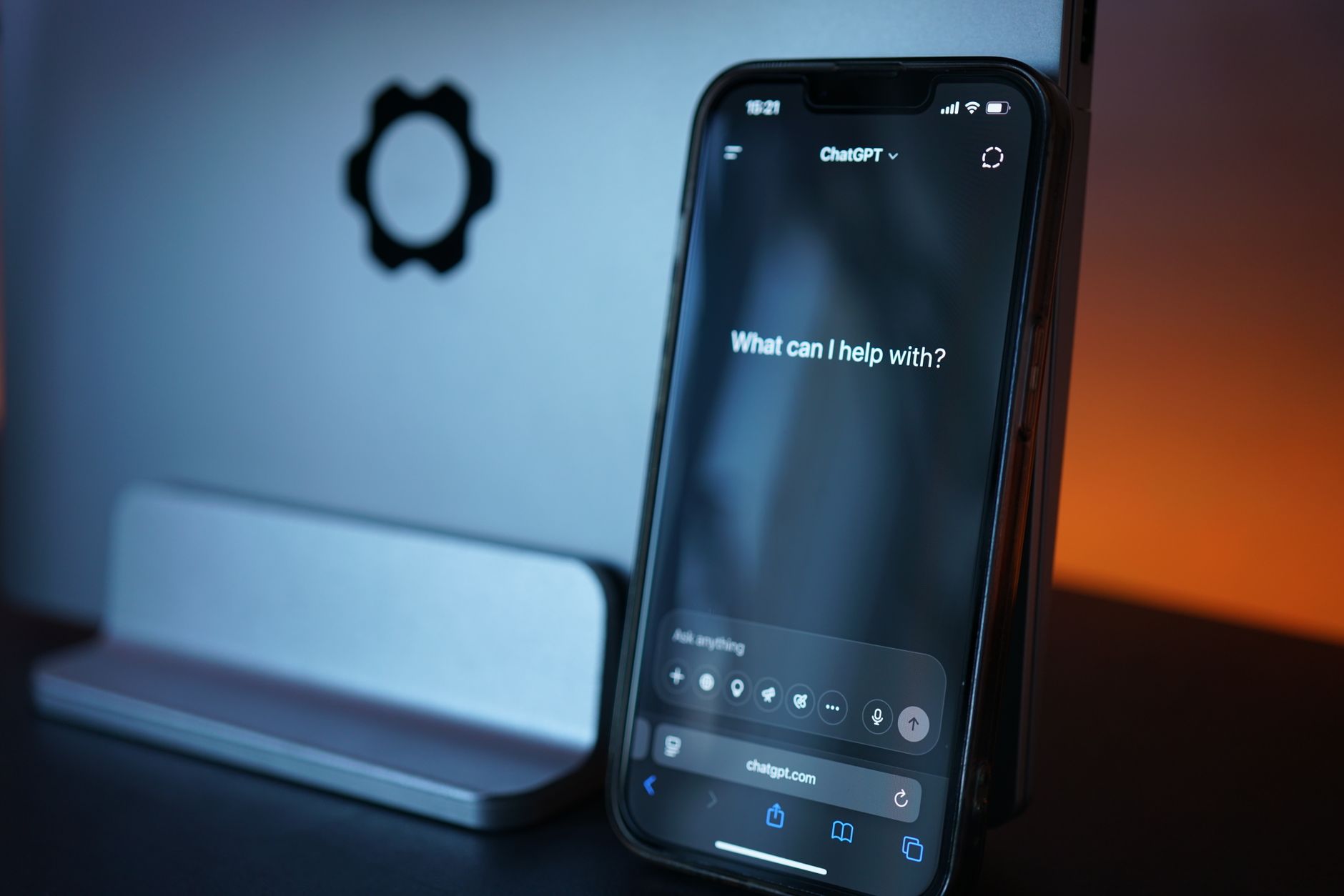
If you run an AI assistant on your iPhone, iPad, or Mac and have noticed unusual behaviour — unexpected replies, leaked context, or your assistant suddenly refusing safe requests — you are not alone. A widely discussed thread has surfaced describing what happens when thousands of people attempt to manipulate or jailbreak an AI assistant, and the fallout is now showing up in conversations across the Apple Support Community. Users are reporting that their AI assistants on Apple devices are behaving erratically after exposure to prompt injection, social engineering attempts, and malformed inputs from shared links, clipboard content, or integrated email and calendar data.
This guide explains why this is happening on Apple hardware specifically, how to lock down Siri, Apple Intelligence, and third-party assistants like ChatGPT, Claude, and Perplexity, and what to do when the assistant starts misbehaving in ways that feel like a security issue rather than a bug.
What Causes This Issue
The core problem is that modern AI assistants accept input from many surfaces — voice, text, screenshots, shared sheets, Shortcuts, web pages, and Mail. Each of those surfaces is a potential attack vector. When an assistant reads a webpage, parses an email, or summarises a document, hidden instructions inside that content can be interpreted as commands. This is the well-known prompt injection problem, and it affects every major assistant, including those integrated into iOS 18, iPadOS 18, and macOS Sequoia through Apple Intelligence.
Users in the Apple Support Community have flagged several common triggers:
- Pasting content copied from forums, Discord, or chat apps into an assistant prompt.
- Allowing an assistant extension to summarise emails that contain hidden white-text instructions.
- Using Shortcuts that pipe webpage content directly into ChatGPT or Claude without sanitisation.
- Granting an AI app full clipboard, contacts, or screen recording access.
- Sharing the same assistant session across multiple Apple devices via iCloud sync, where one compromised device pollutes the context on others.
A second cause is account-level: if your Apple ID or the third-party AI account is reused with a weak password, an attacker who scrapes credentials elsewhere can sign in and inject persistent custom instructions that change how the assistant responds across all your devices.
Step-by-Step Fixes
Work through these in order. Most users in the community report that the first four steps resolve the immediate erratic behaviour.
- Clear the assistant’s memory and custom instructions. In ChatGPT, open Settings, then Personalization, then Manage Memory, and delete everything. In Claude, clear conversation history. For Siri and Apple Intelligence, go to Settings, Apple Intelligence & Siri, then Siri & Dictation History and tap Delete.
- Sign out of the AI account on every Apple device and sign back in only on the device you trust most. This kills any active sessions an attacker may be using.
- Rotate your passwords. Change the password for the AI service and your Apple ID. Use the iCloud Keychain password generator to create unique strings, and enable two-factor authentication on both.
- Revoke app permissions. Go to Settings, Privacy & Security, and individually check Microphone, Speech Recognition, Full Keyboard Access, Screen Recording, Contacts, and Photos. Remove access for any AI app that does not strictly need it.
- Disable ChatGPT or other third-party extensions in Apple Intelligence. Settings, Apple Intelligence & Siri, Extensions. Turn off any integration you are not actively using.
- Audit your Shortcuts. Open the Shortcuts app and delete or inspect any shortcut that takes web content, clipboard, or shared input and passes it into an AI action. Replace raw input with a manual Ask Each Time prompt.
- Restart the device. A full power cycle clears in-memory assistant state that may still be holding injected instructions.
- Update iOS, iPadOS, and macOS. Apple has been patching Apple Intelligence behaviour aggressively through 2026. Settings, General, Software Update.
Additional Solutions
If the assistant continues to act oddly after the basic fixes, the problem is likely deeper in your data pipeline or account.
Check for rogue Configuration Profiles. Some users in the Apple Support Community discovered that a Configuration Profile installed months earlier was redirecting Siri requests or injecting DNS-level changes. Go to Settings, General, VPN & Device Management. Remove anything you do not personally recognise.
Review Sign in with Apple authorisations. Settings, your name, Sign-In & Security, Sign in with Apple. Revoke any AI service you no longer use. Re-authorising forces a fresh token.
Use Lockdown Mode selectively. If you are a high-value target — journalist, executive, researcher — enabling Lockdown Mode on iOS will restrict message attachment types and web technologies that are commonly used to deliver injection payloads. It will not disable Siri, but it reduces the attack surface considerably.
Isolate sensitive workflows. Run experimental or untrusted AI interactions in a separate user account on macOS, or in a dedicated Focus mode on iOS where iCloud sync, Mail, and Messages access are stripped down.
Inspect network traffic. Power users can install a profile like the one used by Charles Proxy or Proxyman to confirm the AI app is only contacting expected endpoints. Unexpected hosts are a strong signal of a compromised app or a man-in-the-middle situation on the network.
Reinstall the assistant app from the App Store. Delete it fully, restart, then reinstall. This eliminates corrupted cache and any sideloaded variant. Confirm the publisher name matches the official developer.
When to Contact Apple Support
Contact Apple Support if you observe any of the following: Siri responding without being invoked, Apple Intelligence summaries appearing for content you never opened, your Apple ID showing sign-ins from unfamiliar locations, or Find My alerting you to devices you do not own. These suggest account compromise rather than a prompt injection issue, and Apple’s security team can lock the account, force a password reset across all sessions, and review recent activity logs.
For hardware-side oddities — Siri activating on a HomePod, AirPods, or Apple Watch with no trigger — book a Genius Bar appointment so the microphone subsystem and accessory firmware can be checked.
FAQ
Can a webpage really hijack my AI assistant? Yes. If your assistant has a browse, summarise, or read-page capability, hidden text on that page can be interpreted as instructions. Always treat assistant output from untrusted pages with suspicion.
Is Siri itself vulnerable to prompt injection? Siri’s own commands are tightly scoped, but the ChatGPT extension within Apple Intelligence inherits the injection risks of the underlying model. Disable the extension if you are concerned.
Will resetting my iPhone fix it? Only if the issue is local state. If your AI account is compromised, a device reset will not help — you must rotate credentials and revoke sessions on the service side.
Does Lockdown Mode break AI assistants? It does not block ChatGPT, Claude, or Siri, but it can interfere with shared links and certain web content, which actually reduces injection risk.
How do I know if my assistant has hidden custom instructions? Open the assistant’s settings and look for Memory, Custom Instructions, or System Prompt fields. Clear anything you did not personally write.