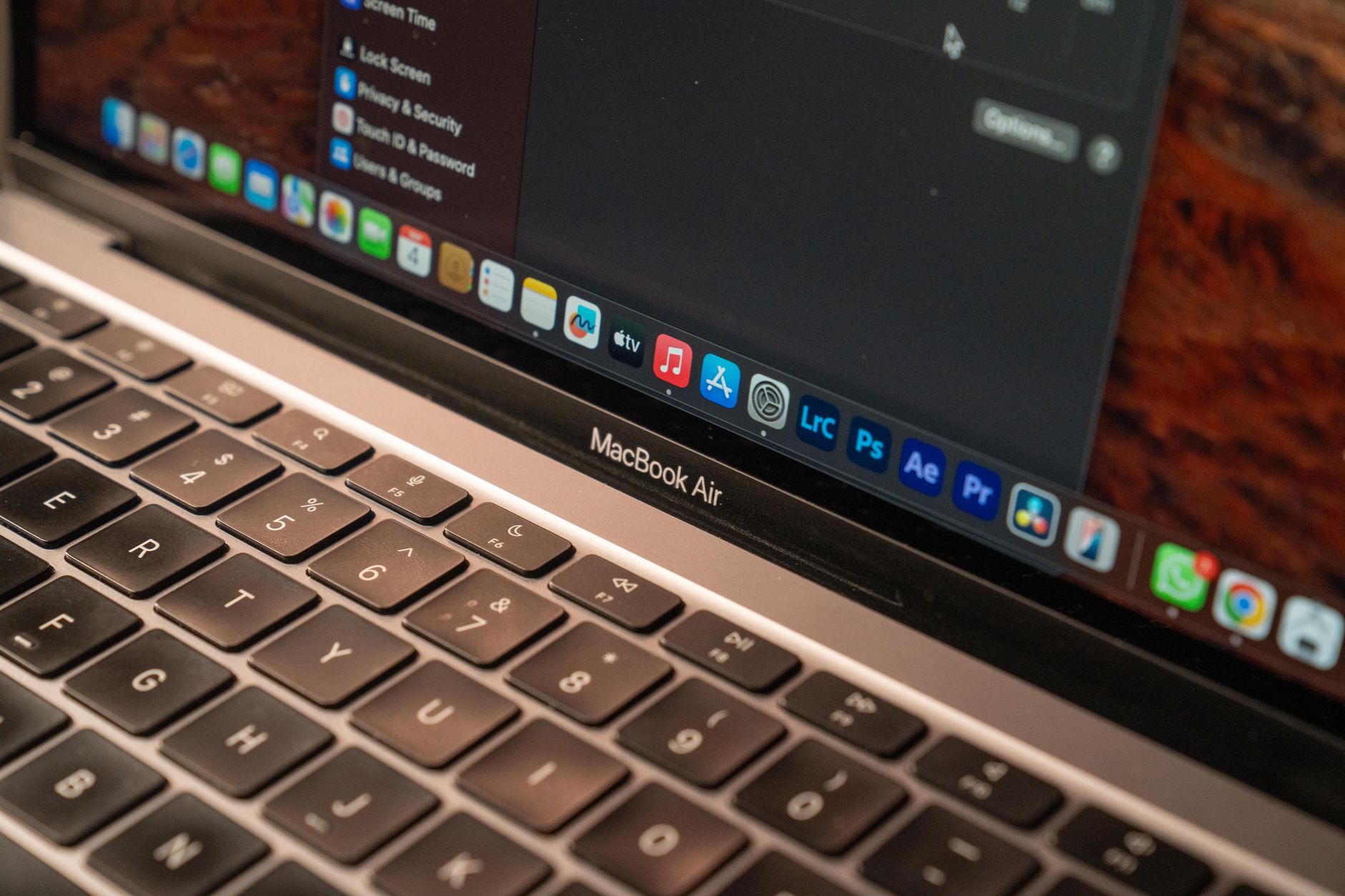
If you want to set up Apple Intelligence macOS the right way in 2026, this complete walkthrough will get you from a fresh install of Sequoia 15.5 to a fully working AI workspace in under 30 minutes. Apple’s generative AI suite has matured significantly since its initial rollout, and the current build introduces smarter Writing Tools, a refined Image Playground, and tighter Siri-ChatGPT integration. Whether you just upgraded your MacBook Pro or you’re enabling these features on an M-series iMac for the first time, the process involves a few non-obvious steps. Below, you’ll find the exact sequence to follow, the requirements to meet, and the troubleshooting tips that actually work.
What Apple Intelligence Brings to macOS Sequoia 15.5 in 2026
Apple Intelligence is Apple’s on-device and private-cloud generative AI platform, designed to handle text, image, and contextual tasks without sending raw personal data to third-party servers. In the 15.5 update, Apple expanded the feature set considerably, refining the macOS Sequoia AI features that debuted last year and adding several long-requested capabilities.
The flagship tools you’ll get access to include smarter system-wide Writing Tools, Image Playground with new styles, a more conversational Siri, Genmoji creation, and Smart Reply across Mail and Messages. The 15.5 release also introduced priority notifications and a redesigned summary view for long email threads.
Most importantly, this release stabilizes the siri chatgpt integration that some early adopters struggled with in 2025. ChatGPT can now hand off complex queries from Siri without breaking context, and you can decide per-query whether to send a request to OpenAI’s servers.
Key Features Worth Enabling First
- Writing Tools — rewrite, proofread, and summarize text in any app
- Image Playground — create stylized images directly on your Mac
- Genmoji — design custom emoji from text prompts
- Smart Reply — contextual responses in Mail and Messages
- Siri with ChatGPT — fallback to GPT-4o for advanced queries
- Priority Notifications — AI-ranked Lock Screen alerts
Apple Intelligence Requirements You Must Meet
Before starting, confirm your Mac meets the apple ai requirements. Apple Intelligence is hardware-gated, meaning even a perfectly running Intel Mac cannot run these features. The Neural Engine workload is too heavy for anything below Apple Silicon.
Your Mac must have an M1 chip or newer, including the M1, M1 Pro, M1 Max, M1 Ultra, M2 family, M3 family, M4 family, and the recently released M5 chips found in late-2025 and 2026 MacBook Pros. You also need at least 8 GB of unified memory, though 16 GB or more is strongly recommended if you plan to use Image Playground frequently.
Storage matters too. The on-device models occupy roughly 7–10 GB depending on the language packs you install, so keep at least 20 GB free during setup. Your device language and Siri language must both be set to a supported locale — English, French, German, Italian, Japanese, Korean, Portuguese, Spanish, Chinese (Simplified), or Vietnamese as of 15.5.
Region and Account Considerations
Apple Intelligence is now available in the EU after lengthy regulatory negotiations, but you’ll want to verify your Apple Account region matches your physical location. A mismatch will hide the Apple Intelligence toggle entirely. You also need to be signed in with a full Apple Account — Managed Apple IDs in education and enterprise environments still have limited access in some regions.
Step-by-Step: How to Set Up Apple Intelligence on Your Mac
Follow this sequence exactly. Skipping a step — particularly the language check — is the most common reason the toggle never appears in System Settings.
- Update to macOS Sequoia 15.5. Open the Apple menu, choose System Settings, click General, then Software Update. Install any pending update and reboot.
- Verify your language settings. Go to System Settings > General > Language & Region. Set Primary Language to a supported locale. Then go to Apple Intelligence & Siri and make sure Siri’s language matches.
- Sign in with your Apple Account. System Settings > [Your Name]. If you see a prompt to re-authenticate, complete it.
- Open Apple Intelligence & Siri. In System Settings, scroll down and click this new pane.
- Tap Get Apple Intelligence. You’ll be added to a waitlist if this is your first activation. In 2026, waitlists clear within minutes for most users, not hours like the early rollout.
- Wait for the models to download. You’ll see a progress indicator. Don’t close the lid or sleep your Mac during this stage.
- Enable individual features. Once the download completes, toggle on Writing Tools, Image Playground, and Siri enhancements as desired.
- Connect ChatGPT (optional). Still in the Apple Intelligence pane, scroll to ChatGPT Extension and click Set Up. You can use it anonymously or sign in with an OpenAI account for higher rate limits.
Pro tip: Run the initial model download on Wi-Fi and keep your Mac plugged in. The download is around 4 GB and the on-device indexing that follows can spike CPU usage for 15–20 minutes.
Configuring Writing Tools, Image Playground, and Siri
Once activation completes, the real productivity gains come from configuring each feature for how you actually work. The defaults are conservative, and most users miss the deeper settings buried inside each tool’s preference pane.
Getting the Most from Writing Tools on Mac
The writing tools mac experience is system-wide, meaning it works in Mail, Notes, Pages, Safari text fields, and most third-party apps that use standard text views. Highlight any text, right-click, and choose Writing Tools to access Proofread, Rewrite, Friendly, Professional, Concise, Summary, Key Points, List, and Table.
To customize behavior, open System Settings > Apple Intelligence & Siri > Writing Tools. You can enable Show Writing Tools Automatically, which surfaces the menu when you select text — useful for heavy email users but distracting for developers. You can also choose whether ChatGPT may be used for the Compose feature, which generates draft text from a prompt.
Warning: Compose with ChatGPT sends your prompt to OpenAI. If you handle confidential material, keep Compose set to on-device only or disable it entirely.
Using Image Playground Effectively
The image playground mac app lives in your Applications folder after Apple Intelligence activates. It generates images in Animation, Illustration, and Sketch styles, with a new Watercolor style added in 15.5. You can base images on text prompts, on people from your Photos library, or on a combination of both.
For best results, give Image Playground three or four specific descriptors — subject, setting, mood, and a style cue. Generic prompts produce generic outputs. The app keeps a local history of every generation, so you can iterate on a concept without starting from scratch.
Connecting ChatGPT to Siri and Managing Privacy
The ChatGPT extension is opt-in and disabled by default. When enabled, Siri can defer to ChatGPT for queries that exceed its own capabilities, such as long-form writing requests, code explanations, or complex multi-step reasoning. You stay in control because Siri always asks before forwarding a request — unless you turn off Confirm ChatGPT Requests.
To finish the apple intelligence mac setup, head into System Settings > Apple Intelligence & Siri > ChatGPT Extension. Click Use ChatGPT and review the privacy notice. Anonymous use means OpenAI cannot tie requests to a profile, but rate limits apply. Signing in with an OpenAI account, including ChatGPT Plus, lifts those limits and unlocks GPT-4o.
Apple’s Private Cloud Compute architecture handles the heavier on-Apple-server requests, with verifiable software images that independent researchers can audit. For users concerned about app-level data access more broadly, our breakdown of how to see what iOS apps access in the background covers the same principles that apply on macOS.
Privacy Toggles Worth Checking
- Confirm ChatGPT Requests — keep this on until you trust the workflow
- ChatGPT Account — sign out anytime to revert to anonymous use
- Improve Siri & Dictation — opt out if you don’t want voice samples reviewed
- Image Playground History — clear or disable if multiple users share the Mac
Troubleshooting Common Apple Intelligence Setup Problems
Even with a clean install, some users hit walls. Here are the fixes that resolve the vast majority of issues reported across the Hawkdive community.
The Apple Intelligence toggle is missing. Nine times out of ten this is a language mismatch. Set both your system language and Siri language to the same supported locale, restart, and the toggle reappears. If you’re in a corporate environment, your MDM profile may block the feature — ask your IT admin to whitelist it.
Download stuck at the same percentage. Apple’s CDN occasionally throttles. Pause the download, disconnect from Wi-Fi for 30 seconds, reconnect, and resume. If it still hangs, sign out of your Apple Account, sign back in, and retry.
Writing Tools missing in third-party apps. The app must use standard NSTextView or modern SwiftUI text components. Older Electron-based apps often don’t expose the right hooks. Update the app first, then reboot.
Image Playground crashes on launch. Delete the app’s cache by going to ~/Library/Containers/com.apple.ImagePlayground and removing the Data folder. The app rebuilds it on next launch.
If you’re experimenting with other AI models alongside Apple Intelligence and running into conflicts, our guide on fixing Apertus Open Foundation Model issues on Mac covers many of the same memory and permission pitfalls. And if you’re cross-shopping Apple’s approach against Microsoft’s, our review of Microsoft Copilot+ PCs in 2026 offers a useful contrast.
Pro Tips to Get the Most Out of Apple Intelligence
- Use keyboard shortcuts. Bind Writing Tools to a shortcut via System Settings > Keyboard > Keyboard Shortcuts > Services for one-key access.
- Train Siri to recognize you. Re-record “Hey Siri” samples after upgrading — the new voice model is more accurate but expects fresh enrollment.
- Clear Image Playground history weekly. Generations accumulate fast and consume disk space.
- Disable features you don’t use. Each disabled feature frees roughly 500 MB to 1.2 GB of memory pressure.
- Use Focus modes with Priority Notifications. The combination is the cleanest way to silence noise without missing urgent messages.
If you frequently use CarPlay alongside your Mac workflow and want continuity that just works, our walkthrough on resolving Hyundai CarPlay connection issues pairs well with this guide. And for a look at where Apple’s hardware is heading next, the iPhone 19 Pro display leak coverage offers a glimpse of the form factor changes Apple Intelligence will soon run on. Power users automating across platforms may also find our piece on Windows 11 25H2 PowerShell automation scripts useful for hybrid environments.
Frequently Asked Questions
Which Macs support Apple Intelligence in 2026?
Any Mac with an Apple Silicon chip — M1, M2, M3, M4, or M5 — and at least 8 GB of unified memory supports Apple Intelligence in 2026. This includes MacBook Air, MacBook Pro, iMac, Mac mini, Mac Studio, and Mac Pro models from late 2020 onward. Intel Macs are not supported and will not receive support in any future update.
How do I enable Apple Intelligence on my MacBook?
Update to macOS Sequoia 15.5, set your system and Siri language to a supported locale, then open System Settings > Apple Intelligence & Siri and tap Get Apple Intelligence. After the model download completes, toggle on the features you want. The entire process takes 15–30 minutes depending on connection speed.
Is Apple Intelligence free to use?
Yes. Apple Intelligence itself costs nothing and is included with macOS Sequoia 15.5. The ChatGPT integration is also free for anonymous use, though it has rate limits. If you already pay for ChatGPT Plus, you can sign in to access GPT-4o and higher limits, but no Apple subscription is required.
Does Apple Intelligence work without internet?
Most features work entirely on-device, including Writing Tools rewrites, Image Playground generations, and basic Siri commands. More complex requests use Private Cloud Compute, which requires internet. ChatGPT integration always requires internet. You can use Apple Intelligence offline for everyday tasks but will see a notice when a feature needs a connection.
How do I connect ChatGPT to Siri on macOS?
Open System Settings > Apple Intelligence & Siri > ChatGPT Extension, click Use ChatGPT, and accept the privacy notice. You can stay anonymous or sign in with an OpenAI account. Once enabled, Siri will offer to forward complex queries to ChatGPT, and you can also invoke it directly with phrases like “Ask ChatGPT.”
Final Thoughts
Taking the time to properly set up Apple Intelligence macOS in 2026 pays off quickly — Writing Tools alone can save an hour a week, and Image Playground replaces several third-party apps for casual creative work. The setup is straightforward once you know the language requirement quirk, and the privacy controls give you genuine choice over what stays local versus what touches the cloud. For deeper dives into related workflows, see our guide on fixing Apertus Open Foundation Model issues on Mac if you experiment with local AI models, or compare Apple’s approach against Microsoft Copilot+ PCs in 2026 if you’re weighing your next laptop purchase.