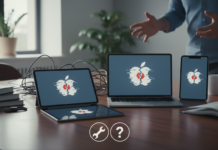



















YouTube has begun rolling out automatic AI-generated content labels across its platform, and a growing number of Apple users are reporting playback hiccups, missing disclosure tags, and Safari rendering glitches tied to the change. The issue is being actively discussed in the Apple Support Community, with viewers on iPhone, iPad, and Mac noticing that affected videos either stall on load, fail to display the new synthetic-media badge, or trigger unexpected full-screen errors in Safari.
If you’ve hit any of these symptoms since late May 2026, you’re not alone. This guide walks through what’s actually happening, the fastest fixes that have worked for Apple users, and what to do if nothing resolves it.
What Causes This Issue
YouTube’s automatic labeling system tags videos that contain synthetic or altered media generated by AI tools. The label is delivered through an updated video manifest and a new metadata layer that the YouTube app and web player must parse before playback begins. On Apple devices, three distinct problems are surfacing:
- Playback stalls on videos carrying the new label, particularly on older versions of the YouTube iOS app.
- Safari rendering errors when the AI disclosure overlay loads on top of the standard video chrome, sometimes producing a black screen or a frozen player.
- Missing labels on content that clearly should be tagged, which users have traced to aggressive caching by Safari and the YouTube app.
The root cause is a mismatch between YouTube’s updated player code and how WebKit — the engine behind Safari and every iOS browser — handles the new overlay element. Users in the Apple Support Community have also flagged that Private Relay and content blockers can interfere with the manifest fetch, which sometimes strips the label or breaks playback entirely.
Step-by-Step Fixes
Work through these in order. The first two resolve the majority of cases reported so far.
- Force-quit and relaunch the YouTube app. On iPhone or iPad, swipe up from the bottom (or double-press Home on older devices) and flick the YouTube card away. Relaunch it. This clears the in-memory player state and forces a fresh manifest pull.
- Update the YouTube app to the latest version. Open the App Store, tap your profile icon, and scroll to pending updates. YouTube has pushed at least two server-side and client-side patches since the labeling rollout began. Running anything older than version 20.21 on iOS is the single most common factor in the reports.
- Clear Safari’s cache and website data. Go to Settings, then Apps, then Safari, and tap Clear History and Website Data. On macOS, open Safari, choose Settings, then Privacy, and click Manage Website Data. Remove anything related to youtube.com and google.com.
- Disable iCloud Private Relay temporarily. Go to Settings, tap your name, then iCloud, then Private Relay, and toggle it off. Test playback on an affected video. Several users in the Apple Support Community have confirmed this restores both the label display and smooth playback. You can re-enable it afterward — YouTube typically catches up within a session.
- Turn off content blockers and Safari extensions. In Settings, go to Apps, then Safari, then Extensions, and disable each one. On Mac, open Safari Settings, click Extensions, and uncheck them. Reload the video. If it works, re-enable extensions one at a time to find the culprit.
- Restart the device. A clean reboot clears stale network sockets and forces a fresh DNS resolution, which has fixed lingering label-related stalls for a number of users.
- Sign out and back into your Google account inside the YouTube app. Tap your profile picture, switch accounts, then sign back in. This forces a fresh entitlement and preference sync, which sometimes resolves stuck label states.
Additional Solutions
If the basics didn’t help, these deeper fixes address less common but documented causes.
Reset network settings. Go to Settings, then General, then Transfer or Reset iPhone, then Reset, and choose Reset Network Settings. You’ll need to rejoin Wi-Fi networks afterward, but this clears any corrupted DNS cache or VPN configuration that might be interfering with YouTube’s metadata endpoints.
Switch DNS providers. If your router or carrier DNS is slow to resolve YouTube’s new label-serving subdomains, switch to a faster public resolver. In Wi-Fi settings, tap the info icon next to your network, choose Configure DNS, set it to Manual, and add 1.1.1.1 and 8.8.8.8.
Try the web player instead of the app, or vice versa. If the iOS app is misbehaving, open youtube.com in Safari and request the desktop site. If Safari is the problem, fall back to the app. This narrows down whether the fault is in the native player or WebKit’s handling of the overlay.
Check Screen Time and content restrictions. Some users found that Communication Safety and Web Content restrictions under Screen Time were flagging the new AI-disclosure overlay as untrusted content, blocking the video. Go to Settings, then Screen Time, then Content and Privacy Restrictions, and review what’s enabled.
Reinstall the YouTube app. Long-press the icon, tap Remove App, then Delete App. Reinstall from the App Store. This wipes any corrupted local cache or preference file that survived an update.
Update iOS, iPadOS, or macOS. Apple has been shipping WebKit patches that improve compatibility with third-party overlay elements. Go to Settings, then General, then Software Update on iPhone or iPad. On Mac, open System Settings and choose General, then Software Update.
When to Contact Apple Support
This issue is overwhelmingly a YouTube and WebKit interaction problem, not a hardware fault. Contact Apple Support only if:
- Safari is crashing system-wide, not just on YouTube, after recent updates.
- Video playback fails across multiple apps and websites, not just YouTube.
- You see persistent kernel-level warnings or your device reboots when loading any video.
- None of the steps above produce any change, and the problem persists across a full device restore.
For YouTube-specific bugs — missing labels, label-related stalls, or overlay rendering glitches — your faster path is YouTube’s in-app feedback tool. Tap your profile, choose Help and Feedback, then Send Feedback, and include a screen recording if you can.
FAQ
Will the AI label appear on every video I watch? No. It only appears on content YouTube’s systems detect as containing meaningful synthetic or altered media. Most everyday uploads will not carry the badge.
Can I turn off the AI labels? Not at the moment. YouTube treats this as a transparency feature rather than a user preference. You can scroll past it, but you can’t disable the badge display.
Why does Safari handle this worse than Chrome on my Mac? Safari uses WebKit, which parses overlay elements differently than Blink-based browsers. Apple is actively patching this, and the gap has narrowed with each Safari point release.
Is Private Relay really the problem? Not always, but it’s a frequent contributor when YouTube’s manifest fetch routes through Apple’s relay servers. Toggling it off is a fast diagnostic test.
Will reinstalling the app cost me my watch history? No. Your history, subscriptions, and playlists are tied to your Google account, not the local app install.