If your WordPress site has been mysteriously redirecting first-time visitors to shady sweepstakes pages, gambling sites, or fake dating platforms — you are not alone. You have likely fallen victim to a sophisticated, long-running malware campaign security researchers have named DollyWay. And the weapon it uses to infect your site is one of WordPress’s most trusted, widely-used code snippet plugins: WPCode, formerly known as Insert Headers and Footers.
This article explains what DollyWay is, how it works, how to detect it, and — most importantly — how to remove it from your site completely. Whether you are a regular WordPress user or an experienced developer, we have got you covered with both a simple step-by-step guide and advanced SQL commands for those who prefer to go under the hood.
The News: What Is DollyWay?
DollyWay is not a new threat. Security researchers at GoDaddy first publicly documented this malware campaign in early 2025, but the infection has been active since at least 2016 — making it one of the longest-running WordPress malware operations ever recorded. It is now in its third major version, dubbed DollyWay v3.
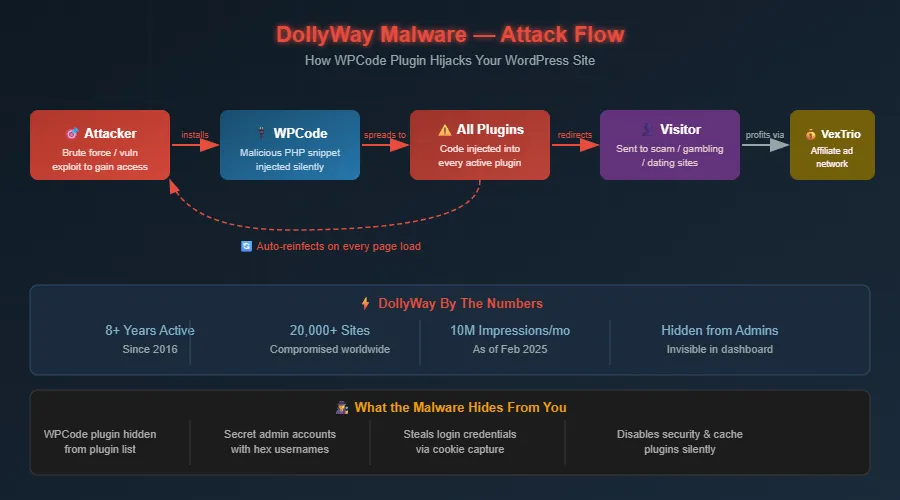
As of February 2025, the campaign had compromised over 20,000 unique WordPress websites worldwide, generating approximately 10 million fraudulent page impressions every single month. Every one of those impressions is a real visitor being hijacked from a legitimate website and sent to a scam page.
⚠️ Key Fact: The malware name 'DollyWay' comes from a string the attackers leave behind in their code. It was discovered and documented by GoDaddy's security research team in March 2025.
The campaign is monetized through two affiliate networks — VexTrio and LosPollos — which pay the attackers for every visitor successfully redirected to their network of scam, gambling, crypto, and dating sites. It is, in essence, a large-scale traffic hijacking operation that steals your site’s visitors and sells them to the highest bidder.
Why WPCode? The Perfect Hiding Spot
WPCode (formerly Insert Headers and Footers by WPBeginner) is a legitimate, hugely popular WordPress plugin with over 2 million active installations. It allows site administrators to add custom PHP, JavaScript, HTML, and CSS snippets to their site without editing theme files directly.
This is precisely why attackers love it. The plugin is trusted by WordPress itself, it executes code with full PHP capabilities, and — most cleverly — the malware actively hides WPCode from your admin dashboard so you never even know it is there.
Important: WPCode itself is not vulnerable. Attackers first gain admin access through other means (weak passwords, outdated plugins), then install WPCode as their malware delivery vehicle.
The Scale of the Attack
The numbers reported by security firm GoDaddy are staggering. Consider the following:
- Over 20,000 WordPress sites have been confirmed infected
- The campaign has operated continuously since 2016 — nearly a decade
- 10 million fraudulent impressions are generated per month as of early 2025
- The malware’s IP addresses change monthly, making it extremely difficult to block
- Infected sites are automatically reinfected every time any page loads
How the Malware Works: A Technical Breakdown
Understanding how DollyWay operates helps you clean it properly and prevent reinfection. This is not a simple file injection. It is a sophisticated, self-healing system.
Phase 1: Initial Compromise
The attacker gains administrator access to your WordPress site. This typically happens through one of the following routes:
- Brute-force attack on a weak or reused admin password
- Exploitation of a known vulnerability in an outdated plugin or theme
- Use of stolen credentials from a previous breach
- Installation of a nulled (pirated) theme or plugin that contains a backdoor
Phase 2: WPCode Installation and Injection
Once inside, the attacker’s automated bot installs the WPCode plugin if it is not already present, or hijacks it if it is. A malicious PHP snippet is then added to WPCode with the execution scope set to ‘everywhere’, meaning it runs on every single page load across the entire site.
The injected code does several things simultaneously:
- Connects to a remote Command & Control (C2) server to receive redirect URLs
- Checks whether the current visitor is logged in — if so, it skips the redirect (so admins see nothing unusual)
- Redirects non-logged-in first-time visitors to scam pages via the VexTrio traffic distribution system
- Captures POST data, GET parameters, and cookies and sends them back to the attacker’s server
- Creates hidden administrator accounts using random 32-character hexadecimal usernames
Phase 3: Self-Concealment
This is where DollyWay truly separates itself from simpler malware. The code actively works to stay invisible:
- It injects CSS into the WordPress admin panel to hide the WPCode plugin from the Installed Plugins list
- It hides WPCode menu items and notification banners from the dashboard
- It suppresses any WPCode update notifications so administrators are never alerted to its presence
- The hidden admin accounts it creates are also invisible from the standard Users list — they only appear via direct database inspection
Phase 4: Persistent Reinfection
This is the most dangerous aspect of DollyWay and the reason why partial cleanup attempts almost always fail. Every time any page on the infected site is loaded, the malware:
- Locates itself in one of the active plugins or WPCode snippets
- Re-obfuscates the malicious code (changes its appearance to evade detection)
- Reinjects the newly obfuscated code into ALL active plugins
- Deletes the existing WPCode snippet and replaces it with a fresh obfuscated version
⚠️ Critical Warning: If you try to clean the site while it has active traffic, a single page load during the cleanup will trigger a complete reinfection. You must take the site offline or disable ALL plugins before beginning cleanup.
How to Tell If Your Site Is Infected
Look for these signs:
- Visitors (who are not logged in) are redirected to unrelated sites on their first visit
- The redirect URL contains suspicious parameters like extra_param_1 or long numeric query strings
- You notice WPCode in your wp-content/plugins directory via FTP but it does not appear in your plugins list
- Your database contains option entries named l or d with URL values you do not recognize
- There are admin users with usernames consisting of 32 random hex characters
- Wordfence or Sucuri scans report modified plugin files
Simple Fix Guide (For Non-Technical Users)
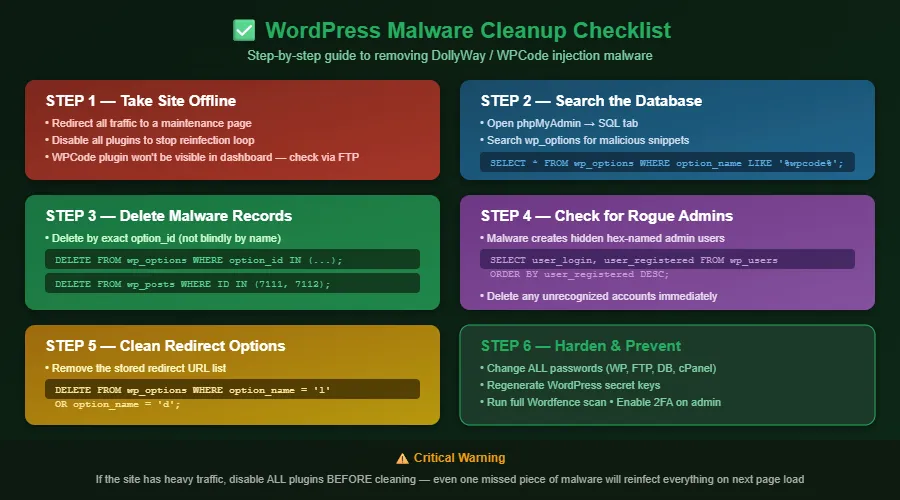
Follow these steps carefully and in order. Do not skip any step.
Step 1: Take Your Site Offline
Before doing anything, put your site in maintenance mode or redirect all traffic to a static HTML page. This is critical because as long as pages load normally, the malware will keep reinfecting itself.
In your hosting control panel (cPanel), you can temporarily rename your main index.php file or use a .htaccess redirect. Contact your host if you need help with this step.
Step 2: Disable All Plugins via FTP
Because WPCode is hidden from your dashboard, you cannot deactivate it from inside WordPress. Using your FTP client or hosting File Manager:
- Navigate to wp-content/plugins/
- Rename the insert-headers-and-footers folder to insert-headers-and-footers-DISABLED
- Also rename any folder called header-footer to header-footer-DISABLED
- Rename the wpcode folder if it exists
Step 3: Run a Wordfence Scan
With plugins disabled, re-enable only Wordfence Security and run a full scan. Review all critical findings and repair or delete any modified core files. Wordfence will highlight files that have been altered from their original state.
Step 4: Check Your .htaccess File
Open your root .htaccess file via FTP or File Manager. Look for any RewriteRule lines that redirect to unfamiliar domains. A clean WordPress .htaccess should look like this:
# BEGIN WordPress
<IfModule mod_rewrite.c>
RewriteEngine On
RewriteBase /
RewriteRule ^index\.php$ - [L]
RewriteCond %{REQUEST_FILENAME} !-f
RewriteCond %{REQUEST_FILENAME} !-d
RewriteRule . /index.php [L]
</IfModule>
# END WordPress
Delete anything outside those lines that you did not put there yourself.
Step 5: Change All Passwords
- WordPress admin password
- Hosting cPanel password
- FTP password
- Database password (update wp-config.php)
- Email address associated with the admin account
Step 6: Regenerate WordPress Secret Keys
Visit https://api.wordpress.org/secret-key/1.1/salt/ to generate new secret keys, then paste them into your wp-config.php file, replacing the existing AUTH_KEY, SECURE_AUTH_KEY, and related constants.
Step 7: Restore Your Site
Re-enable your plugins one by one. Check your site after each re-enable to ensure no redirects return. If a redirect returns after enabling a specific plugin, that plugin likely still contains injected code — delete it and reinstall fresh from wordpress.org.
Advanced Fix: phpMyAdmin SQL Commands
For users who prefer direct database access, these SQL queries allow you to find and remove the malware at its source. Replace the prefix 46d_ with your own database prefix (commonly wp_).
These commands were tested and validated during an actual DollyWay cleanup on a live infected site. Always take a database backup before running DELETE queries.
Step 1: Find All WPCode Entries
Find all WPCode and snippet-related option entries
SELECT option_id, option_name, LEFT(option_value, 100) as preview
FROM 46d_options
WHERE option_name LIKE '%wpcode%'
OR option_name LIKE '%insert_headers%'
OR option_name LIKE '%ihaf%'
OR option_name LIKE '%snippet%';
Step 2: Search for the Malicious Code Itself
Search for the malware signature in the database
SELECT option_id, option_name FROM 46d_options
WHERE option_value LIKE '%_WP_WEBSITE%'
OR option_value LIKE '%gyxur.wintently%'
OR option_value LIKE '%extra_param_1%'
OR option_value LIKE '%eval(%'
OR option_value LIKE '%base64_decode%';
Step 3: Find Hidden Admin Accounts
Show all users ordered by registration date (newest first)
SELECT user_login, user_email, user_registered
FROM 46d_users
ORDER BY user_registered DESC;

-- Delete a suspicious user (replace ID with actual user ID)
DELETE FROM 46d_users WHERE user_login = 'suspicious_username';
DELETE FROM 46d_usermeta WHERE user_id = [their_id];
Step 4: Delete All WPCode Records
Delete all WPCode-related option entries (use IDs from Step 1 results)
DELETE FROM 46d_options WHERE option_id IN (1936691, 1936694, 1936693, 1936695);

-- Delete WPCode post entries
DELETE FROM 46d_posts WHERE ID IN (7111, 7112);

-- Delete associated post metadata
DELETE FROM 46d_postmeta WHERE post_id IN (7111, 7112);
Step 5: Remove the Redirect URL List
Remove the stored redirect URL list (options ‘l’ and ‘d’)
DELETE FROM 46d_options
WHERE option_name = 'l' OR option_name = 'd';
Step 6: Clear All Transients
Clear all WordPress transients to remove cached malware data
DELETE FROM 46d_options WHERE option_name LIKE '%_transient_%';
Step 7: Final Verification
Confirm everything is clean — should return 0 rows
SELECT option_id, option_name FROM 46d_options
WHERE option_name LIKE '%wpcode%'
OR option_name LIKE '%ihaf%'
OR option_name LIKE '%snippet%';
Prevention: How to Protect Your Site Going Forward
Cleaning up a DollyWay infection is only the beginning. Here is how to prevent it from happening again:
Keep Everything Updated
The majority of WordPress compromises happen through outdated plugins and themes. Enable automatic updates for WordPress core, and regularly audit your plugins list to remove anything you no longer use.
Use Strong, Unique Passwords and Two-Factor Authentication
Brute force attacks are one of the primary entry points for DollyWay. Use a password manager to generate strong unique credentials for your WordPress admin account and enable two-factor authentication.
Never Install Nulled Themes or Plugins
Pirated WordPress themes and plugins are one of the most common vectors for malware installation. They are free for a reason — they contain backdoors.
Regularly Audit Your Plugin List
Check your wp-content/plugins directory via FTP periodically, not just the WordPress dashboard. Hidden plugins like insert-headers-and-footers will not appear in your dashboard but will be visible on the filesystem.
Audit Your Database Directly
Run these two queries monthly as a health check:
-- Monthly health check queries
SELECT * FROM 46d_options WHERE option_name = 'l' OR option_name = 'd';
SELECT * FROM 46d_options WHERE option_value LIKE '%eval(%'
  OR option_value LIKE '%base64_decode%';
Use a Web Application Firewall
Consider Cloudflare’s free tier or a security plugin like Wordfence Premium that includes a firewall. These can block the attacker’s bots before they even reach your login page.
Conclusion
DollyWay is a sobering reminder of how sophisticated WordPress malware has become. It hides in plain sight, reinfects itself automatically, steals visitor traffic, creates secret admin accounts, and has been operating virtually undetected for nearly a decade. The fact that it uses a completely legitimate and trusted plugin as its vehicle makes it all the more insidious.
If you followed the steps in this guide, your site should now be clean. But the real lesson here is that WordPress security is an ongoing practice, not a one-time fix. Regular audits, updated software, strong credentials, and direct database inspections are your best defenses against campaigns like this.
Share this article with other WordPress site owners – thousands of sites remain infected, and awareness is the first step to a cleaner web.