You just unboxed an iPhone, or you’ve had one for years and still feel like you’re only using 10 percent of it. You are not alone. Apple hides its best tools on purpose, not to be sneaky, but to keep the screen simple for new users.
This is the same list of 35+ tricks from my power-user guide, but rewritten for normal humans. I will tell you exactly what button to press, when it works, where to find it, and why you will actually use it tomorrow morning. Save this, send it to your mom, your roommate, anyone who just switched from Android.
PART 1: Everyday Speed Tricks (Use These First)
These save you taps, scrolling, and frustration.
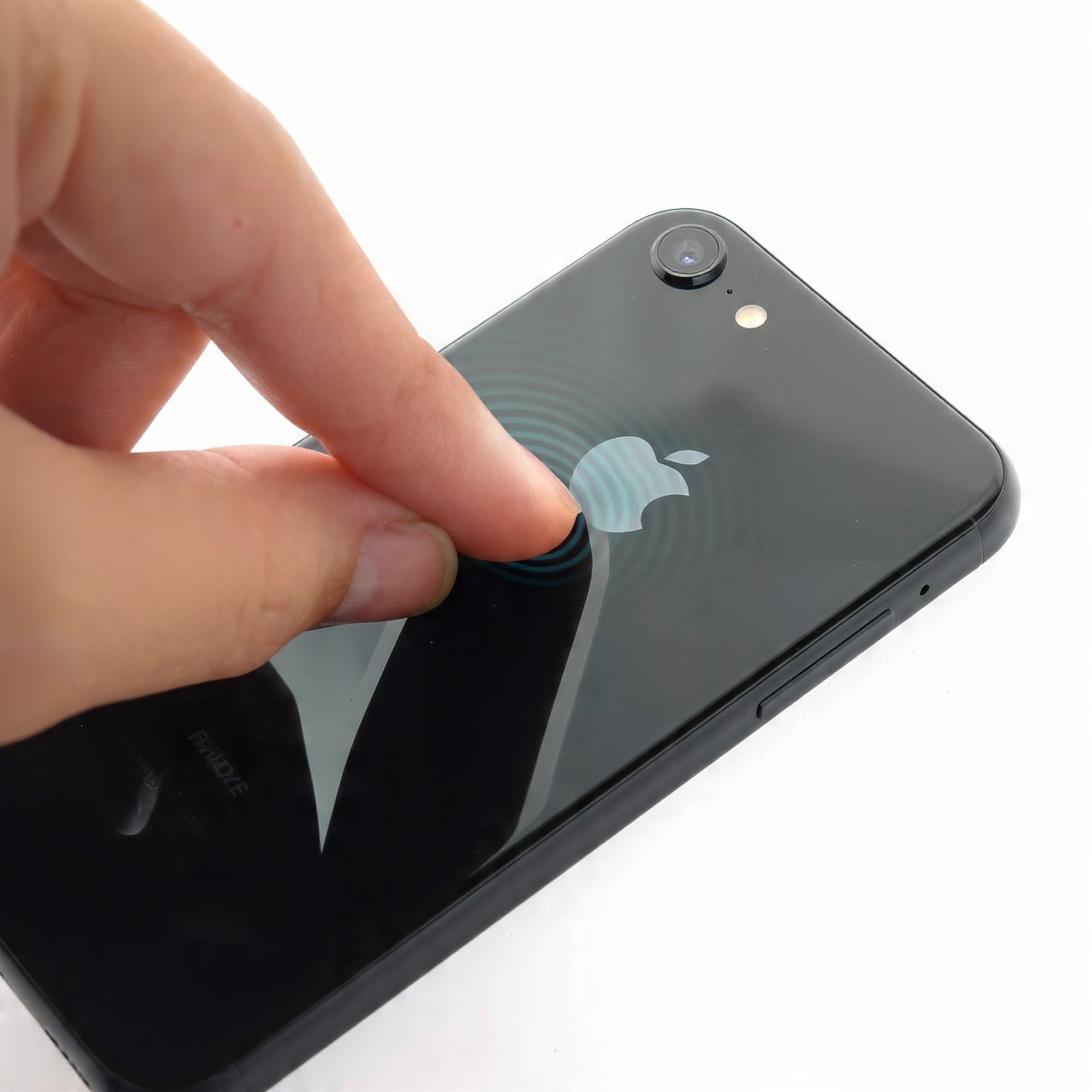
1. Back Tap = A Secret Button on the Back
What it is: Your iPhone can feel you tap the back, like a hidden mouse click.
Where: Settings > Accessibility > Touch > Back Tap
When it works: iPhone 8 and newer, even with a thin case on. It works on the Home Screen, inside apps, even when the screen is locked (for flashlight).
How to set it up for beginners:
- Choose Double Tap > Screenshot. Now tap-tap the back near the Apple logo. No more fumbling for side buttons.
- Choose Triple Tap > Flashlight or Shazam.
Why you will love it: One-handed. Holding groceries? Double tap. In bed? Triple tap for light. It turns the back of your phone into two extra buttons you cannot see.
2. The Spacebar Is Actually a Mouse
The problem: Trying to fix a typo in the middle of a word is maddening.
The fix: When the keyboard is open, press and HOLD the spacebar. Do not tap, hold. The whole keyboard turns gray. Now slide your finger left and right. The cursor moves like a computer mouse.
Where it works: Messages, WhatsApp, Notes, email, Safari search bar, everywhere you type.
Why: You get pixel-perfect control without your finger blocking the text.
3. Shake to Undo (And the Calm Way)
Typed the wrong thing? Deleted a paragraph?
Option A: Literally give your phone a gentle shake. A pop-up says Undo Typing. Tap Undo.
Option B (no shaking in public): Place three fingers on the screen and swipe left. That is undo. Swipe right with three fingers to redo.
Works in: Notes, Messages, Mail, Photos edits.
4. Send a Link That Jumps to the Exact Sentence
Your friend will not read a 2,000-word article. Help them.
In Safari, highlight the sentence you want them to see with your finger. Tap Share > Copy Link with Highlight. Send it. When they open it, the page scrolls right to the yellow highlight.
Why: Perfect for recipes, news, manuals.
5. Find Old Texts Without Scrolling Forever
Messages search is bad by default. Apple made a free Shortcut that fixes it.
Open the Shortcuts app > Gallery > search “Messages Search” > Add. Now you can filter by person and date, newest first.
When to use: “What was the address she sent last December?”
6. Snooze Notifications Like an Alarm
A Calendar reminder pops up while you are driving. Do not dismiss it and forget.
Long-press the notification on your Lock Screen. Tap Snooze > 10 minutes, 1 hour, or pick a time. It will come back.
Works for: Reminders, Calendar, third-party to-do apps.
7. The One-Handed Keyboard
On big iPhones, typing with one hand stretches your thumb.
Hold the globe or emoji key at the bottom left of the keyboard. Choose the left or right keyboard icon. The keys squish to that side.
Tap the arrow to go back to normal.
8. Stop Hunting for Apps: Use App Library Search
Swipe left past all your Home Screens until you see App Library. Tap the search bar at the very top. Boom, alphabetical list of every app. No folders.
Beginner win: Faster than remembering which folder you put Uber in.
9. Make Reminders Yell at You (Like an Alarm)
Normal notifications disappear. Reminders can be stubborn.
Open Reminders > New Reminder > tap the “i” > turn on Date and Time. Set a time. It will pop up and stay until you tap Snooze or Complete. Use this for medicine, picking up kids, turning off the stove.
10. Drag and Drop Between Apps (Copy-Paste for Grownups)
Want a photo from Photos into a WhatsApp chat?
Long-press the photo until it lifts up. KEEP holding with one finger. With your other hand, swipe up to go Home, open WhatsApp, drop the photo in the chat.
Why: No saving, no camera roll hunting. Works for text, links, PDFs too.
PART 2: Camera and Photos Magic
11. Use Your AirPods as a Camera Remote
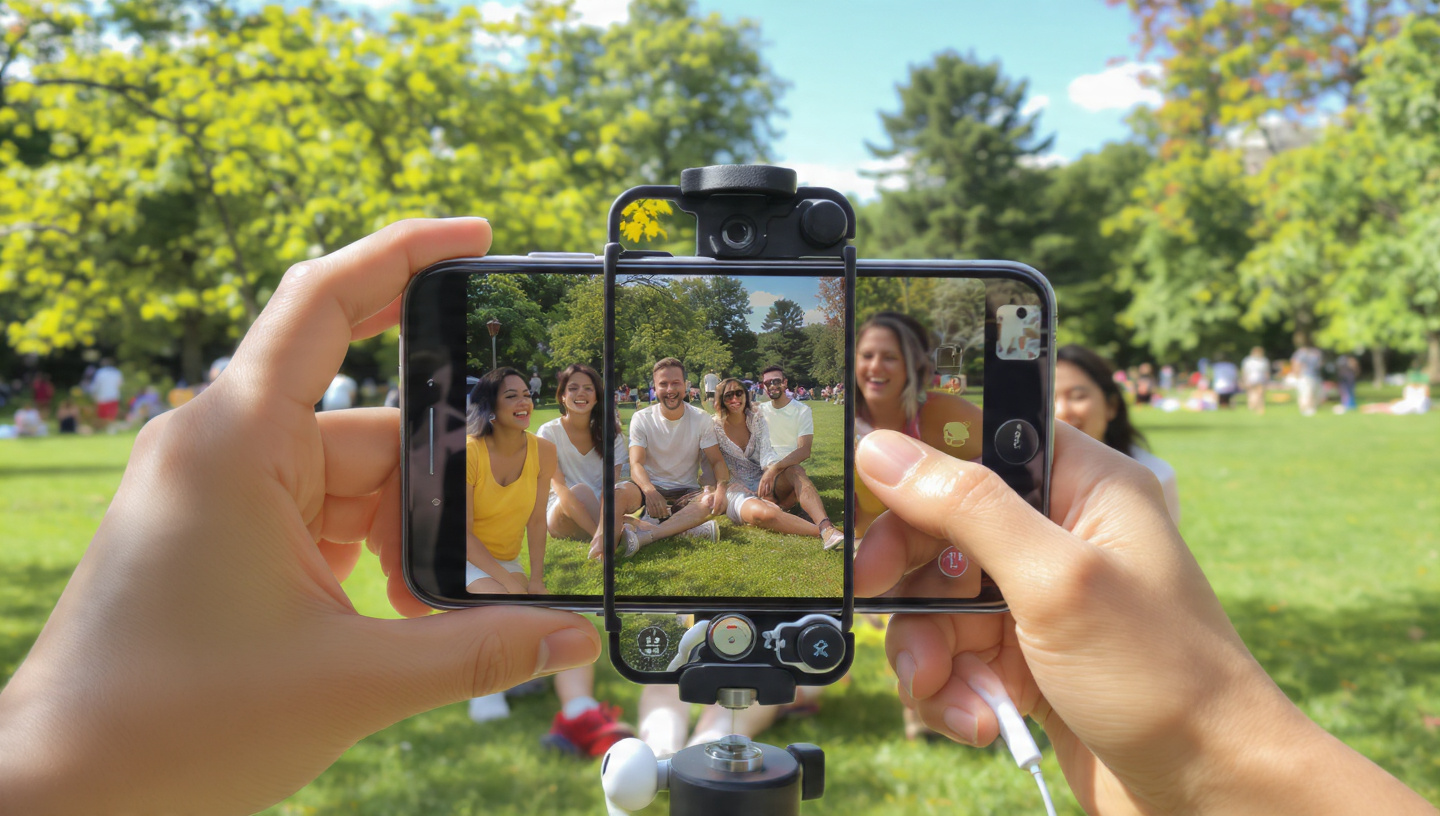
Put your iPhone on a table or tripod. Open Camera. Step back with friends. Press the stem of your AirPods Pro 2, Pro 3, or AirPods 4 once. Click. Photo taken.
Set a 3-second timer too for no shake. Everyone is in the picture, no stranger needed.
12. Volume Buttons Do Three Jobs
In Camera app:
- Press Volume Up once = take photo
- Hold Volume Up = burst mode (great for kids and pets)
- In Video mode, press Volume Up = start and stop recording
Why: Physical buttons are steadier than tapping the screen.
13. Live Text: Copy Words From Real Life
Point your camera at a menu, business card, or whiteboard. A little text icon appears bottom right. Tap it. Now you can copy, translate, or call the number directly.
Also works on any photo you already took. Long-press the text in Photos.
14. Visual Search in iOS 26 (Long-Press Anything)
See a cool jacket on Instagram? Long-press the image > Search. Your iPhone will find where to buy it using Google or your shopping apps. Same for plants, dog breeds, landmarks.
No screenshot needed. Works in Safari, Photos, Messages.
15. Actually Lock Your Hidden Photos
Hiding photos used to just move them to an album called Hidden. Anyone could open it.
Fix it: Settings > Photos > turn ON Use Face ID. Now Hidden and Recently Deleted need your face to open.
Where: Photos app > Albums > scroll down to Hidden.
16. Stop Screenshot Previews Blocking Your Screen
After a screenshot, that tiny thumbnail hangs in the corner. Annoying.
iOS 26 lets you kill it: Settings > General > Screenshots > turn off Show Preview. Screenshots go straight to Photos.
17. Scan Documents Like a Pro (No App Needed)
Open Notes > tap the camera icon > Scan Documents. Hold over a receipt or ID. iPhone auto-finds the edges, flattens it, saves as a clean PDF.
Beginner tip: Tap the flash icon if lighting is bad.
18. Change the Snooze Time (Finally)
Tired of 9 minutes? Clock app > Alarm > tap Edit > pick your alarm > Snooze Duration. Choose 5, 15, 20 minutes. Your morning, your rules.
PART 3: Privacy Tricks Apple Didn’t Put on a Billboard
19. Stop Your Carrier From Knowing Your Exact House
iOS 26.3 added this quietly: Settings > Mobile Service > Mobile Data Options > limit precise location (wording varies by carrier). Instead of your exact address, they see your neighborhood.
Why: Less precise tracking for ads and data brokers. Turn it on if you see it.
20. Green Bubbles Are Now Private Too
Since iOS 26.5, texts to Android friends using RCS are end-to-end encrypted. Look for a tiny lock icon in the Messages thread.
When it works: Both you and your Android friend need updated phones and a carrier that supports it. If you see the lock, no carrier or hacker in the middle can read it.
21. Lock Private Tabs in Safari With Your Face
Safari > tap the two squares > tap Private > tap the three dots > Lock Private Browsing. Now if someone borrows your unlocked phone, they cannot open your private tabs without Face ID.
22. See Who Is Stalking You Online
Settings > Safari > Privacy Report. It shows how many trackers Safari blocked in the last 30 days, and which websites tried hardest. Most people see hundreds. It is a wake-up call.
23. Silence Unknown Callers (Spam Killer)
Settings > Phone > Silence Unknown Callers > ON. Only people in your contacts, recent calls, and Siri Suggestions will ring. Everyone else goes silently to voicemail.
Beginner worry: “What about deliveries?” They leave voicemail, and you still see the call in Recents.
24. Your iPhone Can Hear the Doorbell for You
Settings > Accessibility > Sound Recognition > turn on. Choose Doorbell, Fire Alarm, Baby Crying, Dog Barking.
When to use: Wearing noise-canceling headphones, or if you are hard of hearing. Your phone vibrates and shows a banner when it hears the sound.
PART 4: Battery and Health Smarts
25. Adaptive Power Mode Learns You
iPhone 15 Pro and newer, iOS 26: Settings > Battery > Adaptive Power Mode. If you are using more battery than usual one day, it quietly slows background stuff so you still make it to bedtime.
You do nothing. It just works.
26. Average Bedtime Tells the Truth
Health app > Browse > Sleep > look for Average Bedtime (added in iOS 26.4). It shows your real average over weeks, not just last night. Brutal but helpful.
27. Know Who Is Calling by Vibration Only
Contacts > pick Mom > Edit > Ringtone > Vibration > Create New Vibration. Tap a pattern like short-short-long. Save. Now you know it is Mom in your pocket without looking.
28. Play Rain Sounds and Protect Your Ears
Settings > Accessibility > Audio & Visual > Background Sounds > Rain or Ocean. Masks office noise for focus.
Also, Settings > Sounds & Haptics > Headphone Safety > Reduce Loud Sounds. iOS 26 lets you pick a profile for concerts.
29. Low Power Mode Got Smarter
In iOS 26.4 Apple made Low Power Mode prioritize what is on your screen. Your scrolling stays smooth while background apps sleep harder. Turn it on at 30 percent, not 10.
PART 5: Accessibility Tools Everyone Should Steal
30. Measure a Person’s Height With Your Camera
On iPhone 12 Pro or newer (they have LiDAR), open Measure app. Point at someone standing. Their height pops up automatically at the top.
Party trick that is actually useful for furniture, kids’ growth charts.
31. Turn the Action Button Into a Menu
iPhone 15 Pro and later have the Action Button on the side. Do not waste it on one thing.
Settings > Action Button > Shortcut > create a Shortcut that shows a menu with Flashlight, Voice Memo, Translate, Camera, Low Power. One press, pick what you need.
32. Control Your Phone With Sounds
Settings > Accessibility > Sound Actions. Set a “pop” sound to take a screenshot, a “click” to open Control Center. Great when your hands are wet or full.
PART 6: Make It Yours
33. Long-Press Everything in Control Center
Swipe down from top-right corner. Now long-press:
- Brightness slider = Dark Mode, Night Shift, True Tone
- Volume = spatial audio
- WiFi icon = pick network without opening Settings
- Timer = instant slider
Apple hides whole menus behind a hold.
34. Change App Icons to Anything
Shortcuts app > + > Add Action > Open App > choose Instagram > Share > Add to Home Screen > pick a photo as icon. You can make your Home Screen pink, minimal, or themed.
35. Tinted Icons and New Wallpapers
iOS 26: Settings > Wallpaper > Customize > pick a color tint for all icons. Also, iOS 26.3 gave Weather and Astronomy their own wallpaper categories, so you can find that moving earth wallpaper in two taps.
The Three Updates You Should Install Today
Apple pushed iOS 26.5 on May 11, 2026 with no event. It includes:
- Encrypted RCS for Android chats. That lock icon matters.
- Suggested Places in Apple Maps. Open Maps, you see coffee shops and parks based on what you actually like, not ads.
- One-plug Magic Keyboard pairing. Plug your Magic Keyboard into iPhone with USB-C once, it pairs forever wirelessly.
Plus over 50 security fixes. Go to Settings > General > Software Update now.
Your 5-Minute Starter Checklist
Do these now and you will feel the difference today:
- Turn on Back Tap for screenshot
- Hold spacebar to move cursor
- Lock Hidden album with Face ID
- Turn on Silence Unknown Callers
- Set AirPods as camera remote
These are the same tricks Apple engineers use daily, they just never put them on the box. The iPhone in 2026 is ridiculously powerful, with AI features, satellite texting, and pro cameras, but the real magic is in these tiny gestures.
Share this with someone who just got their first iPhone. They will thank you next week when they stop fighting autocorrect and start actually enjoying their phone.