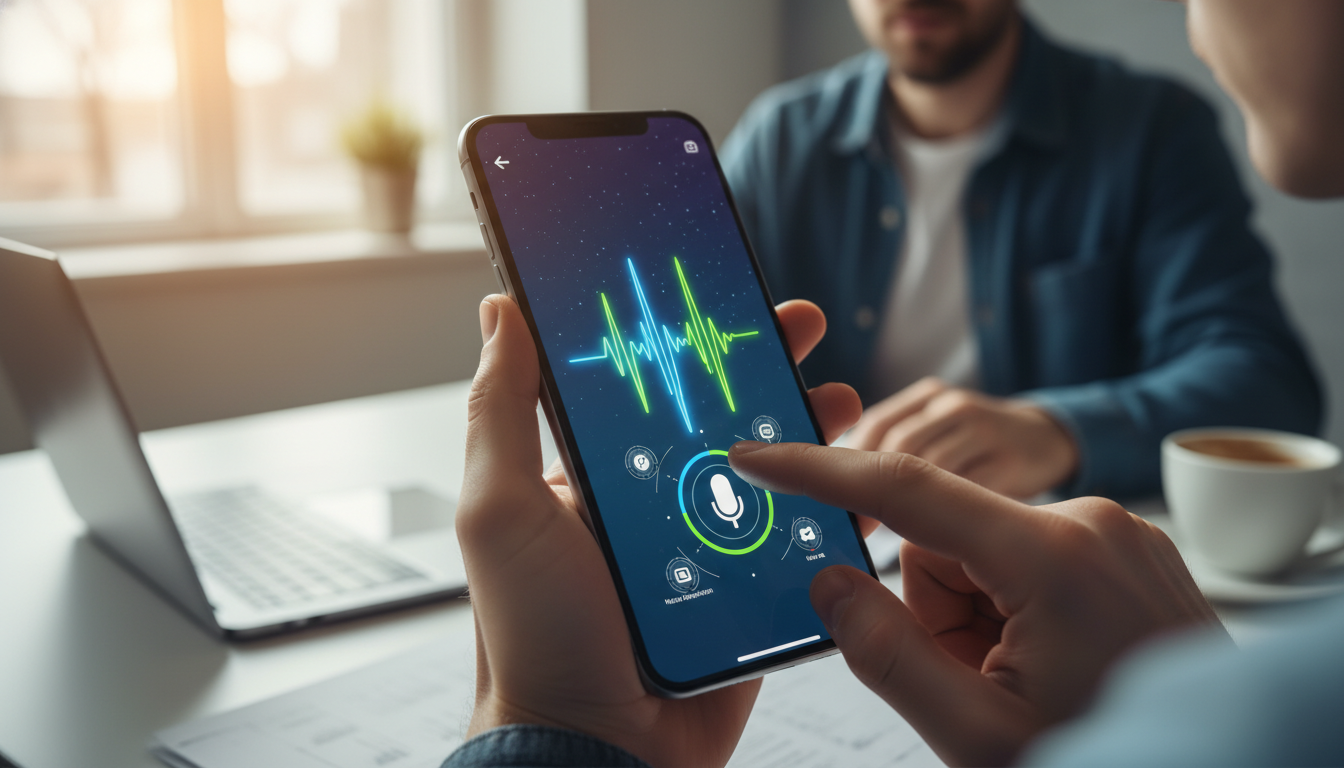
The iOS 26 voice messages iPhone feature has quietly become one of the most powerful ways to communicate without typing a word. With Apple’s 2026 updates, voice notes inside the Messages app now offer better clarity, smarter transcription, and intuitive editing tools that finally make audio messaging feel polished. Whether you’re sending a quick “running late” note to a friend or sharing a detailed update with a family group, knowing how to use these tools properly can save time and make your conversations more personal. In this guide, we’ll walk through every feature, hidden trick, and pro-level technique to help you master voice messaging on your iPhone in 2026.
What’s New With Voice Messages in iOS 26
Apple has reimagined voice messaging in iOS 26 with a focus on clarity, control, and accessibility. The redesigned iOS 26 Messages app now treats voice messages as first-class content rather than a buried feature behind a microphone icon. You’ll notice a cleaner waveform display, real-time transcription previews, and a more responsive recording interface.
One of the standout upgrades is the new audio enhancement engine, which automatically reduces background noise and balances voice levels even in noisy environments. This means your messages sound crisp whether you’re in a quiet room or walking down a busy street. Apple has also extended the maximum message length and added the ability to pause and resume recordings—something users have been requesting for years.
Another welcome change is improved integration with Siri and Live Transcription, allowing recipients who prefer reading over listening to instantly view the message as text. This makes voice notes more inclusive and practical in situations where playing audio isn’t appropriate.
Key Features at a Glance
- Pause and resume recording without losing your progress
- Automatic background noise reduction
- Live transcription with editable text output
- Extended message length up to 30 minutes
- Voice message reactions and replies
- Saved voice messages no longer auto-delete by default
How to Send a Voice Message on iOS 26
Learning how to send a voice message on iPhone in iOS 26 is straightforward, but the new interface introduces a few subtle changes worth knowing. The microphone icon has moved slightly within the redesigned input bar, and the swipe gestures behave differently than in earlier iOS versions.
Follow these steps to send your first voice message in iOS 26:
- Open the Messages app and select an existing conversation or start a new one.
- Tap the plus (+) icon to the left of the text input field.
- From the expanded menu, choose Audio.
- Tap the red record button to begin capturing your message.
- Speak naturally—watch the waveform animate in real time as you record.
- Tap the pause button if you need a break, then resume when ready.
- Once finished, tap the stop button, then preview your message by hitting play.
- If satisfied, tap the upward arrow to send. To discard, tap the X icon.
Pro Tip: You can also long-press the audio icon for a quick-record mode—just hold to record and release to send instantly. This shortcut is perfect for fast replies when you don’t need to review before sending.
Editing and Reviewing Before You Send
One of the biggest improvements in iOS 26 is the ability to edit a voice message before it leaves your iPhone. Previously, you either had to send the recording as-is or delete and start over. Now, Apple has introduced trim controls and re-record options that give you full creative control.
After recording, you’ll see a waveform with handles on each end. Drag these to trim silence at the beginning or end of your message. You can also tap the three-dot menu to access advanced options like re-recording a portion, adjusting playback speed for review, or applying voice enhancement filters.
Using the Built-in Transcription Feature
The new imessage audio recording system includes automatic transcription powered by on-device intelligence. Before sending, you can tap the “Show Transcript” toggle to see exactly what your message says in text form. This is incredibly useful for:
- Catching mispronunciations or unclear phrases
- Verifying important details like phone numbers or addresses
- Sending both audio and text versions for accessibility
- Ensuring your message makes sense before hitting send
Recipients can also view the transcript on their end, even if they’re using an older iPhone, as long as both devices support iMessage. For users who frequently switch between platforms, our guide on transferring data from Android to iPhone 16 without losing files covers how to migrate your message history seamlessly.
Voice Message Tips for iPhone Power Users
If you’ve mastered the basics, it’s time to level up. These advanced voice message tips for iPhone will help you sound more professional, save time, and avoid common pitfalls that even experienced users encounter.
First, consider your recording environment. While iOS 26 does an excellent job filtering out noise, starting with a quiet space always produces better results. Hold your iPhone about six to eight inches from your mouth for optimal voice capture—too close causes distortion, too far makes you sound distant.
Second, take advantage of the playback speed controls when reviewing long messages. Tapping the 1x indicator cycles through 0.5x, 1x, 1.5x, and 2x speeds, which is helpful for both quick reviews and listening to messages you’ve received.
Managing Saved Voice Messages
By default, iOS 26 keeps voice messages in your conversations permanently rather than auto-deleting them after two minutes. To customize this behavior:
- Open Settings on your iPhone.
- Scroll down and tap Apps, then select Messages.
- Find the Audio Messages section.
- Tap Expire to choose between Never, After 2 Minutes, or a custom duration.
- Toggle Raise to Listen on or off based on your preference.
Warning: If you enable “Raise to Listen,” your iPhone will automatically play received voice messages when you raise the phone to your ear—and start recording a reply when you lower it. This is convenient but can trigger accidental recordings, which we’ll address shortly.
How to Record Voice Notes on iPhone Outside of Messages
While the Messages app is the most common place to record voice notes on iPhone, iOS 26 offers several other ways to capture audio. The Voice Memos app remains the gold standard for longer recordings, interviews, and personal notes that you might want to keep separately from your message threads.
Voice Memos in iOS 26 has also received a significant update, including automatic chapter markers, speaker separation, and AI-generated summaries for recordings over five minutes. You can then share these recordings as voice messages directly through Messages by tapping the share icon and selecting a contact.
For users who like to organize their digital life efficiently, you might find our roundup of hidden macOS Sequoia 15.7 features Mac users should try in 2026 useful, especially since voice memos sync seamlessly across all your Apple devices via iCloud.
Troubleshooting Common Voice Message Issues
Even with iOS 26’s improvements, you may encounter occasional hiccups. Here are the most common problems and how to fix them:
- Microphone not working: Check Settings > Privacy & Security > Microphone, and ensure Messages has permission.
- Voice messages won’t send: Verify your iMessage is active under Settings > Apps > Messages, and check your internet connection.
- Transcription not appearing: Make sure your device language matches the spoken language and that Siri is enabled.
- Random recordings starting: Disable “Raise to Listen” to prevent accidental activation.
- Audio quality issues: Clean your iPhone’s microphone ports and remove any case that might block them.
If your issues are tied to broader system glitches like sign-in problems, our walkthrough on fixing the Apple ID sign-in loop on macOS and iOS can help restore full functionality across your Apple ecosystem. Similarly, if you’re noticing other sync issues, the guide on Apple Notes sync issues after iOS update covers parallel troubleshooting steps.
Privacy and Etiquette When Using Voice Messages
Voice messages are personal by nature, and iOS 26 includes several privacy features worth understanding. All audio messages sent through iMessage are end-to-end encrypted, meaning Apple cannot access their contents. However, recipients can save, forward, or screen-record your messages, so always consider what you’re sharing.
From an etiquette standpoint, voice messages work best when they convey emotion, complex explanations, or hands-free communication. Avoid sending long voice notes for simple yes/no responses—text is faster for the recipient in those cases. Keep most voice messages under 60 seconds unless context demands more detail.
When sending to group chats, remember that not everyone may be able to listen immediately. Including a brief text summary or relying on the transcription feature can make your message more accessible to all recipients. For Windows users in your network who may receive messages through other means, our overview of hidden Windows 11 features every power user should know in 2026 highlights cross-platform productivity tools worth exploring.
Frequently Asked Questions
How do I send a voice message on iOS 26?
Open the Messages app, select a conversation, and tap the plus (+) icon next to the text field. Choose Audio, then tap the record button to start. When finished, preview your message and tap the upward arrow to send. You can also long-press the audio shortcut for instant recording and sending.
Can I edit a voice message before sending?
Yes. iOS 26 introduced trim handles on both ends of the waveform, allowing you to cut silence or mistakes. Tap the three-dot menu for advanced options like re-recording sections, adjusting playback for review, or applying voice enhancement. You can also preview the auto-generated transcript before sending.
Why does my iPhone record voice messages randomly?
This usually happens because “Raise to Listen” is enabled. When you lower your iPhone after listening to a message, it starts recording a reply automatically. Disable this feature under Settings > Apps > Messages > Audio Messages by toggling off Raise to Listen.
How long can voice messages be on iPhone?
In iOS 26, voice messages can now be up to 30 minutes long—a significant increase from previous versions. However, keep in mind that very long messages may take time to upload and could be skipped by recipients. For lengthy content, consider using Voice Memos and sharing the file instead.
Can I transcribe voice messages on iOS 26?
Yes, iOS 26 includes automatic on-device transcription for both sent and received voice messages. Tap any voice message bubble to view its transcript. The feature supports multiple languages and works without an internet connection, keeping your audio content private and accessible.
Final Thoughts
Mastering the iOS 26 voice messages iPhone feature transforms how you communicate—making conversations faster, more expressive, and more accessible. With trim controls, transcription, extended length, and intelligent noise reduction, Apple has finally delivered the voice messaging experience users have wanted for years. Take a few minutes to explore the new settings, customize the behavior to fit your style, and you’ll wonder how you ever managed without these tools.
If you’re dealing with related iPhone challenges, check out our guide on resolving YouTube AI-labeled videos not playing on Apple devices for another common fix, or explore the Apple Notes sync issues after iOS update walkthrough to keep your entire Apple workflow running smoothly.