If you think you know your operating system inside out, the hidden Windows 11 features hiding beneath the surface might surprise you. Microsoft has quietly packed its flagship OS with productivity tools, shortcuts, and customization options that most users never discover. Whether you spend your day juggling spreadsheets, editing video, or managing remote teams, learning these lesser-known tricks can dramatically streamline your workflow. In this guide, we’ll walk through ten powerful capabilities that transform ordinary users into genuine power users. From advanced window management to clipboard wizardry, these windows 11 tips and tricks are designed for real-world productivity in 2026.
1. Master Snap Layouts for Effortless Multitasking
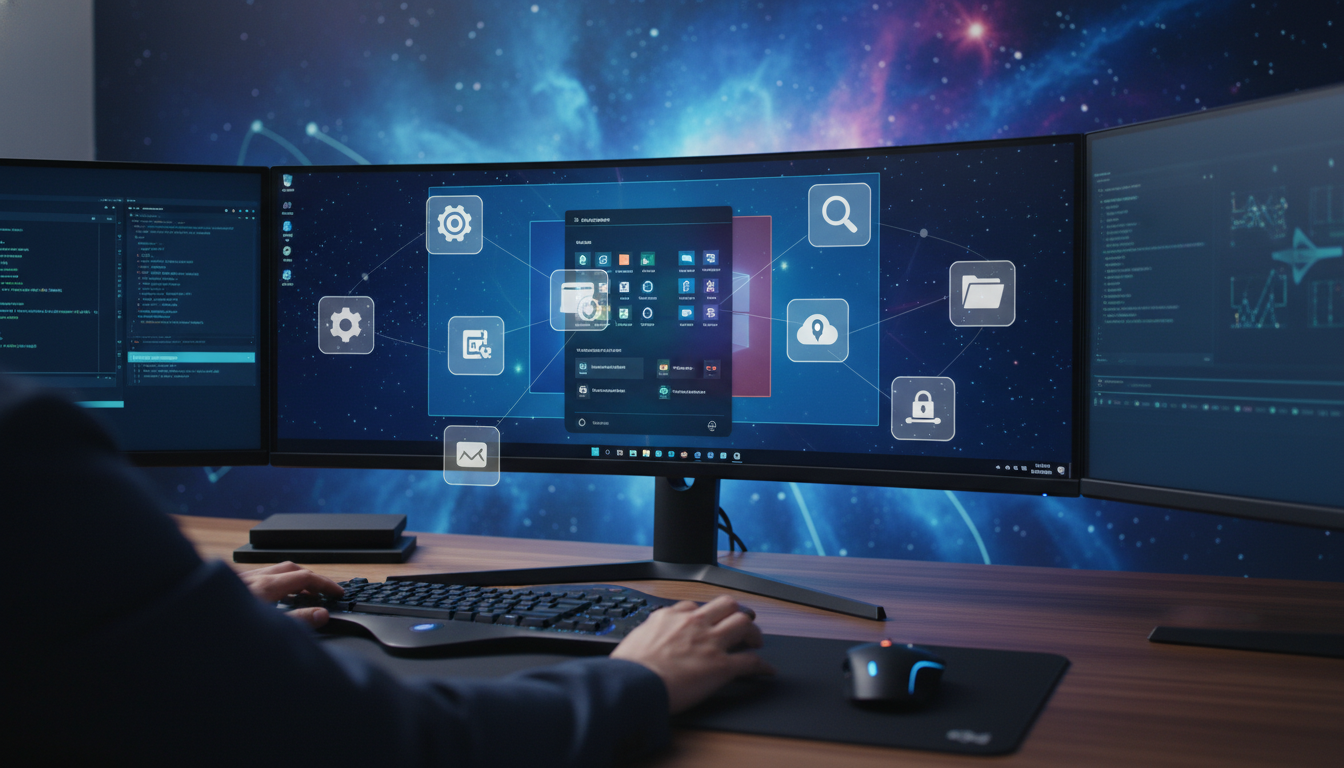
One of the most underused productivity tools in the OS is Snap Layouts, a feature that lets you instantly arrange multiple windows in predefined grids. Instead of manually resizing and dragging windows, you can hover over the maximize button and select from several layout options. This is particularly powerful on ultrawide monitors where screen real estate is abundant.
With snap layouts windows 11 enabled, you can split your screen into two, three, or even four zones depending on your display size. The feature also remembers your layout groupings, so when you click a taskbar icon, all related windows resurface together.
How to Enable and Use Snap Layouts
- Open Settings and navigate to System > Multitasking.
- Toggle on Snap windows and expand the menu to enable all sub-options.
- Hover your mouse over the maximize button of any window or press Win + Z.
- Pick your preferred layout and drop windows into each zone.
Pro tip: Hold Win + Arrow keys to snap windows without touching the mouse — a genuine timesaver for keyboard-driven workflows.
2. Unlock the Power of Virtual Desktops
If you’ve never explored windows 11 virtual desktops, you’re missing one of the cleanest ways to separate work contexts. Virtual desktops let you create multiple independent workspaces — one for work, one for personal browsing, one for creative projects — without buying additional monitors.
Each desktop can have its own wallpaper, open applications, and arrangement. Switching between them feels instant, making it ideal for users who frequently context-switch throughout the day.
- Press Win + Tab to view Task View and manage your desktops.
- Use Win + Ctrl + D to create a new desktop instantly.
- Press Win + Ctrl + Left/Right Arrow to switch between them.
- Right-click any desktop thumbnail to rename it or change its background.
Power users often pair virtual desktops with Snap Layouts to create entirely different productivity environments — one optimized for writing, another for video calls, and a third for research.
3. Use the Hidden Clipboard History Manager
The traditional clipboard only stores the last item you copied, but Windows 11 includes a built-in Clipboard History that remembers up to 25 recent entries, including text, images, and HTML snippets. This is a genuine game-changer for writers, developers, and anyone who copies multiple items in succession.
To activate it, press Win + V. The first time you do this, you’ll be prompted to enable the feature. Once active, you can paste any previous item, pin frequently used snippets, and even sync your clipboard across devices signed into the same Microsoft account.
Pro tip: Pin your email signature, common code snippets, or boilerplate text so they remain accessible even after a restart.
4. Customize the Start Menu Like a Pro
The Start menu in Windows 11 looks minimal at first glance, but it hides considerable customization potential. You can adjust the ratio of pinned apps to recommended items, hide recently added apps, and even reposition the entire menu.
Steps to Personalize Your Start Menu
- Right-click an empty area of the desktop and choose Personalize.
- Select Start from the sidebar.
- Choose between More pins, Default, or More recommendations layouts.
- Toggle off recommendations entirely if you prefer a cleaner look.
- Pin folders like Downloads, Documents, or Settings next to the power button for quicker access.
You can also create folders within the pinned section by dragging one app icon over another — a smart way to group related tools without cluttering your menu.
5. Discover Powerful Keyboard Shortcuts
Mastering windows 11 shortcuts is the single fastest way to elevate your productivity. While most users know Ctrl + C and Ctrl + V, Windows 11 introduces several modern shortcuts that remain underused.
- Win + W — Opens the Widgets panel for quick news, weather, and calendar glances.
- Win + N — Opens the Notification Center and Calendar.
- Win + A — Opens the Quick Settings flyout for Wi-Fi, Bluetooth, and brightness.
- Win + H — Activates voice typing in any text field.
- Win + . (period) — Opens the emoji, GIF, and symbol picker system-wide.
- Win + Shift + S — Launches Snipping Tool for screen captures.
- Win + L — Locks your PC instantly when stepping away.
Memorizing even half of these will noticeably speed up your daily workflow and reduce your reliance on the mouse.
6. Try the Underrated Focus Sessions Feature
Built into the Clock app, Focus Sessions is one of the most overlooked productivity tools in the OS. It combines a Pomodoro-style timer, do-not-disturb mode, and task integration into a single interface. When activated, notifications are silenced, the taskbar badge counters are paused, and a timer keeps you accountable.
To start a session, open the Clock app and choose Focus Sessions. Set your duration, optional breaks, and the task you want to complete. You can also link Microsoft To Do tasks directly into the session for seamless tracking.
Pro tip: Pair Focus Sessions with a virtual desktop dedicated solely to deep work — no email, no chat apps, no distractions.
7. Tap Into PowerToys for Advanced Customization
Although technically a separate download, PowerToys is officially developed by Microsoft and unlocks an entirely new layer of windows 11 productivity. It includes utilities like FancyZones (advanced window snapping), PowerRename (bulk file renaming with regex), Color Picker, Always on Top, and a universal launcher called PowerToys Run.
Must-Try PowerToys Modules
- FancyZones — Create custom window layouts beyond the default Snap grids.
- PowerToys Run — Launch apps and search files with Alt + Space, similar to Spotlight on macOS.
- Text Extractor — Copy text from any image on screen using OCR.
- Mouse Highlighter — Visually emphasize your cursor during presentations.
Speaking of cross-platform productivity, if you also work with Apple hardware and run into issues like Apple devices overheating during heavy use, Hawkdive has dedicated troubleshooting walkthroughs for those scenarios too.
8. Use Voice Typing to Dictate Anywhere
Few users realize Windows 11 includes a remarkably accurate Voice Typing engine that works in any text field — Word documents, browsers, messaging apps, even system search bars. Press Win + H and start speaking. The engine handles punctuation automatically when enabled and supports multiple languages.
This is particularly useful for long-form writing, transcription, or when your hands are occupied. Accuracy has improved significantly in 2026, even handling technical vocabulary and accents better than earlier versions.
9. Explore Dynamic Lighting for RGB Devices
If you own RGB peripherals like keyboards, mice, or PC case fans, Dynamic Lighting lets you control them natively without installing manufacturer software. This feature unifies lighting controls across compatible devices, eliminating the need for multiple bloatware utilities.
Navigate to Settings > Personalization > Dynamic Lighting to configure effects, sync colors with your accent color, or set ambient light shows. Supported brands include Razer, Logitech, HyperX, and several others, with the list growing steadily.
10. Activate God Mode for Ultimate Control
The fabled God Mode shortcut gives you instant access to nearly every Control Panel setting in one centralized folder. While Windows 11 has moved many settings to the modern Settings app, God Mode remains useful for advanced users who need granular system access.
- Right-click on your desktop and choose New > Folder.
- Rename the folder to: GodMode.{ED7BA470-8E54-465E-825C-99712043E01C}
- Press Enter — the folder icon changes and reveals 200+ administrative tools.
Warning: Some options trigger system-level changes. Avoid clicking unfamiliar entries unless you understand their function.
For more deep-dive guides on operating systems, mobile devices, and productivity software, explore the latest tech tutorials and reviews on Hawkdive, where we cover Windows, macOS, iOS, and Android in equal depth.
Frequently Asked Questions
What are the best hidden features in Windows 11?
The standout hidden features include Snap Layouts, Virtual Desktops, Clipboard History (Win + V), Focus Sessions, Voice Typing (Win + H), Dynamic Lighting, and God Mode. PowerToys, while a separate download, also unlocks advanced utilities like FancyZones and PowerToys Run that significantly boost productivity for any windows 11 power user.
How do I enable Snap Layouts on Windows 11?
Open Settings, go to System > Multitasking, and toggle on “Snap windows.” Expand the menu and enable all sub-options for maximum flexibility. Once enabled, hover over any window’s maximize button or press Win + Z to reveal the layout chooser. You can also drag windows to screen edges to trigger snap zones automatically.
Can I use virtual desktops in Windows 11?
Yes, virtual desktops are fully supported. Press Win + Tab to open Task View, then click “New desktop” to create additional workspaces. Use Win + Ctrl + D to create a new desktop instantly, or Win + Ctrl + Left/Right Arrow to switch between them. Each desktop can have its own wallpaper and applications.
How do I customize the Start menu in Windows 11?
Right-click the desktop, choose Personalize, then select Start. From there, you can change the layout balance between pinned apps and recommendations, hide recently added items, and toggle folder shortcuts near the power button. You can also drag pinned apps into folders to organize them and remove items you don’t use.
What keyboard shortcuts work best in Windows 11?
The most valuable shortcuts include Win + V (Clipboard History), Win + Shift + S (Snipping Tool), Win + . (emoji picker), Win + H (voice typing), Win + Z (Snap Layouts), Win + Tab (Task View), and Win + L (lock screen). Combining these with arrow keys for window snapping creates an extremely fast, keyboard-driven workflow.
Final Thoughts
The hidden Windows 11 features we’ve covered prove that Microsoft’s OS is far more capable than it appears at first launch. From advanced multitasking with Snap Layouts and virtual desktops to clipboard history, Focus Sessions, and Dynamic Lighting, these tools are designed to remove friction from your daily workflow. The key is to integrate one or two new features at a time until they become second nature.
If you also manage Apple devices alongside your Windows machine, you might find these companion guides useful: our walkthrough on using iOS 19 StandBy Mode widgets like a pro and our fix guide for Apple Intelligence not working after an iOS update. Both pair well with the productivity mindset behind this Windows 11 power-user guide.