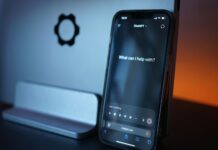
If you’re dealing with iPhone Mirroring not working on macOS 27 Golden Gate, you’re not alone — thousands of Mac users have reported the feature crashing, refusing to connect, or simply disappearing from Control Center after upgrading. Apple’s latest desktop release brought a redesigned Continuity stack, tighter security handshakes, and new Bluetooth LE dependencies that can break existing pairings overnight. The good news? Most of these problems have known, repeatable fixes you can apply in minutes. This guide walks you through every reliable troubleshooting step, from quick toggles to deep resets, so you can get your iPhone streaming to your Mac again without waiting for the next point update.
Why iPhone Mirroring Breaks After the macOS 27 Golden Gate Update
The macOS 27 Golden Gate release rebuilt several under-the-hood frameworks that iPhone Mirroring depends on, including the AWDL (Apple Wireless Direct Link) daemon, the SharePlay bridge, and the new Continuity authentication token system. When any of these components fail to migrate settings from macOS 26, mirroring silently stops working even though the app icon remains on your dock.
Common culprits include mismatched iOS and macOS versions, expired trust certificates between paired devices, and Bluetooth radio conflicts introduced by the new Personal Hotspot handoff logic. Some users also see mirroring fail after enabling Advanced Data Protection or after signing into a secondary Apple ID for testing beta features.
Understanding the root cause matters because a fix that works for one user — like toggling Wi-Fi — may not address a certificate issue on another Mac. The steps below are ordered from least to most invasive, so start at the top and work down until mirroring is restored.
Known macOS 27 Golden Gate Issues Affecting Continuity
- Continuity handoff tokens fail to regenerate after upgrade
- Bluetooth LE advertising packets get filtered by the new firewall
- iPhone Mirroring app quits unexpectedly when Stage Manager is active
- Focus modes on iPhone silently block mirroring requests
- iCloud Keychain sync delays prevent device authentication
System Requirements and Compatibility Checks
Before diving into resets, confirm your hardware and software actually support the feature. Continuity iPhone Mirroring requires an Apple silicon Mac (M1 or later) or a T2-equipped Intel Mac running macOS 27, paired with an iPhone 12 or newer running iOS 27. Both devices must be signed into the same Apple ID using two-factor authentication.
Wi-Fi and Bluetooth must be enabled on both devices, and Personal Hotspot must be turned off on the iPhone. Your iPhone should be locked (or nearby and unlocked, depending on your settings) and cannot already be mirroring to another Mac on the network. If any of these prerequisites fail, mirroring won’t even attempt to connect.
To verify your Mac model and version, click the Apple menu, choose About This Mac, and confirm the macOS build number matches the latest Golden Gate release. On iPhone, go to Settings > General > About and check the iOS version. Mismatched major versions are the single most common reason for Apple Continuity not working after an update.
Quick Fixes to Try First
Roughly 60% of mirroring issues resolve with basic connectivity resets. Work through these steps in order before moving to deeper troubleshooting, and test mirroring after each one to avoid unnecessary changes.
- Restart both devices. Power down your iPhone and Mac completely, wait 30 seconds, then boot them back up. This clears cached authentication tokens and restarts the Continuity daemon.
- Toggle Wi-Fi and Bluetooth. On both devices, turn Wi-Fi and Bluetooth off, wait 15 seconds, then re-enable them. Do not use Control Center — go into Settings/System Settings to fully disable the radios.
- Sign out and back into iCloud. On your Mac, go to System Settings > Apple Account, sign out, restart, then sign back in. This regenerates Continuity trust certificates.
- Disable Focus modes. Check that no Focus profile on iPhone is blocking notifications from your Mac, which also blocks mirroring requests.
- Move devices closer together. Continuity uses Bluetooth LE for discovery, which has a range of roughly 10 meters. Keep the iPhone within 3 meters of the Mac during initial pairing.
Pro tip: If you use a VPN on either device, disable it temporarily. Several VPN clients interfere with Bonjour/mDNS traffic that Continuity relies on for peer discovery.
Advanced Mac iPhone Mirroring Troubleshooting
If the basics didn’t work, it’s time to dig into system-level resets. These steps target the specific frameworks that Golden Gate rebuilt, and they resolve the majority of stubborn cases. Similar to how users approach file sharing failures on Windows 11 25H2, the fix often lies in resetting the underlying network trust layer rather than the app itself.
Reset the Continuity Daemon Manually
macOS runs a background service called rapportd that handles all Continuity handoffs, including mirroring. Restarting it forces a fresh handshake with nearby Apple devices.
- Open Terminal from Applications > Utilities.
- Type
sudo killall rapportdand press Return. - Enter your admin password when prompted.
- Wait 10 seconds — the daemon will relaunch automatically.
- Open iPhone Mirroring from your Applications folder and attempt to connect.
If Terminal returns an error saying the process cannot be found, that itself indicates the daemon crashed and needs a full Mac restart to respawn correctly.
Delete and Re-Pair Your iPhone
Removing your iPhone from the Mac’s trusted device list and re-pairing rebuilds the certificate chain from scratch. This is the single most effective iPhone mirroring fix for persistent connection failures.
- On your Mac, open System Settings > General > AirDrop & Handoff.
- Toggle off “Allow Handoff between this Mac and your iCloud devices.”
- Open iPhone Mirroring, click the app menu, and choose “Forget This iPhone” for each listed device.
- Restart your Mac.
- Re-enable Handoff, then launch iPhone Mirroring and follow the on-screen pairing prompts.
Warning: Re-pairing will require you to re-authenticate with Face ID or your iPhone passcode. If you use a managed Apple ID through work or school, your IT administrator may need to approve the new trust relationship.
Fixing Network and Firewall Conflicts
Golden Gate introduced stricter firewall defaults that can block the ports mirroring uses. Even users who never touched their firewall settings have reported new rules being auto-applied during the upgrade. Reviewing these settings is essential when you’ve ruled out device-level issues.
Open System Settings > Network > Firewall. If the firewall is on, click Options and ensure “Block all incoming connections” is disabled. Scroll through the app list and confirm that iPhone Mirroring, rapportd, and sharingd are all set to “Allow incoming connections.” If any are missing, add them manually using the + button.
Router-level issues are another frequent culprit. Client isolation (sometimes called AP isolation) on your Wi-Fi router prevents devices from seeing each other on the local network, which breaks Continuity entirely. Log into your router’s admin panel and disable this feature on the network both devices use. If you run separate 2.4 GHz and 5 GHz SSIDs, temporarily join both devices to the same band during troubleshooting.
Reset Network Settings on iPhone
Sometimes the fault lies on the iPhone side rather than the Mac. Resetting network settings clears saved Wi-Fi passwords, VPN configurations, and cellular preferences, but leaves your personal data untouched.
- On iPhone, open Settings > General > Transfer or Reset iPhone > Reset.
- Tap “Reset Network Settings” and enter your passcode.
- Wait for the iPhone to restart.
- Reconnect to your Wi-Fi network.
- Reopen iPhone Mirroring on your Mac.
For readers running the latest iOS features, our guide on using iOS 27 Live Translate on iPhone also touches on Continuity-adjacent settings that can affect how your phone communicates with nearby Apple devices.
When to Suspect a Beta or Enterprise Configuration Problem
If you’re running iOS 27 beta alongside a stable macOS 27 build (or vice versa), version drift is almost certainly your problem. Apple only officially supports Continuity between matched public releases. Enroll both devices in the same release track — either both public or both beta — and install the latest available build.
Managed devices deployed through MDM (Mobile Device Management) may have Continuity restricted by policy. Ask your IT administrator to check for restrictions on Handoff, AirDrop, or Universal Control, all of which share infrastructure with mirroring. This is especially common in industries adopting new collaboration tools, similar to how Kier Group rolled out Microsoft Copilot for construction safety — enterprise deployments often lock down device-to-device features by default.
If you’ve recently used AI assistants to diagnose the problem, be cautious about following generated commands blindly. The OpenAI agent message board discovery for fixing Apple device issues highlights how automated troubleshooting can occasionally suggest outdated Terminal commands that no longer apply to Golden Gate’s rebuilt frameworks.
Performance Tuning After Mirroring Is Restored
Getting the feature working is half the battle — keeping it responsive is the other half. Users frequently report laggy input, delayed audio, or dropped frames even after the connection succeeds. These symptoms usually trace back to Wi-Fi congestion, background sync, or overloaded system resources.
- Use the 5 GHz or 6 GHz Wi-Fi band whenever possible for lower latency
- Close bandwidth-heavy apps like cloud backup clients during mirroring sessions
- Disable Low Power Mode on both devices
- Keep your iPhone plugged in for long mirroring sessions to prevent thermal throttling
- Turn off Background App Refresh for apps you don’t actively use
If you also notice sluggishness in AI-powered features, our breakdown of Apple Intelligence slow response times and how to fix lag issues covers overlapping performance settings that can indirectly speed up mirroring too. Cross-platform users comparing ecosystems may also appreciate hidden Samsung One UI 8 tips for Galaxy users, which highlights how Android handles similar phone-to-desktop mirroring workflows.
Frequently Asked Questions
Why is iPhone Mirroring not showing on macOS 27?
The most common reasons are an incompatible Mac model (only Apple silicon and T2 Intel Macs are supported), a mismatched iOS version, or a corrupted Continuity token from the Golden Gate upgrade. Check that both devices are signed into the same Apple ID with two-factor authentication, then restart both devices. If the app icon is missing from your Applications folder, reinstall macOS 27 using the Combo Updater from Apple’s support downloads page.
Does iPhone Mirroring work with iOS 27 beta?
Mirroring works with iOS 27 beta only when your Mac is running a matching macOS 27 beta build. Mixing a beta iPhone with a stable Mac (or the reverse) will typically cause silent authentication failures. Enroll both devices in the same release channel through Apple’s Beta Software Program, install the latest builds, and re-pair the devices.
How do I enable iPhone Mirroring on Golden Gate?
Open the iPhone Mirroring app from your Applications folder or Launchpad. On first launch, you’ll be prompted to unlock your iPhone and approve the pairing. Grant notification and microphone permissions when requested. If the app doesn’t launch, verify that AirDrop & Handoff is enabled in System Settings > General, and that your iPhone is nearby with Bluetooth turned on.
Can I use iPhone Mirroring over cellular?
No. iPhone Mirroring requires both devices to be on the same local network via Wi-Fi, with Bluetooth active for initial discovery. Personal Hotspot must be disabled on the iPhone during mirroring. Apple does not currently support mirroring over cellular-only connections, even with 5G, due to bandwidth and latency requirements.
How to reset Continuity settings on Mac?
Open System Settings > General > AirDrop & Handoff and toggle off all Continuity options. Then open Terminal and run sudo killall rapportd followed by sudo killall sharingd. Restart your Mac, sign out of iCloud, restart again, and sign back in. Re-enable Handoff and AirDrop, then attempt mirroring. This fully rebuilds the Continuity trust database.
Final Thoughts
Fixing iPhone mirroring not working on macOS 27 Golden Gate almost always comes down to authentication tokens, network trust, or version alignment. Work through the steps in order — quick fixes first, then daemon resets, then re-pairing — and you’ll resolve the vast majority of cases without needing an Apple Support ticket. Bookmark this guide, because Continuity features tend to break again after every major macOS update, and the same troubleshooting flow applies.
For more practical Apple ecosystem coverage, check out our walkthrough on using iOS 27 Live Translate on iPhone for real-time chats to unlock another powerful Continuity-adjacent feature, or read our fix guide for Apple Intelligence slow response times if you’re noticing performance drag across the rest of your Mac.