






























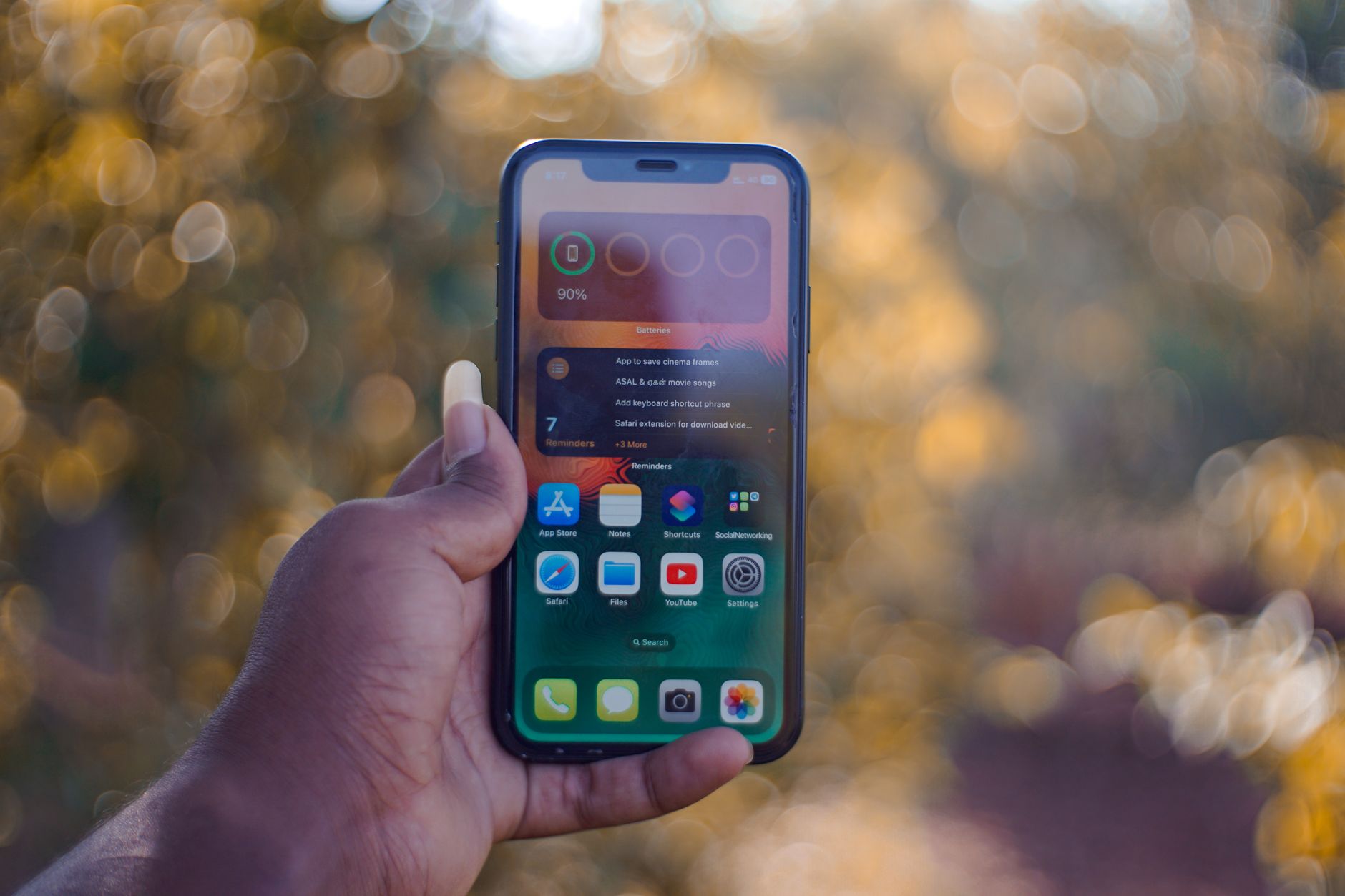
If you’ve ever wished your phone could read the room, iPhone Focus Filters in iOS 26 are the closest Apple has come to making that a reality. These smart, context-aware toggles let you strip away distractions inside individual apps, silence specific contacts, and even change how your Home Screen looks depending on what you’re doing. In 2026, Apple has refined the system further, adding tighter automation, better third-party app support, and smoother syncing across devices. In this guide, we’ll walk you through everything you need to know to configure, customize, and automate Focus Filters so your iPhone finally works around your schedule — not the other way around.
What Focus Filters Actually Do in iOS 26
Focus Filters build on top of Apple’s Focus modes (the successor to Do Not Disturb) by letting you customize what individual apps show — or hide — while a Focus is active. Instead of just muting notifications, filters change the content itself. For example, Safari can hide personal tab groups during Work mode, and Messages can hide non-work conversations automatically.
In iOS 26, Apple has expanded the filter API so more third-party apps can hook in. That means Slack, Notion, Fantastical, and dozens of other productivity tools can now respond to your current Focus without any manual tweaking. The result is a more coherent digital environment that reshapes itself based on context.
The core benefit? You stop context-switching. When your Focus changes, your entire iPhone follows — wallpaper, widgets, app content, notifications, and even what your Apple Watch shows. It’s less about blocking and more about presenting the right information at the right time.
System Filters vs. App Filters
There are two categories of filters worth understanding. System filters control iPhone-wide behavior like Dark Mode, Low Power Mode, and Silence Notifications. App filters are specific to individual apps such as Mail, Calendar, Messages, and Safari, controlling what content is visible while the Focus is active.
Understanding this distinction helps you build layered Focus modes. For instance, a “Deep Work” Focus might combine Dark Mode (system filter) with a specific Mail account (app filter) and a hidden set of Home Screen pages.
Setting Up Your First Focus Mode in iOS 26
Before you can add filters, you need a Focus mode to attach them to. The iOS 26 Focus mode setup process has been streamlined compared to earlier versions, with smarter templates and clearer onboarding. Here’s how to create one from scratch.
- Open Settings and tap Focus.
- Tap the + icon in the top-right corner.
- Choose a template — Work, Personal, Sleep, Reading, Fitness, Mindfulness, Gaming, or Driving — or select Custom to build your own.
- Give your Focus a name, pick a color, and choose an SF Symbol icon.
- Configure allowed people (contacts who can still reach you) and allowed apps (apps that can still send notifications).
- Tap Done to save.
Once your Focus is created, you’ll see a new section called Focus Filters at the bottom of that Focus’s configuration page. This is where the magic happens. Tap Add Filter to start layering behaviors on top of your baseline notification rules.
Pro tip: Give each Focus a distinct color and icon. When you’re switching modes from Control Center, visual differentiation makes it much faster to grab the right one without reading labels.
Creating Custom Focus Filters on iPhone
Now for the powerful part. Custom Focus Filters on iPhone let you fine-tune what appears within specific apps whenever a Focus is active. Apple ships several built-in filters, and many third-party developers have added their own in 2026.
To add a filter, tap Add Filter under any Focus mode. You’ll see two sections: App Filters and System Filters. The app list will reflect whichever compatible apps you have installed. Here are the most useful ones to configure.
- Calendar — Show only selected calendars (e.g., only your Work calendar during Work Focus).
- Mail — Restrict Mail to specific accounts so personal email doesn’t leak into work hours.
- Messages — Hide conversations from people not in your allowed list.
- Safari — Switch to a specific Tab Group automatically.
- Dark Mode — Force light or dark appearance regardless of system setting.
- Low Power Mode — Automatically enable during long Focus sessions like Sleep or Reading.
For each filter, tap it, configure the specifics (which calendar, which account, which tab group), and tap Add. You can stack multiple filters on a single Focus — there’s no practical limit, so build them out as granularly as you need.
Focus Mode Per App on iPhone
The focus mode per app iPhone capability is where iOS 26 really shines. Because filters are app-scoped, you can have one Focus that transforms Slack into your work workspace while simultaneously switching your calendar to only show meetings from your professional account. Meanwhile, personal Messages threads disappear from your inbox until Focus ends.
Third-party support has grown significantly. Popular apps like Todoist, Craft, Bear, and Things now expose filters that let you switch between project workspaces or task lists automatically. Check the app’s settings for a “Focus Filters” section to see what’s available.
Automating Focus Filters by Time, Location, and Activity
Manually toggling a Focus works, but focus filter automation in iOS 26 is where you’ll get the biggest quality-of-life improvement. Automation lets your iPhone activate the right Focus without you lifting a finger.
Inside any Focus, scroll down to Set a Schedule. You’ll find four automation types:
- Time — Activate on specific days and hours (e.g., Work Focus 9 AM to 5 PM, Monday to Friday).
- Location — Trigger when you arrive at a defined place, such as your office or gym.
- App — Enable whenever you open a specific app, like turning on Reading Focus when you launch Kindle.
- Smart Activation — Let iOS learn your habits and turn Focus on automatically based on patterns.
Location-based triggers are especially useful. Set your Work Focus to activate when you enter your office building, and it’ll switch off when you leave. Combine that with a Mail filter and a Calendar filter, and you’ll instantly get a work-only view of your inbox and schedule the moment you step through the door.
For power users, Focus modes also integrate with Shortcuts. You can build automations that fire when a Focus turns on or off — for example, silencing your smart speakers, launching a specific playlist, or pinging your team’s status channel. Explore more automation ideas over on the Hawkdive homepage, where we regularly publish Apple productivity guides.
Warning About Overlapping Schedules
Be careful when creating multiple time-based automations. If two Focus modes are scheduled to trigger simultaneously, iOS will activate whichever was set most recently, which can lead to unexpected behavior. Review your Focus schedules periodically and remove any you no longer use to avoid conflicts.
Syncing Focus Filters Across Your Apple Devices
One of the biggest wins of using Focus in the Apple ecosystem is that filters sync across iPhone, iPad, Mac, and Apple Watch through iCloud. Change a Focus on your Mac, and your iPhone follows within seconds. But sync issues do happen, and iOS 26 has a few quirks worth knowing.
First, make sure Share Across Devices is enabled. Go to Settings > Focus and toggle it on at the top of the screen. Every device you want to participate in sync needs this switch enabled and needs to be signed into the same Apple Account.
If a Focus isn’t syncing, the usual culprit is an iCloud sign-in mismatch or a stale device. Sign out of iCloud on the misbehaving device, restart it, and sign back in. Nine times out of ten, that clears the issue. If your iPhone is doing other odd things too — like sending audio messages you never recorded — check out our guide on why iPhone records voice messages randomly and how to stop it in 2026.
Also worth noting: filters that reference a specific app (like Mail accounts or Safari Tab Groups) will only work on devices where that app and configuration exist. A Safari Tab Group filter set on your Mac won’t do anything on an iPad that doesn’t have the same Tab Group synced.
Advanced Tips to Get More From Focus Filters
Once you’ve got the basics down, these advanced techniques will help you squeeze even more productivity out of your Focus setup. Think of the iPhone Do Not Disturb 2026 experience as fully replaced by this modular system — it’s much more capable if you use it thoughtfully.
- Customize Home Screen pages per Focus. When editing a Focus, tap Customize Screens to hide distracting pages or promote a work-only page during business hours.
- Use Lock Screen pairing. Assign a specific Lock Screen wallpaper and widget stack to each Focus. Swiping between Lock Screens will toggle Focus modes.
- Silence versus Allow lists. Choose the mode that fits your risk tolerance — Silence is stricter, Allow is more permissive.
- Break glass exceptions. Time Sensitive notifications can still break through if enabled per app. Reserve this for critical apps only.
- Driving Focus safety. Pair it with CarPlay activation so it triggers automatically when you connect.
Another underrated technique is to build a “Wind Down” Focus that ramps up gradually. Schedule it to start 30 minutes before Sleep Focus, with a warmer wallpaper, Do Not Disturb enabled, and Kindle promoted on the Home Screen. It’s a small design change that meaningfully improves sleep habits.
If your iPhone feels cluttered beyond just notifications, you might also want to declutter apps themselves. Our guide on how to hide the Instagram Instants button on iPhone in 2026 pairs nicely with a stricter Focus setup for social apps.
Troubleshooting Common Focus Filter Problems
Even with iOS 26’s improvements, Focus Filters occasionally misbehave. Here are the fixes for the most common issues.
- Filter not applying. Force-quit the affected app and reopen it. Some apps only re-read Focus state on launch.
- Focus won’t activate on schedule. Check for overlapping schedules or a paused Focus. Toggle Airplane Mode briefly to reset network-dependent triggers.
- Location trigger unreliable. Confirm Location Services is enabled for System Services > Significant Locations.
- Third-party filter missing. Update the app. Filter support was often added in mid-2026 updates.
- Focus stuck on. Restart your iPhone. It’s an old trick but still the fastest fix.
Network-related notification hiccups sometimes get blamed on Focus when they’re actually router-side. If you notice patterns of missed alerts, it’s worth checking your Wi-Fi setup. For gamers who run into unrelated performance headaches, our write-up on Train Sim World crashing on Mac and Apple Silicon fixes covers a completely different class of issue but includes general Mac stability tips that apply broadly.
FAQ
What are Focus Filters in iOS 26?
Focus Filters are contextual rules that change what your apps display and how your iPhone behaves while a specific Focus mode is active. They go beyond simple notification silencing by altering visible content — like showing only work calendars, hiding personal Messages threads, or forcing Dark Mode. In iOS 26, filters support more third-party apps and offer tighter automation than earlier versions.
How do I create a custom Focus Filter on iPhone?
Open Settings > Focus, select an existing Focus or create a new one, scroll to Focus Filters, and tap Add Filter. Choose an app or system filter, configure the specifics (such as which Mail account or which appearance mode), and tap Add. You can stack multiple filters on a single Focus for granular control.
Can I automate Focus Filters by location or time?
Yes. Inside any Focus, tap Set a Schedule and choose Time, Location, App, or Smart Activation. Location triggers activate Focus when you enter or leave a defined place, while time triggers work on daily or weekly schedules. You can also fire Shortcuts automations when a Focus turns on or off for more advanced routines.
Why is my Focus Filter not syncing across devices?
The most common cause is that Share Across Devices is disabled or your devices are signed into different Apple Accounts. Go to Settings > Focus and enable the toggle at the top on every device. If issues persist, sign out of iCloud on the problem device, restart it, and sign back in.
How do I remove a Focus Filter in iOS 26?
Open the Focus containing the filter, scroll to the Focus Filters section, tap the filter you want to remove, and select Delete Filter at the bottom. The change takes effect immediately, and syncing to other devices happens within seconds.
Final Thoughts
Mastering iPhone Focus Filters in iOS 26 is one of the fastest ways to reclaim attention on a device engineered to grab it. Start small — build a single Work Focus with a Mail filter and a location trigger — then layer in additional filters and automations as you find gaps. Within a week, you’ll wonder how you ever functioned with a single, undifferentiated notification stream.
Want to keep tightening your iPhone experience? Check out our guide on hiding the Instagram Instants button on iPhone in 2026 to reduce visual noise, or read the fix for iPhone recording voice messages randomly if you’ve been dealing with strange Messages behavior. Both pair well with a disciplined Focus setup.












