
Two-factor authentication is well-known among those who value device security, yet all two-factor users have a single concern: what happens if you get a new phone? When you switch phones, what happens to Google Authenticator? If you’re using a service that requires you to enter a code generated by Google Authenticator, you should know that you’ll need to open the app on the device you’ve linked to your account. Thankfully, though, the application was designed by capable hands who anticipated this very scenario. If you’re upgrading to a new iOS 16 device and want to take Google Authenticator with you, read on!
Exactly what does Google Authenticator entail?
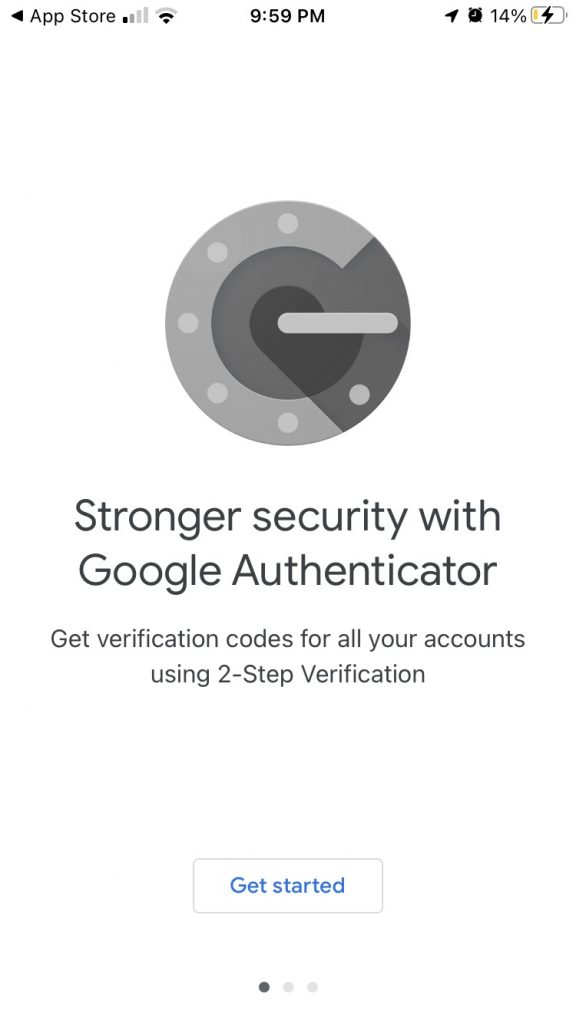
Google Authenticator is a 2FA-based programme that verifies a user’s claimed identity and determines whether or not he genuinely is who he says he is.
When compared to SMS-based verification, 2FA is preferable because your mobile sim can be stolen and used in a different phone by using your social security number, and the sms can be intercepted by your network provider. Two-factor authentication eliminates this risk because it is dependent solely on the registered device, not the underlying network.
What is the function of Google Authenticator?
To access any service or website that has enabled two-factor authentication, Authenticator can be used. Like most web-based 2FA apps, the technology combines knowledge and possession aspects. A user’s login triggers the delivery of a one-time passcode (OTP) to his device, which he must then enter before gaining access to the website or web-based service. That string of numbers and letters ensures that the person who is logging onto the site is also in possession of the mobile device onto which the Google Authenticator software has been installed.
Even if a hacker has access to a user’s password, rarely, they’ll also gain access to the user’s actual device because the vast majority of attacks are carried out online.
RFC 6238 from the Internet Engineering Task Force (IETF) describes the time-based one-time password (TOTP) scheme upon which the Authenticator app is built. The Time-Based One-Time Password (TOTP) method creates a random six-digit passcode that considers the current time of day. For added safety, passcodes are reset every 30 to 60 seconds.
Setup Instructions:
- Get Google Authenticator from the iOS App Store or the Android Google Play store.

- Next is to activate Google’s two-step verification. Please log in to go to your Google account. Go to “Security and Sign-In,” click on “Two-Step Verification,” and then pick “Authenticator app” from the list.
- Choose your mobile device: an iPhone or an Android.
- Launch the official Google Authenticator app on your mobile device, then tap the “+” button.
- Two options, “Scan barcode” and “Manual enter,” will appear at the screen’s bottom.


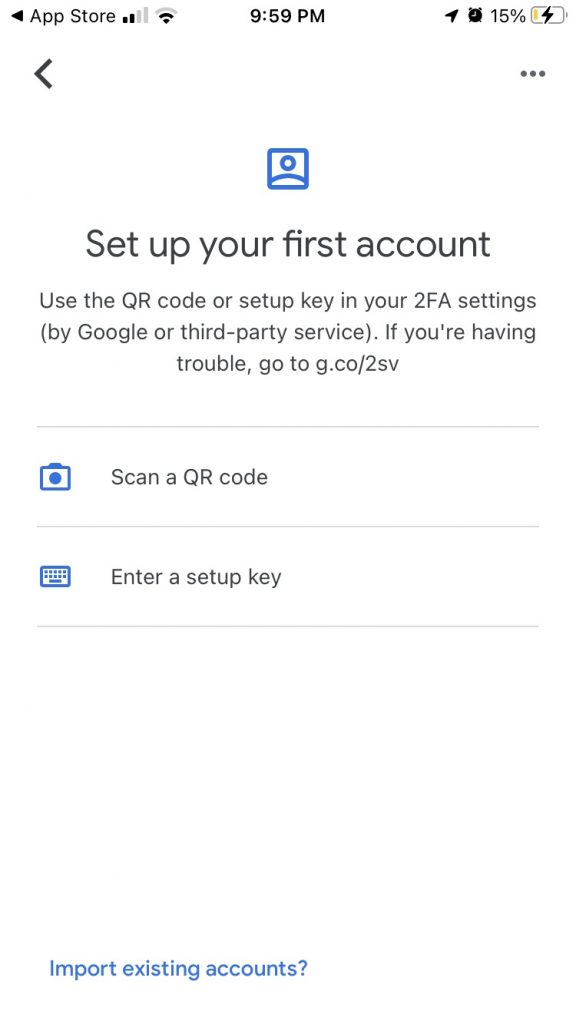
Selecting one of these alternatives will conclude the procedure. Using the “Scan barcode” option to verify Google Authenticator’s relationship with your account is a bit more time-consuming because it requires you to download a QR scanner from the app store and then aim your phone at the QR code on your computer screen.
The “Manual Entry” option, on the other hand, just has Google send a 16-digit code to your email. Finally, you enter the code to finish the verification process:
To guarantee the code you input is in sync with the most recent passcode generated by the Authenticator, turn on the “Time Based” option.
You’ll be prompted to input a six-digit verification number whenever you access the account you’ve synced with Google Authenticator. When you launch the Google Authenticator app, a fresh, random code will be generated automatically.
Congratulations. Your Google account has an extra layer of security provided by a unique six-digit number generated by Google’s authenticator app.
The Google Authenticator app is available for iOS 16 devices.
If you’ve just upgraded or switched devices and want to use Google Authenticator with your new one, you may do so by following these easy instructions: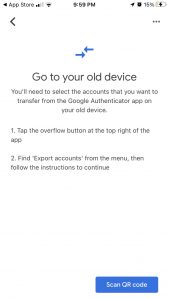
- Get the Google Authenticator app for your new gadget right away.
- Load the app onto your obsolete mobile device.
- Tap on more in the upper right corner.
- Use the Accounts Export menu.
- Read and comply with the on-screen prompts.
- There is a QR code there. Launch Google Authenticator on your new gadget.
- Go ahead and read the QR code on your outdated gadget.
- You can stop worrying about potential problems with two-factor authentication from now on.
Concluding Remarks
You can follow these steps to set up Google Authenticator on a new device.