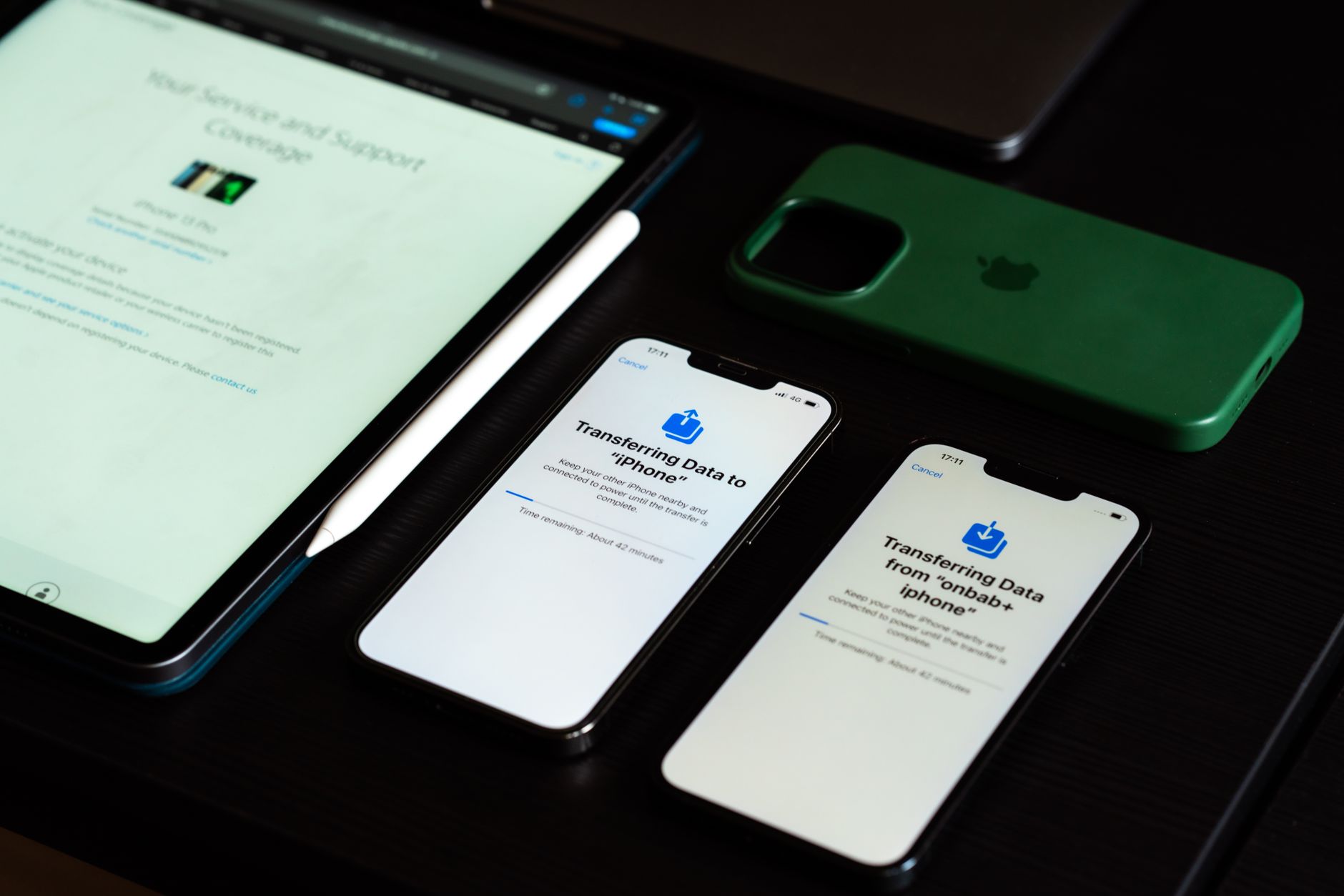
If your iPhone, iPad, or Mac has suddenly stopped syncing data through iCloud — Notes not updating, Photos stuck uploading, Reminders missing on one device, or Safari tabs refusing to appear across your Apple ecosystem — you are not alone. This is a widely reported issue currently being discussed in the Apple Support Community, with users noting inconsistent sync behaviour after recent iOS, iPadOS, and macOS updates. The good news: in most cases, the problem is fixable at home without a Genius Bar visit.
This Hawkdive guide walks you through what causes iCloud sync failures, the step-by-step fixes that resolve them most often, and when it is time to escalate to Apple Support.
What Causes This Issue
iCloud sync relies on a delicate handshake between your Apple ID, Apple’s servers, and each device’s local system daemons. When any part of that chain breaks, sync silently stops — often without an error message. The most common causes include:
- Apple ID authentication drift, where one device has quietly signed out or requires re-verification.
- Mismatched iCloud settings across devices — a toggle for Notes, Photos, or Contacts turned off on one device without you realising.
- Two-factor authentication (2FA) prompts that were dismissed or timed out, leaving a device in a partially trusted state.
- Insufficient iCloud storage, which halts uploads for Photos, iCloud Drive, and Backup silently.
- Network restrictions from VPNs, private relay, corporate Wi-Fi, or firewalls blocking Apple’s push notification service (APNs).
- Corrupt system caches after a major OS upgrade — a frequent culprit reported by users in the Apple Support Community after installing iOS 26 and macOS 26 Sequoia updates.
- Low Power Mode or background app refresh being disabled, which throttles sync activity.
Step-by-Step Fixes
Work through these in order. Most users find sync restored within the first four steps.
- Confirm every device is signed into the same Apple ID. Go to Settings > [your name] on iPhone and iPad, or System Settings > [your name] on Mac. The Apple ID email must match exactly on every device. If one device shows a different account or prompts you to sign in again, complete that flow first.
- Check iCloud service toggles. Inside your Apple ID settings, tap iCloud, then See All under “Saved to iCloud.” Verify that Photos, Notes, Contacts, Calendars, Reminders, Safari, and iCloud Drive are enabled on every device. A single disabled toggle explains most “missing data” reports.
- Verify iCloud storage. In the same iCloud panel, check your storage bar. If you are above 95% full, sync stalls. Either upgrade your iCloud+ plan or clear space by deleting old device backups under Manage Account Storage.
- Force a network refresh. Toggle Airplane Mode on for 15 seconds, then off. On Mac, disconnect and reconnect Wi-Fi. This forces devices to re-establish a fresh connection to Apple’s push servers, which is the fix multiple users in the Apple Support Community report worked when other steps failed.
- Restart every device involved. Do not skip this. A full power-off restart (not just a lock) clears the sync daemons (cloudd and bird on macOS) and lets them re-initialise cleanly.
- Sign out of iCloud and back in — on one device only. On the problem device, go to Settings > [your name] > Sign Out. Choose to keep a local copy of your data when prompted. Restart, then sign back in. This forces a fresh sync token to be issued.
- Update to the latest OS. Apple has shipped several sync-related patches in the iOS 26.2 and macOS 26.1 point releases. Go to Settings > General > Software Update on each device and install any available updates.
Additional Solutions
If the standard fixes above did not resolve your sync issue, try these more targeted approaches.
Disable and re-enable individual services. Sometimes only one service — say, Notes or Reminders — is broken. Toggle that specific service off in iCloud settings, wait 60 seconds, then toggle it back on. When prompted, choose to merge data. This rebuilds that service’s sync index without disturbing anything else.
Check iCloud Private Relay and VPN settings. Private Relay occasionally interferes with sync on flaky networks. Temporarily disable it under Settings > [your name] > iCloud > Private Relay. If you use a third-party VPN, disconnect it and test sync. Corporate or school Wi-Fi networks frequently block port 5223, which APNs requires — switch to cellular or a home network to confirm.
Reset network settings. On iPhone or iPad, go to Settings > General > Transfer or Reset iPhone > Reset > Reset Network Settings. This clears cached Wi-Fi credentials and DNS entries that may be routing Apple traffic incorrectly. You will need to re-enter Wi-Fi passwords afterward.
Check Apple’s System Status page. Visit Apple’s official System Status page in Safari. If iCloud Drive, Photos, or Contacts shows a yellow or red indicator, the issue is on Apple’s end and no local fix will help. Wait for the service to be marked resolved.
Force-quit and relaunch stuck apps. If Photos or Notes shows a spinning indicator that never completes, force-quit the app and reopen it. On Mac, use Activity Monitor to quit cloudd — it will relaunch automatically and often resumes stalled syncs.
Check date and time settings. Sync requires accurate timestamps. Go to Settings > General > Date & Time and ensure “Set Automatically” is enabled. A device with an incorrect clock will fail authentication silently.
When to Contact Apple Support
If you have completed every step above and sync is still broken after 24 hours, it is time to escalate. Contact Apple Support if:
- You see repeated Apple ID verification loops that never complete.
- iCloud storage shows incorrect usage (for example, claiming you are full when Manage Storage shows only a few GB used).
- Data is visibly corrupted or duplicated across devices.
- You suspect your Apple ID has been compromised or accessed from an unfamiliar device.
Use the Apple Support app on any working device, or visit getsupport.apple.com. Have your Apple ID, device serial numbers, and a summary of steps you have already tried ready — this dramatically speeds up the diagnostic call.
FAQ
How long should iCloud sync take? Small data like Notes, Contacts, and Reminders should sync within seconds. Photos and iCloud Drive can take minutes to hours depending on file size and connection speed. Anything over 24 hours indicates a problem.
Will signing out of iCloud delete my data? No, as long as you choose “Keep on My iPhone/Mac” when prompted. Your data remains on Apple’s servers and will re-sync when you sign back in.
Does resetting network settings erase anything else? Only Wi-Fi passwords, cellular preferences, and VPN configurations. Photos, messages, and apps are untouched.
Why does one specific app refuse to sync while everything else works? That app’s local database is likely corrupt. Toggle its iCloud switch off and on, or reinstall the app if it is third-party.
Is Advanced Data Protection related to sync issues? It can be. If Advanced Data Protection is enabled, all your devices must be running a supported OS version. An older device blocked from the keychain will fail to sync end-to-end encrypted services.
Sync issues are frustrating precisely because they are silent, but the fixes are almost always within reach. Work through the steps methodically, and your Apple ecosystem should be talking to itself again within an hour.