












Zoom has become a household name since the pandemic stuck us and the work from home culture gained popularity. The Video Conferencing App keeps strengthening itself by introducing many handy features for the ease of users. Recently, Zoom has added a feature that was very much in demand. Now the Zoom Participants can disable all the incoming video clips from their fellow participants. This nifty feature will be available for android and iPhone users as well as for all those also who use Zoom on Windows, Mac, and Linux desktops.
In this article, we will learn how to Stop the Incoming Video call irrespective of which device you are on and what OS you are using. Before going to it, let’s see how it will benefit you.
Also Read: How To Stream Zoom Meetings And Webinars Live On Facebook?
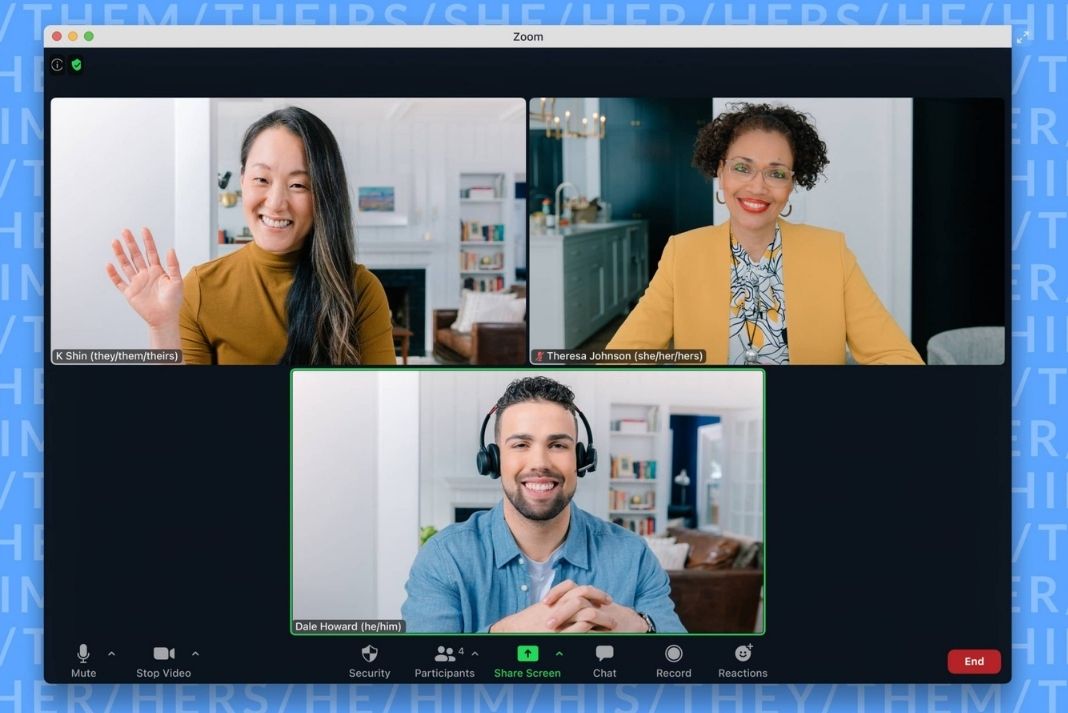
Why Should you stop Incoming Video on Zoom?
As stated by the company, this feature will help you save your bandwidth if you are using a restricted network. Furthermore, it will also help reduce the anxiety that you experience when you stare at the other participant’s video during the zoom call.
What’s interesting is that while you may stop the incoming video feeds from other participants, they will never be notified about it. So, you don’t have to worry about affecting them or letting them know when you block their videos.
Also Read: How to Record Zoom Meetings without permission from the Host
Zoom Version Supporting this feature
The following versions of Zoom apps and desktop clients currently support this feature:
The version of the Zoom desktop client
- Windows: 5.8.0 or above
- macOS: 5.8.0 or above
- Linux: 5.8.0 or above
The version of Zoom Mobile App
- Android: 5.8.0 or above
- iOS: 5.8.0 or above
Read: Zoom Brings Two Exciting Features To Combat Fatigue During Virtual Meetings
Enable the ‘stop all incoming videos’ for everyone in the account
Here’s how you can stop the incoming video feeds for all the participants in the account:
- Use the admin account to log in to the Zoom web portal. You should have privileges to modify the settings.
- Now, Go to the menu and choose the ‘Account Management section.
Now choose Account Settings and choose the Meetings to tab under it. - In the Advanced meetings option, you will see a toggle next to Stop Incoming Video. You can enable it to stop the incoming video feeds. In the same way, you can also disable the feature.
- A pop-up may appear which may ask you to verify the changes. You can either choose the enable or disable option.
- If you want this setting to prevail for all the users of your account, you can tap the padlock icon. To confirm the changes, tap the Lock option in the pop-up.

Enable the ‘stop all incoming videos’ for all people in a group
Here’s how you can stop the incoming video feeds for all the people in the group:
- Use the admin account to log in to the Zoom web portal. You should have privileges to modify the settings.
- Choose User Management Option from the Navigation menu.
- Now open the Group Management and tap the group name you want to choose.
- Now go to the Meetings tab.
- In the Advanced meetings option, you will see a toggle next to Stop Incoming Video. You can enable it to stop the incoming video feeds. In the same way, you can also disable the feature.
- A pop-up may appear which may ask you to verify the changes. You can either choose the enable or disable option.
- If you see that this feature is in gray, it means that you had previously locked it at the account level and so first you need to unlock the settings.
- If you want this setting to prevail for all the users of your account, you can tap the padlock icon. To confirm the changes, tap the Lock option in the pop-up.
Read: Amazon’s Fire TV Cube( 2nd Gen) Now Allows Zoom video calls
Enable ‘Stop Incoming Video’ Feature In Zoom For Yourself
If you just want to enable the ‘stop incoming video’ feature only for yourself, here’s what you can do:
- Login to the Zoom Web Portal on your desktop
- Choose Settings from the navigation menu.
- In the Meetings tab, go to the advanced option and switch the ‘Stop Incoming Video’ to the on position.
- A dialog box may appear which may ask you to verify the changes. You can either choose the enable or disable option.
Note: If you see that this option is gray, it means that the settings have been locked by the admin at an account or user level.
Zoom Desktop clients
If you use a desktop client, here’s how you can stop the stop incoming video feeds:
- Sign in on your Zoom Desktop Client
- Tap your Profile Picture and access the Settings
- Go to Video settings
- Tick the checkbox next to the ‘Enable stops incoming video’ option.

Image Source: UNCSA

Zoom App for Windows, macOS, and Linux
- Join a meeting or start one.
- Go to the View option and tap ‘Stop Incoming Video’.
- To enable the incoming videos, choose the ‘Start Incoming Video’ option.
Zoom App for Android and iOS
- Join a meeting
- Tap the three dots in the meeting controls.
- Switch on the toggle next to ‘Stop incoming video’.
- To enable the incoming videos, move the toggle to the off position.
Conclusion
This is how you can enable and use the Stop Incoming Video Feeds feature on Zoom. As stated by the company, this feature may take a while to appear on the iOS platform as they still need to approve it. What do you think about this nifty feature; let us know in the comments.
Read: Which Is Better Google Meet Or Zoom?