






























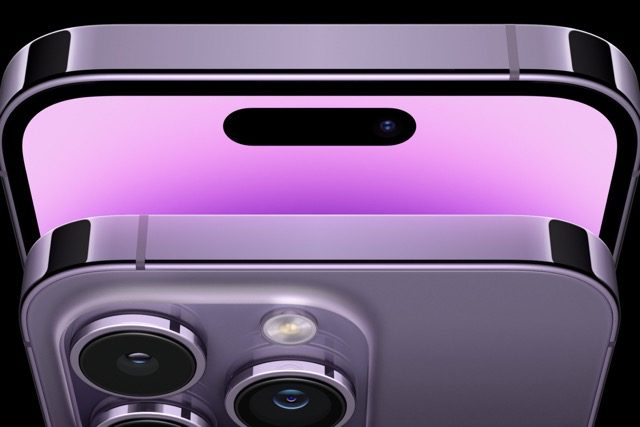
Apple’s newest iPhone models, the iPhone 14 and iPhone 14 Pro, were released earlier this month with several upgrades, including software, hardware, and aesthetic tweaks. A new Action mode on the new iPhones may appeal to photography enthusiasts.
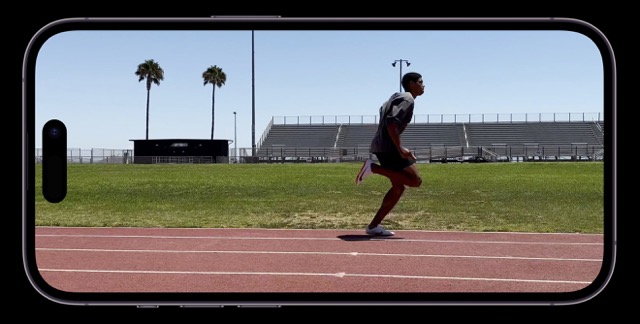
Even if you’re recording video while sprinting, the new iPhone’s “Action” mode will magically stabilize it, so it seems smooth. This could come in handy if you have to shoot a fleeing target, such as your child or pet dog.
The iPhone 14 and 14 Pro include a new Action option for their cameras, which is self-explanatory. It’s an option in video mode that turbocharges stabilization for extreme motion, like following someone. At the same time, they work out and film it or chase your kid around the playground, which is a form of exercise. It’s intuitive, but there are a few tips and tricks to remember for optimal performance.
If you have an iPhone 14 or are thinking about getting one, you should always use Action mode when you’re outside. Here’s how to activate the handy option:
Explain iPhone 14’s new Action Mode.
Apple’s action mode utilizes super smooth technology capable of high-level digital stabilization. When recording in Action mode, the camera’s view is cropped to a wide angle, freeing up space at the frame’s edges to fix major shaking, vibrations, and unwanted motions.
With this feature, you can record ultra-stable recordings right in the thick of the action thanks to the integration of the complete sensor, overscan, and superior roll correction. As a result, the iPhone 14, running iOS 16, should provide a fluid, high-quality video experience.
An extra feature of the camera app is the Action mode. Whenever you switch to video mode, the toggle to the left of the screen will allow you to access this function. Features like Cinematic, Slow-motion, and Time-lapse are analogous to this one. Unlike Gimbal, the Action mode may be used with a simple on/off toggle, and no additional equipment is required. This function also supports Dolby Vision High Dynamic Range. The maximum resolution that Action Mode can record is 2.8K at 60 frames per second. The recording is done in 4K when the switch is off.
iPhones with Action Mode Support
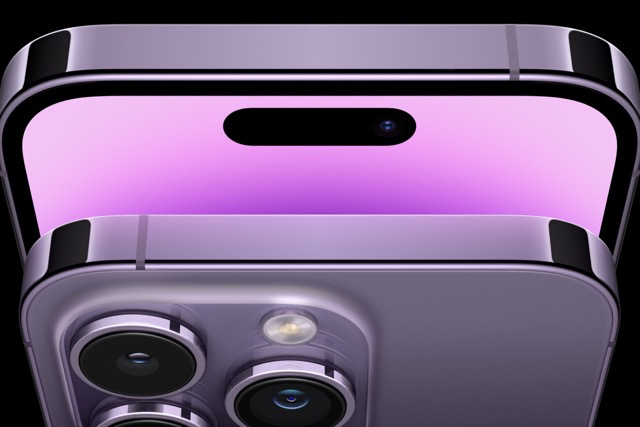
All iPhone 14 models, not only the Pro variant, come with Action Mode. Apple iPhone 14 and Plus models, as well as Pro models like the iPhone 14 Pro and iPhone 14 Pro Max, are all compatible with Action mode features.
How to Use iPhone 14 Action Mode?
In action mode, fast-moving or shaky scenes can be captured without losing clarity. It also guarantees fluidity in hand-held movies during vigorous motion. Capturing at up to 60 frames per second in 1080p or 2.8K is possible. It supports Dolby Vision HDR and the ProRes video format, among others. The primary sensor is a massive 48 MP. This setting captures at 0.5x, 1x, 2x, and 3x, and may be toggled on and off whenever you like.
- To access the camera on your iPhone 14 or iPhone 14 Pro, swipe up from the bottom of the screen to open the menu.
- To switch to video mode in your camera app, slide left.
- A little running man icon should appear in the top left corner of your screen.
- When activated, the icon will be yellow; when disabled, a diagonal slash will appear across it.
- To start recording, select the runner icon and hit the red “record” button.
Action Mode in Dim Environment
- Launch the Settings app once your iPhone is unlocked.
- Select “Record Video” after selecting the Camera choice down below.
- Switch on the lower light for active mode.
The important thing to remember is that it will crop or zoom the frame somewhat to ensure a seamless capture. In practice, you probably wouldn’t see much difference because the camera would shake with your hand. However, when you review the completed clip, the shakiness will be gone, and the smooth video movement will be apparent. Because this is the mode’s beta version, it experiences certain hiccups when the lighting is inadequate. but this is just the start.
Make indoor adjustments to Action mode.
The screen may likely display the message “additional light required” if you try to use it in a dark room. While action mode is at its best in bright sunlight, that doesn’t imply you can’t use it indoors. After the low light warning occurs, you can still record and shoot in Action mode, but the results will be very blurry. However, the Action mode can be adjusted so that it works better in low-light settings.
- Tap Camera > Record Video in the Settings menu.
- Click the Action Mode Lower Light toggle to activate it.
The stabilizing effect will suffer slightly, but the video will be much clearer in the low light of an interior. You shouldn’t expect miracles, but it does assist. You’ll notice a difference in bright environments and won’t be encouraged to search for more light if this preference is enabled, but the opposite is true for really dark environments. When shooting in low light, it’s best to stick with the camera’s default video mode and stabilization settings, which are already very good.
Action mode is another option at your disposal for recording high levels of activity, especially in natural settings.
Concluding Remarks
Using the iPhone’s Burst mode, you can capture exciting moments as they unfold. If you switch your camera to this setting, you can take photos of moving subjects. In addition, you can capture several high-speed shots of moving objects and select from that collection.












