In case you haven’t heard, you can now hide photographs on your iPhone, iPad, or Mac with the help of Apple’s Photos app. By doing so, you may decide which of your photographs and videos are shared and which are kept private.
When you conceal a photo or video, it is moved to the Hidden album and removed from the Library, other albums, and the Photos widget on the Home Screen.
The Photos app on iOS has always allowed users to conceal private images and the album in which they were stored (in iOS 14 or later). It was a poorly thought-out approach since anyone familiar with an iOS device could quickly view your secret images. Though adding media in applications, the Hidden album is still visible in the picture picker even when hidden.
Thanks to iOS 16, users may now protect their private images with a password. It takes either Face ID, Touch ID, or the device’s password to access the Hidden and Recently Deleted albums. An option to disable authentication is also provided for those who would rather have their devices unlocked.
Lock Hidden iPhone Photos
Photos hidden on an iPhone are removed from the camera roll. You can find these images in the Hidden album, but they are still on your phone. Your hidden images will still be viewable by anybody who has access to your phone until you have hidden the Hidden album. If you wish to use Face ID or Touch ID to secure the secret folder, your iOS device must run version 16 or later and support those biometric authentication methods.
1. If you haven’t already done so, update your iPhone to iOS 16 (or your iPad to iPadOS 16).
2. In the Settings app, select “Photos” from the menu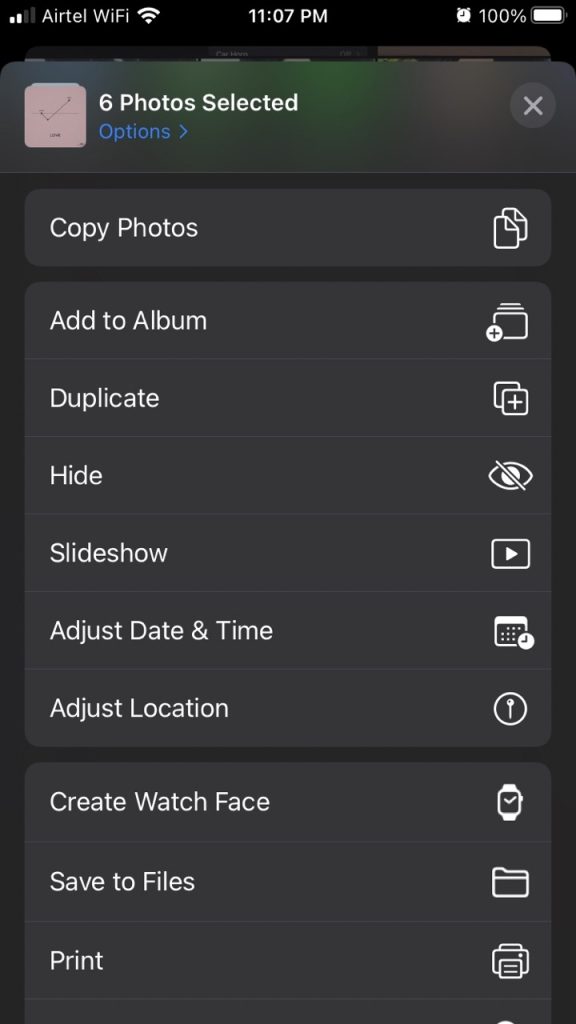
3. To use Face ID to protect the Hidden album, turn on the switch labeled “Use Face ID.”
4. If you don’t want the Hidden album to be shown in the Albums section, you may turn off the “Show Hidden Album” option.
5. The Photos app may be accessed by selecting Albums from the app’s main menu and then scrolling to the bottom of the screen. There will now be a padlock symbol next to the Hidden and Recently Deleted playlist. iOS 16 on iPhone locks away secret album
6. That’s it. The contents of the Hidden album are only viewable after being authenticated using Face ID, Touch ID, or a password.
View iPhone’s Hidden Photos
1. Open the Photos app on your iPhone to see your secret photos.
2. In the Photos app, select “Albums” from the menu bar.
3. Go to the very bottom of the “Albums” page. Tap “Hidden” there, under “Other Albums.”
4. The “Hidden” album may be found in the “Utilities” section of some versions of iOS.
5. You may view your concealed media on the “Hidden” album screen.One tap on the desired image or clip from the list will reveal it. Click the share button in the lower-left corner of the screen after the content has expanded to fill the screen.
6. Select “Unhide” from the sharing menu.
7. To top it all off, everyone can now view the selected video or photo you uploaded to Photos.
iPhone Photos: Why Lock?
Apple’s iOS has a handy option for temporarily removing images from the camera roll and storing them in a special Hidden album. That’s OK if you only don’t want the photo in your camera roll, but it won’t stop anyone from seeing it if they already have access to your device. If you give someone your phone so they can look at the pictures you’ve taken, they may easily access the Hidden album and see the pictures you didn’t want them to see.
Your Hidden album may be hidden from the Photos app listing by selecting the Hide Hidden album option. You can hide your images without alerting the world that you have them, which is useful yet ineffective. Though it won’t appear with your other albums by default, your Hidden album may still be readily located and viewed by anybody with the proper know-how.
You can’t trust the Hidden album to keep your hidden photos safe. This includes, for instance, selecting photographs from the Hidden folder while using the image picker in other applications.
iOS 16 allows you to lock your Hidden album, safeguarding your discreet images. Activating this option will protect your Hidden album with biometric authentication using Face ID or Touch ID. To prevent unauthorized access, the Hidden album will display a blank folder to anybody who attempts to see it. This feature protects your most recent picture deletions in the same way.