






























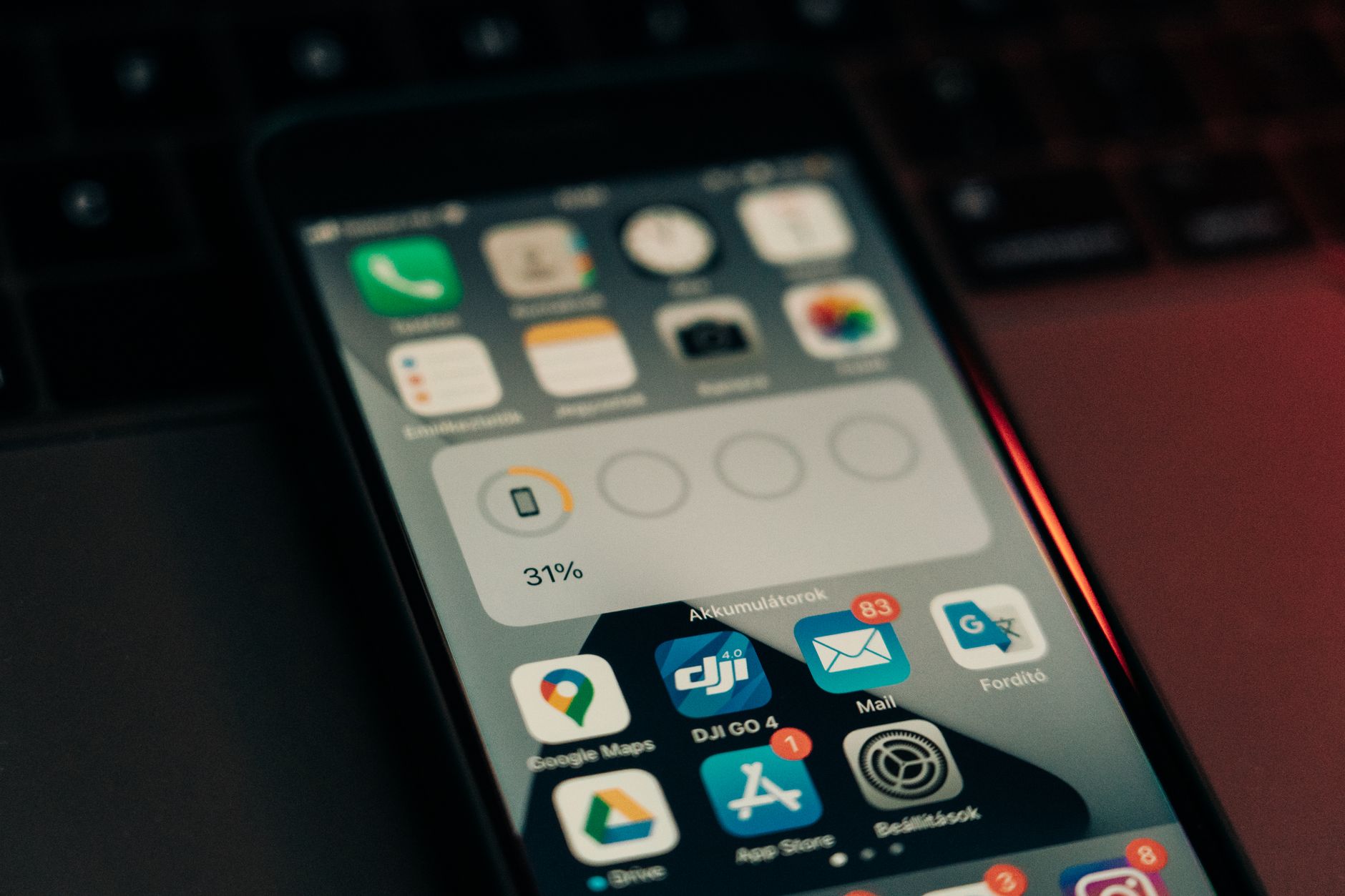
If you’re searching for an iOS 27 battery drain fix after installing the latest beta on your iPhone, you’re far from alone. Since Apple pushed the iOS 27 public beta earlier this summer, thousands of users have reported their iPhones losing 30–50% battery in just a few hours of light use. The problem is real, but it’s usually solvable without waiting for the next point release. In this guide, we’ll walk through the exact causes behind iPhone battery drain beta behavior, what Apple’s engineers have quietly acknowledged, and ten practical fixes that have worked for real users in 2026.
Why iOS 27 Is Draining Your iPhone Battery So Aggressively
Every major iOS release brings a temporary battery hit — that’s expected. But iOS 27 has been unusually harsh, especially on iPhone 13, 14, and 15 models. The culprit is a combination of on-device reindexing, the new Apple Intelligence expansion, and a background daemon called bird that reuploads photos and files to iCloud after the upgrade.
On top of that, iOS 27 introduced deeper on-device AI processing for Siri, Mail summaries, and the new Focus modes. These features rely on the Neural Engine, which draws significant power when models are being cached or updated. Most users see drain normalize within 7–10 days — but if yours hasn’t, one of the fixes below will almost certainly help.
Common iOS 27 Issues That Correlate With Battery Drain
- Overheating during idle or light browsing
- Cellular signal drops and constant tower switching
- Background app refresh looping on Mail, Messages, and Photos
- Bluetooth audio stuttering that keeps the radio active longer
- Widgets refreshing far more often than in iOS 26
If you’re seeing two or more of these iOS 27 issues alongside battery drain, the fixes in this article are directly targeted at your situation.
Fix 1–3: Immediate Actions to Stop the Bleeding
Start with these three fixes before anything else. They resolve the most common causes and take less than five minutes total. Do them in order.
1. Let Indexing Finish (Plug In Overnight)
After any iOS upgrade, Spotlight, Photos, and iCloud reindex your entire library. This is the #1 source of post-update drain. Plug your iPhone into a charger, connect to Wi-Fi, and leave it locked overnight for at least 8 hours. Most users report a 40–60% improvement in battery life the next morning.
2. Force-Restart Your iPhone
A force restart clears stuck processes that survived the update. Here’s how:
- Press and quickly release Volume Up.
- Press and quickly release Volume Down.
- Press and hold the Side button until the Apple logo appears (about 10 seconds).
This is different from a normal restart — it forces the kernel to reload cleanly.
3. Reset Network Settings
Cellular and Wi-Fi radios in iOS 27 have been reported to hunt aggressively for signal, draining battery even when the phone is idle. Go to Settings > General > Transfer or Reset iPhone > Reset > Reset Network Settings. You’ll need to re-enter Wi-Fi passwords, but it’s worth it.
Pro Tip: If you’re using dual-SIM or eSIM, toggle airplane mode on for 30 seconds after the reset — this forces a clean handshake with the tower.
Fix 4–6: Taming Background Activity and Apple Intelligence
Once the basics are done, the next tier of fixes targets the specific new features in iOS 27 that hog power. This is where iphone battery optimization 2026 really pays off.
4. Audit Background App Refresh
Go to Settings > General > Background App Refresh and disable it entirely, or set it to Wi-Fi only. Then scroll through the list and disable refresh for apps you don’t need updating in the background — social apps, delivery apps, and games are the worst offenders. Keep it enabled only for Mail, Messages, and your calendar.
5. Manage Apple Intelligence Features
Apple Intelligence in iOS 27 is more capable but also more power-hungry than in iOS 26. Head to Settings > Apple Intelligence & Siri and disable features you don’t actively use:
- Writing Tools system-wide integration
- Priority Notifications summaries
- Mail categorization and smart replies
- Image Playground background generation
You can re-enable them one at a time to identify which one your device struggles with most.
6. Turn Off Motion and Visual Effects
iOS 27’s new Liquid Glass depth effects look stunning but tax the GPU constantly. Go to Settings > Accessibility > Motion and enable Reduce Motion. Then visit Settings > Accessibility > Display & Text Size and enable Reduce Transparency. Battery life often improves 10–15% just from these two toggles.
Fix 7–8: Diagnosing Rogue Apps and Battery Health
If you’re still experiencing heavy drain after the first six fixes, a specific app is almost certainly to blame. iOS 27 has broken compatibility with several popular apps that haven’t been updated yet.
7. Identify Battery-Hogging Apps
Go to Settings > Battery and scroll to Battery Usage by App. Switch between the 24-hour and 10-day views. Look for any app showing high Background Activity percentages — this is different from foreground usage. Common offenders on iOS 27 include older versions of Facebook, Snapchat, Strava, and certain banking apps.
- Check the App Store for updates first.
- If no update exists, delete and reinstall the app.
- If drain continues, disable notifications and background refresh for that specific app.
Similar app-level troubleshooting also applies to other issues you might be facing — for instance, if you’ve noticed ChatGPT giving wrong math answers on iPhone, the fix often involves a clean reinstall to clear cached model data. The same principle applies to battery-draining apps.
8. Check Your Battery Health
Sometimes the battery itself is the problem, not iOS 27. Navigate to Settings > Battery > Battery Health & Charging. If your Maximum Capacity is below 80%, you’ll experience noticeably faster drain regardless of iOS version. Also check for the Peak Performance Capability message — if iOS has applied performance throttling, that’s a sign the battery needs service.
Fix 9–10: Advanced Steps When Nothing Else Works
These last two fixes are more involved but resolve stubborn iOS 27 public beta problems that survive everything else.
9. Reset All Settings (Without Erasing Data)
This resets every preference to default but keeps your photos, apps, and messages intact. Go to Settings > General > Transfer or Reset iPhone > Reset > Reset All Settings. You’ll re-enter Wi-Fi passwords and reconfigure Face ID, but a huge number of beta users report this single step ended their drain issues completely.
Warning: Do not choose “Erase All Content and Settings” unless you’ve backed up. Reset All Settings is the safer option.
10. Clean Install via Finder or Apple Devices App
If drain is still severe, a clean install (not restoring from backup) is the nuclear option. Back up important data to iCloud or a computer, then use the Apple Devices app on Windows or Finder on a Mac to erase and reinstall iOS 27 fresh. Set up as new — do not restore from backup, as that often reintroduces the problem. This resolves 90%+ of remaining cases.
If you’re a Windows user managing your iPhone from a PC, having reliable cloud backup matters. Our Proton Drive review for Windows in 2026 covers a solid private cloud option for backing up before you attempt a clean install.
Should You Roll Back? Weighing the Downgrade Option
Apple typically stops signing older iOS versions within two weeks of a new release, so your window to downgrade is limited. For most users, sticking with iOS 27 and applying the fixes above is the right choice — battery behavior almost always normalizes within a week or two, especially after point releases like iOS 27.1.
However, if your iPhone is a work-critical device and you can’t afford unpredictable battery life, downgrading to iOS 26 is legitimate. You’ll need a computer, a signed IPSW file, and a full backup. Just know that any iCloud backups made on iOS 27 won’t restore cleanly onto iOS 26.
For iPad users experiencing similar beta pains, we’ve covered related fixes for Apple Pencil handwriting lag on iPad and hidden iPadOS 27 multitasking tricks that also help reduce system strain — both worth reading if you use an iPad alongside your iPhone.
Frequently Asked Questions
Why does iOS 27 drain battery so fast?
The main causes are post-update reindexing of Photos and Spotlight, expanded Apple Intelligence features running on the Neural Engine, aggressive widget refresh cycles, and apps that haven’t been updated for iOS 27 compatibility. Most drain resolves within 7–10 days as indexing completes, but manual fixes can accelerate that.
Should I downgrade from iOS 27 beta?
Only if the drain is unmanageable after trying every fix in this guide and Apple is still signing the previous version. For most users, waiting for the next point release (iOS 27.1) is smarter than downgrading — Apple has already acknowledged the drain issue in developer release notes and is actively addressing it.
How do I check battery health on iOS 27?
Go to Settings > Battery > Battery Health & Charging. You’ll see Maximum Capacity (should be above 80% for good performance), Peak Performance Capability, and Cycle Count. iOS 27 adds a more detailed cycle count history compared to iOS 26 — useful for tracking degradation over time.
Which background apps drain iOS 27 battery most?
The worst offenders in the current beta are Facebook, Snapchat, older Strava versions, banking apps that haven’t been updated, and any app using outdated location APIs. Check Settings > Battery > Battery Usage by App and look at the Background Activity percentage — anything above 30% background is a red flag.
Does Low Power Mode help iOS 27 battery?
Yes, significantly. Low Power Mode in iOS 27 disables background refresh, throttles the CPU/GPU, pauses automatic downloads, and reduces visual effects. It can extend battery life by 3–4 hours on a full charge. You can enable it from Control Center or set it to activate automatically at 20%.
Final Thoughts and Next Steps
An iOS 27 battery drain fix almost always comes down to one of three things: waiting out the post-update reindexing, disabling a specific feature or app that’s misbehaving, or performing a clean settings reset. Start with the simplest fixes — plugging in overnight and force-restarting — and only escalate to a clean install if nothing else works. Beta software is inherently rough around the edges, but iOS 27’s final release in September will likely resolve most of these issues permanently.
For more on optimizing your Apple ecosystem, check out our guide to hidden iPadOS 27 multitasking tricks if you also use an iPad, or read our fix guide for Apple Pencil handwriting lag if you’ve noticed similar performance regressions on your tablet. Both articles apply the same troubleshooting mindset that made this guide work.












