






























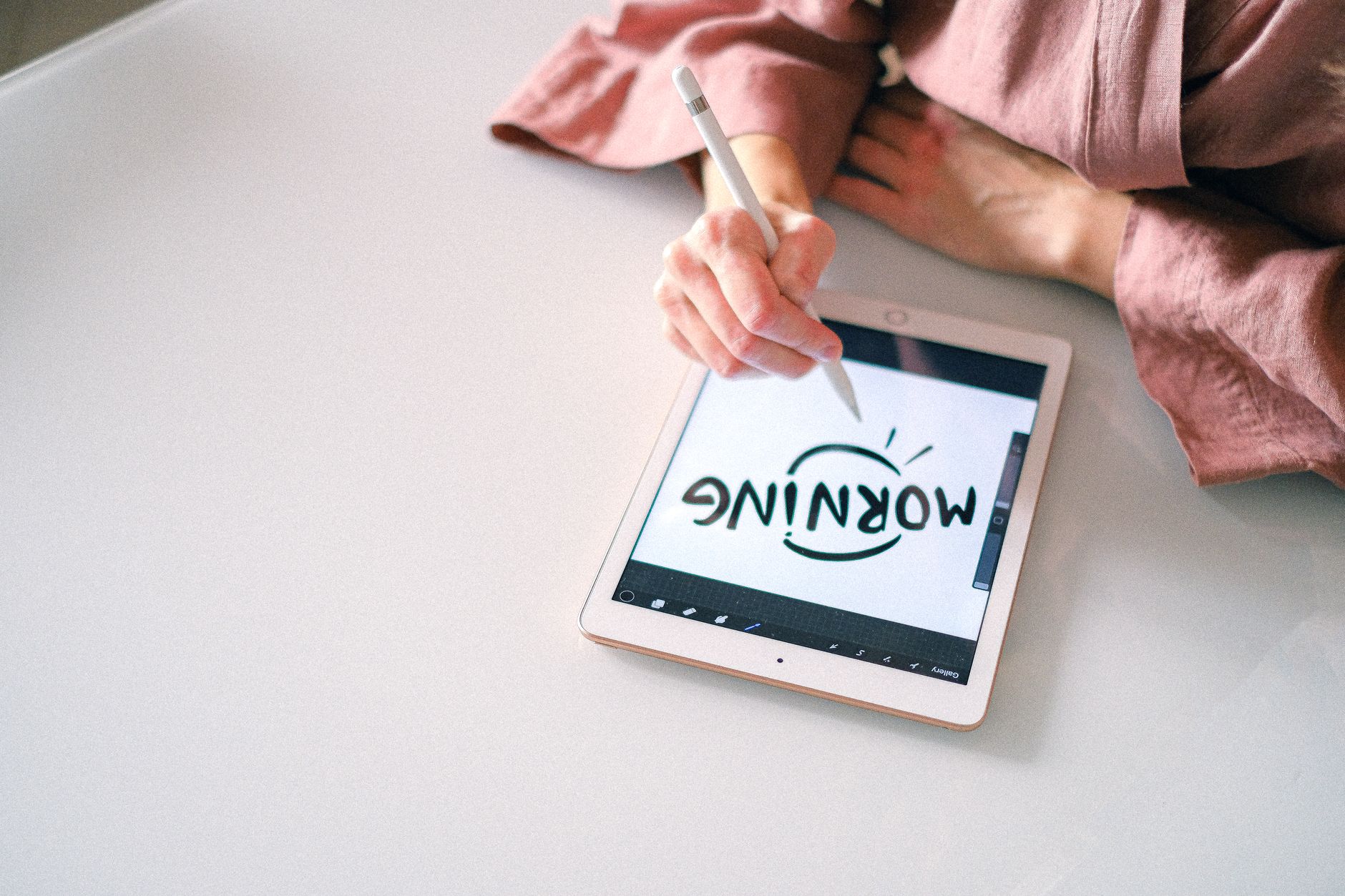
Handwriting on the iPad is supposed to feel like ink on paper, but a growing number of users are reporting the opposite: Apple Pencil handwriting lag, dropped strokes, ghost marks, and inconsistent pressure response across iPadOS apps. The issue has been surfacing in the Apple Support Community and adjacent developer forums, with users noting that the problem intensified after updating to recent iPadOS builds and appears across Apple Pencil generations, including the Pencil Pro, Pencil (USB-C), and older models.
Because Apple is actively promoting handwriting features like Scribble, Math Notes, and Smart Script, the responsiveness of ink matters more than ever. If your Pencil feels sluggish, skips loops, or leaves stray dots that appear seconds after you lift, this guide walks through why it happens and how to fix it.
What Causes This Issue
Apple Pencil latency is rarely a single fault. It is usually a stack of small issues layered together, and users in the Apple Support Community have narrowed the likely culprits to a handful of recurring causes.
- Palm rejection conflicts: When your palm registers before the Pencil tip, iPadOS can briefly disable inking to compensate, producing what looks like lag.
- Background processes: Spotlight indexing, iCloud sync, and Photos analysis can all steal GPU cycles from PencilKit, the framework most drawing apps rely on.
- Bluetooth pairing drift: The Pencil communicates timing and pressure data over Bluetooth. A degraded pairing causes stroke input to arrive out of order.
- Low Power Mode: This throttles the display refresh rate on ProMotion iPads from 120Hz down to 60Hz, doubling perceived latency.
- Screen protectors: Thick tempered glass or textured paper-like films can absorb or misdirect capacitive signals.
- Firmware mismatch: The Pencil has its own firmware that updates silently. A partial update leaves the Pencil in an unstable state.
- App-level bugs: Third-party notes apps sometimes lag behind iPadOS updates and mishandle new PencilKit APIs.
Step-by-Step Fixes
Work through these in order. Most users in the Apple Support Community report that the lag clears somewhere between steps three and six.
- Force restart the iPad. Press and quickly release Volume Up, press and quickly release Volume Down, then hold the top button until the Apple logo appears. This clears cached PencilKit state and re-initialises the Bluetooth stack.
- Re-pair the Apple Pencil. Open Settings, tap Bluetooth, tap the info icon next to your Pencil, and choose Forget This Device. Reattach or reconnect the Pencil and wait for the pairing prompt. This forces a fresh firmware handshake.
- Disable Low Power Mode. Settings, then Battery, and toggle Low Power Mode off. On ProMotion iPads (iPad Pro 11-inch and 13-inch models), confirm the refresh rate is unrestricted under Settings, Accessibility, Motion.
- Turn off Scribble temporarily. Settings, Apple Pencil, then disable Scribble. If your lag disappears, the issue is text-recognition overhead, not the Pencil itself. You can then decide whether to re-enable it selectively.
- Check for iPadOS updates. Settings, General, Software Update. Apple issued targeted fixes for handwriting responsiveness in iPadOS 18.5 and again in 18.6, and the same code path carried into iPadOS 26. Skipping a point release is a common cause of persistent lag.
- Clean the Pencil tip and the display. A worn or dirty tip drags rather than glides. Unscrew the tip, wipe both contact points, and check for a cracked tip. Replacement tips are inexpensive and often resolve pressure inconsistency outright.
- Test in a fresh document. Open the Notes app and start a new blank note. If lag vanishes there but persists in your regular app, the fault is app-side, not system-side.
Additional Solutions
If the ordered steps above did not fully clear the problem, several deeper adjustments are worth trying. Users in the Apple Support Community consistently mention these as the fixes that finally stuck.
Remove textured screen protectors. Paper-feel films add friction that many people enjoy, but they also degrade the capacitive signal by up to 20 per cent depending on brand. Peel it off and test for one full session before deciding.
Reset network settings. Bluetooth and Wi-Fi share silicon on the iPad. A corrupted Wi-Fi profile can affect Pencil timing. Go to Settings, General, Transfer or Reset iPad, Reset, and choose Reset Network Settings. You will need to re-enter Wi-Fi passwords afterwards.
Disable Background App Refresh for heavy apps. Photos, iCloud Drive, and cloud backup tools are the usual offenders. Settings, General, Background App Refresh, and turn off anything you do not actively need updating in the background.
Check storage headroom. iPadOS begins throttling non-critical processes when free storage drops below roughly 10 per cent. Clear cached files, offload unused apps via Settings, General, iPad Storage, and aim for at least 15 per cent free.
Try a different app to isolate PencilKit issues. If lag is app-specific, reinstall that app after backing up your notebooks. If lag is system-wide, back up the iPad via Finder or iCloud and perform a clean restore rather than restoring from backup, since restored preference files can carry the same bug forward.
Check the Pencil battery health. A Pencil that drains from 100 per cent to under 20 per cent in less than an hour has a degraded cell and will produce erratic input long before it dies. Apple can service or replace it.
When to Contact Apple Support
Escalate to Apple if you see any of the following: the Pencil disconnects repeatedly even when magnetically attached, pressure sensitivity is completely absent regardless of app, the tip registers offset from where you are drawing by more than a couple of millimetres, or a clean restore of the iPad has not resolved the issue.
Book a Genius Bar appointment or start a support chat through the Apple Support app. Bring both the iPad and the Pencil, since diagnostics need to be run on the pair together. If your Pencil is within its one-year warranty or covered by AppleCare+, replacement is typically straightforward. Out-of-warranty Pencils are eligible for a service fee replacement, which is usually cheaper than buying new.
FAQ
Why does my Apple Pencil lag only in certain apps? Apps that render ink outside PencilKit, or that add real-time effects like shading or handwriting recognition, add processing between your stroke and the pixels. Switch off recognition features or test in Notes to confirm.
Does 120Hz ProMotion really make a difference? Yes. The Pencil samples input at 240Hz on ProMotion iPads and 120Hz on standard iPads. Anything that forces the display to 60Hz, including Low Power Mode and certain accessibility settings, doubles perceived lag.
Can a firmware update be forced manually? No. Apple Pencil firmware updates silently while paired and charging. Leave the Pencil attached for at least 30 minutes with the iPad awake to allow any pending update to complete.
Are third-party pencils affected the same way? Third-party styluses that mimic the Apple Pencil often rely on capacitive-only input and do not receive firmware updates. If you switched to a third-party model recently, that alone can explain new lag.
Will a factory reset definitely fix it? Not always. If the fault is hardware, either in the Pencil or in the iPad digitiser, no software reset will help. Isolate hardware from software by testing your Pencil on a friend’s iPad, or a known-good Pencil on yours, before committing to a full restore.












