In this article, you will get to know how to hide photos on iOS 15. Your iOS15 has a useful feature that allows you to hide photos. This feature comes in very handy when you don’t want to show your private photos to everyone.
There are numerous photos and videos on our phones that we can’t show to everyone. So, in this case, iOS 15’s photo hiding feature can prove to be a boon. You can simply hide your personal photos on your iPhone’s photo app. Moreover, Apple had introduced this feature in iOS 14. So, this article is all about how to hide photos on iOS 15.
Also Read: How To Use Discord On iPhone – An Ultimate Guide!
How to hide photos on iOS 15?
Now, you don’t need a third-party tool to hide photos on your iPhone running on iOS 15. You just need to follow a few simple steps given below:
- Click and open the Photos app.
- Then, click the picture you want to hide.
- Tap Share icon(lower-left).
- Scroll down.
- Now, click on Hide.
- Next, click Hide Photo.
Also Read: How To Take Screenshot On iPhone 13
Let us discuss the steps to hide photos in iOS 15 in detail:
1. On your iPhone, click and launch the Photos app.
2. Now, you need to select and click the photo you want to hide.
3. If you want to hide multiple photos, you just need to click on the Select option in the upper-right corner and then click on the photos you want hidden.

4. After selecting these photos, click on the Share icon in the lower-left corner as shown below in the screenshot.

5. Then, scroll down and click on the Hide option as shown below in the screenshot.
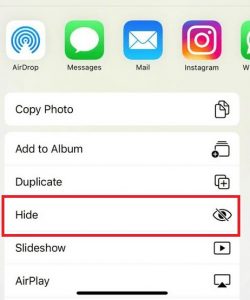
6. Next, Click on click on Hide photo.

Note: These photos will be hidden, but can be found in the hidden album. You can choose to show or hide the Hidden album in Settings. The steps to hide the Hidden album are discussed later in this article.
Also Read: Scan, Edit And Share Documents For Less With iScanner For iPhone And iPad
How to find Hidden album on iPhone?
The hidden photo will not appear in the camera roll, but you can get access to them in the Hidden album. So now, let us discuss how to find Hidden album on iPhone:
- Open the Photos app on your iPhone.
- Then, click on the Albums option at the bottom.
- Scroll down. Now, you can easily locate the Hidden album under Utilities.
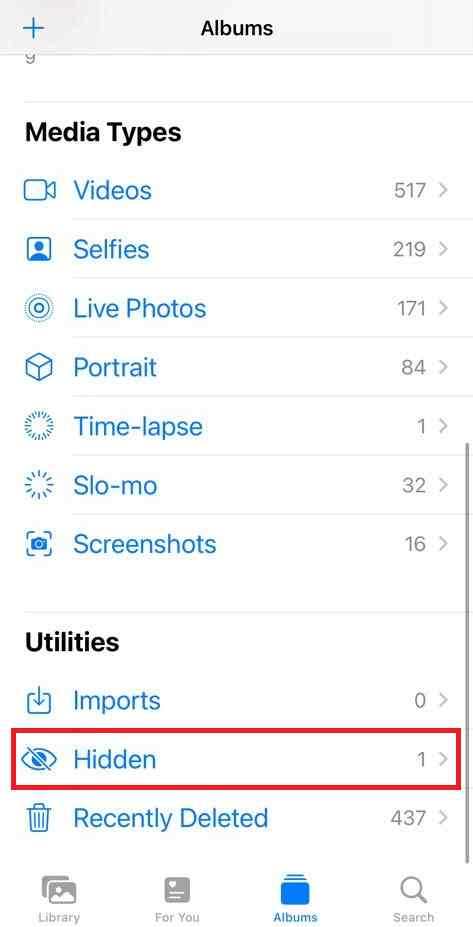
In case you are worried that your Hidden album may be discovered by others, Apple provides you the option to Hide the Hidden album. So, in the further snippet, we will be discussing how to hide the Hidden album on iPhone.
How to hide Hidden album on iPhone?
This can be done through the Settings app on your iPhone:
- Launch the Settings app on your iPhone.
- Scroll down and Locate Photos option.
- Click on Photos.
- Turn off the toggle next to the Hidden album.
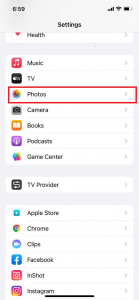
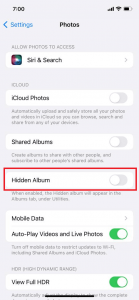
This option ensures that no one comes across your Private photos by accident. So, in case you want to show the Hidden album again, the steps are discussed in the further snippet.
Also Read: How To Block Apps From Tracking On iPhone
How to show Hidden album on iPhone?
To show Hidden album on iPhone, all you need to do is to follow the steps given below in this article:
- Open the Settings app on your iPhone.
- Scroll down and locate the Photos option.
- Now, click on the Photos option.
- Turn on the toggle next to the Hidden album.
How to create an album on iPhone?
By creating an album on iPhone, you can categorize the Photos on your iPhone. Also, this helps you in organizing the photos. Additionally, you can locate the required photos easily. So now, we will be discussing how to create an album on iPhone:
- Open the Photos app on your iPhone.
- Then, switch to the albums tab by clicking on the Albums icon at the bottom.
- Next, click the Add (+) button option on the top-left corner.
- Click on New Album.
- Enter the name of the album as per your preference.
- Click on Save.
- Select photos to be added to the album.
- Tap Done at the top-right corner.
- That’s it! You have successfully created an album on your iPhone.
CONCLUSION
So, this is all about how to hide photos on iOS 15. Earlier, the users had to rely on third-party tools for this purpose. But now, iPhone users can easily hide their photos in the Hidden album. If you face any problems while performing the steps mentioned in this article, do let us know in the comment section.