There are Ultimate Hidden Tricks and Features of Android for Android users. Android devices are incredibly intelligent and may be utilized for a variety of tasks in today’s technological environment. Here are Top 20 Best Hidden Tricks and Features Of Android that you might not know about. By using these hidden features, you may easily personalize your Android device’s experience. So, take a look at the entire tutorial down below.
1. Switch WiFi Networks Quickly
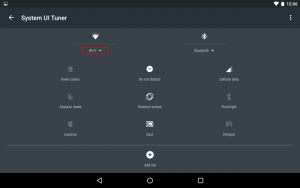
If you wish to change your WiFi network, go to Settings > WIFI or press and hold the WiFi icon in the notification shutter for a long time. However, switching between WiFi networks is simple. Simply swipe down the notification and, instead of hitting on the WiFi icon (which is disabled), press on the network’s name to get a list of all available networks.
2. Controlling Data Usage

Many of you will be aware of this feature, but I am confident that only a small percentage of people use it. This is a really useful function that Android provides. You can keep track of and manage your data consumption. For a certain day, you can define the maximum data limit. To do so, go to Settings > Data Usage > Set Mobile Data Limit and adjust the data limit there.
Also Read: What Are The Other Google Android Supported App Stores Apart From Google Play Store?
3. Device Manager for Android
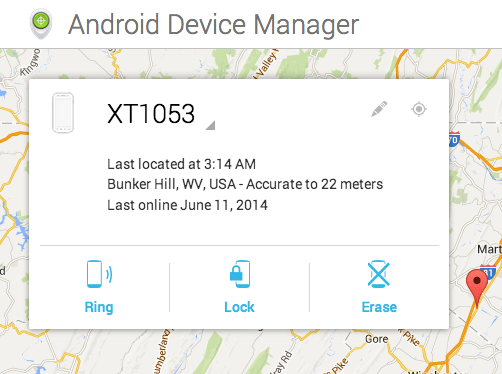
If you lose track of your Android device, you can use this function to track, ring, lock, and erase it. As a result, ensure sure this functionality is turned on. Go to Settings > Lock Screen and Security > Other Security Settings > Device Administrators > Device Administrators > Device Administrators > “Android Device Manager” should be enabled.
4. Create a password for your desktop backup
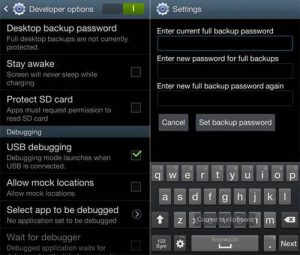
You can use your desktop to recover the backup password for your Android device. To get started, simply follow the steps below.
- Go to Developer Options under Settings.
- Select a password for a desktop backup.
- For a complete backup, fill in the current password, then type and retype the new password.
5. Change the animation effects to save battery life.
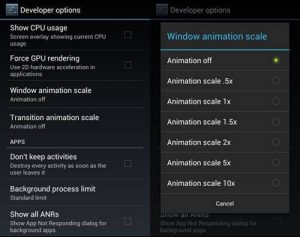
You may save battery life by employing the handy method in developer mode that we’ve detailed in the instructions below.
- Go to Developer Options under Settings.
- Look for the Window animation scale, Transition animation scale, and Animator duration scale as you scroll down.
- Now, alter the scale, and in all of the above options, choose 0.5x.
6. Use an overlay to show CPU usage
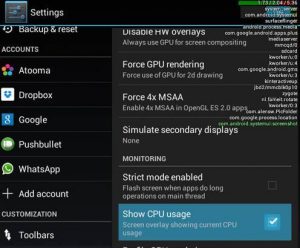
You can enable the complete CPU metre to be displayed on your Android smartphone so that you can quickly determine which app is causing your Android to overheat.
- Go to Developer Options under Settings.
- There, select the Show CPU Usage option.
- All of your CPU consumption will now be displayed on the right side of your Android screen.
7. Stop Android Activities Completely After Closing It
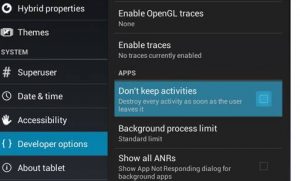
When you enable this option, you will be able to cease activities when you close the app altogether. This will cut down on battery usage as well as data usage.
- Go to Developer Options under Settings.
- Now, you’ll see the drop-down menu. Select Don’t keep activities.
- After that, you can undo your changes by un-checking the box on screen.
8. Create a fake GPS location
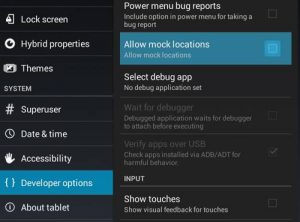
You can do this by using Mock the Location to make your GPS tracker tool track your actual location, which many apps can utilize to snoop on you.
- Go to Developer Options under Settings.
- Select Allow Mock Location from the drop-down menu.
- This will make your Android’s GPS position tracker look real.
9. Switch on USB Debugging Mode

USB debugging is utilised in a lot of great programs to ensure that your Android works well with your PC. And you can only use this functionality if you use the developer options listed below.
- To begin, navigate to Settings -> Developer Options.
- There, select the USB Debugging checkbox.
- When the pop-up window “Allow USB Debugging?” displays, select OK.
10. Select the option for a higher graphic render
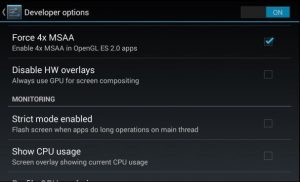
MSAA OpenGL games can be enabled on your Android device to allow high-quality visuals to run in Android games.
- Go to Developer Options under Settings.
- Click on option Force 4x MSAA.
11. Charge Your Device While It Is Awake
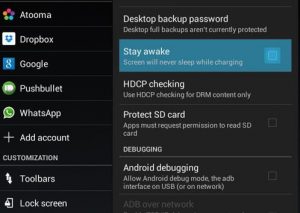
You may make your Android active while charging it, and this is the greatest indicator to enable this cool feature as follows:
- Go to Developer Options under Settings.
- Toggle the box next to Stay Awake.
12. Accessing a File Directory with Google Chrome
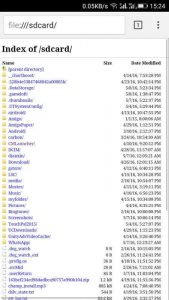
You may be surprised to learn that your Google Chrome browser has a hidden feature that allows you to view data from your SD card. You can do so by following these steps:
Open the Google Chrome browser on your Android phone and search for file:/sdcard/ in the URL bar.
13. Using Google Maps on a Device That Isn’t Connected to the Internet
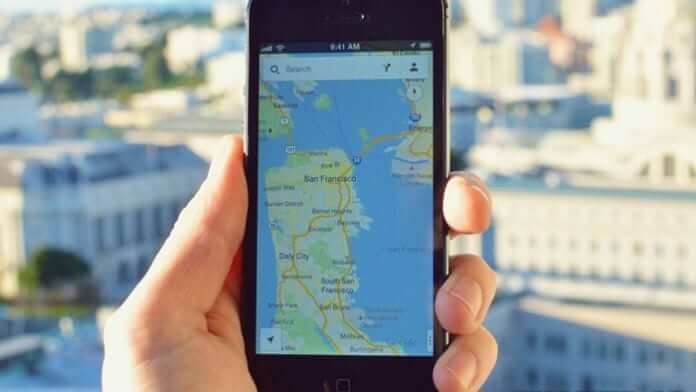
When you don’t have access to the internet, your Android can help you download maps of the area so you can browse it when you don’t have access to it. Many of you will believe it is impossible, but it is in fact achievable.
- Open the Google Maps app on your iPhone or iPad.
- Make sure you’re not in Incognito mode and that you’re connected to the Internet.
- Look for a location, such as San Francisco.
- Tap the place’s name or address at the bottom. More can be tapped.
- Select the option to download the map to your computer. Download.
14. Using a Computer to Send and Receive Android SMS

If you have an Android Smartphone, you have a trendy solution for receiving all of your SMS on your computer. You may also view them all on your PC, eliminating the need to pick up your Android and read each message.
You must first install Air droid on your Android smart phone. Go to web.airdroid.com from your computer browser after you’ve downloaded the app on your Smartphone. Now, using your Android mobile app, scan the QR Code that appears on your computer screen.