






























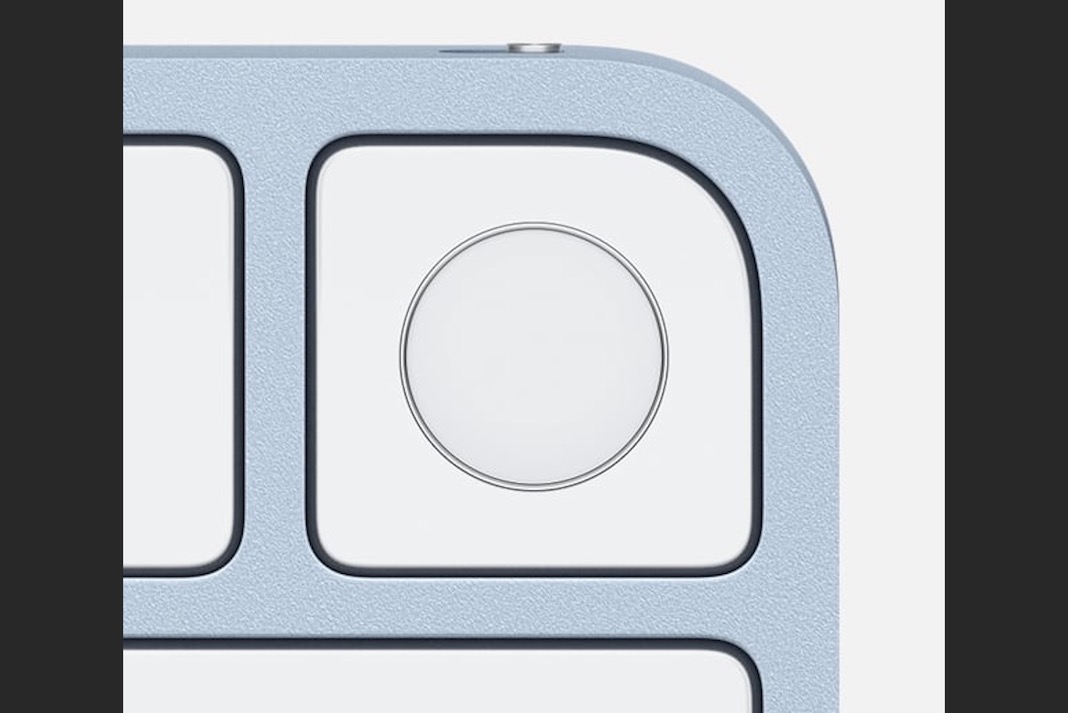
Apple’s biometric fingerprint reader is called the Touch ID. By pressing and briefly holding your finger against the sensor, you can access your device, log in to apps, utilize Apple Pay, and make in-app purchases from the App Store. Your vehicle, your house, your boat, your one-person rocket to Mars—when it works, it’s amazing, and you want it everywhere; when it doesn’t, you want to hurl your iPhone (or Mac) across the room.
Touch ID failures are already annoying, but trying to figure out why it keeps failing might be much more so. In appearance, it is akin to the ubiquitous black box. The system accepts a fingerprint, and either works or doesn’t; if it doesn’t, we have no idea what caused the failure or how to correct it. Maddening.
However, you may take steps to increase the effect’s frequency and effectiveness.
Failed Touch ID Authentication: Issues
If your Touch ID is not working as intended, try these troubleshooting steps:
1. Make sure you move your finger around sufficiently during the first step of the registration procedure to cover the full area and every edge during the second stage.
2. If your finger is wet, the scan won’t work. Before utilizing Touch ID, ensure your finger and the Home button are clean and dry.
3. There are moments when the sequential improvement process gets sidetracked (i.e., instead of getting better, an error can occur, and it can get worse). When that happens, you need to unregister and erase your fingerprint.
4. It’s important to press the Home button and the capacitive metal ring simultaneously on an iPhone or iPad that supports this feature.
5. You should lift your finger slowly, even if Touch ID is lightning fast these days.
6. Hold your finger steady; too much movement will invalidate the authentication.
7. Covering the capacitive ring or the Home button with a screen protector or case might lead to problems with Touch ID authentication.
8. When everything else fails, visit an Apple Store for personalized service.
MacBook Pro/Air SMC Reset with Touch ID
In most cases, resetting the SMC of a Mac will fix the issue. Please try to perform this and revisit the Fingerprint on your Mac. Then, if you need to reset the SMC on your MacBook, follow the steps below. T2 Chip, included in the new Touch ID MacBook, adds an extra layer of protection. If your MacBook has a T2 chip, you must reset SMC correctly.
A reminder that you can’t reset the SMC on an M1 Apple Silicon MacBook with Touch. Simple Restart will handle it mechanically. You may skip this step directly to [Apple Logo > Shut Down…] from your Mac’s main menu. We’re doing a factory reset on a Mac with Intel inside. Users with MacBooks with Intel processors can follow the instructions below.
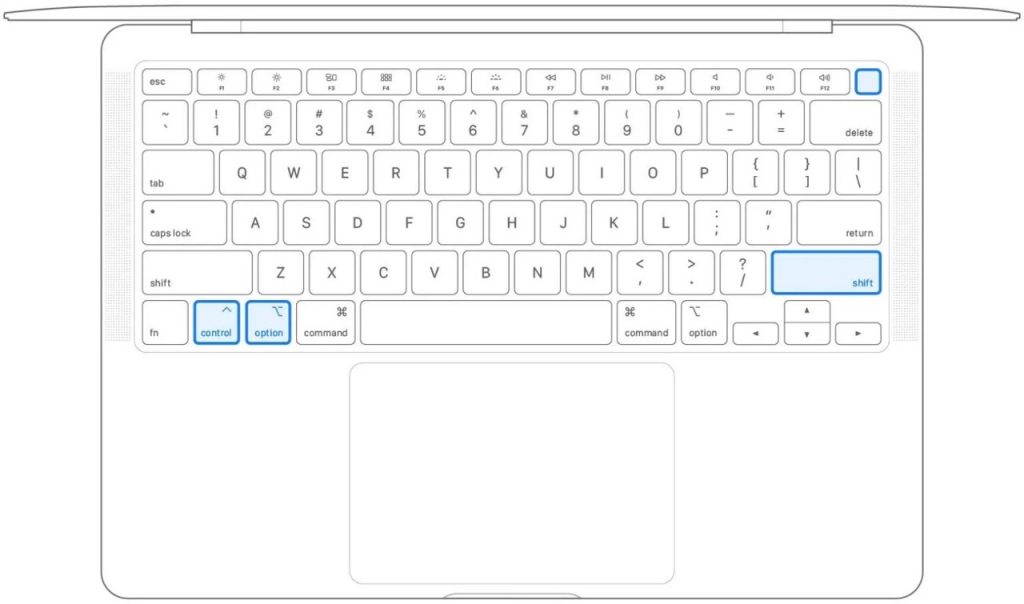
SMC Reset on MacBook Pro/Air.
Hold down the Shift + Control + Option + Touch ID (the Power key in this case) keys simultaneously. A certain action will occur if you hold these four keys down for ten seconds, as seen in the keyboard image below.
MacBook SMC Reset for T2 Chip
Let Touch ID activate your Mac after 10 seconds.
How to Remove and Re-Add Fingerprints for Touch ID on a MacBook Pro
If you have surpassed the maximum number of fingerprints on your MacBook Pro, you may repair the problem by removing and re-adding the fingerprints.
If you want to erase your fingerprints from Touch ID on your MacBook Pro and then add them again,
1. Access the Touch ID preferences by selecting “Apple Menu > System Preferences” from the main menu.
2. To adjust your Touch ID preferences on your MacBook Pro, choose the “Touch ID” option. After doing so, a window will pop up with all of the fingerprints that have been saved.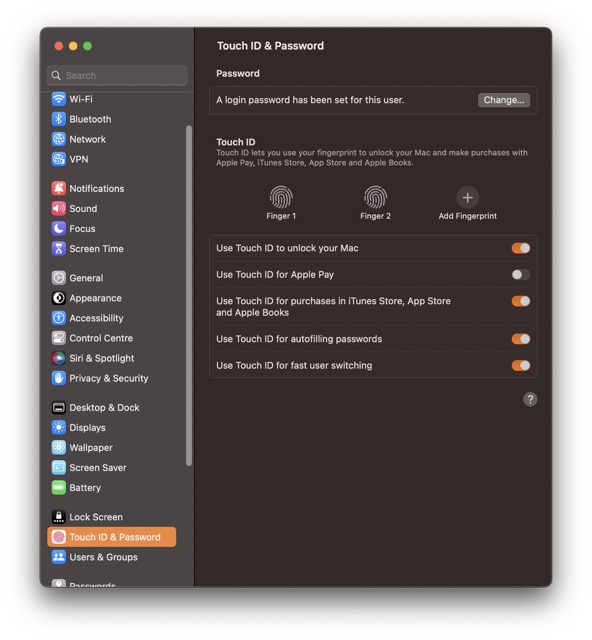
3. Move your mouse pointer over the fingerprint icon you wish to remove, and then click the “X” button in the top left corner.
4. when requested for your MacBook Pro’s system password, type it in and hit delete.
5. After that, you should restart your MacBook Pro’s Touch ID and add your fingerprints again.
6. Select “Apple menu > System Preferences > Touch ID preference pane” to make the necessary adjustments. After entering your MacBook Pro System password, select “Add a fingerprint” on the next box.
Use a Dry, Clean Finger, or Register a Shrunken Finger for Touch ID.
Apple suggests keeping your finger dry to get the most out of Touch ID on an iPhone or Mac. Fingerprints taken from shriveled hands will fail the Touch ID security check. Get it dry first, or prepare a finger that scans well by cleaning it up. Using moisture, lotions, wounds, or dry skin can interfere with fingerprint identification, as can sweat, condensation, dust, grime, and oils on your finger.
Finally, use a soft, dry cloth and a light touch to wipe down the Touch Button. If this is not the case, you should reset your finger on your Mac.
macOS Update
After making sure your fingertips are clean Touch ID still doesn’t work, try this. If a macOS update is available, run it.
1. To continue, please unlock your Mac; if Touch ID doesn’t work, use your password.
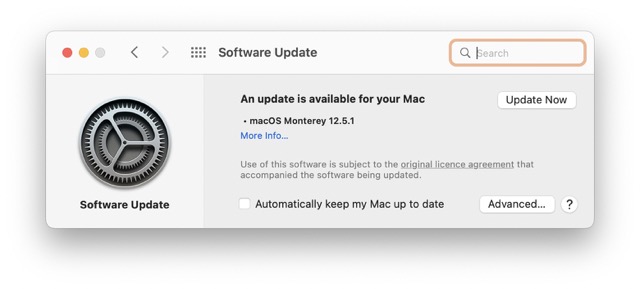
2. To access System Preferences, look for the Apple logo in the upper left corner of the screen and click it.
3. Just hit the button labeled “Software Update” now. If there is an available update, it will be displayed in the next window. Get it off the internet and set it up if you can.
In cases when a password is required,
After powering on, restarting, or logging out of your Mac, you will be prompted to enter your password the first time you log in manually. You may use Touch ID to sign in as soon as it is done.
It’s also possible that you’ll need to enter your password instead of using Touch ID when manually:
- When your fingerprint fails to be identified five times in a row, it is considered invalid.
- More than 48 hours have passed since you last unlocked your smartphone.
- You’ve navigated to the Touch ID section of System Preferences to make some modifications.
Mobile devices and Macs can still benefit from using Touch ID as a reliable identification method. It’s simple to deactivate Touch ID and then activate it again if you ever have any issues.












