If you want to know how to block websites on your iPhone or iPad, it’s likely that you’ve seen one you don’t want to see again. After all, there’s a lot of good content out there, but there’s also a hell of a lot of bad content!
Either that, or if your kids have iPhones or iPads, or if they often use yours, and you want to limit what they can see when they use Safari to browse the web, you’re in luck: Apple lets you do just that. You’ll find everything you need in Settings and Restrictions, whether you want to automatically block all adult content so a child doesn’t accidentally click on a link they shouldn’t, blacklist certain websites, or block all sites except the ones you choose.
If you use Safari as your browser, you can easily block sites that you don’t want to see. You can block adult content and also make sure that certain sites can’t be accessed. You can also go the other way and make sure that all websites except a few are banned. These come from a list, which you can change to fit your needs.
How to block websites on an iPhone: Get to the settings for web content
Go to the web content settings. All of the features that block websites are in Screen Time, so if you want to use any of the three functions described below, you’ll need to do these four things first.
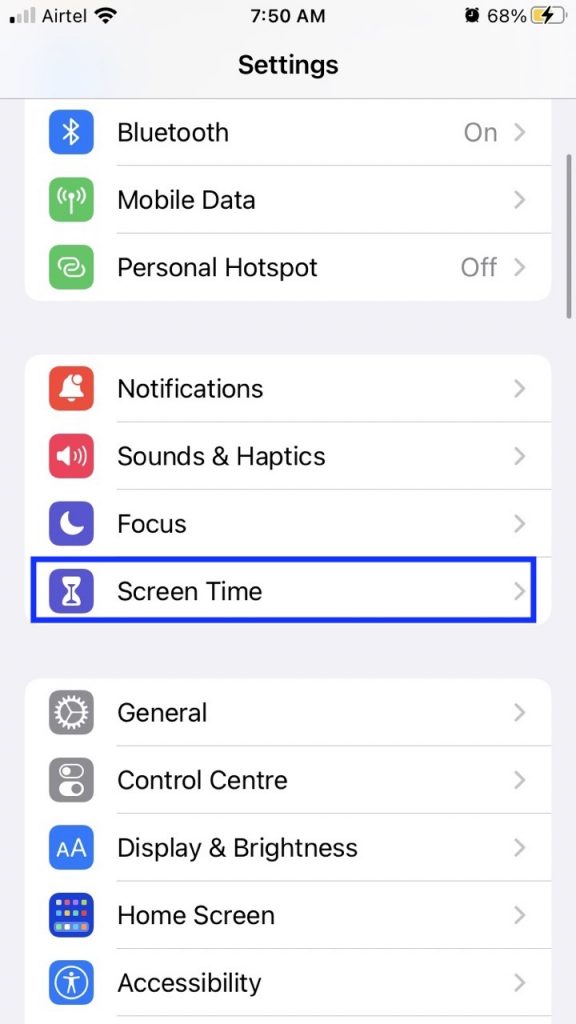
- Screen Time is in the Settings app on your iPhone or iPad.
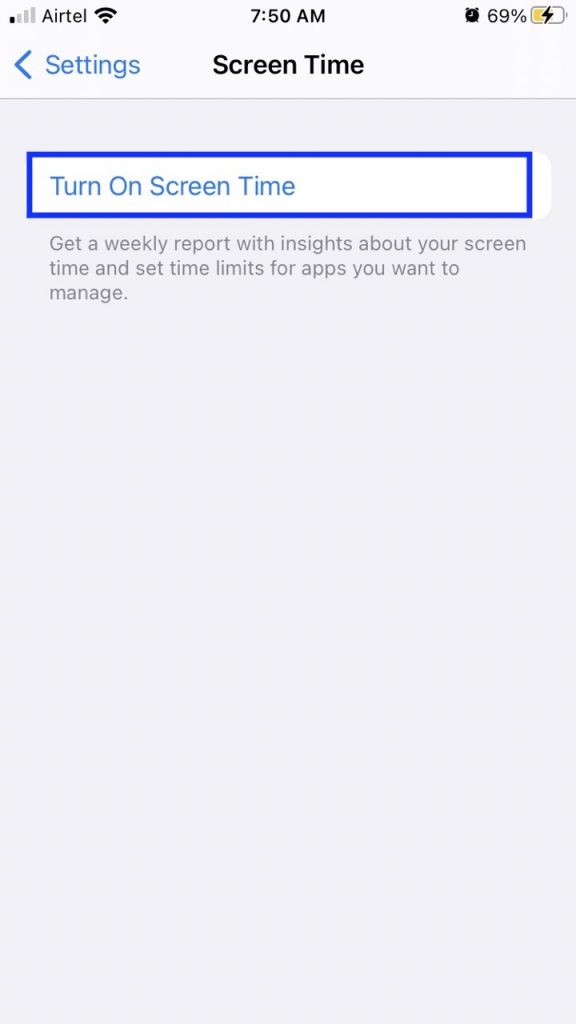
- If Screen Time isn’t already on, click Turn It On and then follow the on-screen instructions to set it up. If not, tap Restrictions on Content and Privacy.
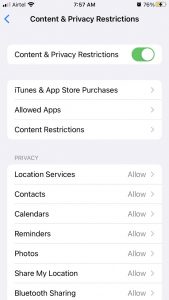
- Set the Content and Privacy Restrictions button to “on” (green).
- Open Web Content
Also Read: How To Protect iPhone From Blocking And Hacking
How to block websites on an iPhone and iPad:
Safari lets you block adult websites You can start blocking websites now that you know how to get into the web content settings.
The easiest thing to do is to use Apple’s list of sites for adults. This will make it impossible for you or anyone else to use Safari on an iPhone or iPad to look at content for adults.
- Follow the steps above (about how to change the settings for web content) and tap Limit Adult Websites.
- If this stops you from seeing some sites that you want to see, tap Add Website under Always Allow.
- Then you can type the website’s address (URL). Tap Done and then tap Web Content to go back to the previous screen.
Also read: How To Block Apps From Tracking On iphone
How to stop your iPhone or iPad from accessing certain websites
If you’re not too worried and just want to keep your kids from clicking on links that lead to adult content or there are only a few sites you don’t want them to see, you can use the automatic settings and the blacklist feature. Before you start, make sure that Screen Time is set up on your device. You can go even further and choose specific websites to block. Apple has already made a list of adult websites, and these will be added to it.
- Follow the steps above (about how to change the settings for web content), and then tap Limit Adult Websites.
- Now, under Never Allow, tap Add Website.
- Type the URL of the site you don’t want to see and tap “Done.” Then, you can tap Web Content to go back to the screen before.
How to set up your iPhone and iPad so that you can only view certain sites
The third way to limit access to online content is to block almost all websites and then let some of them through.
- Follow the steps above (which are about setting up web content) and tap Allowed Websites Only.
- Now, tap Add Website under the list of sites that Apple will automatically let you use.
- Type in the name of the site you want to let through, as well as its URL. Tap Done and then tap Web Content to go back to the previous screen.
Also Read: How To Block Apple Ad Tracking On iPhone And iPad
How to stop searches and bad language from coming up on an iPhone
You can also restrict the use of certain words and language if your kids are using your phone or iPad
- If you want to limit how the iPhone searches, go to the “Content Restrictions” page and choose the search filters you want under the “SIRI” header just below.
- You can limit all searches or just the ones that use “Explicit Language.”
- Lastly, go back to the first page of Screen Time and tap “Use a Screen Time Passcode.”
- If you don’t do this, any semi-smart person who gets a hold of your phone can just change any settings they don’t like.
Also Read: How To Enable Low Power Mode Automatically On iPhone
Conclusion:
If you follow these steps, you’ll be able to block websites on iPhone and iPad without any trouble. It’s a great way to keep an eye on your kids and keep them under control. It will come in handy many times.