What Actually Is A Touchpad Or Mouse Sensitivity?
As the name suggests, however sensitive the pointer on your screen is to your actions. Plenty of individuals bump their Sensitivity, that is, they use the High or Most sensitivity choice, which is not ideal in each case. You must use totally different sensitivity for various tasks, if you do not know how to do it, check successive sections. If you are a gamer, ideally, you must use low sensitivity, to create your aim with a lot of precision. However, we might suggest you play with completely different choices and then choose the simplest one for you.
Adjust Touchpad Sensitivity in Windows 11:
If you got a brand new laptop computer, you are noticing that your touchpad response is slow. Some individuals like this. However, if you want your touchpad to be very sensitive, you will be able to modify this within the laptop computer settings. Regardless of your laptop’s touchpad sensitivity, if it is not been set properly then it will build your device slightly troublesome to use. In this article, we have got explained 3 straightforward ways in which can assist you to vary touchpad sensitivity in your Windows 11 system.
1. Using the Windows Settings App:
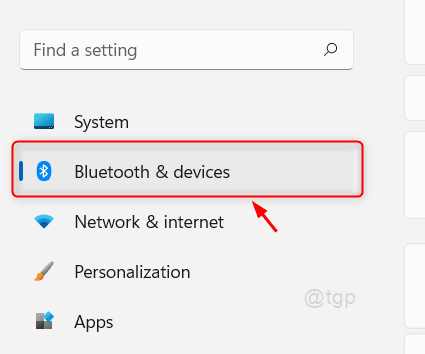
This is the first way to reduce the touchpad sensitivity in windows 11. First, click on the Windows icon and then open the Setting menu. Or press Windows+I together on your keyboard to open the Settings menu. Under the Settings menu, choose Bluetooth and devices option.
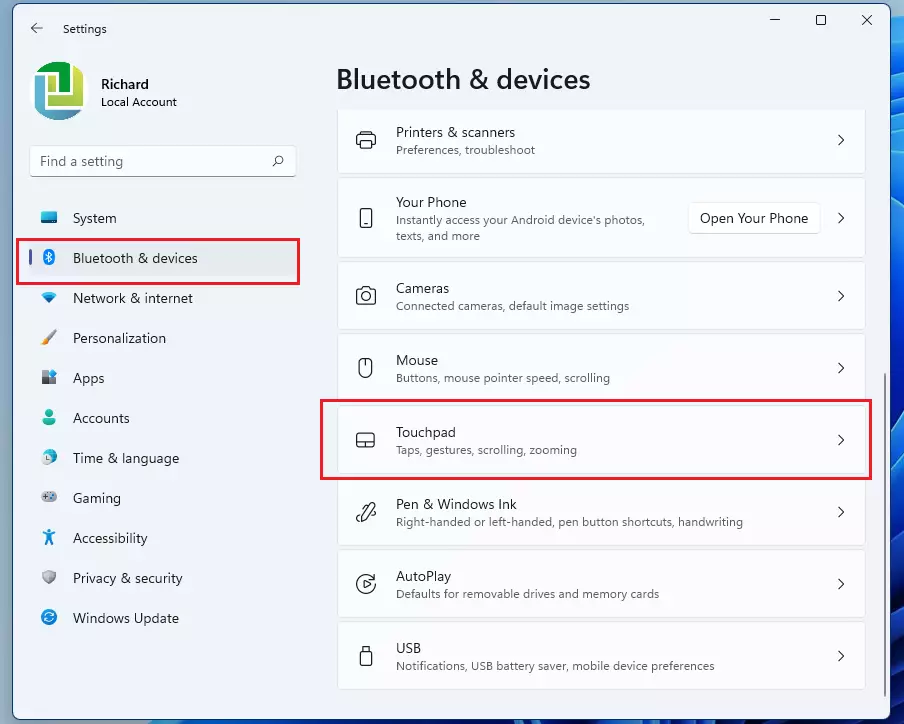
Now in the right side pane, scroll down a little and choose the option called Touchpad.
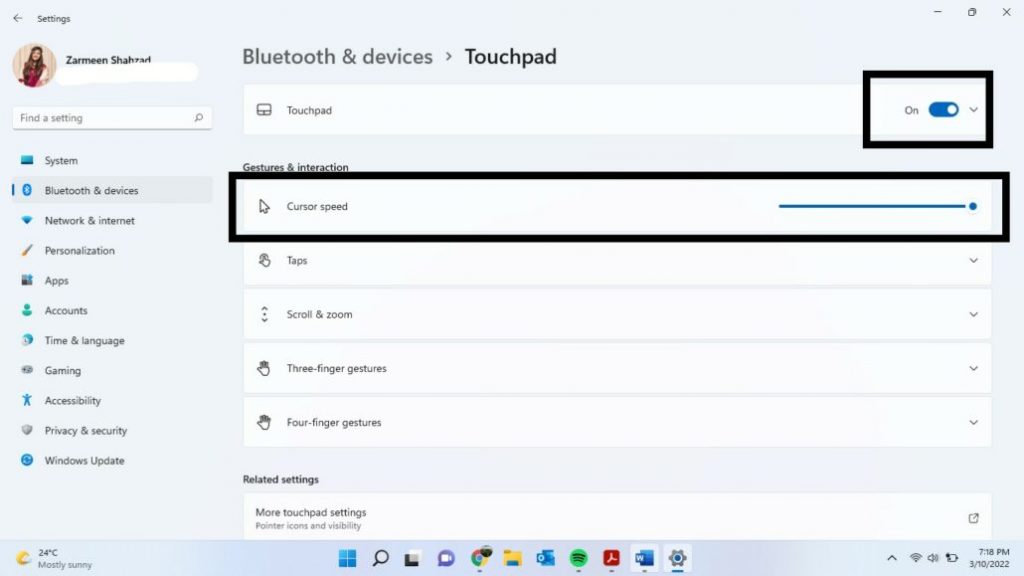
At the top first ensure that the touched toggle is on, if not slide it to turn on. Under the Gestures & interaction section. slide and increase the Cursor speed.
Below the cursor speed option, choose the Tap Option. You will get a drop-down menu, under that select the Touchpad sensitivity. Again you will get a drop-down menu and choose the Most sensitive option.
That is it, the sensitivity is changed. Now close the Settings menu. You will be able to see the changes.
2. Change Touchpad Sensitivity through Registry Editor
If you are not able to see any changes from the first method try doing it through the Registry editor.
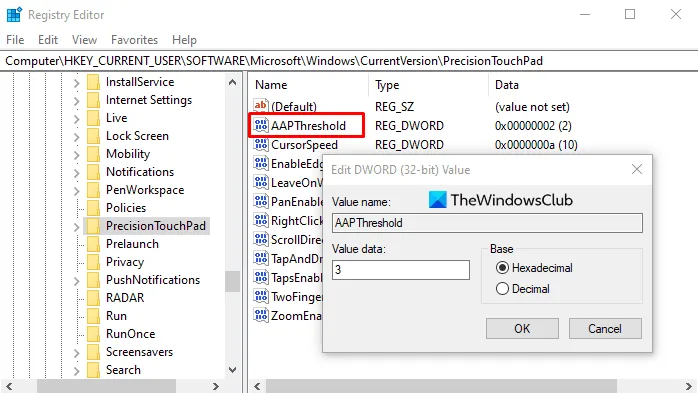
Click on the search toolbar, type for Registry Editor, and then choose an open option. Now in the Registry Editor type and search for the following command.
HKEY_CURRENT_USER\Software\Microsoft\Windows\CurrentVersion\PrecisionTouchPad
In the right-side pane, double-click on the option AAPThreshold value. You will be able to see a pop-up menu. In this pop-up menu, under the Value data column set the value as 3 and then click on the Ok button. Here 0 denotes Most Sensitive, 1 denotes High Sensitivity, 2 denotes Medium Sensitivity and 3 denotes Low sensitivity. You can change the value according to you and adjust the sensitivity. After the changes are saved close the Registry Editor and then Reboot your Windows 11 system.
3. Control Panel:
This is one last method in which you can change the sensitivity of the touchpad. If none of the above methods works out, try this method.
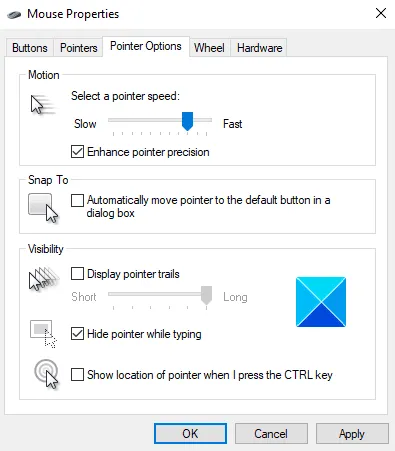
Click on the windows icon or click on the search toolbar and then type Control Panel. Now click on the open option. In the Control panel window search and choose the Mouse option.

Now the properties window will open. At the top toolbar, select Pointer Options. First, under the Motion column, you have an option for the pointer speed. Slide the Pointer speed to slow that is to the left to decrease the sensitivity or slide it to the level of your wish considering how much level of sensitivity you need. Now after adjusting the sensitivity, at the bottom click on the Apply option. You will get a response box, and in that select the OK option.
Conclusion:
So in this article, you learn how to adjust the sensitivity of the touchpad in your windows 11. There are 3 methods mentioned in the above guide. If one is not working out well try doing the other methods. All the methods are quite easy with simple and easy steps. Just follow all the steps mentioned in each method and it will be done. I hope this article will clear up all your doubts and you find it very informative.