New Safari version 11 coming with macOS High Sierra is going to be more secure than ever before. In the previous post I have discussed 6 big improvements in Safari browser on macOS High Sierra. Here I will be explaining to you in details the new cross-site tracking prevention mechanism that is going to make your browsing activity more private by keeping it only between you and your internet service provider. I will also explain to you what the cross-site tracking is and how to turn it off.
What is cross-site tracking in browser?
Have you ever noticed that the stuff you shopped for or looked for something that you might want to buy last Friday or few days ago has been following you to every website you visit. For example, I was looking for a T-Shirt on Amazon last Friday and ever since then whenever I visit any website I keep seeing the ads of the exact same T-Shirt from Amazon all over the internet. Sometime even with an attractive offer saying 20% drop in price. All of these become possible by a file called cookie that Amazon and such other websites leave on your computer and when you visit a third party website like Yahoo, Gmail or YouTube they read those cookie to know your interest and serve you the ads of the same or similar product you were looking at Amazon. This is what called cross-site tracking. It sometimes becomes annoying to see the same ads everywhere you go. So Apple has introduced this Intelligent Tracking Prevention (ITP) mechanism in new Safari version 11 with macOS High Sierra which will identify such advertisers or trackers and removes the cross‑site tracking data they leave behind. So your browsing history remains between you and your internet service provider. Not only your shopping behaviors can be tracked but other information such as which website you visit more frequently, where do you spend much of your time over the internet, your age group and gender can also be tracked so turning the cross site tracking off will keep your data from a third party website which means the information that you provided to Amazon, or stuff that you shopped at Walmart online is not going to travel to other website like Yahoo, Facebook or YouTube.
Note: Turning the Cross-Site Tracking off in Safari is not going to block ads that you see on a webpage, but rather prevent a third party marketing company from reading the data about your recent interest and internet history to show the related interest based ads.
You may also like: What is Content Blocking in Browsers?- Its Pros and Cons.
How to turn off Cross-Site Tracking in Safari for macOS High Sierra?
Follow the below step to enable or disable the cross-site tracking in Safari:
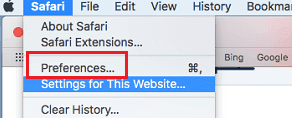
- Open Safari menu and select preferences.

Safari Menu - Go to Privacy tab on the top .

Turn off Cross-Site Tracking in Safari for macOS High Sierra - Check or uncheck the box for “Prevent cross-site tracking” to turn it on or off.
- Close the preferences and you are done.
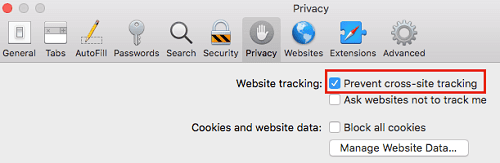
If you look at the above image the cross-site tracking has two options: ” Prevent Cross-Site tracking” and “Ask webpage not to track me”. The second option saying “Ask webpage not to track me” was also available in macOS Sierra which normally requests a website not to track you what you’re doing during your visit. However, It’s upto the website whether or not honor your request and most of them won’t voluntarily honor this setting. Whatever happens, happens in the background and you normally don’t realize as its a conversation between your browser and the website you are visiting.
There’s also an option to Block all cookies. But turning this on will make you deal with so many issues related to logins and other website settings because most of the websites need you to allow saving cookies that keep your login session active and use certain features on the website. Allowing cookies means you are letting the first-party website that you are visiting to save cookies for its own purposes like logins, different user sessions and other settings you customize.
So that was all about the cross-site tracking and its benefit and how you can turn it off to keep your browsing data more private. However, some users don’t have any objection from tracking their internet history because they want to keep seeing related ads and remain updated with any price change as sometimes ads show the price drop or other attractive offer to its potential buyers.